Environments
The Environments tab provides an overview of all environments within your subscription. Use this page to:
- Monitor provisioning status.
- Verify configuration (such as DNS setup).
- Understand environment capabilities and availability.
- Navigate to environment management.
Environments overview
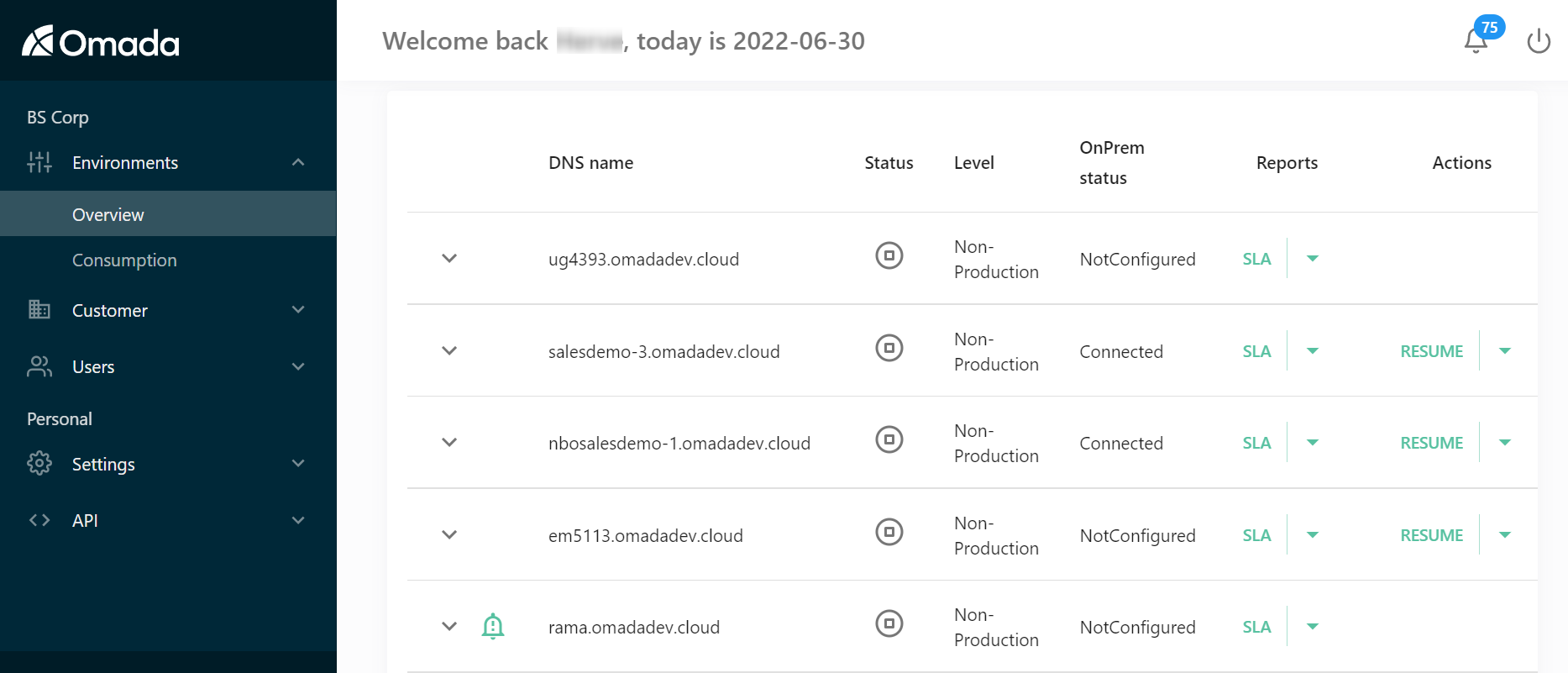
DNS name
The public URL of the environment. Before configuration, a system-generated name is shown. After setup, this reflects your configured domain.
Status
Indicates the current state of the environment (for example, provisioning, pending, or ready). Use this to track when an environment is available for use.
Level
Defines the capabilities, availability, and service guarantees of the environment. Select the environment level based on your use case:
- Production - live system with full SLA, high availability, and geo-redundancy.
- Production (non-georedundant) - lower cost option with reduced resilience.
- Non-production - testing and development with limited SLA.
- Configuration only - design-time environment without connectivity.
Environment level comparison
| Category | Production | Production (non-georedundant) | Non-production | Configuration only |
|---|---|---|---|---|
| Intended use | Live workloads | Live workloads (cost-optimized) | Testing & development | Configuration/design only |
| Availability SLA | Yes | Yes | Limited (best effort) | No |
| Geo-redundancy | Yes | No | No | No |
| Backup & restore | Yes | Yes | Limited | No |
| Performance guarantees | High | Medium | Limited | Not applicable |
| Connectivity | Full | Full | Full | None |
Notes:
- Best effort means availability is not guaranteed.
- Configuration-only environments do not support runtime operations.
Environment level cannot be changed after creation.
Only one operation (such as create, update, or restore) can run at a time per environment.
OnPrem status
Shows the status of the IPsec VPN tunnel between the environment and on-premises infrastructure.
Possible values:
- Not configured - no VPN setup exists.
- Pending provisioning - VPN is being configured.
- Not connected - VPN exists but is currently down.
- Connected - VPN is active and operational.
Reports
Provides access to environment-level reports:
-
SLA report - displays environment availability over selected time ranges:
- Last 24 hours
- 7 days
- 30 days
- 90 days
- 180 days
- 360 days
-
Consumption report - shows identity usage over time, helping you track how many identities are being consumed within the environment.
Actions
Click to find all actions that can be executed per environment. For a detailed explanation of each action, see Managing environment.
Environment details
Click on the expand arrow next to the DNS name to get more details about each environment:
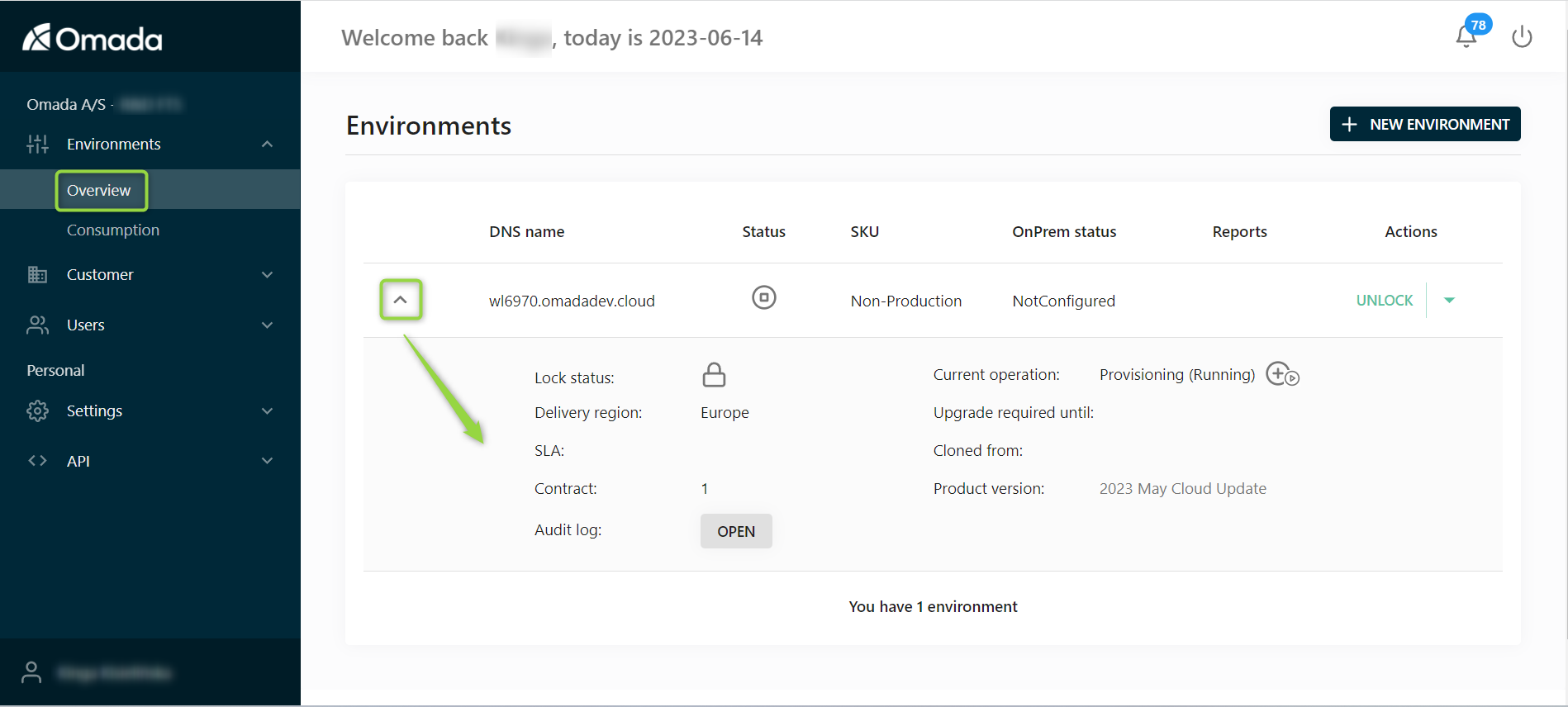
| Field | Description |
|---|---|
| Lock status | Indicates whether the environment is protected against deletion. |
| Delivery region | Specifies the geographic location where the environment is hosted. This affects: • Data residency – data remains within the selected region. • Latency – choose a region close to your users for optimal performance. ⚠️ Cannot be changed after environment creation. |
| SLA | Shows the environment uptime over the last 30 days. |
| Contract | The contract associated with this environment. |
| Audit log | Opens a log of all actions and changes performed on the environment, including timestamps and users. |
| Last operation/Current operation | Shows the latest completed or ongoing operation for the environment. |
| Upgrade required until | Indicates if the environment is running an older version than the latest available cloud release. |
| Cloned from | If applicable, shows the source environment from which this environment was cloned. |
| Product version | Displays the current cloud version used by the environment. Click the version to view release notes. |
| Application gateway | Allows you to download the application gateway configuration file used to connect a self-hosted environment. ⚠️ This option is only available for self-hosted environments. |
For more detailed information about environment fields and actions, see Managing environment, where all the fields are listed and described in more details.
Consumption
In the Consumption tab, you can monitor identity usage across your environments per contract.
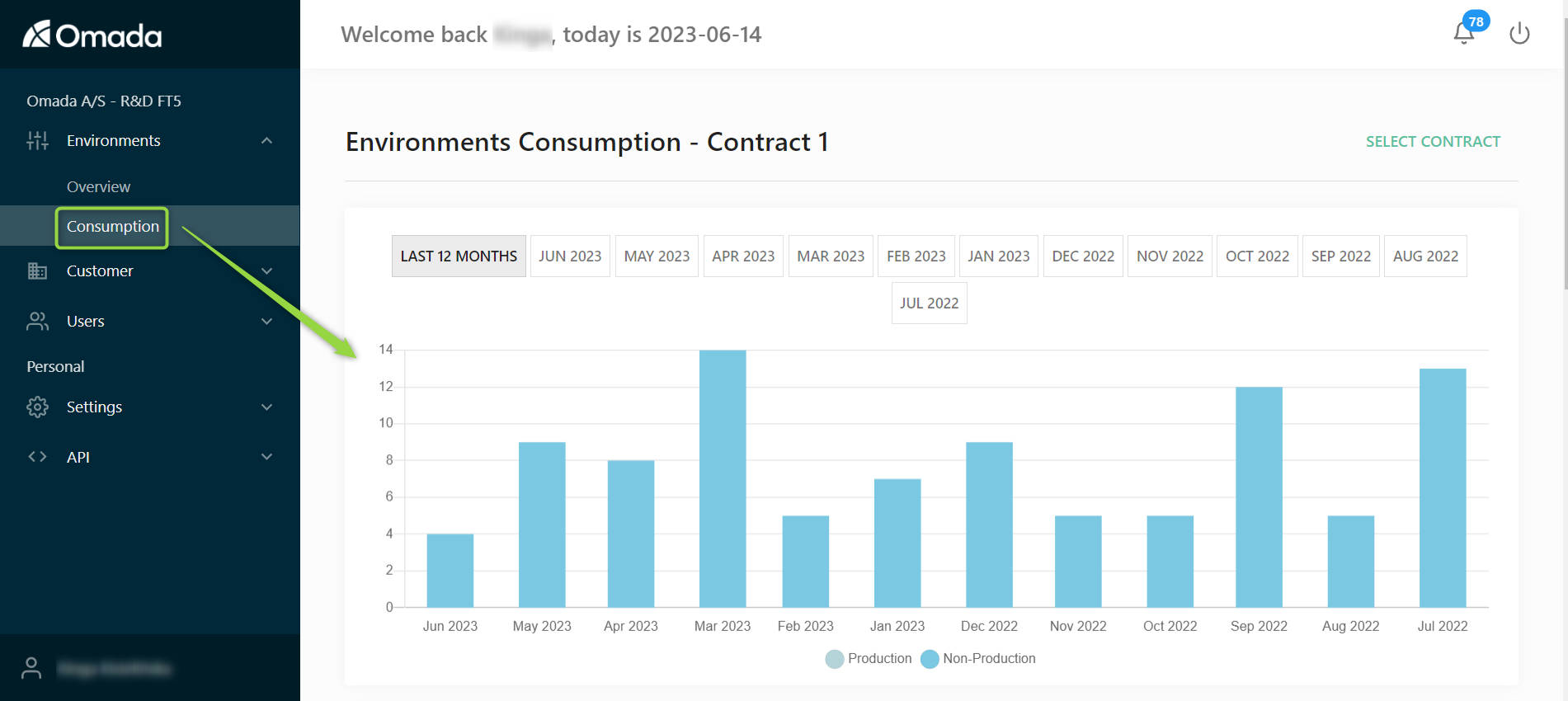
Click Select contract (top right) to switch between contracts. Have in mind the following:
- The chart displays up to 12 months of consumption history.
- Data is split into:
- Production environments
- Non-production environments
The numbers are also reflected in a table below the chart.
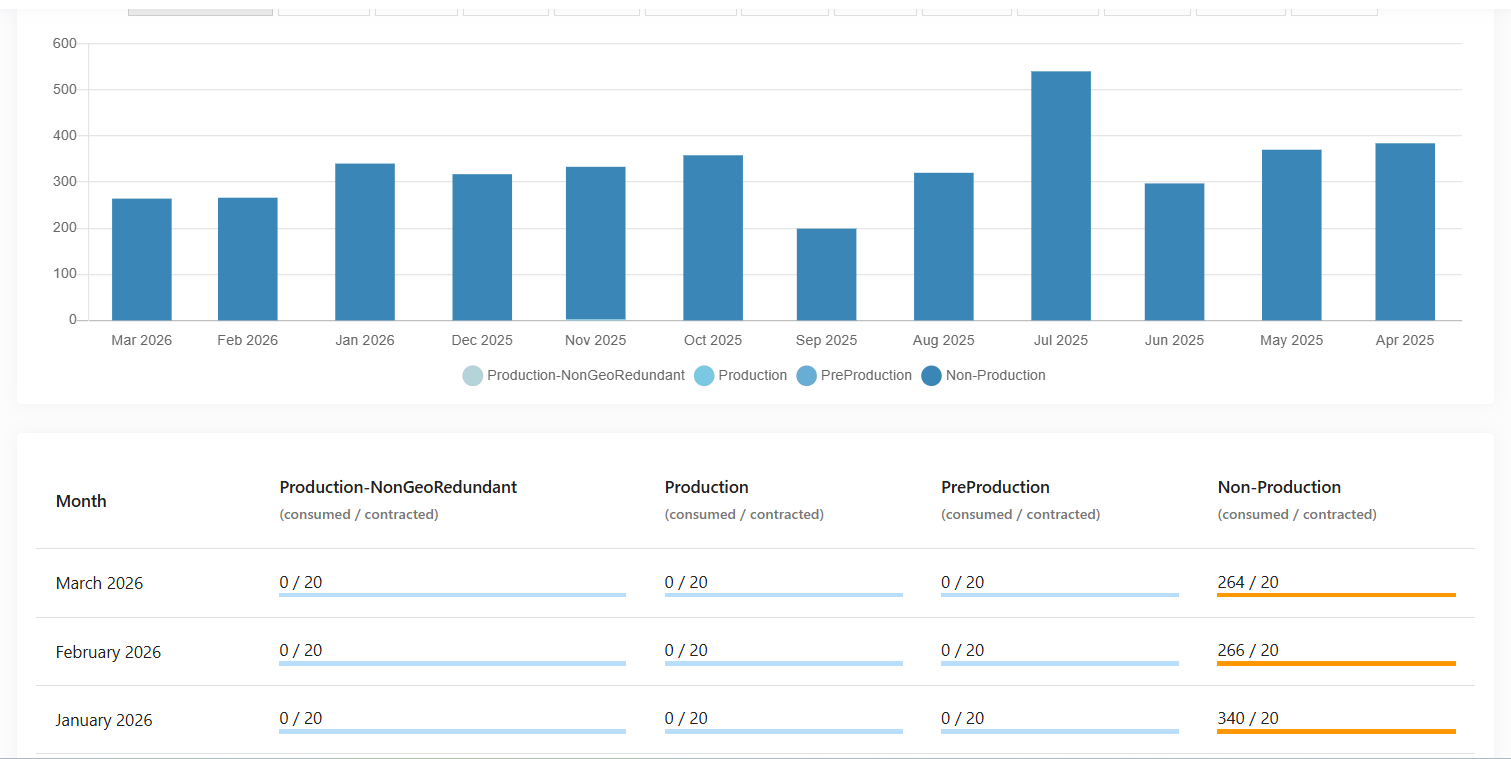
By default, the last 12 months are shown. You can narrow the time range by selecting specific months above the chart.