Creating environment
This page explains how to create a new environment in the Cloud Management Portal and configure its initial settings.
Use this page to:
- Create a new environment.
- Choose the correct region, contract, and environment SKU.
- Configure essential settings such as domain, authentication, and email delivery.
Before you start
Before creating an environment, make sure you know:
- Which delivery region to use.
- Which environment SKU fits your use case.
- Which contract the environment should belong to.
- Whether to use the default Omada domain or a custom domain.
- Whether to use the default SMTP server or your own.
Only one operation (creation, configuration, deletion) can be performed for an environment at a time. The configuration page is not accessible while a new configuration is being applied.
Create a new environment
Follow these steps to create a new environment:
-
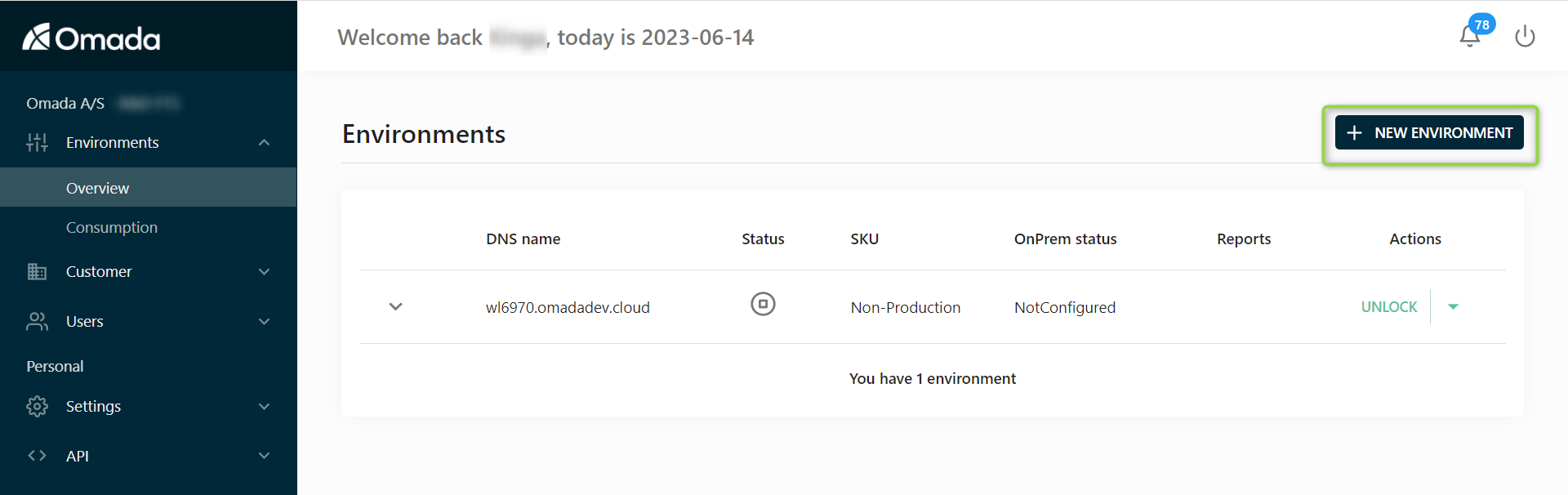
Go to the Environments tab.
-
Click the NEW ENVIRONMENT button in the upper-right corner.
-
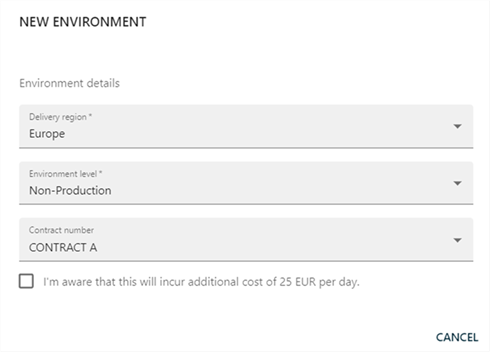
The Environment details dialog is displayed.
 Dialog window behavior
The options displayed in this dialog depend on the customer’s environment and enabled features. Depending on the configuration, customers may see different fields, such as Application Gateway, Database SKU, or Product Version.
Not all fields are available in every deployment scenario.
-
Select the Contract under which the environment will be created. This determines:
-
Subscription scope
-
Available resources
-
Billing context
warningCreating an environment may generate additional costs if not covered by your subscription.
-
-
Select the Delivery region - Europe or US. The delivery region determines where your environment is hosted. This affects:
-
Location of your data - data remains in the selected region.
-
Latency for your end users - pick the delivery region which is closest to most of your users.
importantThe delivery region cannot be changed after the creation of an environment.
-
-
Select the Environment SKU that defines the capabilities and behavior of the environment. Depending on the selected SKU, the following aspects may vary:
-
High availability
-
Georedundancy of data
-
Disaster recovery
-
Backup retention
-
Scalability/elasticity
-
SLA
-
Deletion prevention
Refer to the Environments documentation for more details.
Select the Environment SKU based on your use case.
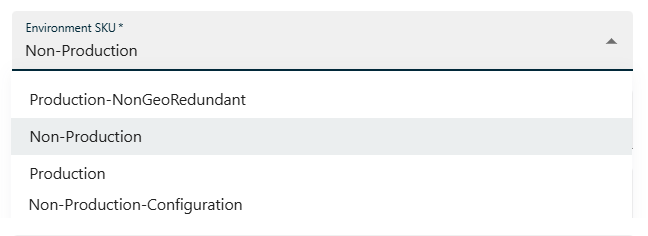
Available options:
SKU Description How to choose Production Full SLA, high availability, geo-redundancy Use for live environments with real users and strict availability requirements. Production-NonGeoRedundant Production-grade without geo-redundancy Use when you need production features but can accept reduced redundancy (cost optimization). Non-Production Limited SLA, reduced guarantees Use for development and testing environments. Non-Production-Configuration Configuration-only, no runtime usage Use when you only need to configure and prepare without running workloads. tipMost users should choose:
- Production for live environments.
- Non-Production for testing.
importantThe environment level cannot be changed after the creation of an environment.
-
-
The Application Gateway defines how the environment is exposed and connected.
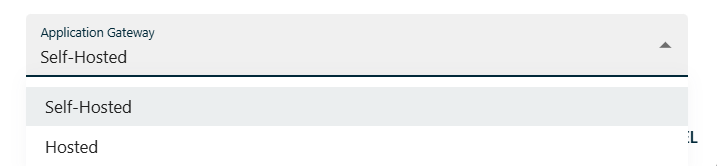
Available options:
- Self-hosted - use when integrating with your own infrastructure.
- Hosted - use when relying on managed connectivity.
For detailed information about configuration and use cases, refer to the Cloud Application Gateway documentation.
Environment provisioning can take up to 5 minutes.
Configuring environment
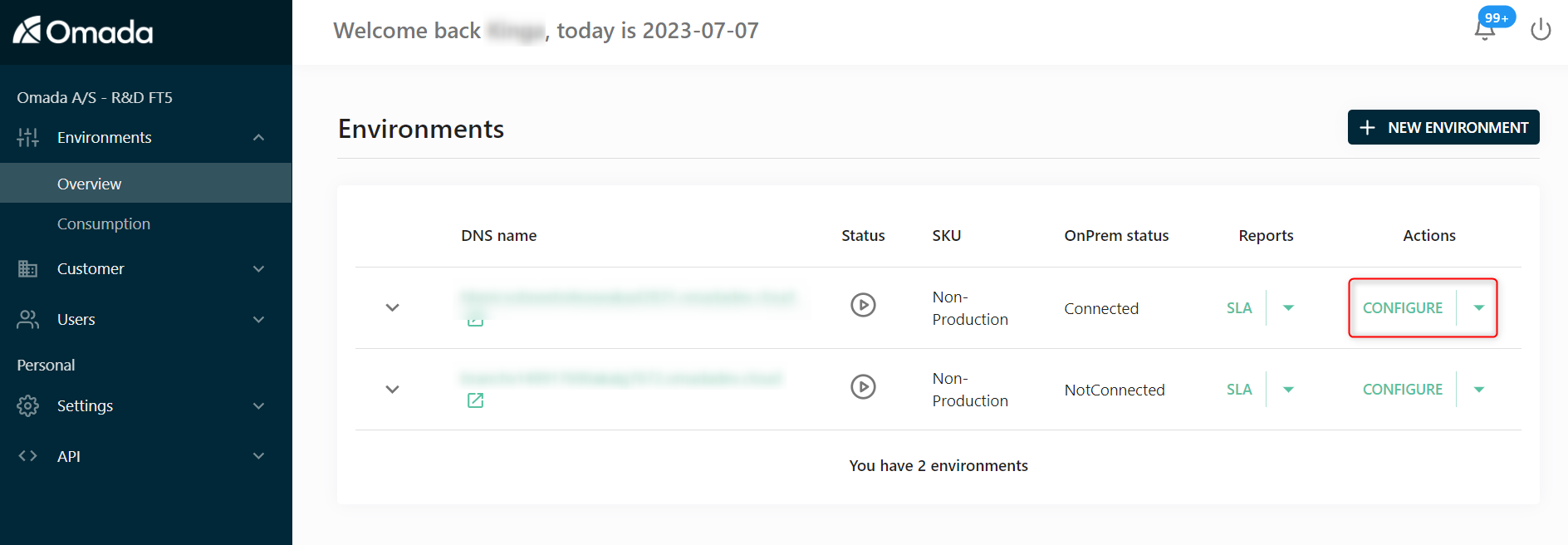
Once the environment is created, click the Configure button.
Then, configure the environment using the available tabs.
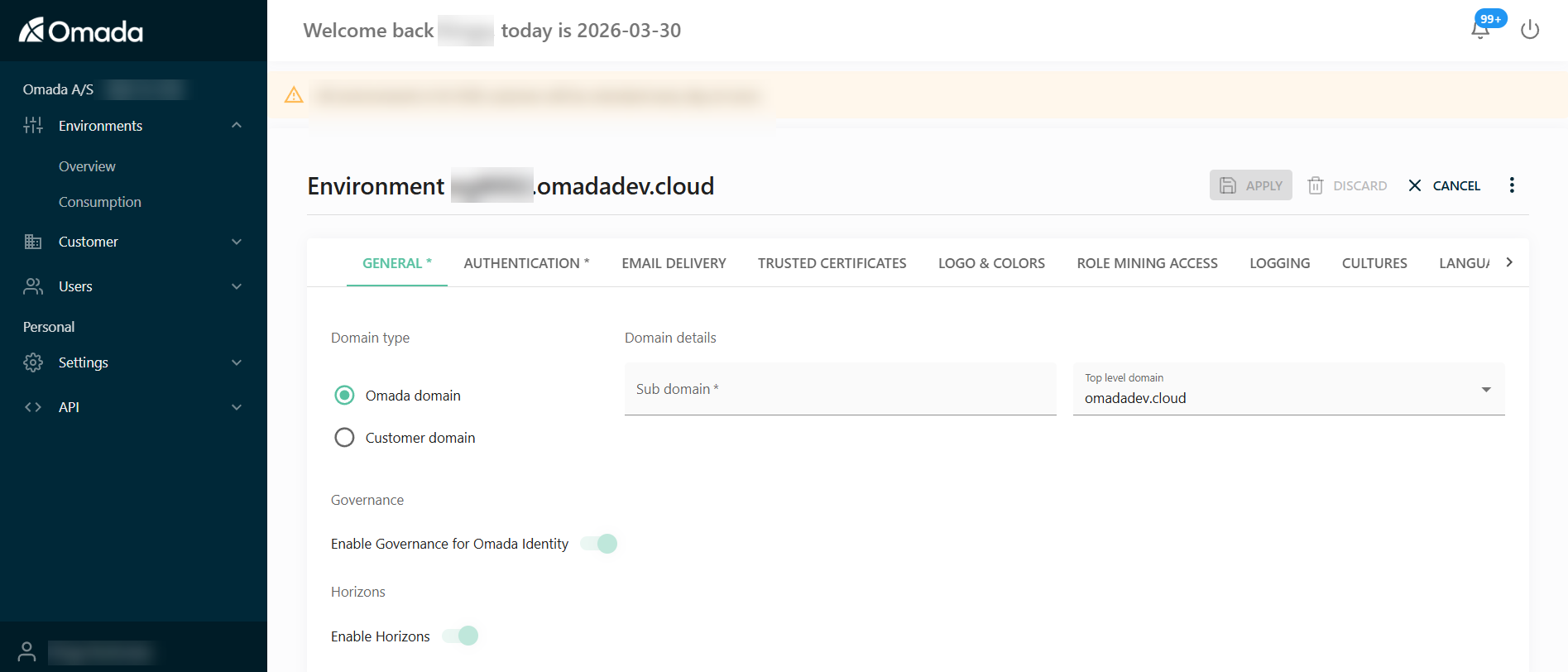
Configuration is divided into the following areas:
- Core configuration (required)
- Infrastructure and integration
- Branding and localization
- Advanced configuration
Most environments only require configuration of:
- General
- Authentication
- Email delivery
Other settings are optional or scenario-specific.
Core configuration
These settings are required for a functional environment.
General
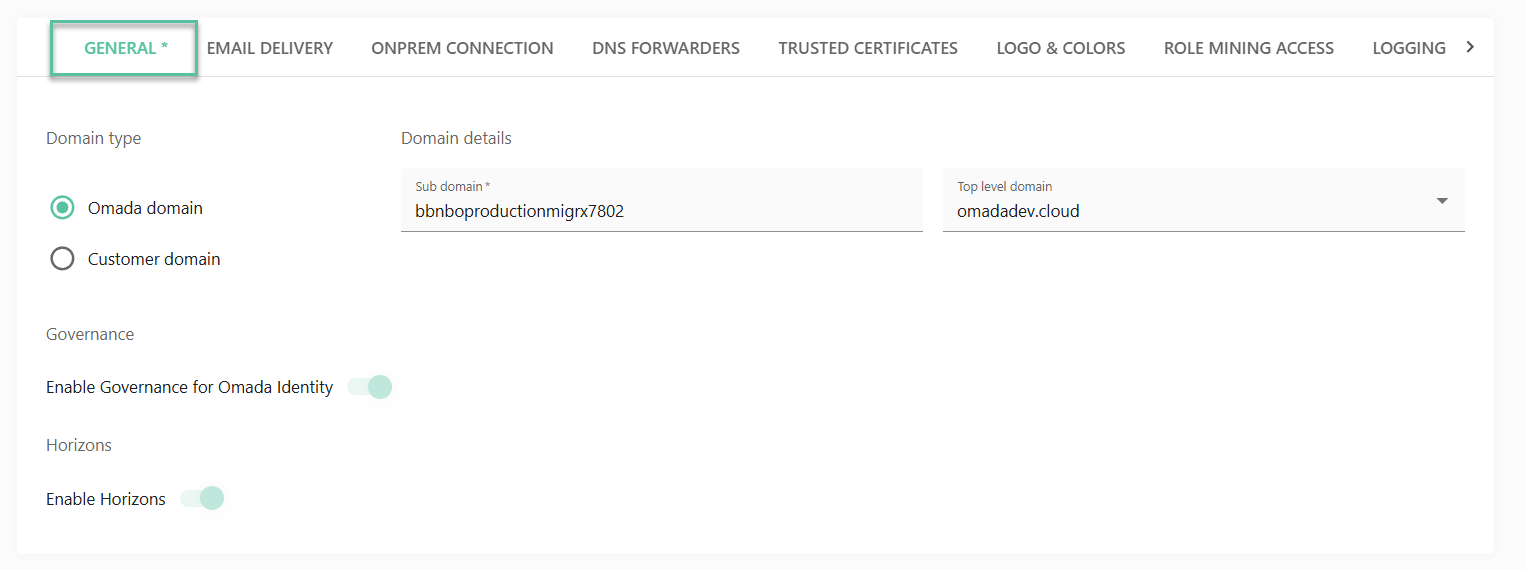
Configure the domain and core environment settings.
Domain type
Decide if your Cloud product will be available with the default domain name from the Omada domain, or setup up your own by clicking the Customer domain radio button.
If you want to use your own top-level domain for the URL to, select Customer domain as the Domain type.
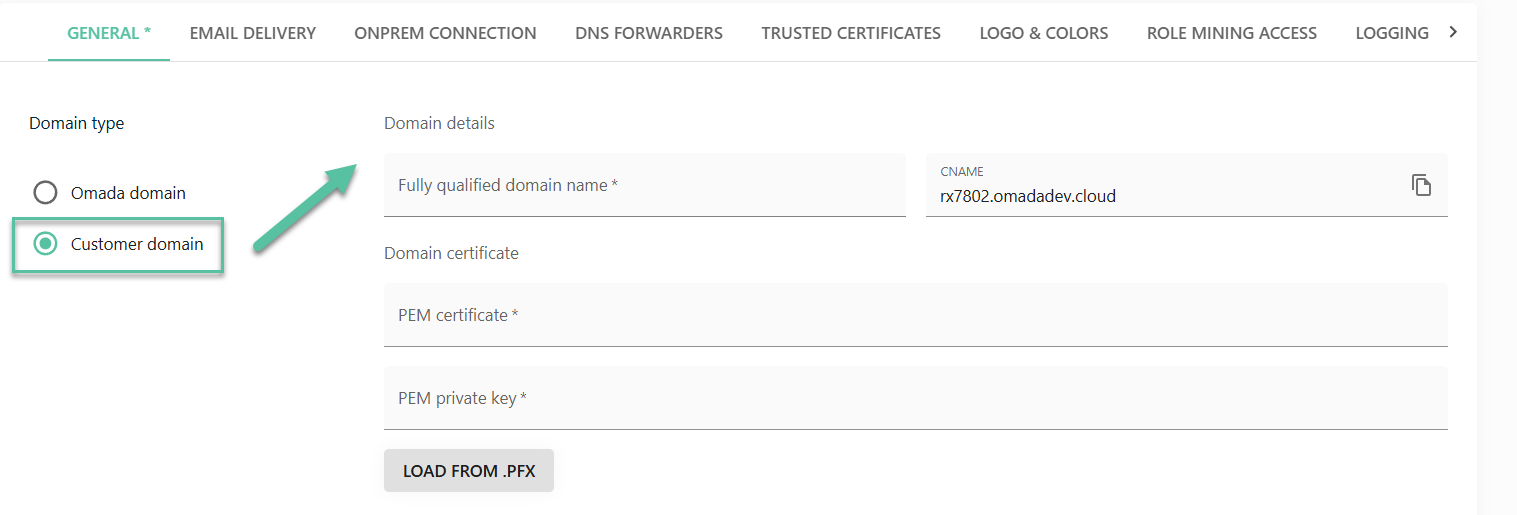
- Create a CNAME record in your DNS pointing to the DNS name shown in the CNAME field.
- Provide a Public and Private Key (in a PFX file) that is issued for the "fully qualified domain name" (fqdn) of your choice.
- The wizard validates that the certificate is issued to the selected fqdn as well as the existence of a CNAME record in your DNS that is pointing to the correct environment CNAME.
Governance
Decide whether you want to activate the Governance for Omada Identity feature.
The Enable Governance for Omada Identity setting is disabled by default for existing environments; however, it is enabled by default for new environments of new customers.
Once the Enable Governance for Omada Identity setting is enabled, it cannot be reversed at the environmental level.
Horizons
Enable Horizons to activate additional platform capabilities and features. Horizons extends the functionality of the environment and enables access to advanced features.
For more information about Horizons and its capabilities, refer to the Horizons documentation.
Authentication
In the Authentication tab, configure how users authenticate and sign in to the Cloud environment. This includes defining the primary administrator, selecting the authentication protocol, and configuring the identity provider.
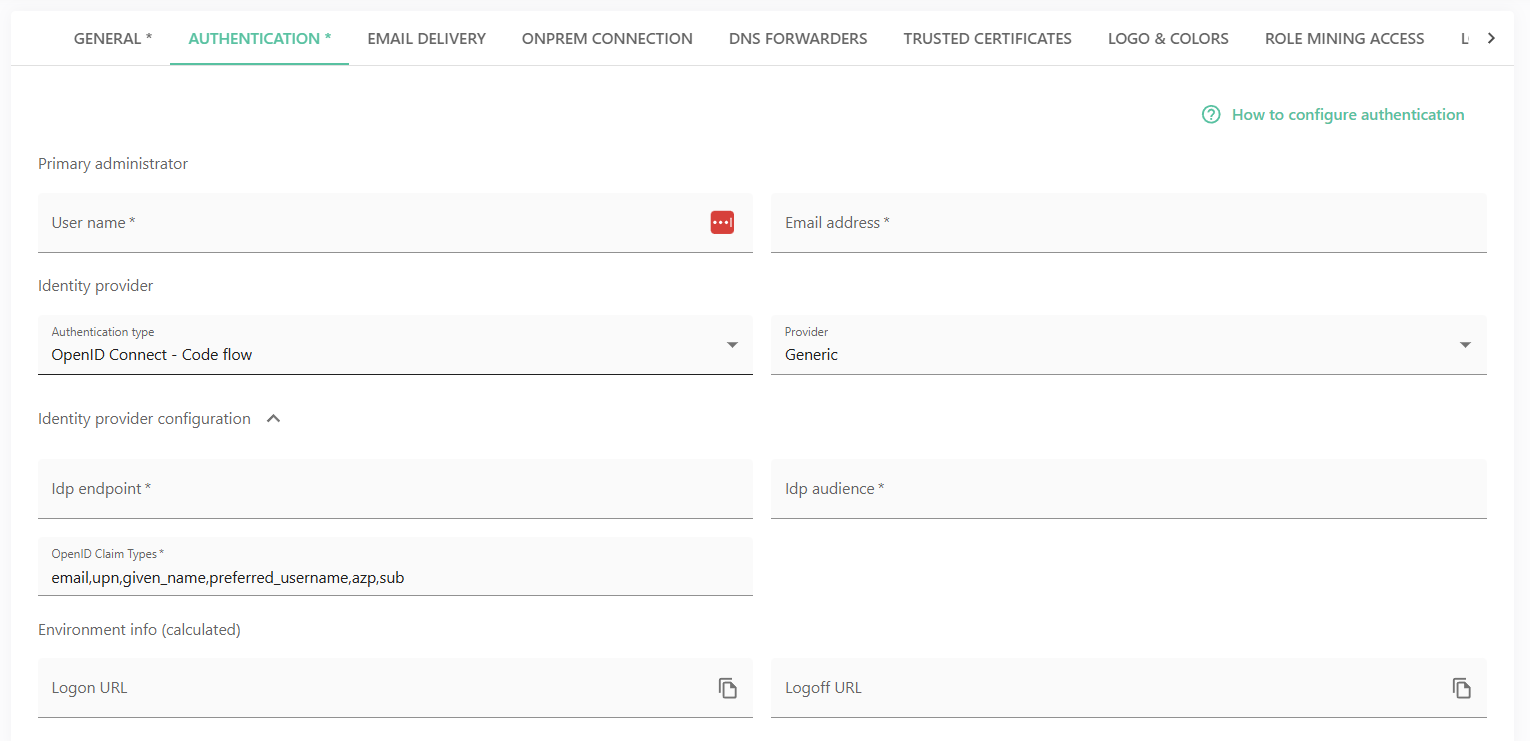
To configure the authentication, follow these steps:
-
Specify the Primary administrator account for the environment:
- User name – the username of the primary administrator.
- Email address – the email address associated with the administrator account.
-
Define the Identity provider, that is, the authentication method and provider used for user sign-in:
-
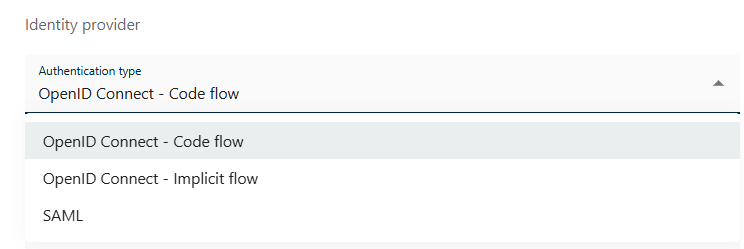
Authentication type – select the authentication protocol:
-
OpenID Connect – Code flow (recommended for server-side applications)
-
OpenID Connect – Implicit flow
-
SAML
-
-
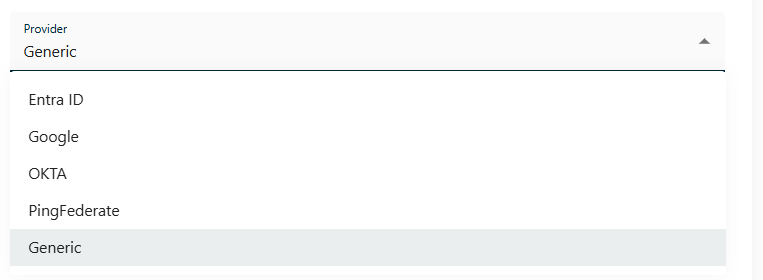
Provider – Select a predefined provider or choose Generic for custom configuration. Available options include:
-
Entra ID
-
Google
-
Okta
-
PingFederate
-
Generic
For more information on authentication, refer to the Authentication and Single Sign-on Configuration section.
-
-
-
In the Identity provider configuration section, configure the connection details for the selected identity provider:
- IdP endpoint - the authorization or metadata endpoint of the identity provider.
- IdP audience - the intended audience (client/application ID) registered with the identity provider.
- OpenID Claim Types - the claims retrieved from the identity provider (for example, email, upn, given_name, preferred_username, azp, sub).
-
In the Environment info (calculated) section, the following values are automatically generated based on the configuration:
- Logon URL - the URL used to initiate login.
- Logoff URL - the URL used to log out of the environment.
Email delivery
Configure how emails are sent from the environment.
By default, emails sent to the users of Cloud are using the default Omada SMTP server. This is the option recommended by Omada.
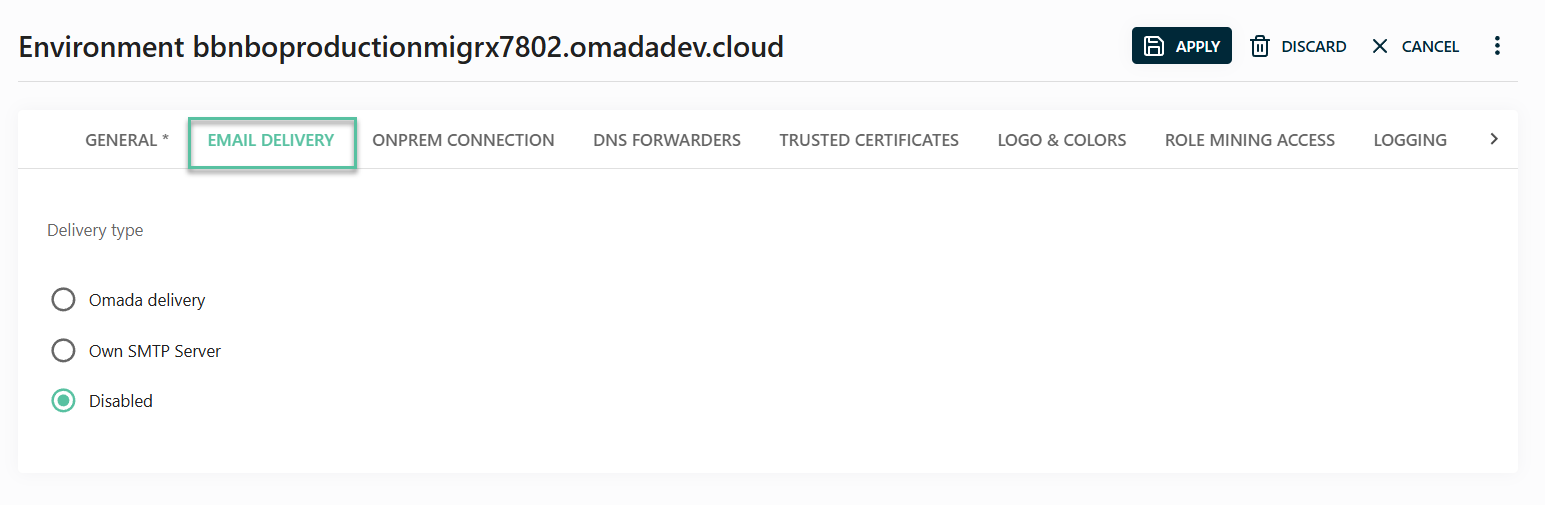
To send emails via your own company SMTP, follow these steps:
-
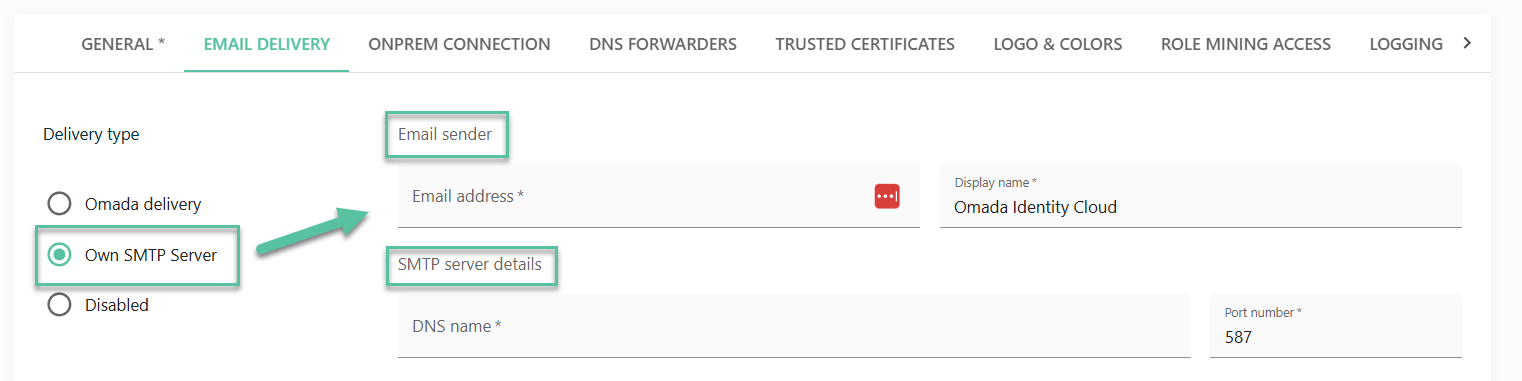
Select the radio button Own SMTP server.
-
Fill in the necessary details:
-
Email sender information:
- Email address (sender)
- Display name
-
SMTP server details:
- DNS name
- Port number
-
-
Choose the authentication type:
-
Basic
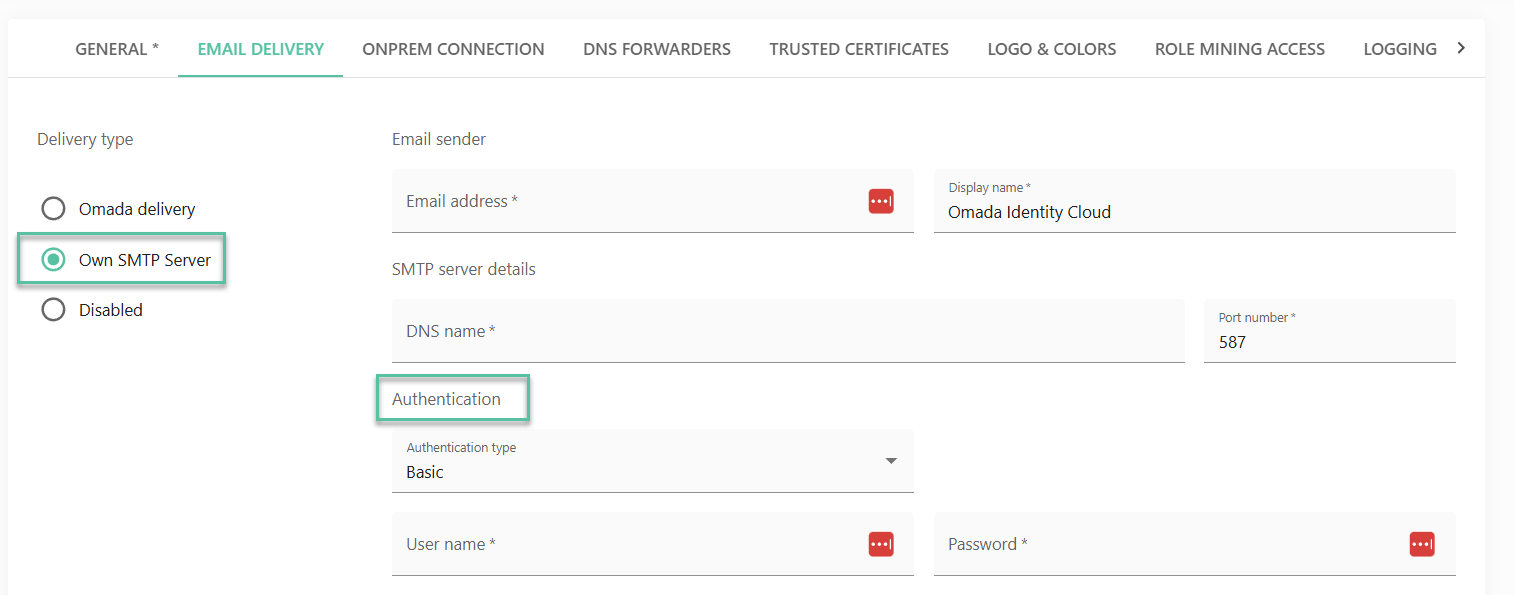
- Provide the username and password.
-
Entra ID Password Grant with the following fields:
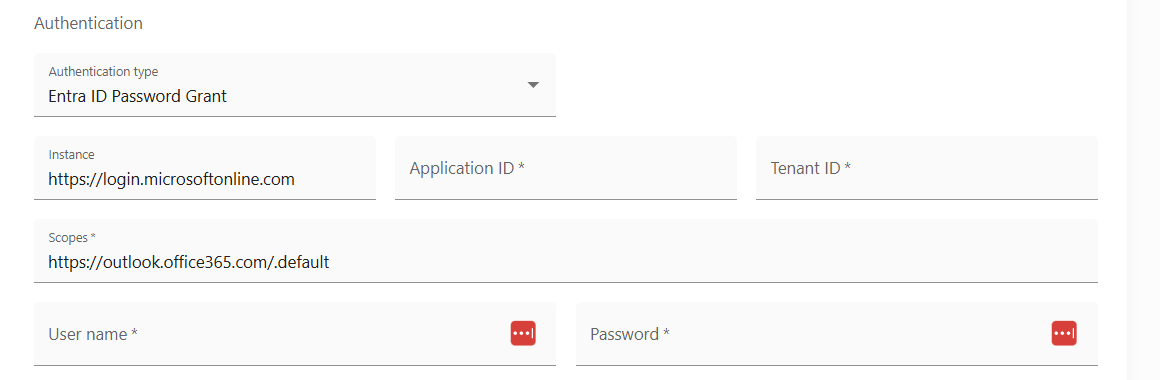
- Instance - read-only, with the default value
https://login.onmicrosoftonline.com. - Application ID - the Application (client) ID that the Azure portal - App registrations page assigned to your app.
- Tenant ID - the directory tenant that you want to log the user into.
- Scopes - default value is
https://outlook.office365.com/.default. - Username - the user name associated with the credentials.
- Password - password for the user name associated with the credentials.
- Instance - read-only, with the default value
-
Entra ID Client Credentials with the following fields:
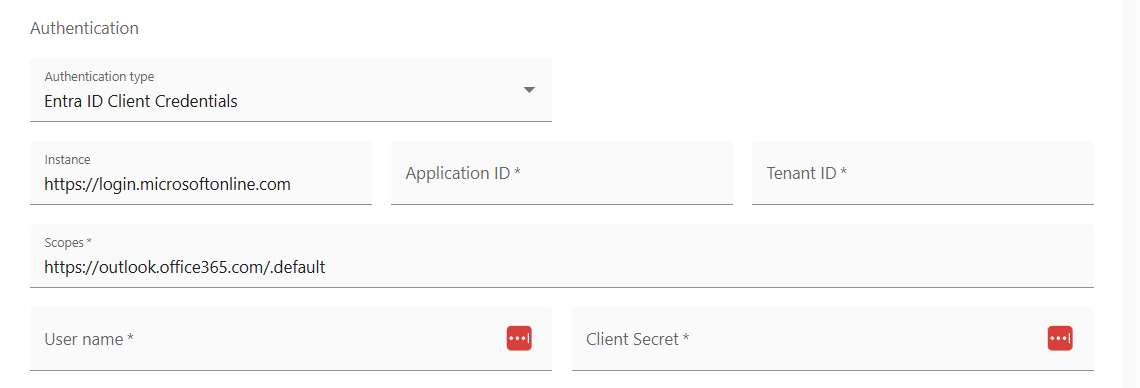
- Instance - read-only, with the default value
https://login.onmicrosoftonline.com. - Application ID - the Application (client) ID that the Azure portal - App registrations page assigned to your app.
- Tenant ID - the directory tenant that you want to log the user into.
- Scopes - default value is
https://outlook.office365.com/.default. - Username - the user name associated with the credentials.
- Client secret - the client secret associated with the registered application in Microsoft Entra ID.
- Instance - read-only, with the default value
-
Google Service Account with the following fields:
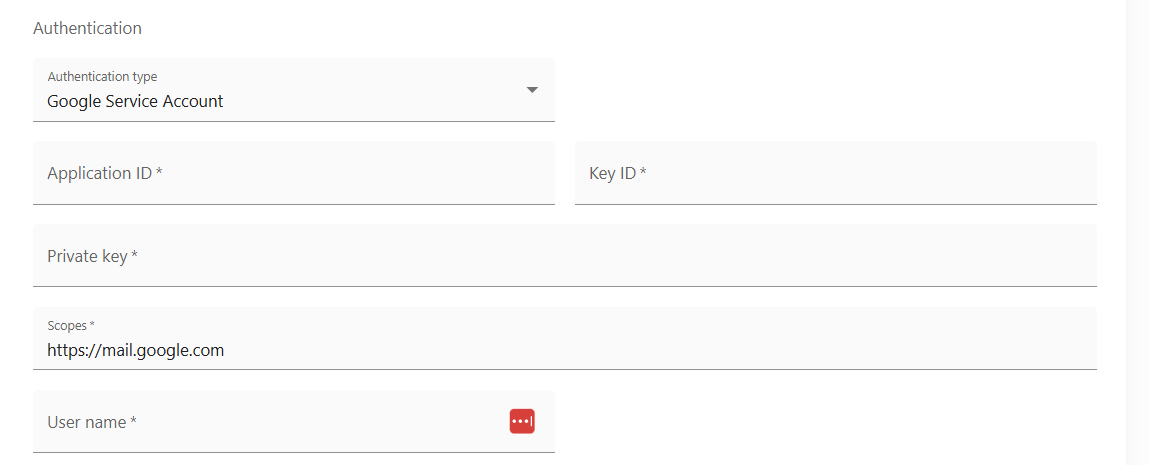
- Application ID - ID of the service account, available in the JSON file or in the Google console.
- Key ID - the private key ID from the JSON file created and downloaded from the Google console.
- Private key - the service account private_key created and downloaded in the JSON format from the Google console, encrypted through StringEncrypter.
- Scopes - by default, the required scope is
https://mail.google.com. - User name - the service desk email address that the service will use to send the mails
-
Make sure that the SMTP server that you’re configuring supports receiving email via TLS protocol.
Some situations (Sandbox environments, merger/acquisitions, User Acceptance Testing, and such) require the email delivery to be temporarily paused. You can therefore select Disabled and the environment will not send out any emails. Emails which are in the queue will remain there for 10 days (and will also be sent once you re-enable the delivery of email again in that timeframe). If you want to remove emails from the email queue, raise a service request with the Omada Cloud Operations team.
Infrastructure and integration
These settings are required for hybrid or advanced setups.
OnPrem connection
The OnPrem tab allows you to setup conditional forwards for our integration components enabling you to use your OnPrem DNS names just as if you were in your local network. If you are using a self‑hosted environment, the On‑Prem connection option is hidden.
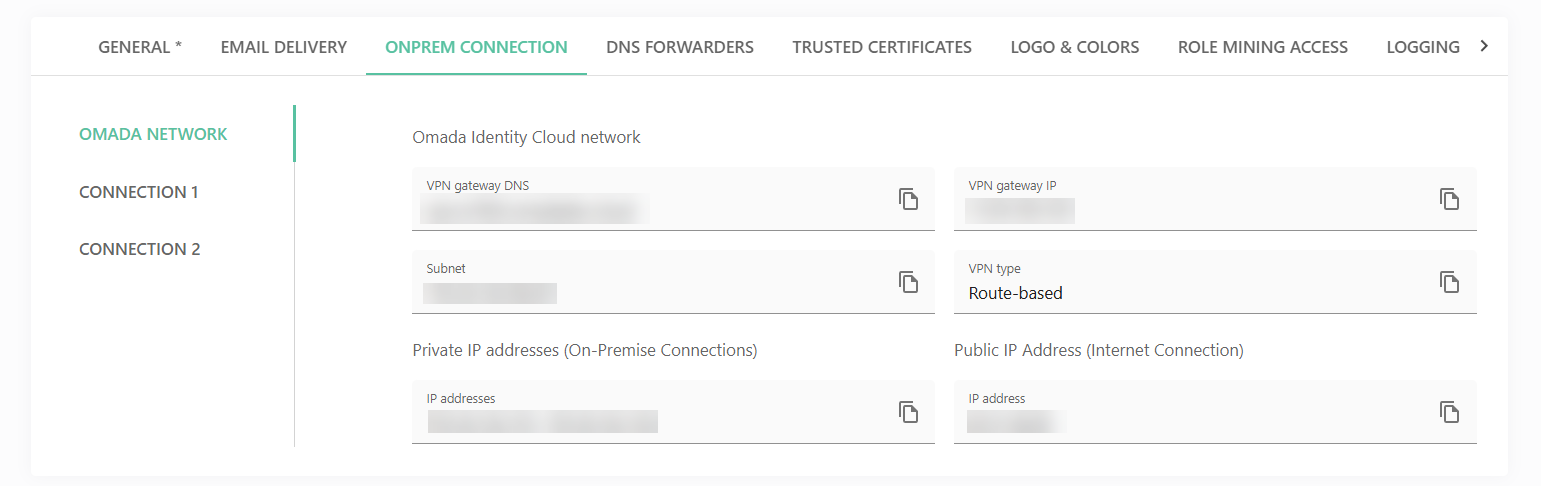
We recommend putting at least two DNS server IP addresses per domain for better fault tolerance.
When you select the connection from the left-side menu in the OnPrem connection tab, you can also use the buttons to:
- Configure conditional forwards.
- View security associations.
- Capture logs.
- Reset VPN connection.
Your firewall may detect an extra network in addition to the configured subnet. This is Microsoft's mandatory GatewaySubnet (typically in the172.16.x.x range). This infrastructure is used by the Azure VPN Gateway itself, not an Omada application or backend network. It carries no customer traffic and does not need to be permitted application access.
If your firewall rejects or fails to negotiate because of this extra selector
Configure it to accept the GatewaySubnet range alongside the standard subnet, without granting it any application-level access. It functions purely as tunnel infrastructure.
DNS forwarders
The DNS forwarders tab allows you to set up conditional forwards for our integration components enabling you to use your OnPrem DNS names just as if you were in your local network.
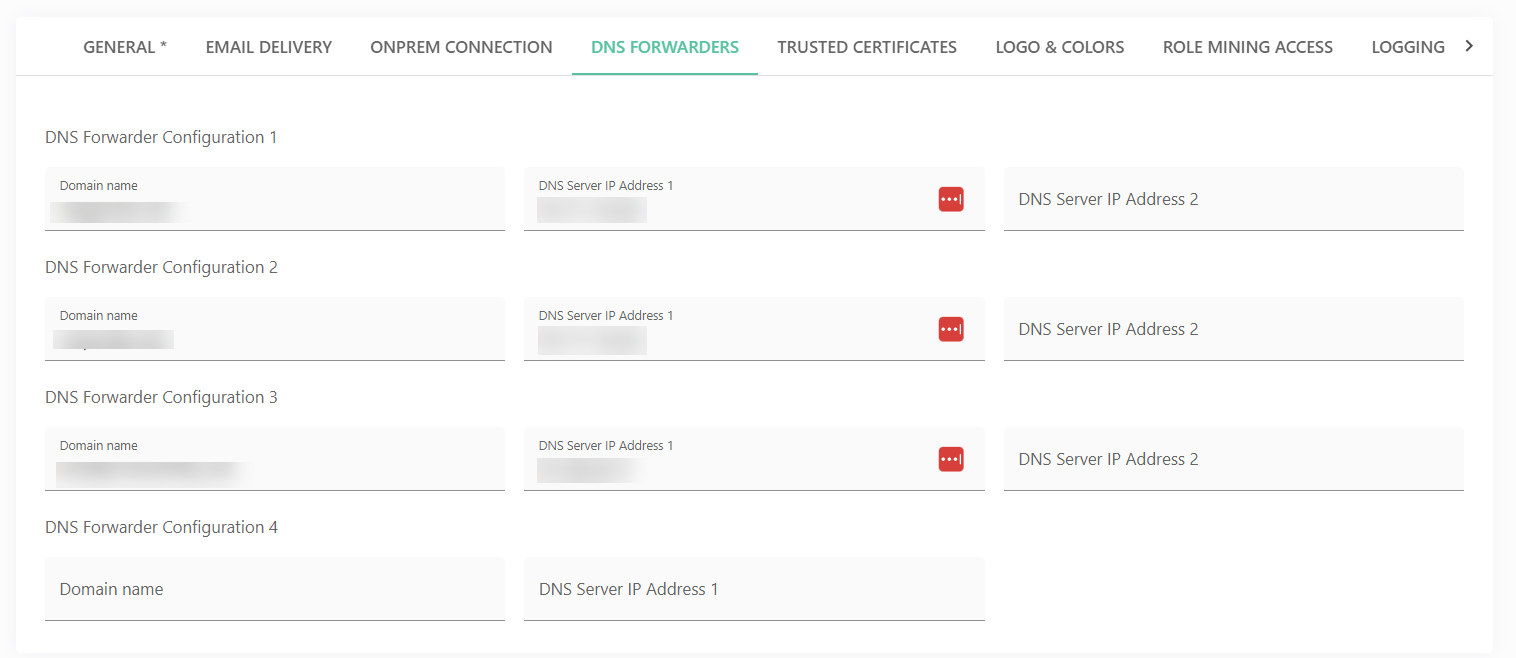
We recommend putting at least two DNS server IP addresses per domain for better fault tolerance.
Trusted certificates
The Trusted certificates tab allows you to configure certificates trusted by our integration components. This enables secure SSL/TLS communication with your on-premises or cloud systems that use certificates issued by private certificate authorities.
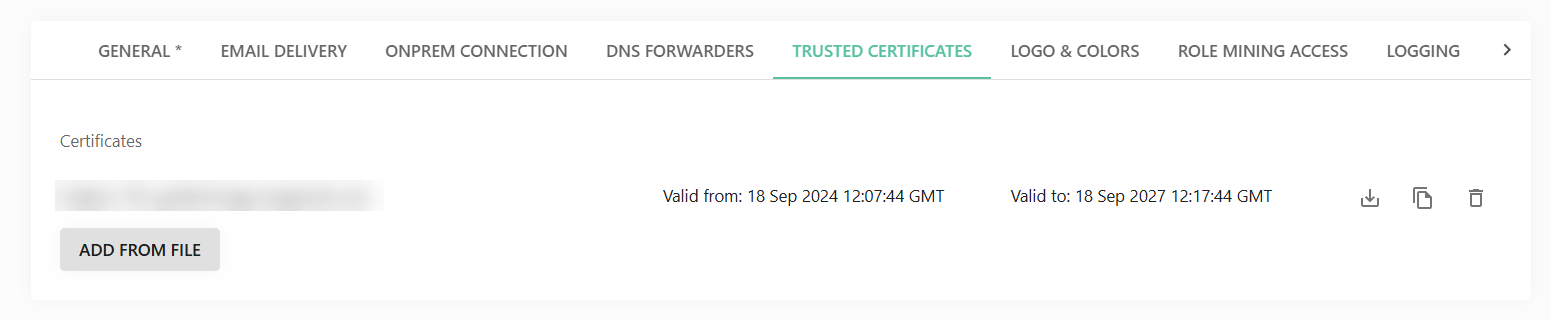
A common use case is importing Active Directory information via LDAPS (Lightweight Directory Access Protocol over SSL). The certificates securing communication between the integration components and the domain controller are typically issued by a private, Active Directory–integrated certificate authority.
Branding and localization
Logo & colors
The Logo & colors tab allows you to configure your environment’s branding, including the logo and primary and secondary application colors.
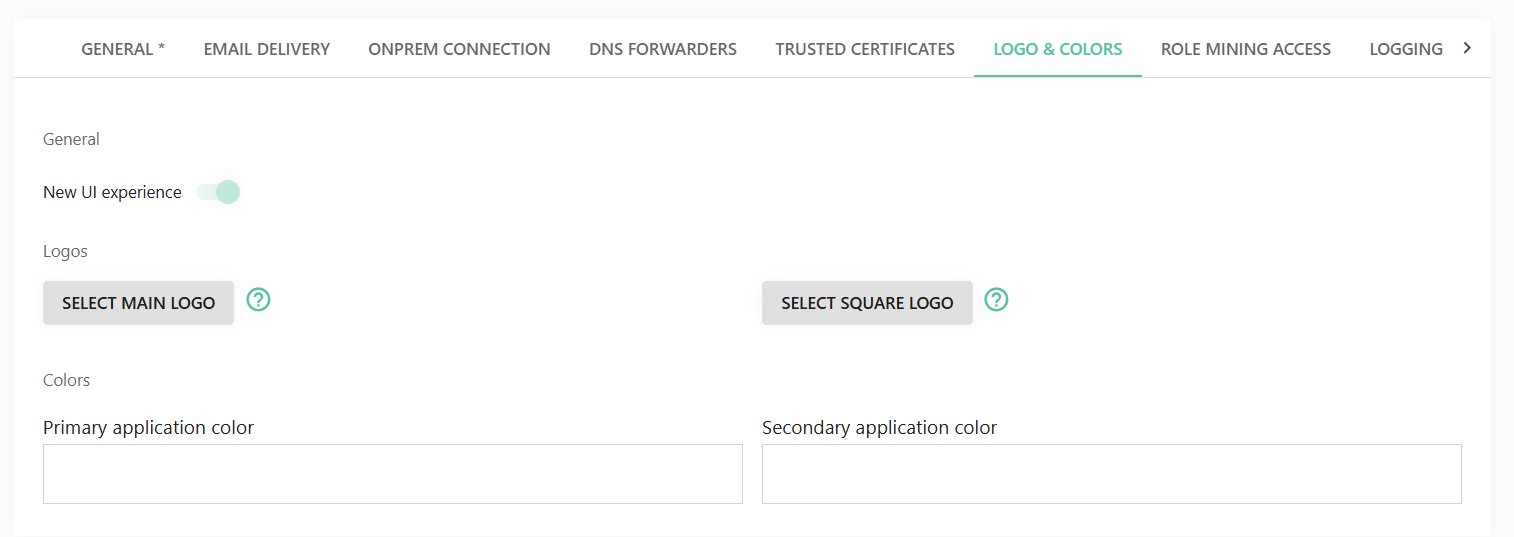
First, upload your desired logo. The color pickers will then automatically suggest colors based on the uploaded image. If these suggestions do not meet your requirements, you can manually enter HEX color codes from your organization’s corporate design guidelines.
You can also enable the new user interface from this tab. Note that once enabled, it is not possible to revert to the legacy user interface.
Cultures
The Cultures tab provides a list of all available cloud translations along with their corresponding XML files. If needed, you can download a file, customize it, and upload it in the Custom file column to override the default translations.
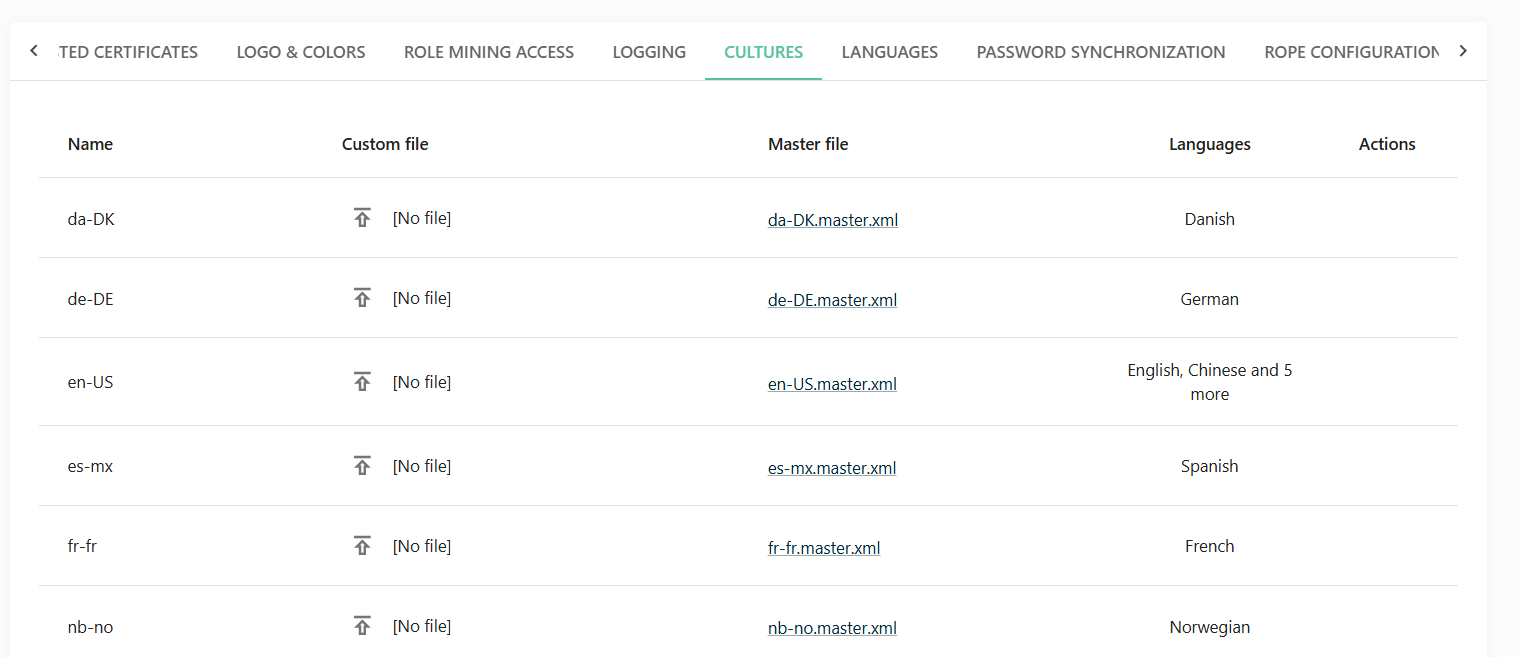
For reference, the following table lists all the cultures available by default as well as their corresponding master translation files:
| Language | Display name | Code | Master file |
|---|---|---|---|
| English | English | en-US | en-us.master.xml |
| Danish | Dansk | da-DK | da-dk.master.xml |
| German | Deutsch | de-DE | de-de.master.xml |
| Spanish | Español | es-mx | es-mx.master.xml |
| Swedish | Svenska | sv-SE | sv-se.master.xml |
| Dutch | Nederlands | nl-nl | nl-nl.master.xml |
| French | Français | fr-fr | fr-fr.master.xml |
| Norwegian | Norsk | nb-no | nb-no.master.xml |
| Polish | Polski | pl-pl | pl-pl.master.xml |
| Portuguese | Português | pt-PT | pt-pt.master.xml |
The language codes inside the names of the master files are not case-sensitive. For example, de-de.master.xml and de-DE.master.xml are treated as the same file.
For details on setting up translations, see the Translations documentation.
Languages
The Languages tab allows you to register and enable the languages defined in the Cultures tab. These settings determine which language options are available in user profile settings.
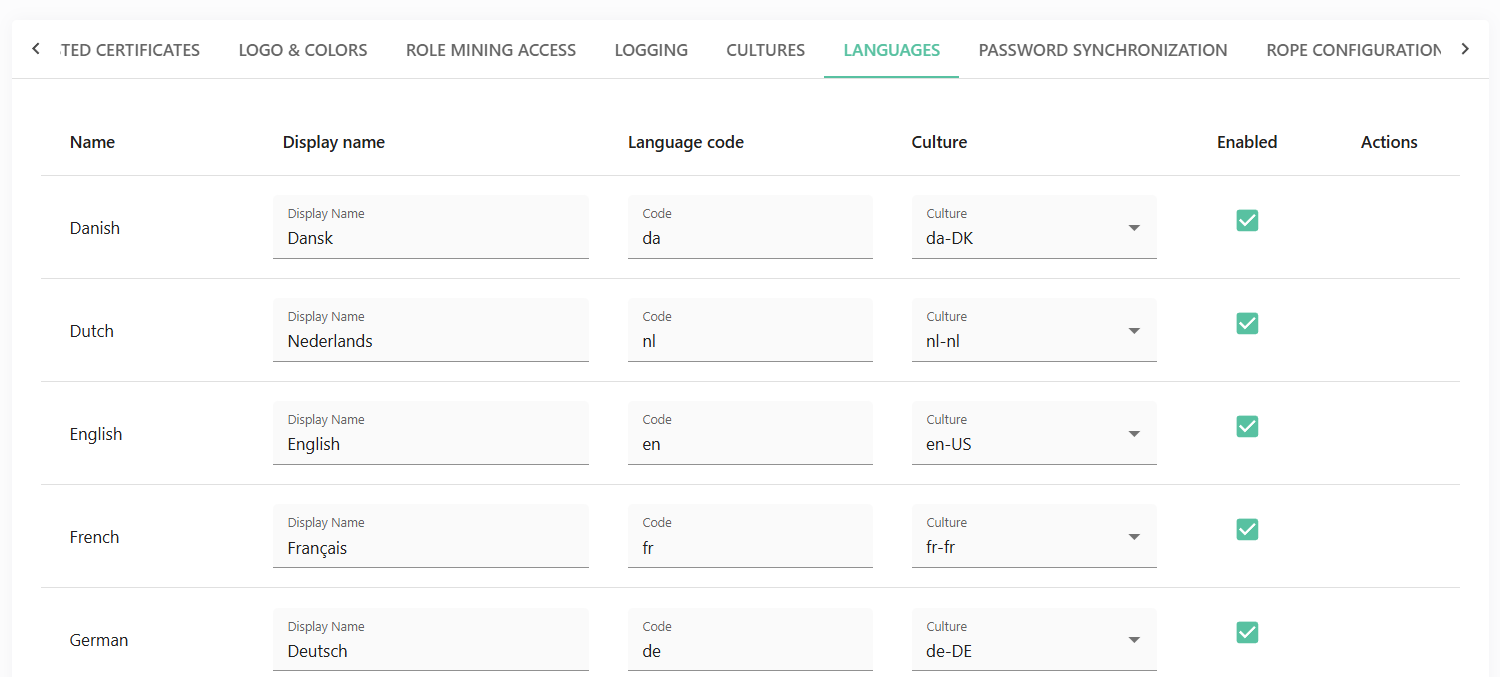
The following table lists the languages registered by default through the Languages tab.
| Display name | Language code | Culture code | Default language ID |
|---|---|---|---|
| English | en | en-US | 1000 |
| Danish | da | da-DK | 1001 |
| German | de | de-DE | 1002 |
| Spanish | es | es-mx | 1003 |
| Swedish | sv | sv-SE | 1004 |
| Dutch | nl | nl-nl | 1005 |
| French | fr | fr-fr | 1007 |
| Norwegian | no | nb-no | 1009 |
| Polish | pl | pl-pl | 1013 |
| Portuguese | pt | pt-PT | 1015 |
If you want to register a different language (for example, Finnish, Italian, Japanese), additional languages exist at the database level with a language code but no dedicated culture code.
Language and culture codes are different than time zone codes. For details on time zones and a full list of time zone codes, see Time zones.
Advanced configuration
Role mining access
The Role mining access tab allows you to connect to and read data from SQL databases, specifically the Omada Data Warehouse and RoPE databases. This enables you to extract and consolidate roles within your environment.
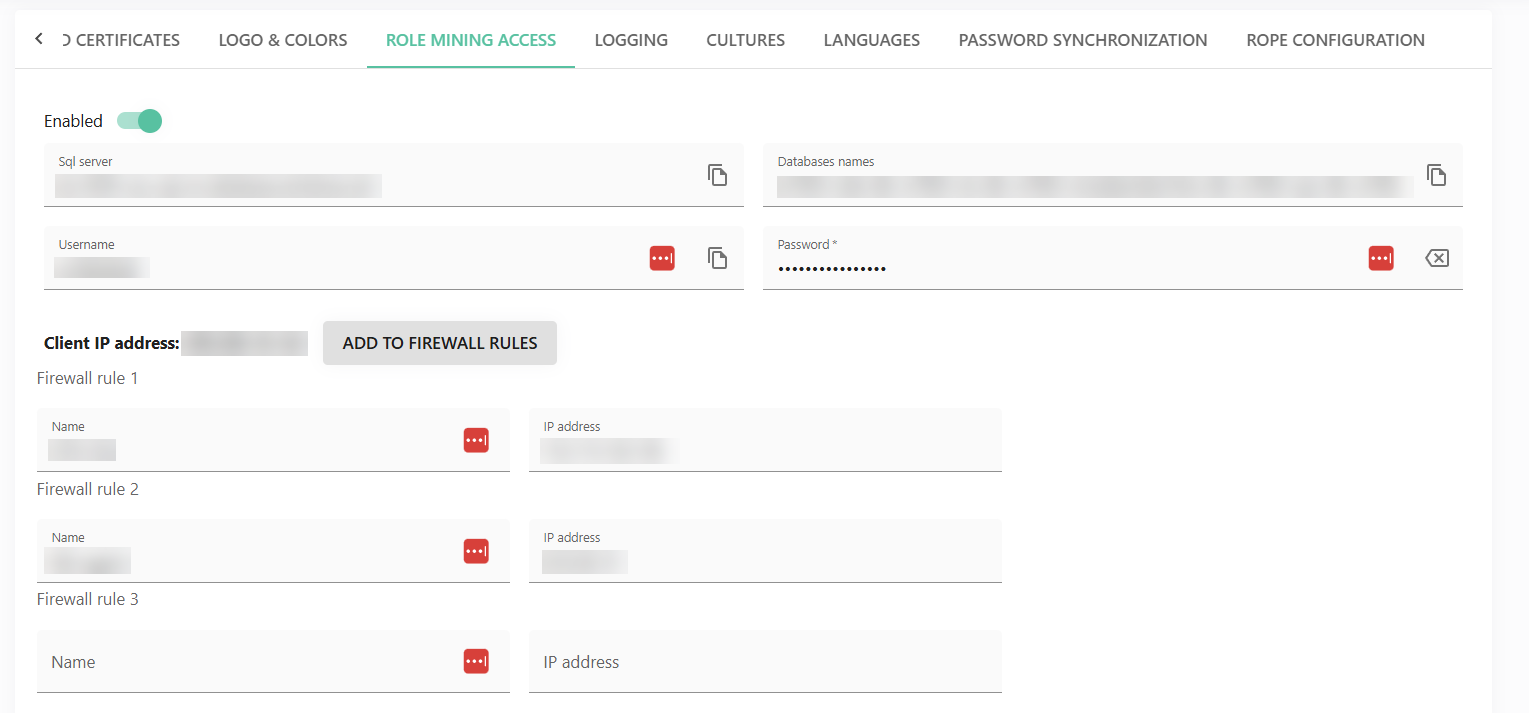
To configure access, enable the Enabled toggle, provide the required credentials, and, if necessary, add firewall rules to restrict access to specific IP addresses.
Logging
The Logging tab let's you configure where Cloud logs are stored.
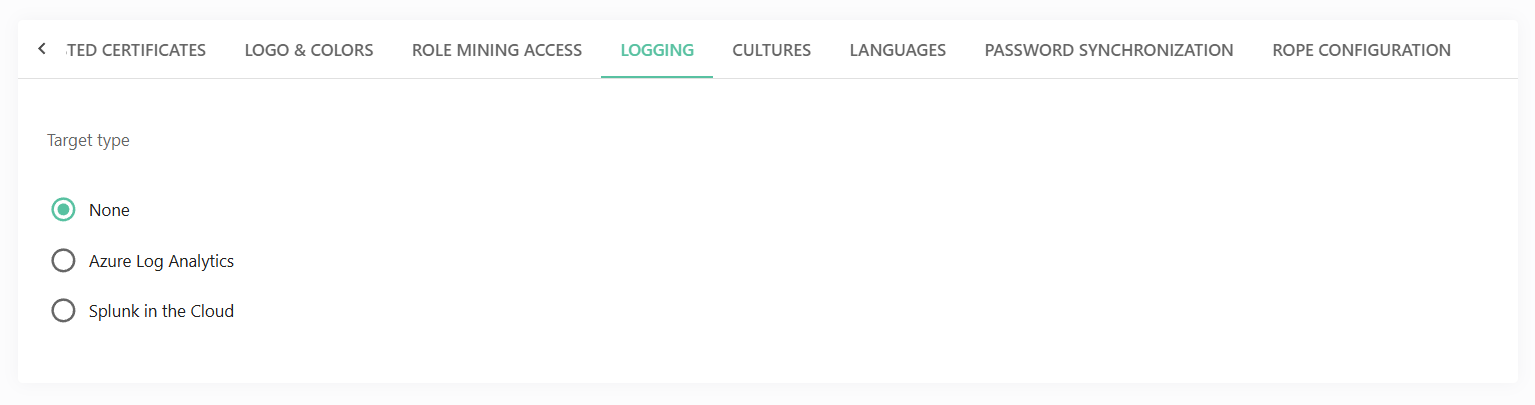
As logging target, you can choose the following:
-
None - disables logging. No log data will be sent to an external system.
-
Azure Log Analytics (Http Collector)
- This option is only available if Azure Log Analytics was previously selected as logging target. However, the HTTP Data Collector API is being deprecated and will no longer be supported after September 14, 2026.
- To ensure uninterrupted logging functionality, you must migrate to the Azure Log Ingestion API. This requires updating existing configurations to be compatible with Log Analytics workspaces and to take advantage of the enhanced ingestion capabilities.
- For detailed guidance and step-by-step migration instructions, refer to the Azure Log Ingestion API configuration documentation.
-
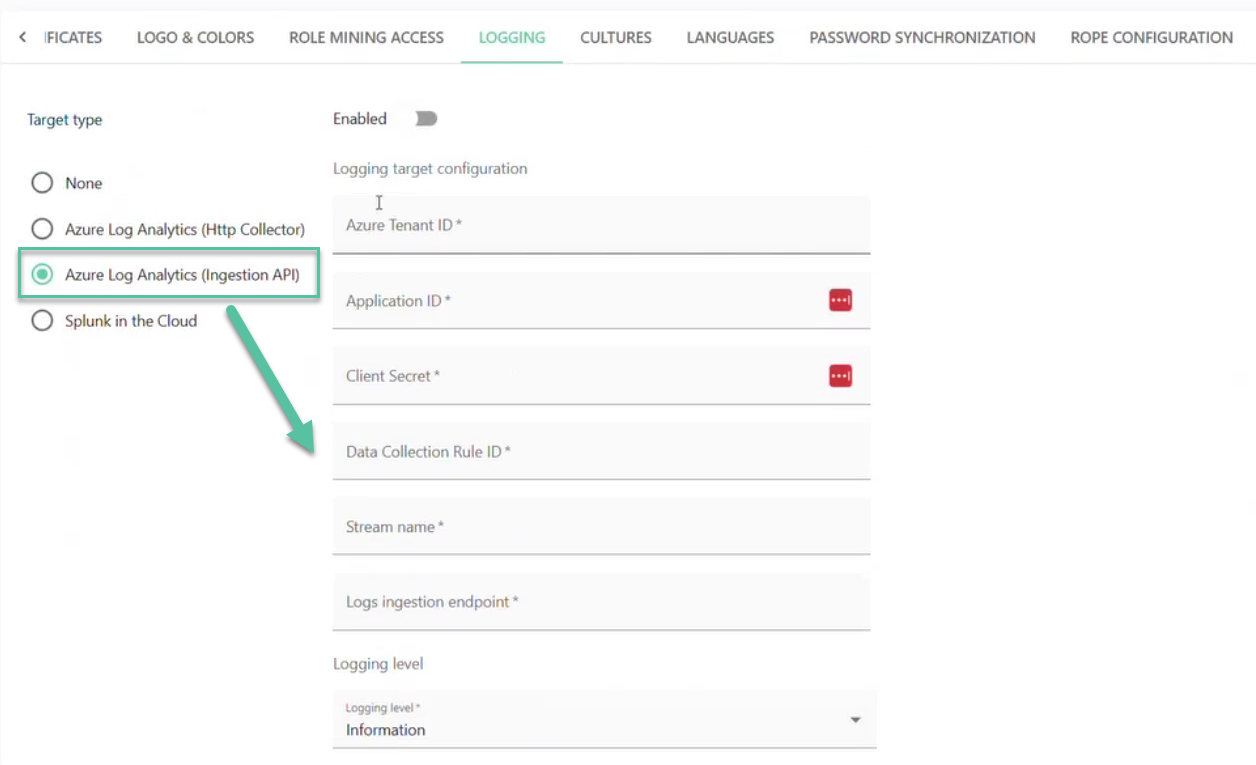
Azure Log Analytics (Ingestion API) - click the Enabled toggle to activate logging and provide the following information:
-
Azure Tenant ID - the unique identifier of your Azure Active Directory tenant.
-
Application ID - the client/application ID of the Azure AD app registered for log ingestion.
-
Client Secret - the secret associated with the Azure AD application used for authentication.
-
Data Collection Rule ID - the identifier of the Data Collection Rule (DCR) in Azure that defines how logs are processed and stored, that is,
"<<dcr-id>>". -
Stream Name - the name of the stream defined in the DCR where logs will be sent, that is,
"Custom-<<log-analytics-tablename>>". -
Log Ingestion Endpoint - the endpoint URL provided by Azure for sending logs via the Ingestion API, that is,
"<<logingestion-endpoint>>". -
Logging Level - this setting controls the level of detail included in the logs sent to the configured logging target. Available levels (from lowest to highest severity):
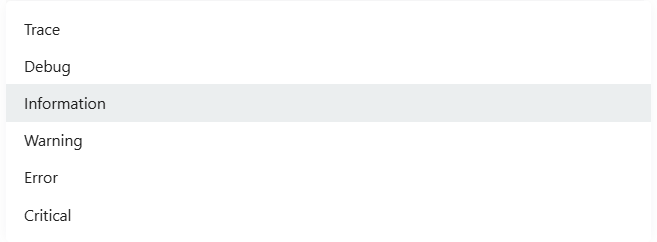
- Trace - most detailed level. Includes all diagnostic information, typically used for deep troubleshooting and development scenarios.
- Debug - detailed information useful for debugging, but less verbose than Trace.
- Information (default) - general operational messages that track the normal flow of the application.
- Warning - indicates potential issues or unexpected situations that do not stop execution.
- Error - logs errors that occur during processing, which may impact specific operations.
- Critical - highest severity. Indicates serious failures that may cause the system or major components to stop functioning.
-
-
Splunk in the Cloud - click the Enabled toggle to activate logging and provide the following information:
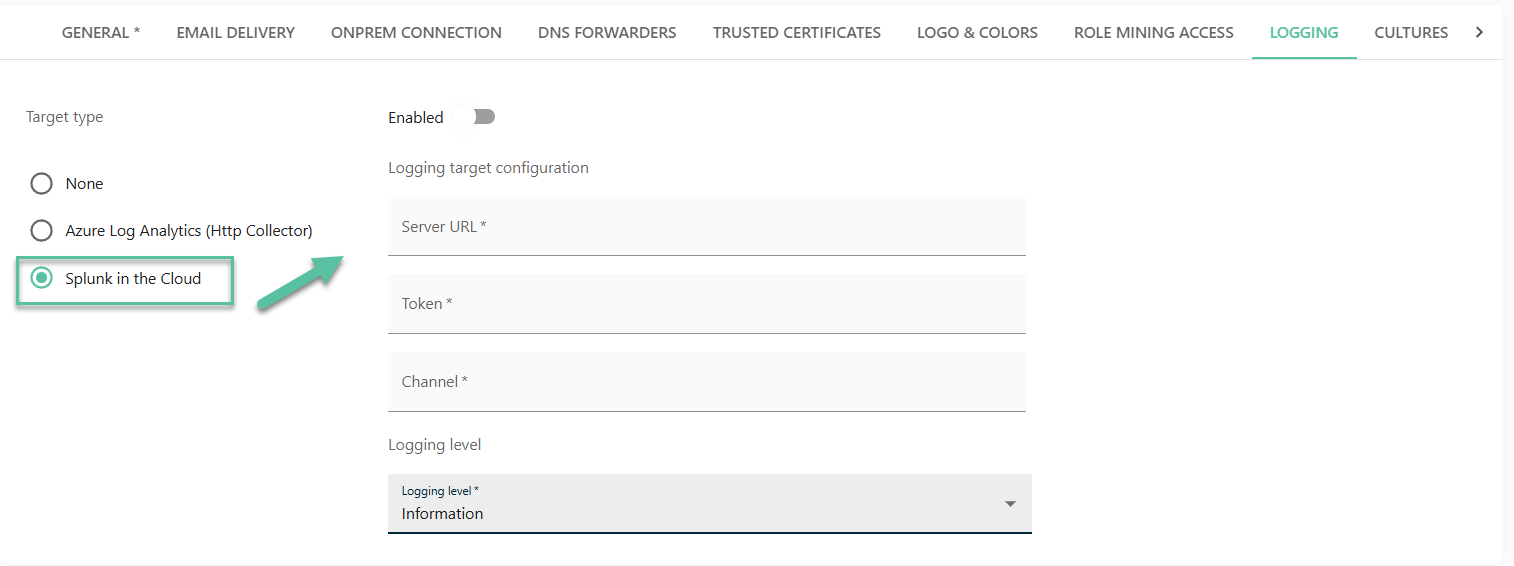
- Server URL - the HTTP Event Collector (HEC) endpoint URL of your Splunk Cloud instance.
- Token - the authentication token generated in Splunk for the HTTP Event Collector. This token authorizes log ingestion.
- Channel - a unique identifier used for log streaming. This is typically a GUID and helps ensure proper event delivery and deduplication.
- Logging Level - this setting controls the level of detail included in the logs sent to the configured logging target. Refer to the section above for more details.
Password synchronization
The encryption key is used to securely transmit password changes from your on-premises environment to the Cloud. You may need to generate a new key during the initial setup, when rotating keys as part of your security policy, or if you suspect that the existing key has been compromised.
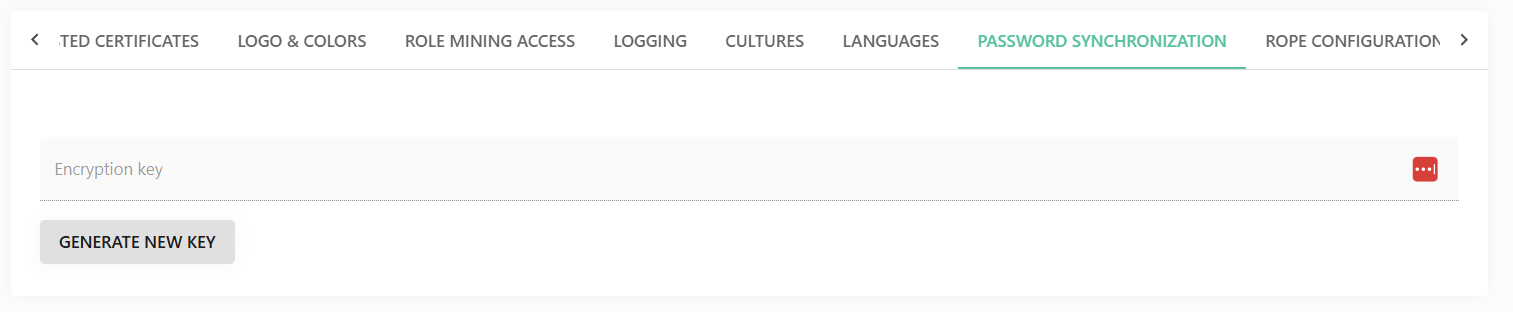
Click Generate new key to create a new encryption key for the Password Synchronization feature (Password Filter).
RoPE configuration
The RoPE configuration tab allows you to view and manage the extensions and keys of the Role and Policy Engine (RoPE), which is responsible for calculating roles and identities.
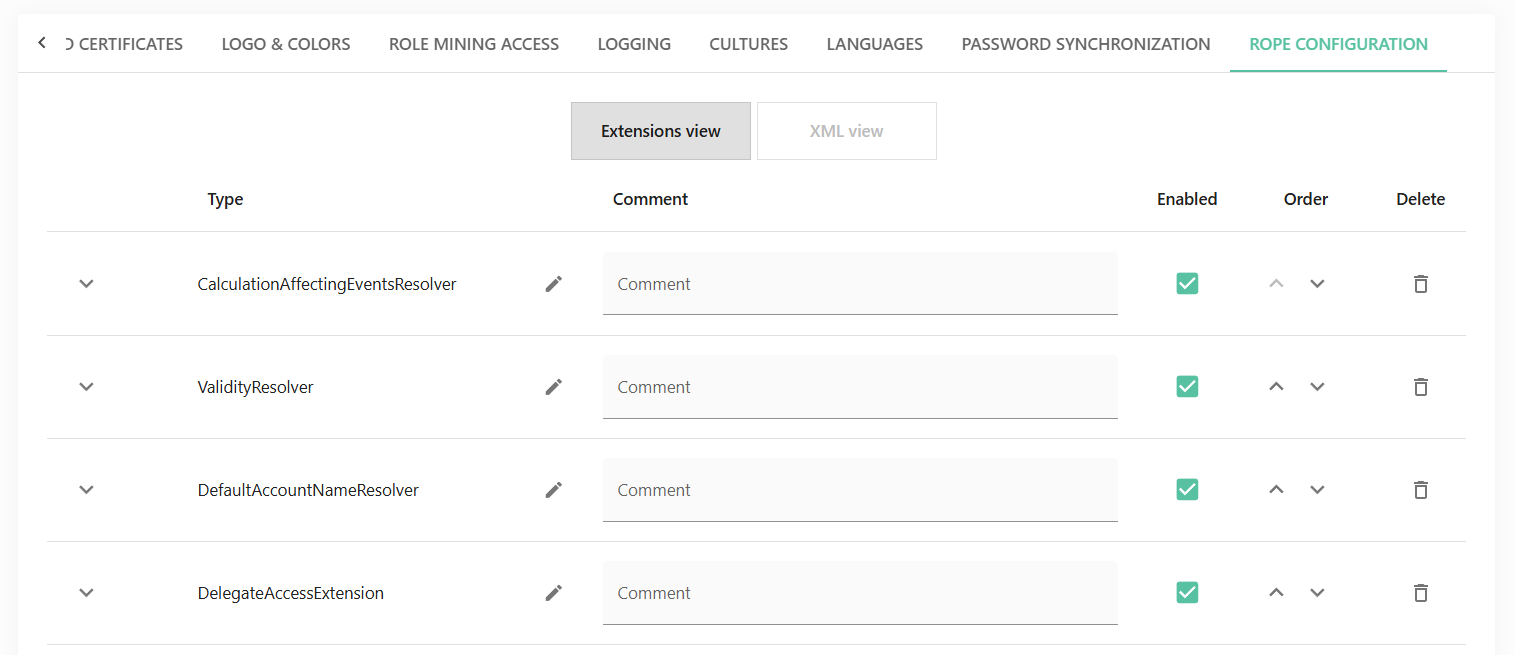
Two views are available: Extensions view and XML view. In both views, you can add comments, reorder items, disable extensions, and make changes.
The views are not synchronized. Any changes made in one view will disable editing in the other.
The XML executor, which is owned by the Cloud Management team, is provided for completeness only and cannot be modified by users.