Access modifier scripting
Scripted access modifiers provide an extension point to define security for views in the Omada application. The script is activated from IDataObjectAccessModifier::ModifyLoadOptions and allows introducing additional filtering based on the current user by changing the load options.
Access modification defines what is displayed in views. It does not affect the user's permissions on the data object once it is opened for viewing or editing.
An access modifier can limit what is displayed in a view and not extend it - that means if there is an ACL or access modifier on the data object that limit access to an object, then the scripted access modifier cannot override the underlying permission set for the object.
Using a script-based access modifier
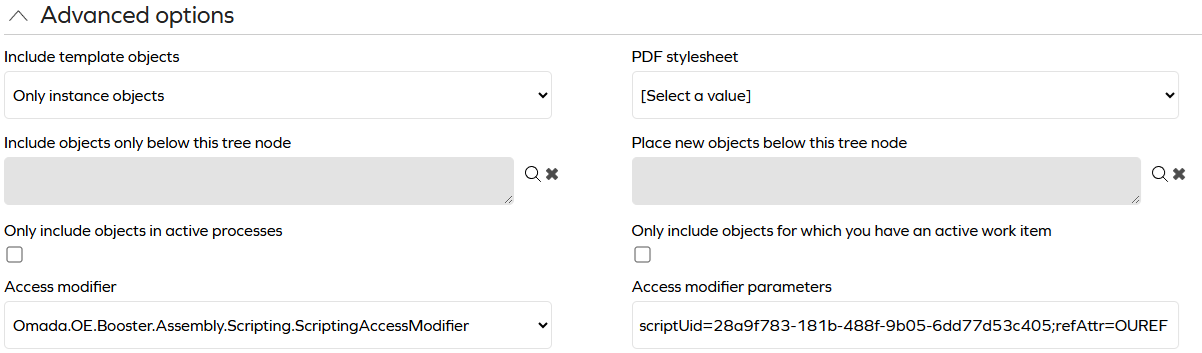
Create a script of the access modifier type, and add it to the view definition by selecting Omada.OE.Booster.Assembly.Scripting.ScriptingAccessModifier in the Access Modifier drop-down. Add the parameter scriptUid set to the UID of the script. You can add additional parameters that will be available in the script when it is used with variations.
Execution context
Scripts are provided with contextual information in the variables:
loadOptions(DataObjectLoadOptionsBase): The object that is updated by the script to apply filtering.activeUserId(int): The integer ID of the user.parameters(string): The parameters assigned on the access modifier definition in the view (withscriptUidremoved).
Example
The folllwing section includes an example access modifier script that shows objects where a property on the Identity of the current user matches the same property on the objects being filtered. The property is defined as a parameter, which provides flexibility to reuse the script across multiple views with different matching properties.
void AddLog(String s)
{
    debugger.Print(DateTime.Now + " " + s +"**");
}

var parms=loadOptions.AccessModifierClassInfo.Parameters;
string attr;
if (parms.ContainsKey("refAttr"))
{
  attr=loadOptions.AccessModifierClassInfo.Parameters["refAttr"];
}
else
{
  throw new FriendlyException("Missing configuration parameter refAttr in access modifier configuration");
}

IDataObjectReader reader=factory.CreateFacade<IDataObjectCriteria>()
  .AddWhitelist(activeUserId)
  .SetMaxObjects(1)
  .GetReader();

var refVal=reader.GetPropertyValue<int>("/IDENTITYREF/" + attr,-1);

loadOptions.AddFilterExpression(attr,ExpInnerOperator.Equals,refVal);
Coding guidelines
- Use filtering to select the objects over whitelisting, especially when the access modifier is applied to views that display a large number of data objects.
- Consider performance: An access modifier with lots of processing will affect the view render time for the user.
- Consider adding metadata that is generated at creation/change to objects, for improved filtering in complex scenarios.