Use Omada Identity MCP in practice with tools
This page describes the tools that Omada Identity MCP (Technical Preview feature) offers. The tools work the same way in every supported AI assistant.
The example conversations and screenshots on this page use Claude Desktop as an example. In other AI assistants, such as ChatGPT, the tools behave the same way, but the screens, the wording of the answers, and the permission prompts look different.
Tools are the functions that an MCP server makes available to an AI assistant. Each Omada Identity MCP tool covers one task in Omada Identity, such as finding resources or requesting access. When you ask a question, the AI assistant calls the matching tool, which reads the data or performs the action in Omada Identity, and the assistant then uses the result to answer you.
You see only the tools that your authorization roles allow. For the roles and their default assignments, see Review the tool authorization roles.
To use the tools, you do not need to call them directly. Ask your AI assistant in natural language, and the assistant selects the matching tool.
-
When starting the conversation, mention the connector by name. You get the most reliable results when you mention the connector by name in your question, for example:
User: Using Omada Identity MCP.
In ChatGPT, you can also select the plugin by typing @, for example, @Omada Identity MCP.
The connector name is the name that your administrator gave the connector in Claude or the plugin in ChatGPT. In Claude Desktop with a configuration file, it is the name of the entry in the configuration, for example,
omada-mcp-server. For more information, see Connect your AI assistant to Omada Identity MCP. -
Allow the tool to run. Before the assistant runs a tool, it can ask for your permission. You can allow the tool once, or always allow it. In Claude, you can also manage these permissions in the connector settings. In ChatGPT, the workspace administrator allows or blocks each tool on the plugin page.
-
Use the forms. Some tools open an interactive form in the conversation, where you review the details and confirm the action. After you submit the form, it is locked and shows the outcome.
Tool overview
Omada Identity MCP offers the following tools:
| Tool | What it does | Authorization role |
|---|---|---|
| Find resources | Searches the resource catalog. | MCP - Resource Finder Tool |
| Get business context | Shows your own business contexts. | None. Every user has this tool. |
| Request access | Creates an access request. | MCP - Access Request Tool |
| Get my access requests | Shows the status of your access requests. | MCP - Access Request Tool |
| Manage access approvals | Lists and acts on pending approvals. | MCP - Approvals Tool |
| Get form outcomes | Shows what you decided in a form. | None. Every user has this tool. |
| Revoke access | Revokes your own access or the access of an identity that you manage. | MCP - Revoke Access Tool |
| Review the Compliance Workbench | Answers compliance questions. | MCP - Compliance Reporting Tool |
| Query the Omada documentation | Answers questions about Omada Identity from the documentation. | MCP - Documentation Tool |
For details on each tool, see the following sections.
Find resources
Tool name:
find_resources
Use this tool to search or browse the resource catalog in a conversation, for example:
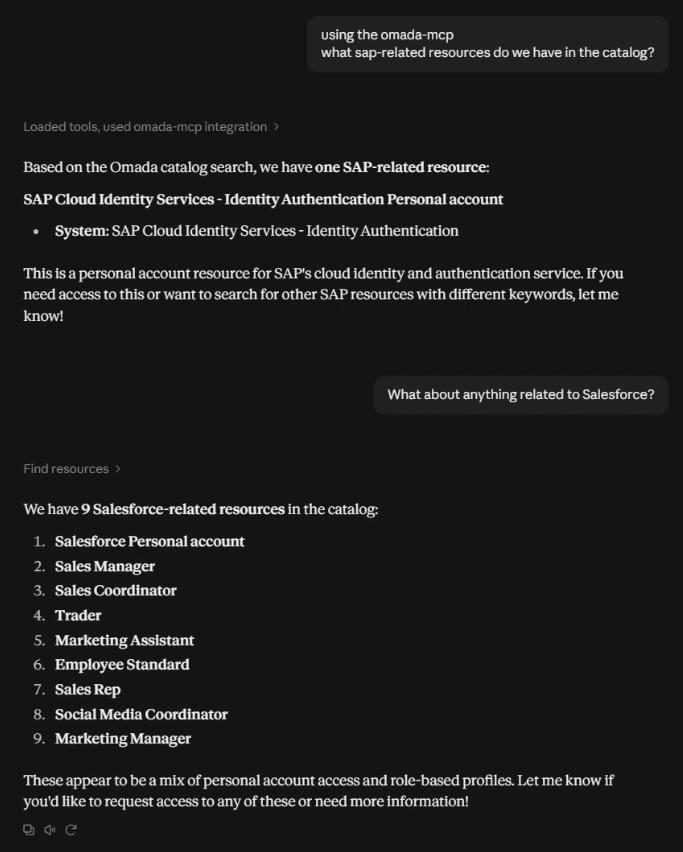
User: What SAP-related resources do we have in the catalog?
The tool returns a short list of matching resources, with the name and system of each resource, and a one-line description of the top result.
- Ask a question that names a system or a keyword to search for.
- The tool returns a list of matching resources.
- To search again, ask a follow-up question in the same conversation. You do not need to repeat the context. Depending on your tool permissions, the assistant may not ask for permission again.
See an example of a conversation:
The tool is informational only and does not perform any action. To request access to a resource, use Request access instead.
Get business context
Tool name:
get_business_context
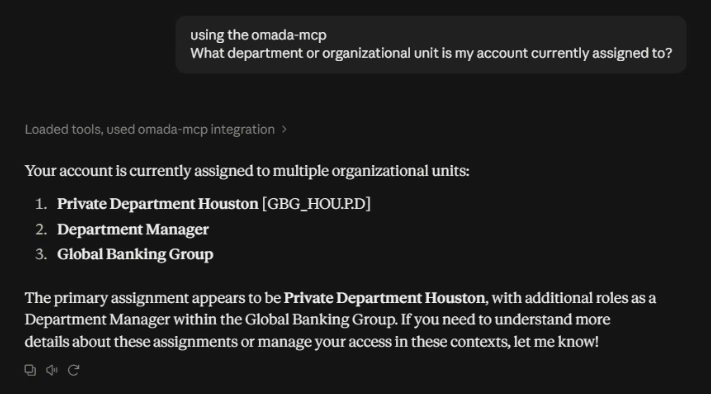
Use this tool to find out which department or organizational unit your account is assigned to. The tool reads your own identity data and returns your primary assignment and any additional roles or groups that it is linked to.
- Ask which department or organizational unit your account is assigned to.
- The tool returns your organizational assignments.
See an example of a conversation:
The tool is read-only and returns only your own assignments. You cannot use it to look up the assignments of other users. When you request access, the Request access tool collects your business context itself, so you do not need to use this tool first.
Request access
Tool name:
request_access_interactive
Use this tool to request new access in a single conversation. The tool collects your business context, identifies the resource, and shows the request for confirmation before it is submitted, so you do not need to look up the resource and your business context first.
- Describe your access need in a sentence.
- If the resource name matches more than one resource in the catalog, the tool asks you to choose the resource, a business context, and the business reason for the request. You can answer all three in a single reply.
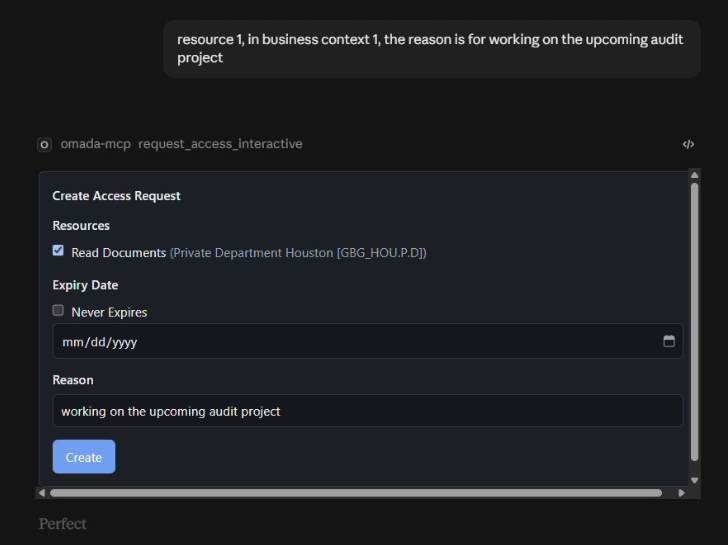
- The tool opens a confirmation form with the resource, the expiry, and the reason.
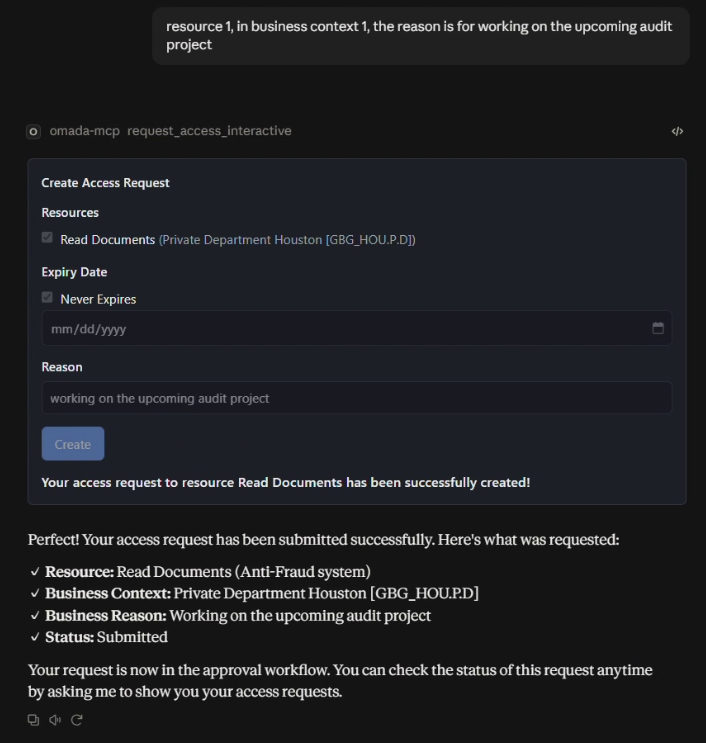
- Select Create. The form is locked and shows a confirmation with a summary of the request and its status.
The assistant can ask for permission more than once during the same request because collecting the details and submitting the request are separate calls.
Select Create only once. The submission is not protected against duplicates, so if you select Create again before the first submission finishes, a second request is created.
Example conversation
User: I need access to the Read Documents resource for an upcoming audit project.
Assistant: Lists the resources that match Read Documents with their systems and your business contexts. Then asks you to choose the resource and the business context, and to confirm the business reason for the request.
The user answers, and the tool opens the confirmation form:
After the user selects Create, the form is locked, and the assistant confirms the request:
Get my access requests
Tool name:
get_my_access_requests
Use this tool to check the status of the access requests that you submitted, for example, approved, pending approval, or pending provisioning.
-
Ask about the status of your access requests.
-
The tool returns your three most recent requests and the total number of requests in your history. For each request, the tool shows its status, who it is waiting for, if anyone, and the requested and valid dates.
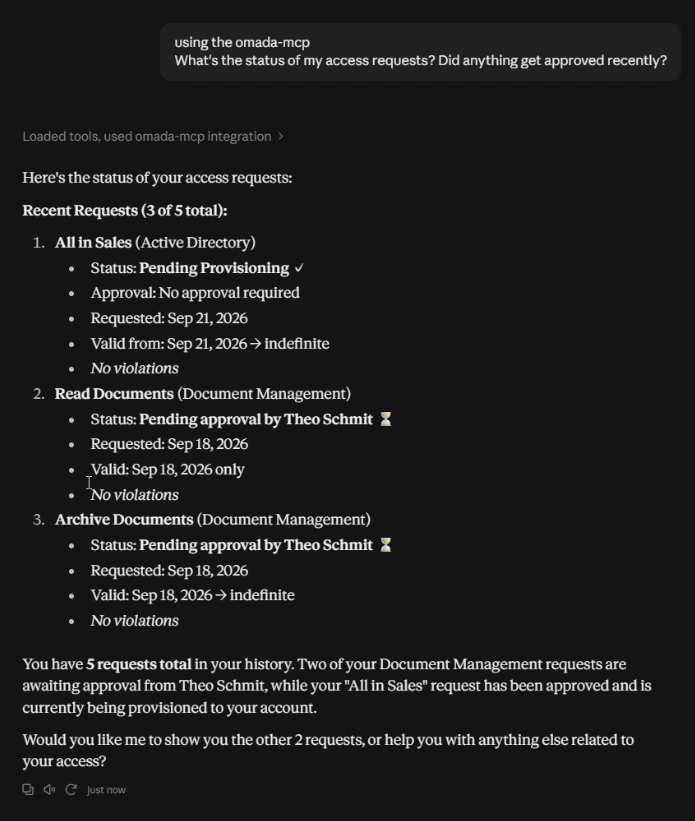
If you have more requests than are shown, ask to see the rest. The tool queries again for the remaining requests.
Manage access approvals
Tool name:
manage_access_approvals_interactive
Use this tool to handle the access requests that are waiting for your approval. You can list the pending requests, ask questions about a specific request, and approve or deny it in a form. The tool shows only the requests that are waiting for your decision, not the requests that you submitted yourself.
-
Ask what you need to approve.
-
The tool lists all pending requests, grouped by requester, with the total number.
-
Optional: ask for more details about a specific request. The tool answers directly, without opening a form.
-
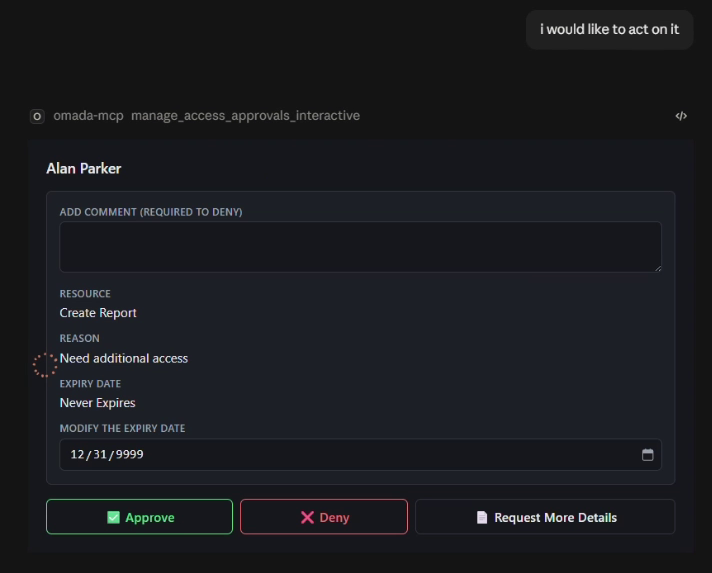
Say that you want to act on a request. The tool opens a confirmation form with the resource, the reason, the expiry, and a comment box. In the form, you can change the expiry and select Approve, Deny, or Request More Details.
To act on several pending requests from the same requester at once, ask for that instead. The form then lists each request with its own checkbox and comment box, under one shared reason and expiry. A comment is required only for the requests that you deny. To leave a request out of the action, clear its checkbox. This way, you can approve or deny the whole group, or act on one request at a time without leaving the form.
-
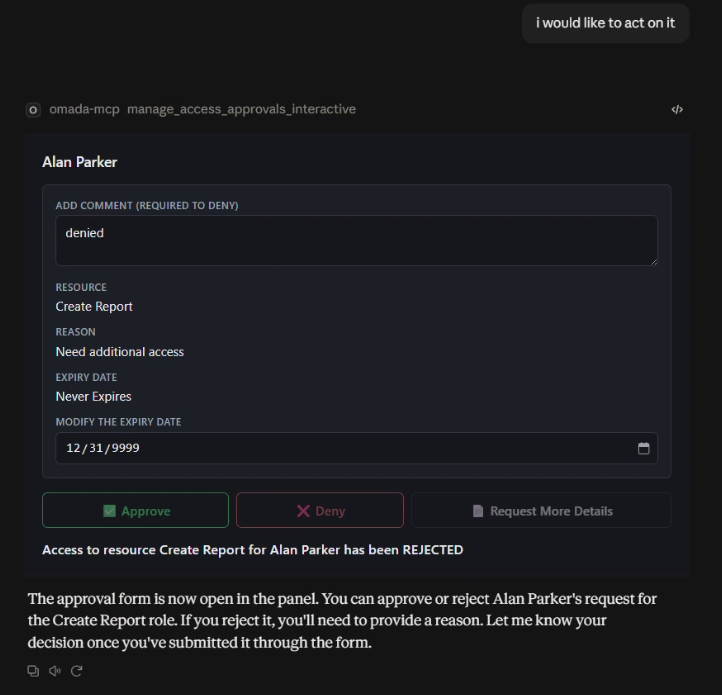
Submit your decision. The form is locked and shows the outcome instead of the action buttons.
Example conversation
User: What do I need to approve right now?
The assistant lists the pending requests, grouped by requester, and asks whether the user wants to review any of them. In the example, the user asks for more details about Alan Parker's request for Create Report. The assistant answers with the details of the request, such as why the user is the approver, the reason for the request, the resource, its category, risk level, and system, and asks whether the user wants to approve or reject it.
The user says that they want to act on the request, and the tool opens the approval form:
After the user adds a comment and selects Deny, the form is locked and shows the outcome:
Get form outcomes
Tool name:
get_form_outcomes
Use this tool to find out what you decided in a form, for example, whether you approved or denied a request. Opening a form does not approve, deny, or submit anything. Only your selection in the form does, and the tool answers from the record of those selections. It covers your own approval, access request, and revoke forms from the last seven days.
- Ask what you decided on a request. You can also ask in a new conversation.
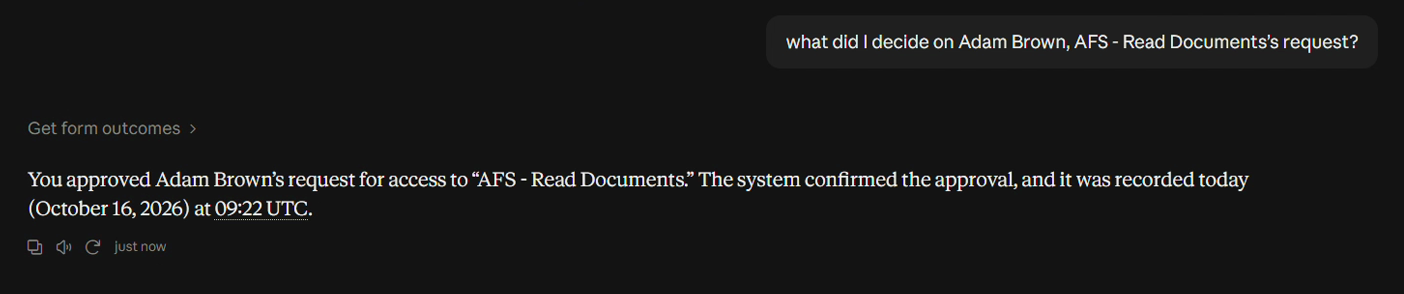
- The tool returns the decision, the request that it applies to, and when it was made. If you do not name a request, the tool returns your most recent decisions.
- If there is no record of a decision on the request that you name, the assistant says so and does not guess.
Example conversation
User: What did I decide on Adam Brown's AFS - Read Documents request?
The tool returns the recorded decision:
If there is no record of a decision on the request, the assistant says so, shows the closest decision that it found, and offers to check your pending approvals:
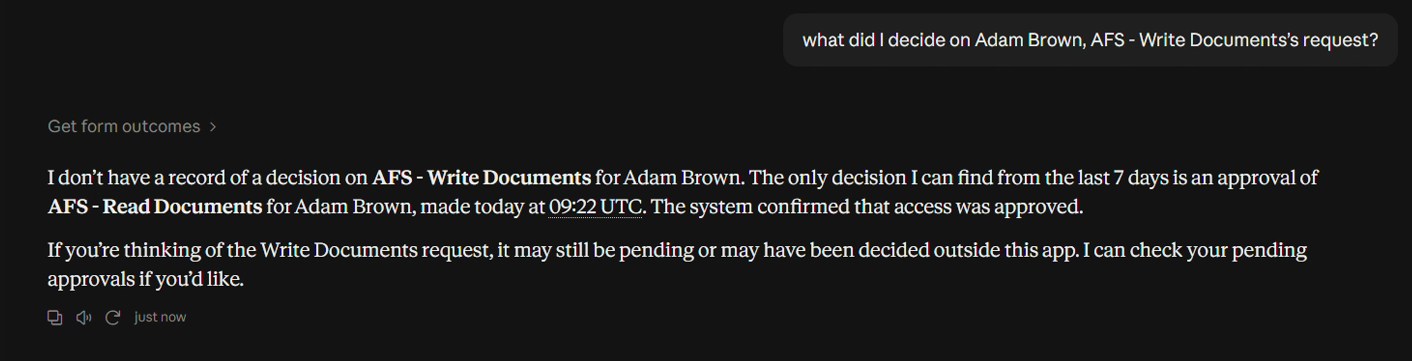
The forms use the same record. When you return to a conversation, a form that you already submitted shows its outcome instead of offering the action again.
Revoke access
Tool name:
revoke_access_interactive
Use this tool to revoke access assignments in a confirmation form. You can revoke your own access (self-revoke) or the access of an identity that you manage (third-party revoke).
- Say that you want to remove access, either your own or the access of someone you manage.
- For a third-party revoke, the tool looks up the identity that you name. If the name does not match an identity, the tool asks you to check the spelling or to provide more details, such as the username, email address, or department.
- The tool lists the assignments that can be revoked. If there is more than one, the tool asks you which one to revoke.
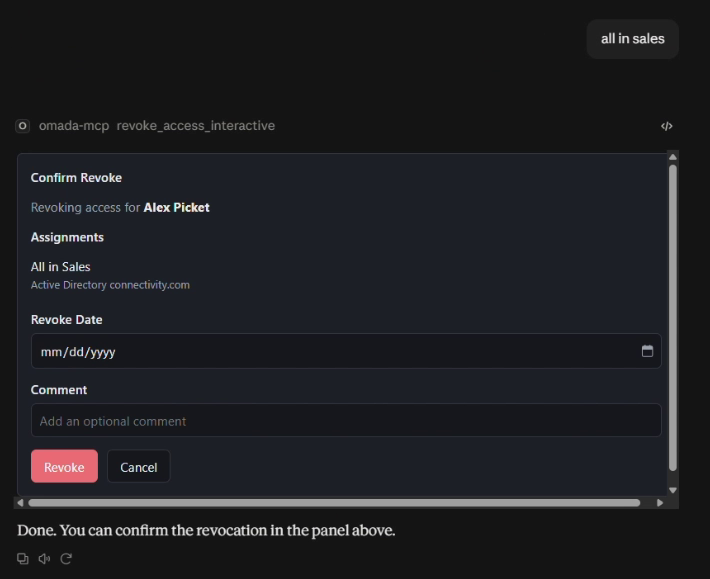
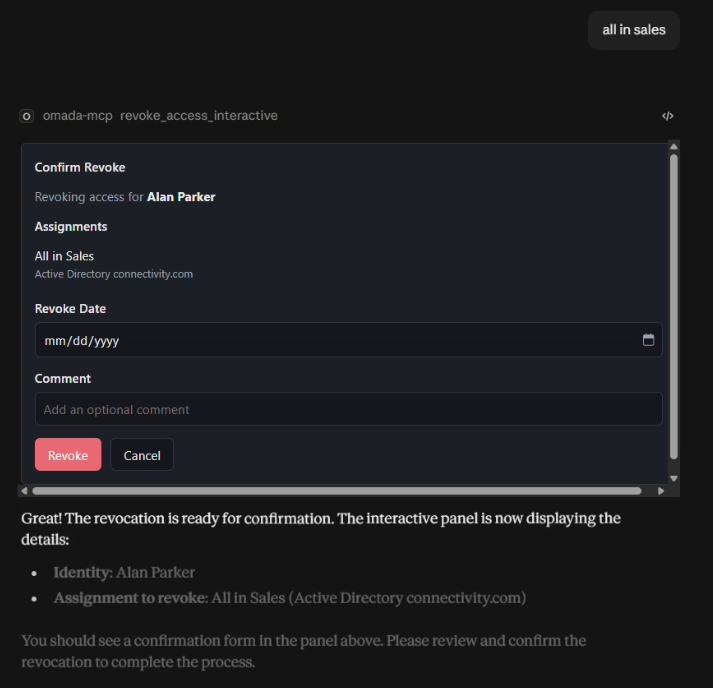
- The tool opens a confirmation form with the identity, the assignment, the revoke date, and an optional comment box.
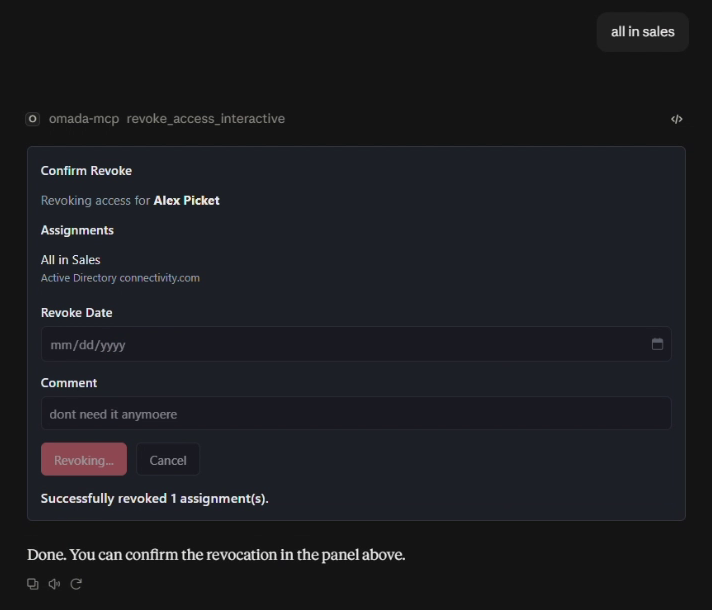
- Select Revoke, or select Cancel to stop. After you confirm, the form is locked and shows how many assignments were revoked.
Revoke your own access
When you no longer need an access assignment, ask the assistant to remove it, for example:
User: I do not need my access to All in Sales anymore, please remove it.
You do not need to name an identity, because the tool uses your own. If you have more than one revocable assignment, the tool asks you which one to revoke.
The tool opens the confirmation form for your assignment:
After you select Revoke, the form is locked and shows how many assignments were revoked:
Revoke the access of another identity
Example conversation
User: I want to revoke access for Alan Parker. Can you show me the available resources?
The assistant lists the revocable assignments of the identity. The user selects one: All in Sales.
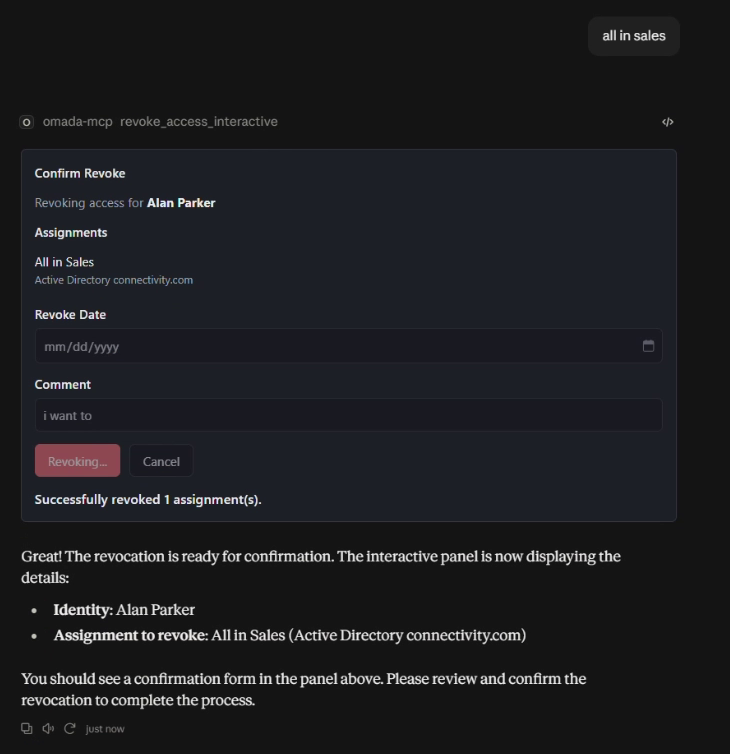
The tool opens the confirmation form with the identity and the selected assignment:
After the user selects Revoke, the form is locked and shows how many assignments were revoked:
Review the Compliance Workbench
Tool name:
review_compliance_workbench
Use this tool to ask compliance questions based on the Compliance Workbench, for example, system compliance summaries, assignment-level detail, and identity or system lookups in the Compliance Workbench.
The tool answers two kinds of questions:
-
Live compliance checks, for example:
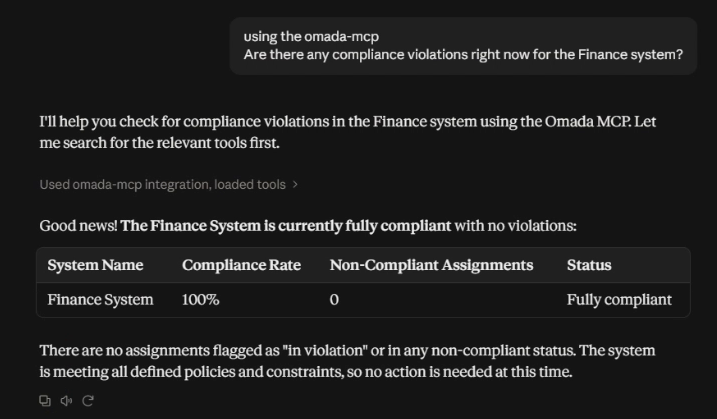
User: Are there any compliance violations right now for the Finance system?
The tool returns a summary with the compliance rate, the number of non-compliant assignments, the overall status, and a short explanation.
-
Rule explanations, for example:
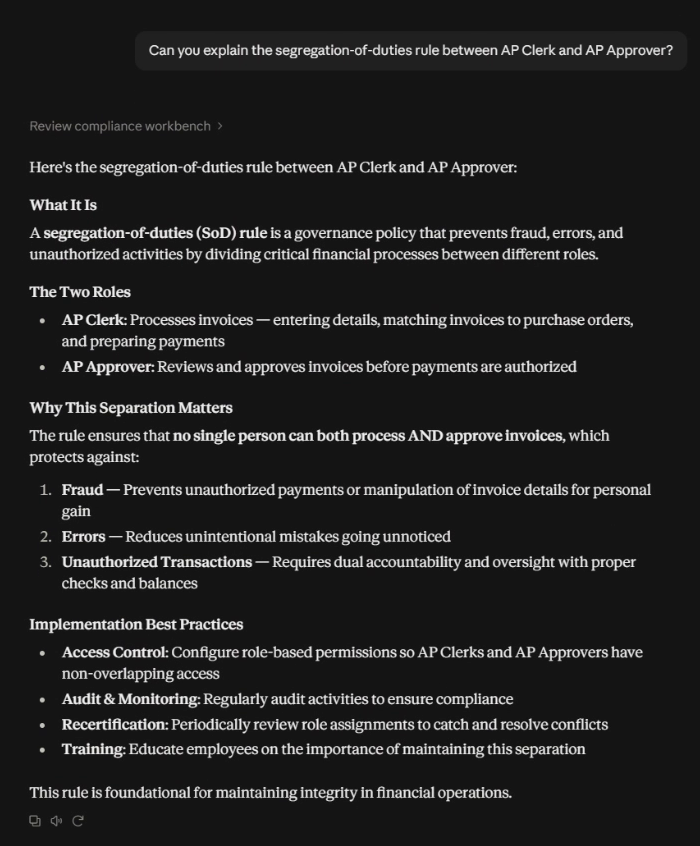
User: Can you explain the segregation of duties rule between AP Clerk and AP Approver?
The tool returns a structured explanation of the policy: what it is, why it matters, and how it is typically implemented.
To get answers based on the Compliance Workbench:
-
Ask a live compliance question about a specific system, or ask for an explanation of a compliance rule.
-
The tool returns a compliance summary or a rule explanation.
You can ask for additional details.
Query the Omada documentation
Tool name:
query_omada_documentation
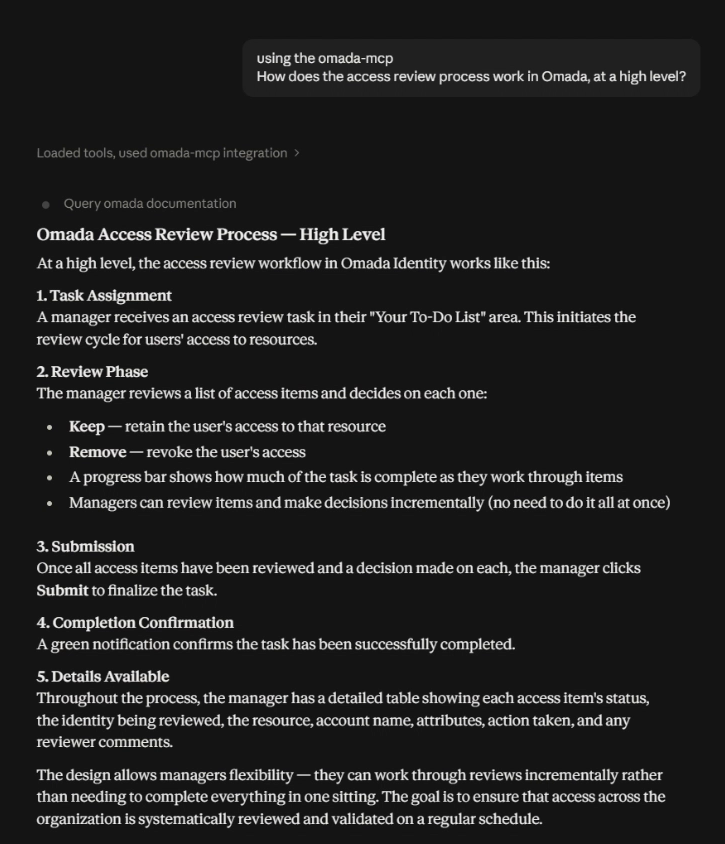
Use this tool for general questions about Omada Identity, such as how a feature or process works. The tool searches the Omada documentation portal and returns a structured answer based on it, rather than on general knowledge. For questions about your own data, such as your access requests or approvals, use the other tools.
- Ask a general question about a feature or process in Omada Identity.
- The tool searches the documentation and returns a structured answer.
Tools used by the forms
Omada Identity MCP also offers some tools that only the interactive forms use. In Claude, they are listed under App-only tools. The forms call these tools while you work in them. You do not call them yourself, and the assistant does not use them.
| Tool | Used by | What it does |
|---|---|---|
| Get form payload | Any form | Loads the content of the form. A form that is not used for an hour expires and shows This form has expired. Ask for it again. Ask the assistant for a new form. |
| Process access request submission | The access request form | Submits the request when you select Create. |
| Process pending approval | The approval form | Carries out your decision when you select Approve, Deny, or Request More Details. |
| Process revoke access | The revoke form | Revokes the assignments that you confirmed when you select Revoke. |
| Report view event | Any form | Reports problems in the form to Omada for diagnostics. Nothing is shown to you, and nothing changes in Omada Identity. |
The tools that change data run only when you select an action in a form, and only with the details that you confirmed in the form.