Access review
Access review surveys based on the Access review for managers and Access review for resource owners templates can now open in the new UI. Enable this feature with the EnableUseNewUISurvey customer setting. See Customer settings.
Access review surveys in the new UI
When a manager or a resource owner receives an access review task, it appears in the Tasks area of the homepage. Select Access to open the survey.
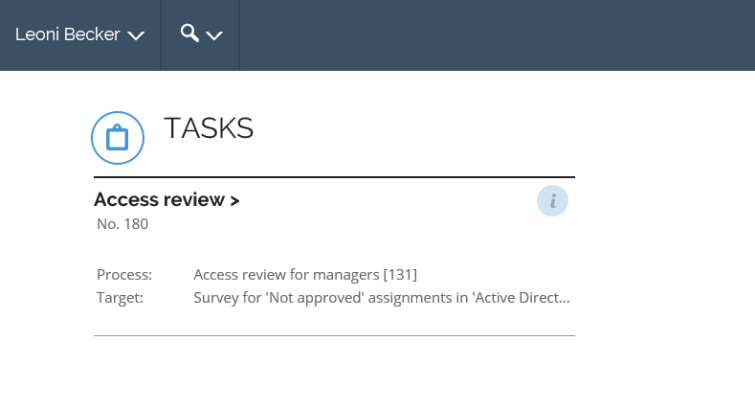
When EnableUseNewUISurvey is enabled, Access review for managers and Access review for resource owners surveys open in the same modern experience already used for Access approval, with the following capabilities:
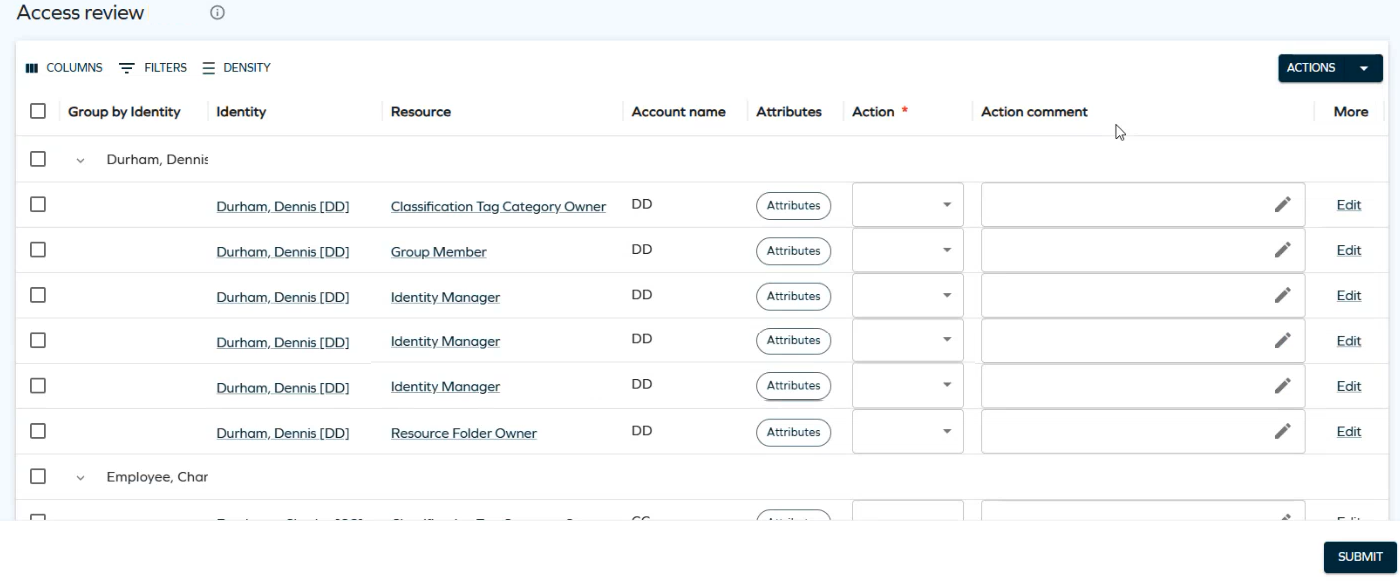
- Grouping: group rows by column, for example, by identity or resource. See Row grouping.
- Resizable columns: drag a column border to make it wider or narrower. Your column widths are saved and reapplied the next time you open the survey.
- Configurable action buttons: the Action column can be displayed as buttons, radio buttons, a drop-down list, or a checkbox. This is controlled by the control type of the underlying Set property on the survey template's Forms step. See Edit forms.
- Mass edit: select the checkbox of one or more rows and use the Actions button to answer multiple questions at the same time, if Enable mass edit is turned on for the survey. See Configurable properties.
Columns on the new UI Access review survey page
Here, you will find the columns available by default, as well as their descriptions. Which columns are shown, and in which order, depends on the survey template configuration; use Columns in the toolbar to show or hide columns, Filters to filter rows, and Density to adjust the row height.
- Group by Identity (or Group by Resource): the column currently used for grouping. See Row grouping to change it.
- Identity: the identity whose access is being reviewed. Select the underlined value to open a side panel with more information.
- Resource: the resource assigned to the identity being reviewed. Select the underlined value to open a side panel with more information.
- Account name: the identity's account name, typically initials.
- Attributes: opens the resource assignment's attributes, if any are defined for the resource.
- Action: your decision — Keep or Remove the assignment. Depending on the survey template configuration, this is displayed as buttons, radio buttons, a drop-down list, or a checkbox.
- Action comment: an optional comment to describe your decision.
- More: opens the item's details, where you can also complete the Action and Action comment fields.
Currently, the new UI only supports the built-in Access review for managers and Access review for resource owners survey templates, and copies of them registered in the SurveyTemplateNameMapping customer setting. More survey templates will be supported in future releases. See Customer settings.
Using the new UI with a copy of a survey template
Out-of-the-box survey templates are read-only, so if you have created a copy of Access review for managers or Access review for resource owners to customize its fields, add the copy's system name to the SurveyTemplateNameMapping customer setting so the copy also opens in the new UI:
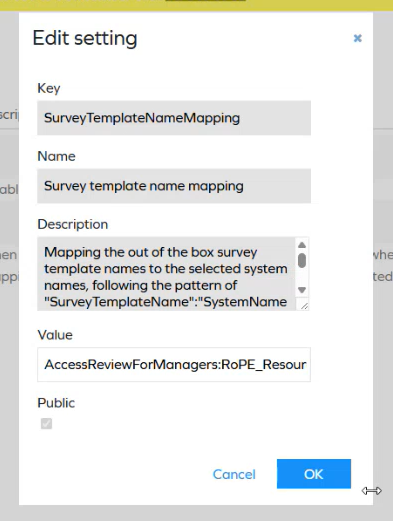
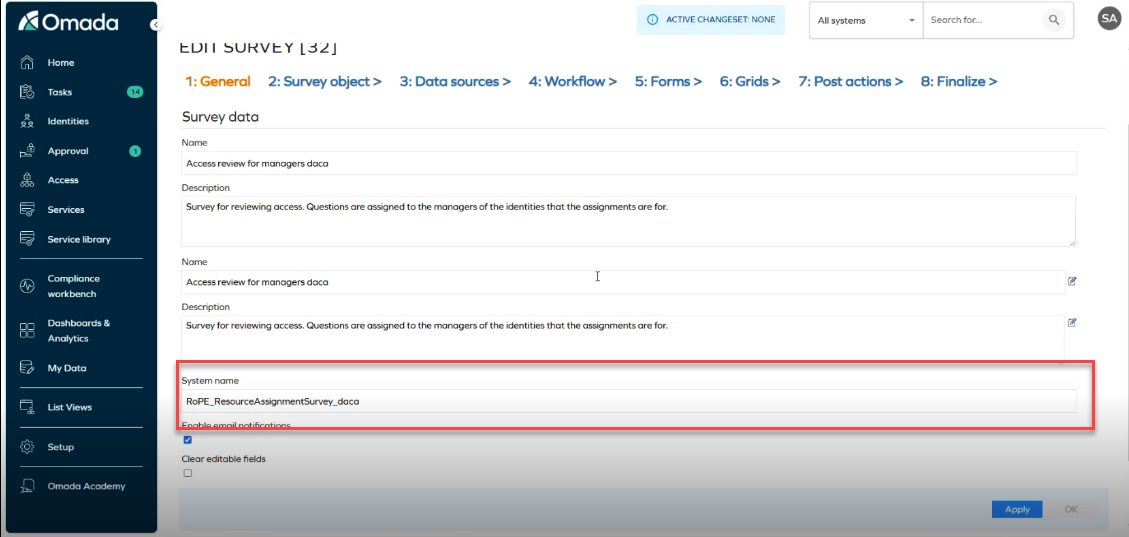
The value follows the pattern SurveyTemplateName:SystemName, for example, AccessReviewForManagers:RoPE_ResourceAssignmentSurvey_daca. You can find the system name of your copy on the survey template's General step:
For more details, see Customer settings.
Copying a survey template does not automatically update any configuration that references it. If the copied survey template is also used by the Compliance Workbench, remember to manually update its system name in the Compliance Workbench Configurations configuration object as well.
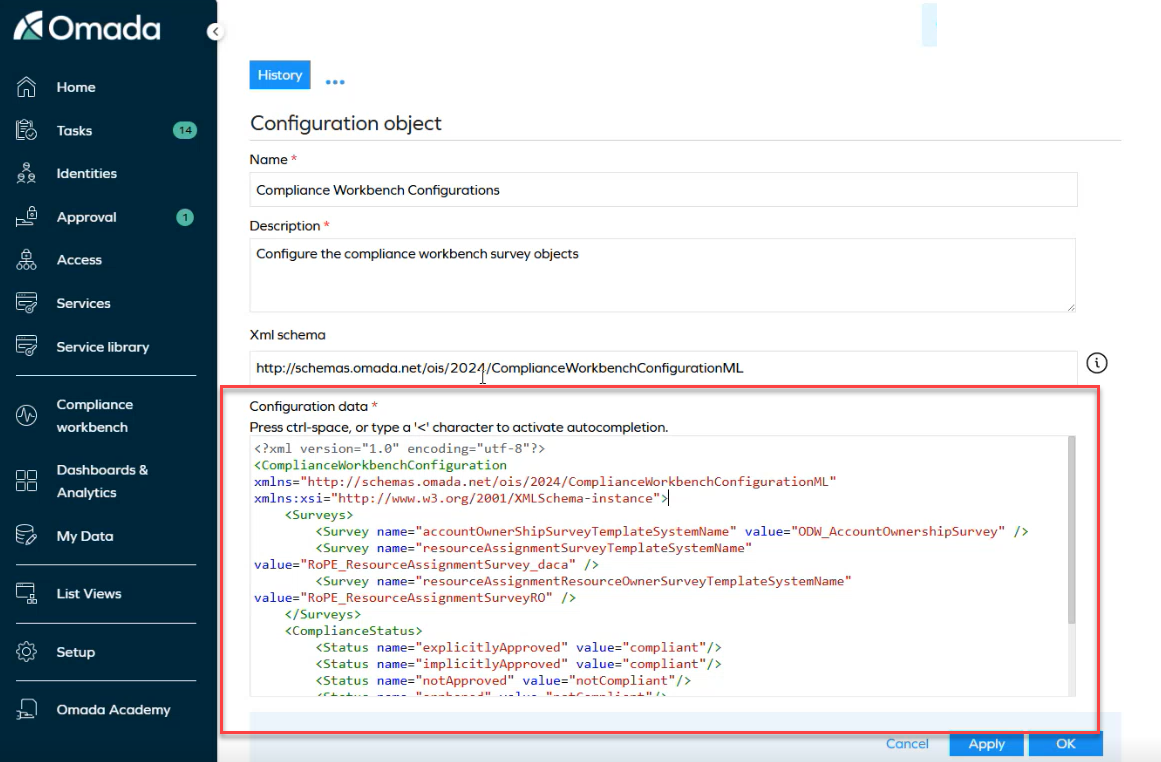
For more details, see the Configuration section of the Compliance Workbench guide, and Copy a survey template.
The survey types Access review for managers and Access review for resource owners are similar in functionality, so the workflow is the same for both. When EnableUseNewUISurvey is disabled, the survey opens in the legacy interface instead, which follows the same Access approval workflow with Keep and Remove as the two possible decisions.
Deprovisioning assignments for unanswered questions
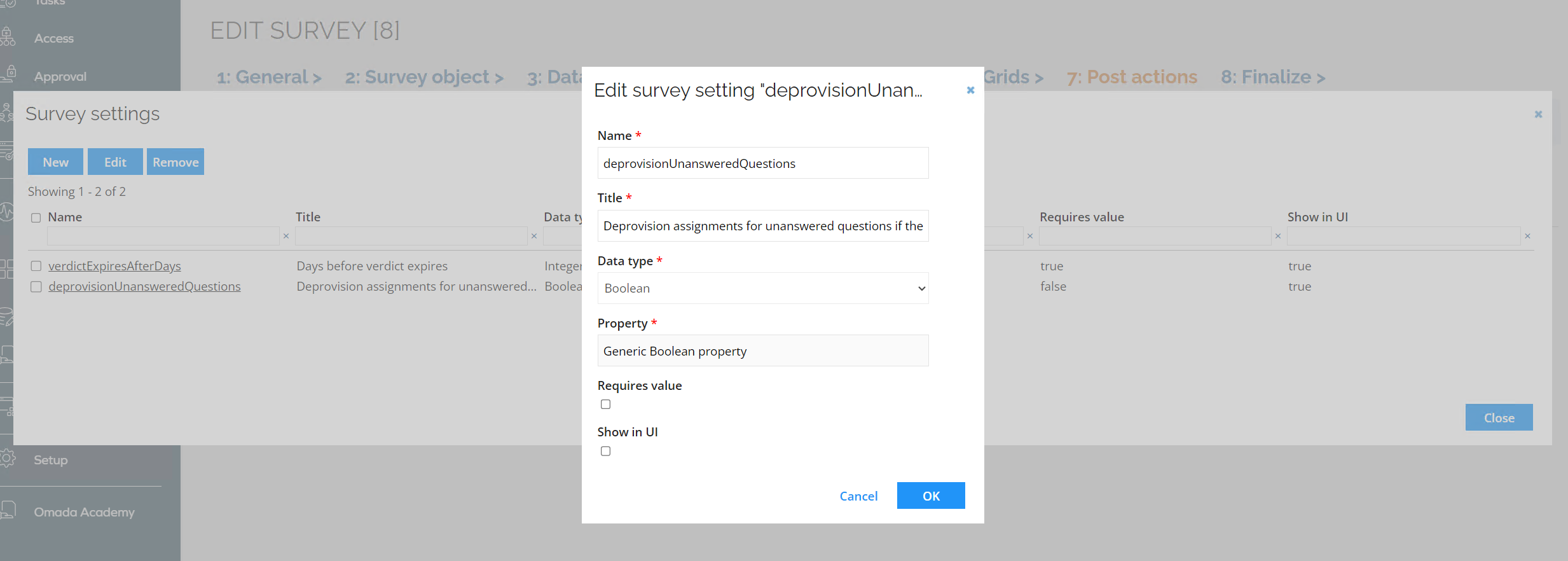
To deprovision assignments for all unanswered questions when a survey is closed prematurely, enable the survey setting: Deprovision assignments for unanswered questions if the survey is closed prematurely.
When closing the survey manually or via an Event definition, the survey administrator will see the following warning dialog:
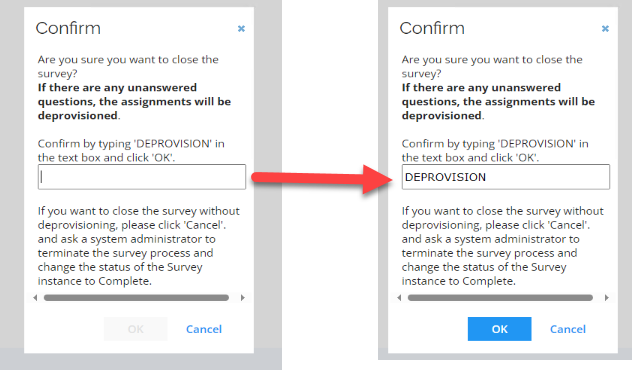
To confirm closure with deprovisioning, enter DEPROVISION in uppercase. If not entered, the survey will close without deprovisioning unanswered assignments. In such cases, a system or operations administrator must terminate the survey process and use the mass update functionality to set the survey status to Completed.
If a survey is closed through an event definition with this setting enabled, assignments will be deprovisioned at the close of the survey.
This option can be removed from your Access Review survey. To do that, go to the appropriate Access Review survey template, and select the Post Actions step. Look for survey settings and disable Show in UI. This will remove the option from the form when starting the survey.This option can be removed from your Access Review survey. To do that, go to the appropriate Access Review survey template, and click on the Post Actions step. Look for survey settings and disable Show in UI. This will remove the option from the form when starting the survey.