Edit survey templates
Survey templates that are part of the packaged solution, such as the Approve requested access survey, are read-only and cannot be modified through the Form Designer of their Target template data object. A defined set of properties on these templates can still be configured by using the Mass Update option on a custom Surveys view that displays template objects.
This page describes the properties you can update and the configuration procedure to apply.
For a full overview of the survey templates, see the Managing and using out-of-the-box survey templates section of Survey templates.
Configurable properties
The following properties can be updated on a packaged survey template through Mass update.
| Property | Definition | Notes |
|---|---|---|
| Survey admins | Defines which users or user groups have administrative access to the survey, including monitoring progress and reassigning questions across all assignees. | For the Approve requested access survey, the Approve requested access survey admins user group is included by default. See Approve requested access survey admins. |
| View for reassigning survey questions | UID of the view used to select users during the reassignment of a survey question by a respondent. | See Reassign questions for the end-user behavior, and Reassign surveys for the survey administrator behavior. |
| Enable mass edit | Allows respondents to answer multiple questions at the same time. | The visibility and editability of fields during mass edit can also be controlled in the survey template under the Forms tab. |
Two procedures are available to update these properties. Use the procedure that matches the value of the Allow Mass Update customer setting.
Configuration
Update the approval survey using Mass update
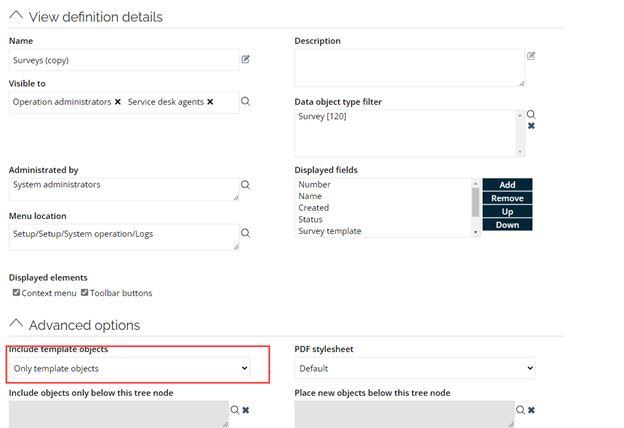
If the Allow Mass Update customer setting is enabled, configure the properties through a custom Surveys view filtered to template objects. The default Surveys view does not display template objects, so the survey template cannot be selected for Mass update without this filtered view.
-
Go to Setup > Views.
-
Select the checkbox for the Surveys view, select the ellipsis (three dots) on the right, and select Copy.
-
Open the newly created copy and edit its settings.
-
Set Include template objects to Only template objects, and save the view.
 tip
tipGive the new view a clear name, for example Surveys (template objects), so it is easy to identify later.
Edit the survey using Mass update
-
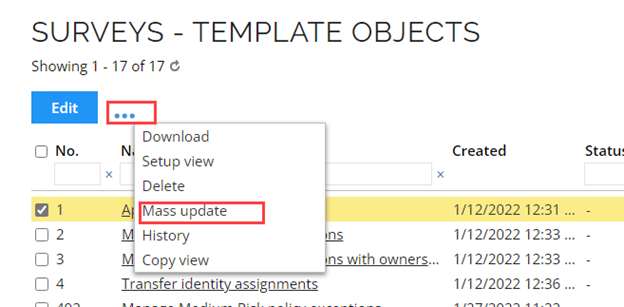
Open the new view and select the checkbox next to the relevant survey template, for example, Approve requested access.
-
In the toolbar, select the ellipsis (three dots) menu and select Mass update.
-
Select the property you want to update and select OK.
-
Edit the value of the property:
- Survey admins: select the users or user groups that should have administrative access to the survey.
- View for reassigning survey questions: enter the UID of the view that lists users selectable during reassignment.
- Enable mass edit: select the checkbox to enable, or clear it to disable mass edit on the survey.
- Confirm to apply the change. The change is applied to the packaged template without creating a copy of it.
For the Approve requested access survey, you can manage the default Survey admins by adding or removing members from the Approve requested access survey admins user group, without updating the Survey admins property directly.
Edit the survey form - when customer setting Allow Mass Update is disabled
If the Allow Mass Update customer setting is not enabled, configure the properties by editing the survey form on the related process template.
- Go to the Approve access request process template. If your environment has more than one Approve access request process template, make sure you select the one currently used as the approval survey.
- Edit the Target template data object (form). The following message is displayed: It is a template object; therefore, the 'Requires value' settings specified in the form definition do not take effect.
- Press Ctrl + Right-click anywhere on the page and select Form designer from the context menu. The following confirmation message is displayed: Any unsaved data in the data object form will be lost when approving changes in the form designer!
- Select OK to continue.
- In the Survey form section, select the ellipsis (three dots) and select Edit.
- In the Description box, replace
[class=PanelHidden]with[class]. - Clear the Hidden (clientside) checkbox.
- Select OK to apply the changes to the Survey form section.
- Select OK to close the Form Designer. The Survey form section is now visible. You can edit:
- Survey admins: select the users or user groups that should have administrative access to the survey.
- View for reassigning survey questions: enter the UID of the view that lists users selectable during reassignment.
- Enable mass edit: select the checkbox to enable, or clear it to disable mass edit on the survey.
- Revert the changes applied to the Survey form section to restore its original visibility.
warning
Step 10 is required to keep the form configuration consistent with the original packaged template. To revert the changes, repeat steps 1 to 5, set the Description box back to
[class=PanelHidden], select the Hidden (clientside) checkbox, and select OK to confirm.