Release highlights

We've just released Omada Identity update! What's new?
Installation files SHA-2 hashes
| File | SHA-2 hash |
|---|---|
| Omada Identity v16.0.0.18.zip | 5AEAE8852A645BB5433170878C4A83F303DFF1DCB764165270F7BED054FB4BB2CE3A8C9A6BA9CD59A64161EA80C0E3247B9F429C9C085FA3310E3CF1D59C2908 |
| Omada Identity v16.0.0.18 Data Preview Service.zip | 414FD0A487544523E084DC303A167EA078A438B11FDC6CF18EE3A7979AFB3A40DF18D82B9AC7AAACCB2929A1C0B8A1AE1EBEE386F062F13D8A8368E065982D61 |
| Omada Identity v16.0.0.18 Vault Service.zip | DF59855C940F413FB969E22B8B1AD3484165CF6B699EE42ACA57856BFA788781AE1DB2134B9333DCF80B085E8FDCE15E4B8DDE61F0C8D0AF5379B71681A4DBCB |
| Omada Identity v16.0.0.18 Password Filter.zip | 6B75395A0B9DF7A6BA74917A44C10FD7DA20CB0E9B21EACFFA6F3EA8A39780E1A5213A4B44CA49FE977819464A432AA73E5A3E45B69B715E5EEDC63E80172492 |
General highlights
The new UI is mandatory as of Version 16. All users are automatically transitioned upon upgrade. There is no opt-out.
Note that this requirement applies to the UI framework only. The new access request UI and the new approval UI are not enforced by this change — they can still be configured independently. Unless explicitly changed in configuration, the system continues to use the existing access request and approval flow.
For details, see Legacy UI removal.
Components upgraded to .NET 10
We have upgraded all Omada Identity components from .NET 8 to .NET 10 LTS to ensure continued support, improved performance, and alignment with long-term platform strategy ahead of .NET 8 end of life (November 2026).
Removed legacy components
The following components, previously announced for deprecation across Omada Identity, have now been removed from the product:
-
Process template SLAs
- Service Level Agreement wizard
- Setup Phases
- Service Dimension
- Service Rules
- Service Level Agreement wizard
-
CIAM:
- Portal
- Feature Package
- OData Endpoints
-
MIM support
- Management Agents for ES and RoPE
- MIM related WebService Endpoints
- MIM configuration in ES
-
Password reset: MIM client (PWRFIMCLIENT)
-
FIM support
-
Web page help contexts
-
ASPX pages:
- OIM_PasswordReset1.aspx
- OIM_PasswordReset2.aspx
- OIM_PasswordReset3.aspx
- OIM_AccessDataUpload.aspx
- OIM_AccessDataUploadHandler.aspx
-
Customer settings:
SupportEmailAuto- DataObject reads (
Logreadhistory) - Identities are uploaded to staging DB (
IdentitiesAreUploadedToStagingDB)
-
Command line tools:
- DataExchange.exe
- EventManager.exe
- SafeMakeDB.exe
- UserGroupManager.exe
- SAMLTokenChecker.exe
- ScreenshotGrabberTool.exe
- MigrateXMLViolationData.exe
- MigrateResourceAssignments.exe
-
API:
- Custom authentication modules (Omada.OE.WebLib.Authentication)
PasswordFilterDelegate(PasswordFilter web service method)DataObjectCounterControllerand related classes- Code marked as
ObsoletedInVersion14
-
Configuration.exe tool
Discontinued or deprecated features
The following features are deprecated in this release and will be removed in a future release after a 12-month notice period:
-
Authentication roles:
- CIAM service user role
- CIAM end user role
-
User groups:
- CIAM End Users
- CIAM Service Users
-
Software Development Kit (SDK)
For additional details and planned removal timelines, refer to the Deprecation calendar.
Application improvements
Technical Preview Feature: Time-based access
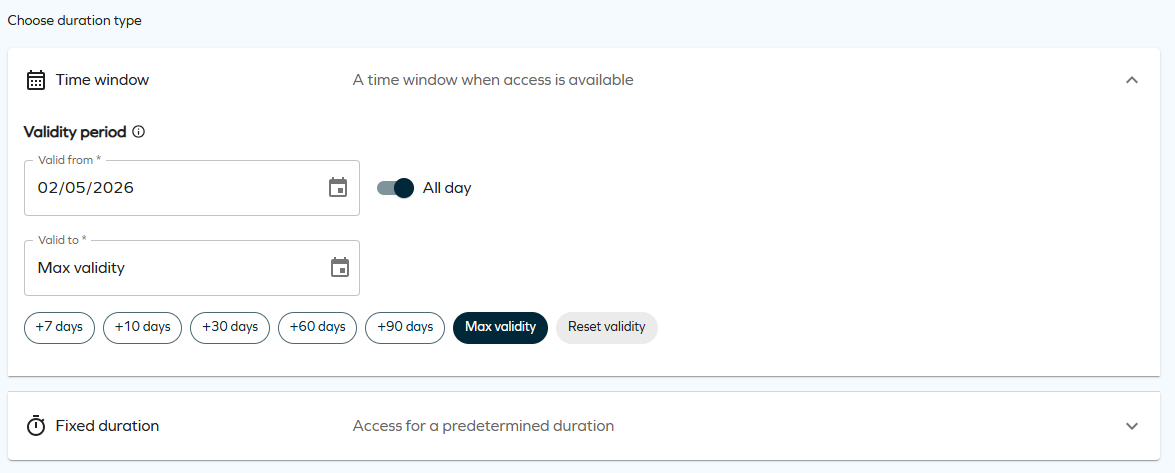
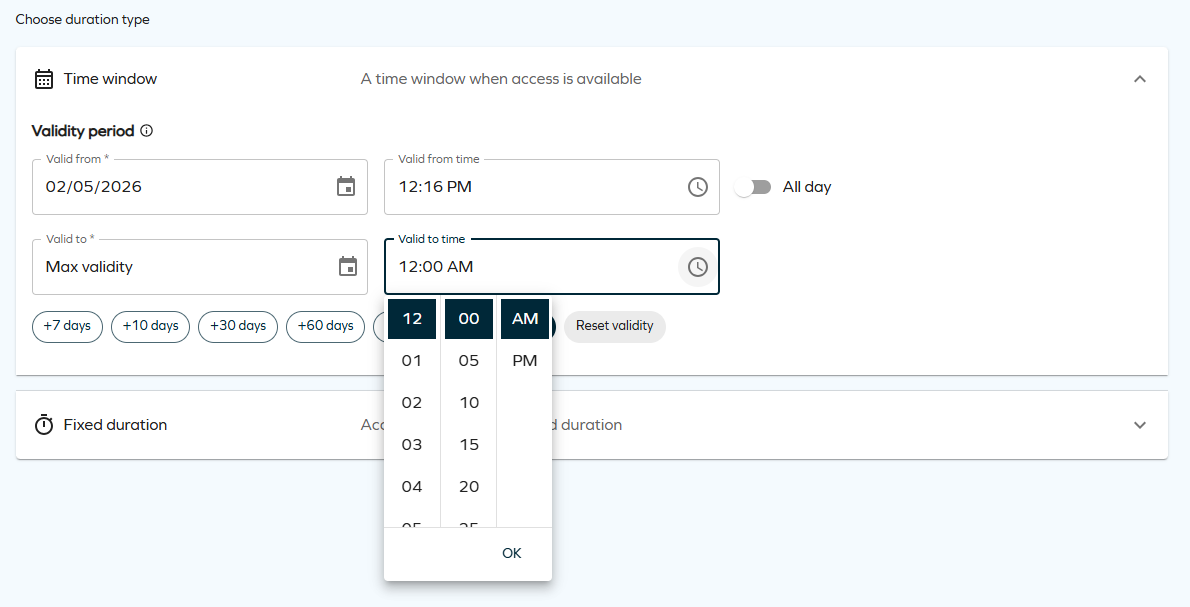
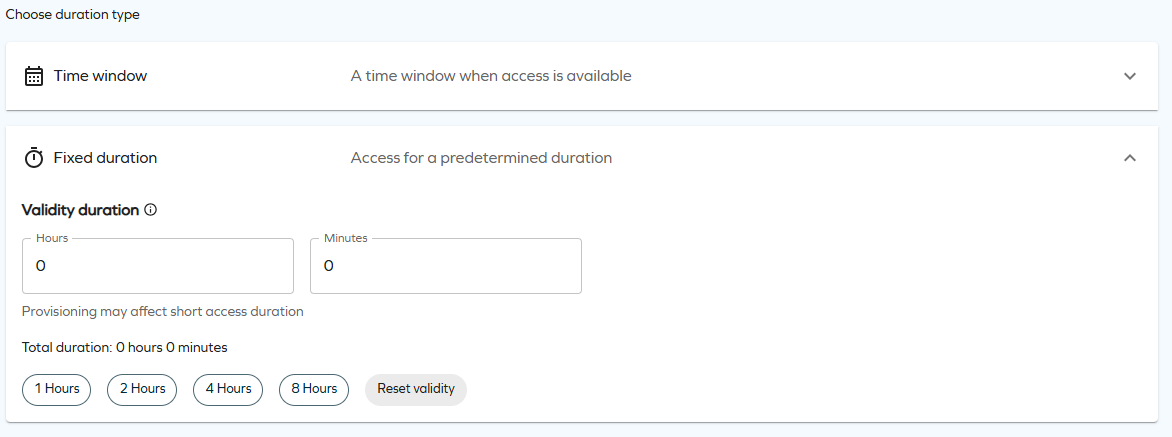
When requesting or extending access, you can now grant it for a precise length of time: choose a Time window (specific start/end dates, optionally with exact times via the All day toggle) or a Fixed duration (hours and minutes that start counting when the request receives its final approval). Approvers can review and adjust the requested validity directly from the approval grid using date, date-time, and duration pickers, and the maximum validity policy on resources, resource folders, and systems now supports days, hours, and minutes.
The Time window option allows you to request access for a specific period by selecting a start and end date, with an optional All-day toggle to define whether access applies to the full day or to specific times.
The Fixed duration option allows you to request access for a predefined amount of time by specifying duration in hours and minutes. Access becomes active from the moment the request is approved and includes quick-select options for commonly used durations.
These time selection options are only available when the customer setting EnableTimeBasedAccess is enabled.
For more details, see Time-based access, Access request, Extend access, and Access approval.
-
No recurring access: each request grants a single continuous window, not a repeating schedule (for example, every Monday 09:00–17:00).
-
No per-day time restrictions: access is continuous within the validity period; there are no active hours inside a multi-day window.
-
Fixed duration starts at final approval: not at submission.
-
Approvers cannot switch modes: time window vs. fixed duration is set by the requester, approvers only adjust values within that mode.
-
Free-text requests do not support fixed duration: only the time window option is available.
-
Very short durations may be partially consumed by provisioning.
Time zone-aware time display in the new UI
Datetime values in the new UI now accurately reflect the user's local time all year round, including during Daylight Saving Time (DST) transitions.
The system looks up the user's full time zone definition — including when clocks change in spring and autumn — and applies the exact offset for any given date. The adjustment is automatic and based on the timezone configured in the user's profile. No action is required from users or administrators.
This improvement applies to datetime values displayed in the new UI and is the foundation for the time-based access validity feature, where exact start and end times are shown alongside dates.
Configurable transfer ownership for any object type
Ownership survey templates can now be configured to write the accepted owner to a specific, custom owner property instead of using the default property determined by the object type.
To use this, add SURV_OWNERPROPERTY to the survey object definition and populate it with the system name of the target owner property (for example, OWNERREF). The survey template can do this automatically using a constant field mapping on the data source, see Constant field mapping for DataObjects data sources below.
When the proposed owner accepts ownership, the ownership post action reads SURV_OWNERPROPERTY and writes the new owner to the configured property. In transfer ownership scenarios, the previous owner is removed before the new owner is added.
Survey objects without SURV_OWNERPROPERTY continue to use the standard object-type-based ownership behavior. Mixed templates are supported, where some survey objects use the configurable write-back path and others follow the standard path.
For configuration details, see Survey object and Data sources.
Constant field mapping for DataObjects data sources
DataObjects-based data sources in survey templates now support constant field mappings. In the survey template XML, mark a dataSourceField with fieldIsConstant="true" to treat the field attribute value as a fixed literal value assigned to the target survey object property, rather than as the name of a property to read from the source object.
<dataSourceField field="OWNERREF" mapTo="SURV_OWNERPROPERTY" fieldIsConstant="true" />
The value is converted to the target property type. For multi-value reference or set properties, comma-separated values are supported.
Constant field mapping is not supported for SQL object data sources. For SQL data sources, define constant values directly in the SQL query.
Max validity period support hours and minutes
You can now define the max validity period for resources, resource folders, and systems using hours and minutes in addition to days. This enables more precise access term limits, for example, 2 days, 4 hours, and 30 minutes. The Maximum validity period property has been renamed to Max validity period (days) and two new properties are now available alongside it:
- Max validity period (hours): accepts an integer number of hours.
- Max validity period (minutes): accepts an integer number of minutes.
The system combines all three values when calculating the effective maximum:
maxValidityInMinutes = ([days] × 1440) + ([hours] × 60) + [minutes]
Existing configurations are not affected by the naming change.
Refer to Extend access and Access request to know more.
UX and UI
The legacy menu-based UI has been removed as of version 16.0.0 and will no longer be supported. For full details on what changed, the impact on customizations, and recommended actions.
The navigation model has been reorganized — menu items have been restructured, renamed, and relocated within the menu hierarchy. If your system includes customizations to standard menu items, review and adjustments may be required after upgrading. See Legacy UI removal for the full details and recommended actions.
Enhanced assignment timeline
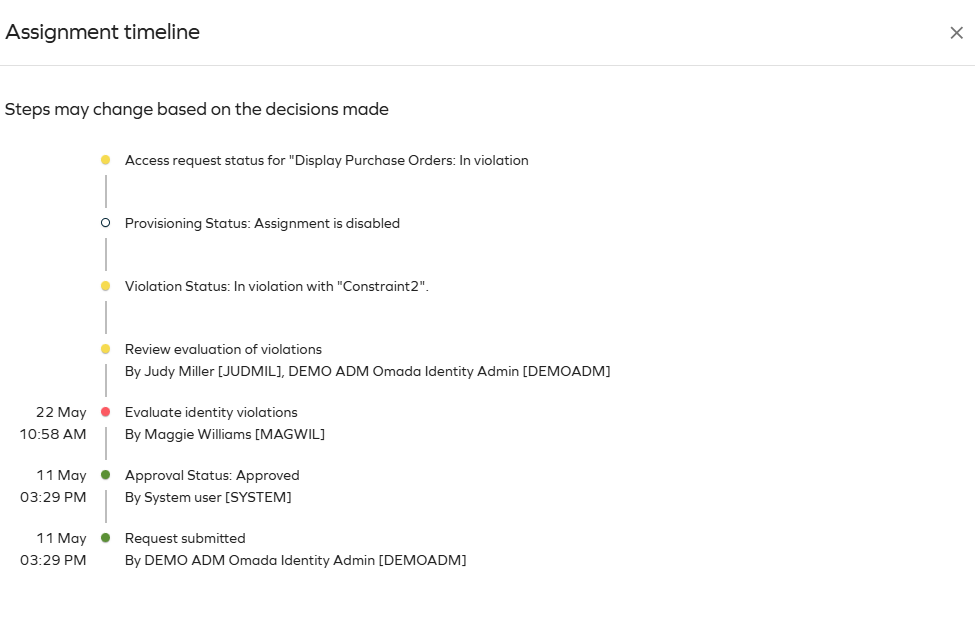
The Assignment Timeline now shows additional workflow steps so you can track the progress of access requests in greater detail.
Violation status and evaluation
The timeline now displays the following details about violations related to an access request:
- Violation status — shows the constraint name(s) being violated and the resolution outcome of the violation process.
- Violation evaluation — shows each step of the violation evaluation workflow, including the actor assigned or who took action and the timestamp. Steps follow the same color pattern used throughout the timeline: red for Blocked (rejection) and green for Allowed (approval).
In the violation evaluation workflow, Allowed and Blocked are the equivalents of Approved and Rejected used in standard workflow steps.
Provisioning status and manual provisioning
The timeline now provides additional detail about the provisioning status and workflow:
- Provisioning status: indicates whether provisioning is pending a manual action (and by whom), or has not started because a previous step is still pending.
- Manual provisioning steps: show the user assigned to perform the action. Once completed, the step is marked green with the completion timestamp.
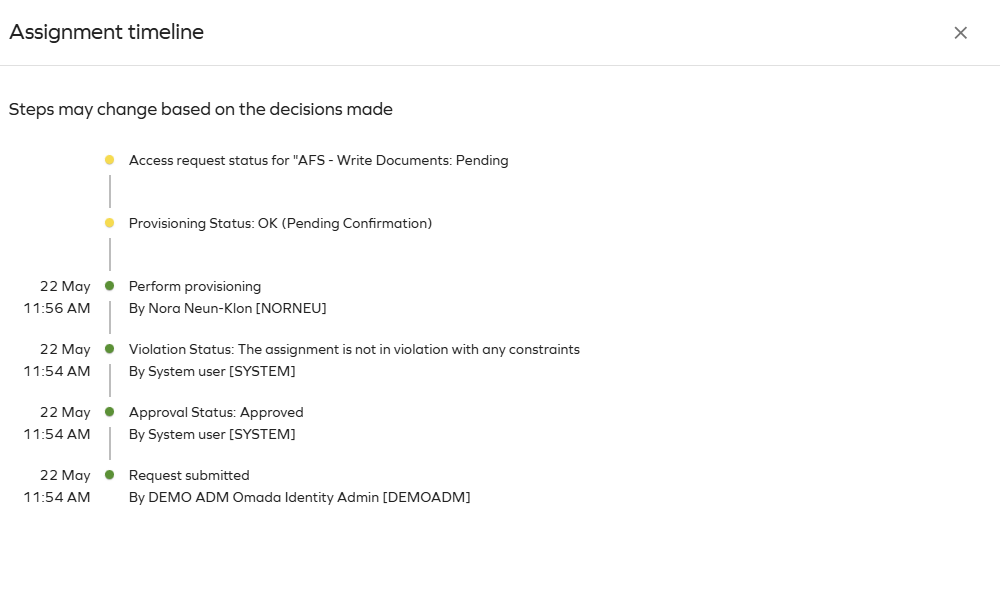
For more details, see Access.
New approvals support approval survey template reconfiguration
New approvals now support questions from both the survey template defined in your customer setting and the default survey template. Previously, only approvals that matched the template configured in the customer setting could be completed in the new approvals experience, while the rest had to be handled in the legacy interface.
When the UseNewUIForApprovalFlow customer setting is enabled, approval tasks open in the new approvals experience directly from the homepage, including those based on the default template. For example, an approval created from the default template appears as a To Do card on the homepage and opens in the new approvals experience instead of redirecting to the legacy interface.
The new approvals support reads questions from the template defined in the customer setting and from the default template, so you can complete approvals from either source in the same place.
If you disable the UseNewUIForApprovalFlow customer setting, approvals revert to the previous behavior and open in the legacy interface. No additional configuration is required beyond enabling the customer setting.
See Customer settings.
Referring objects view for identities
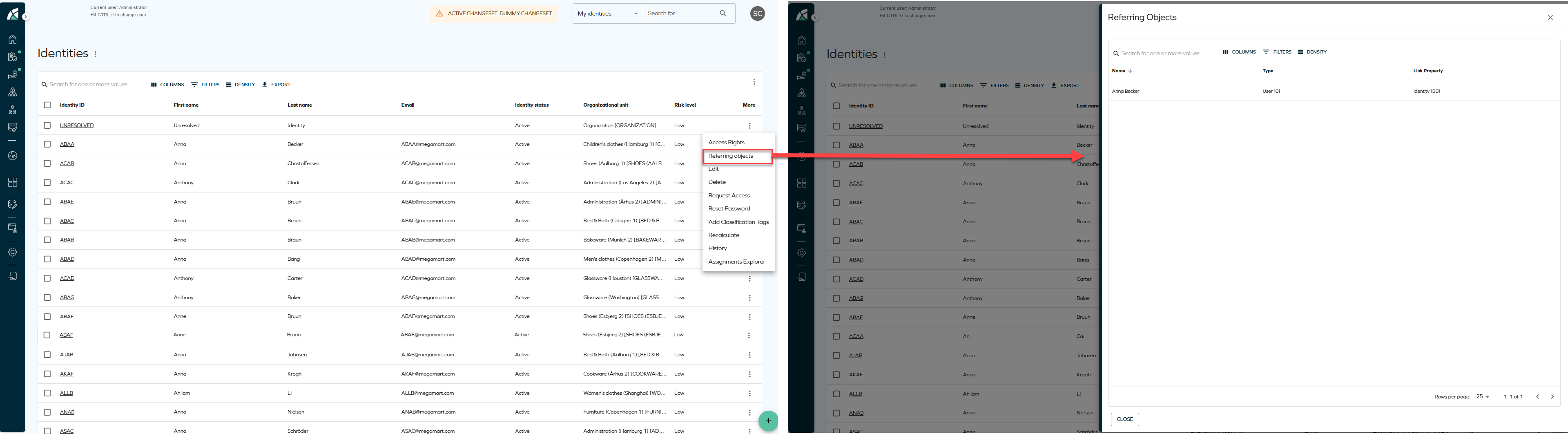
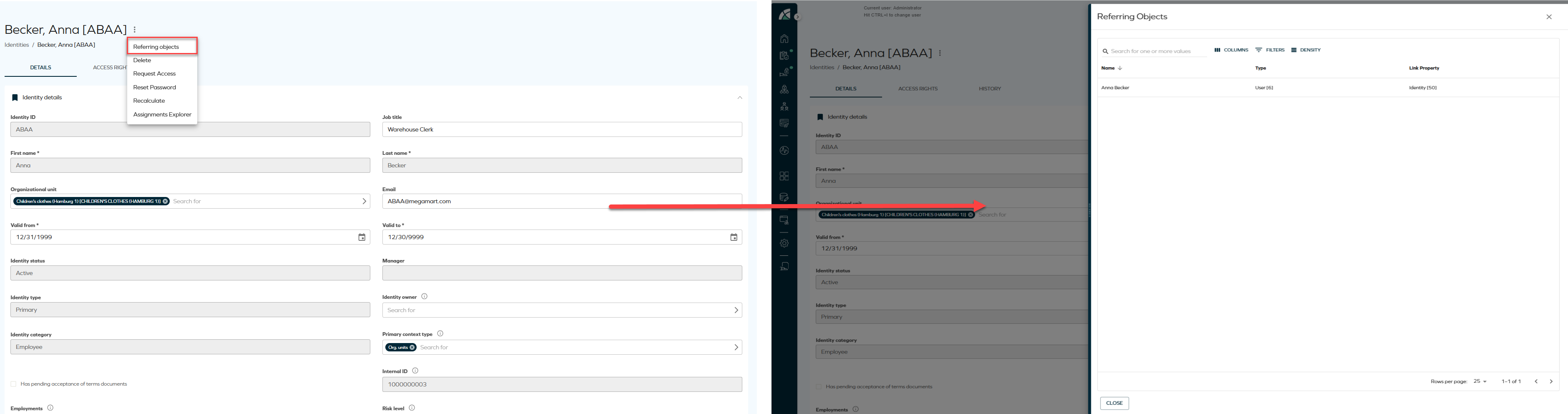
A new Referring objects option has been added to the Identities list and Identity details pages. The option is available from the three-dots menu in both views and opens a side panel displaying all data objects related to the selected identity, including the identity itself. This allows relationships to be reviewed directly from the list or details view.
-
From the Identities list, click the ellipsis button and select Referring objects.
-
From the Identity details page, click the ellipsis button next to the identity name and select Referring objects.
Redesigned My profile and Account settings pages
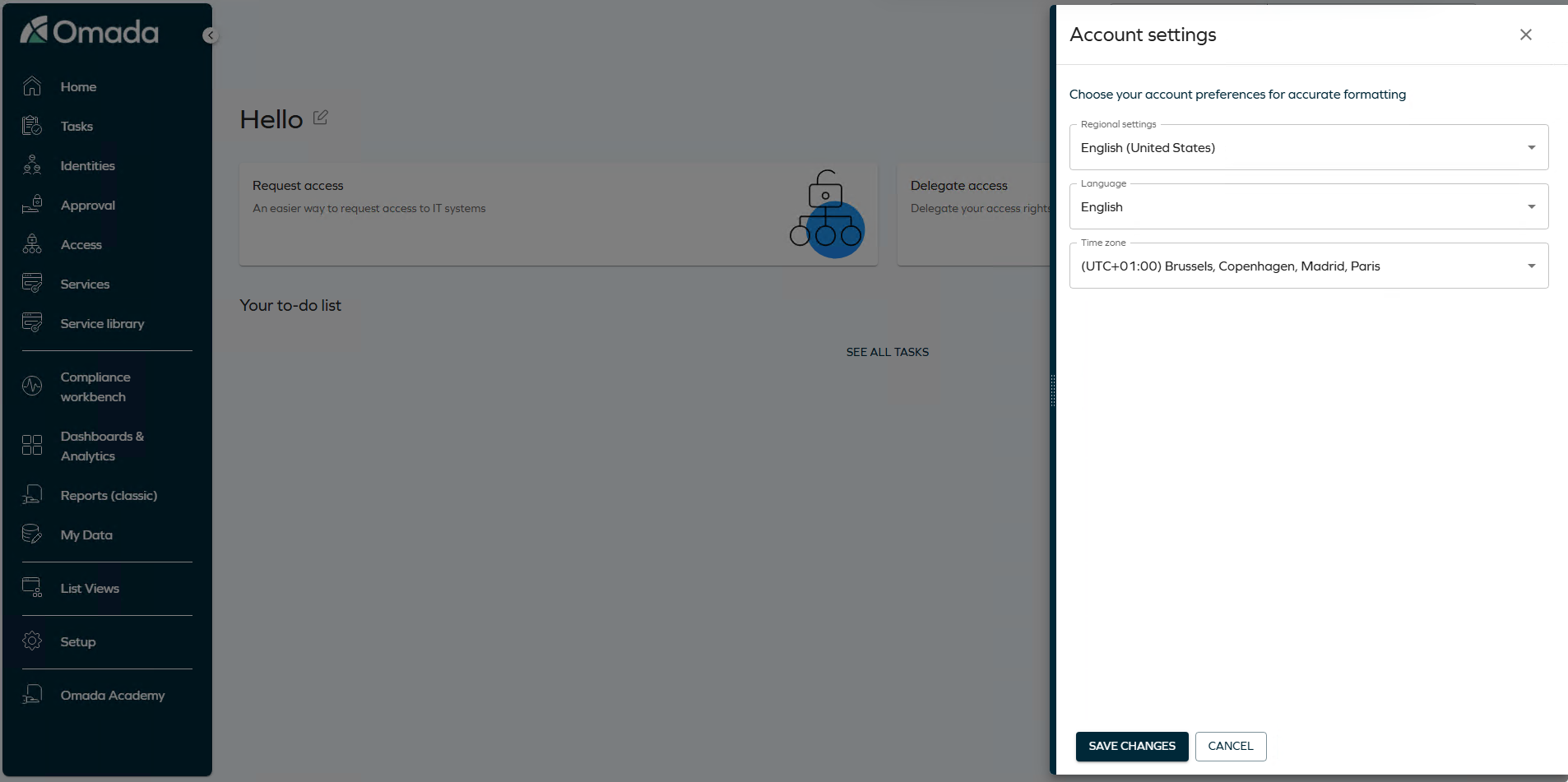
The My profile and Account settings pages have been redesigned.
Account settings now opens as a side panel from the homepage when you select the settings icon, instead of navigating to a separate page. From the panel, you can set your regional settings, language, and time zone, and select Save changes to apply them.
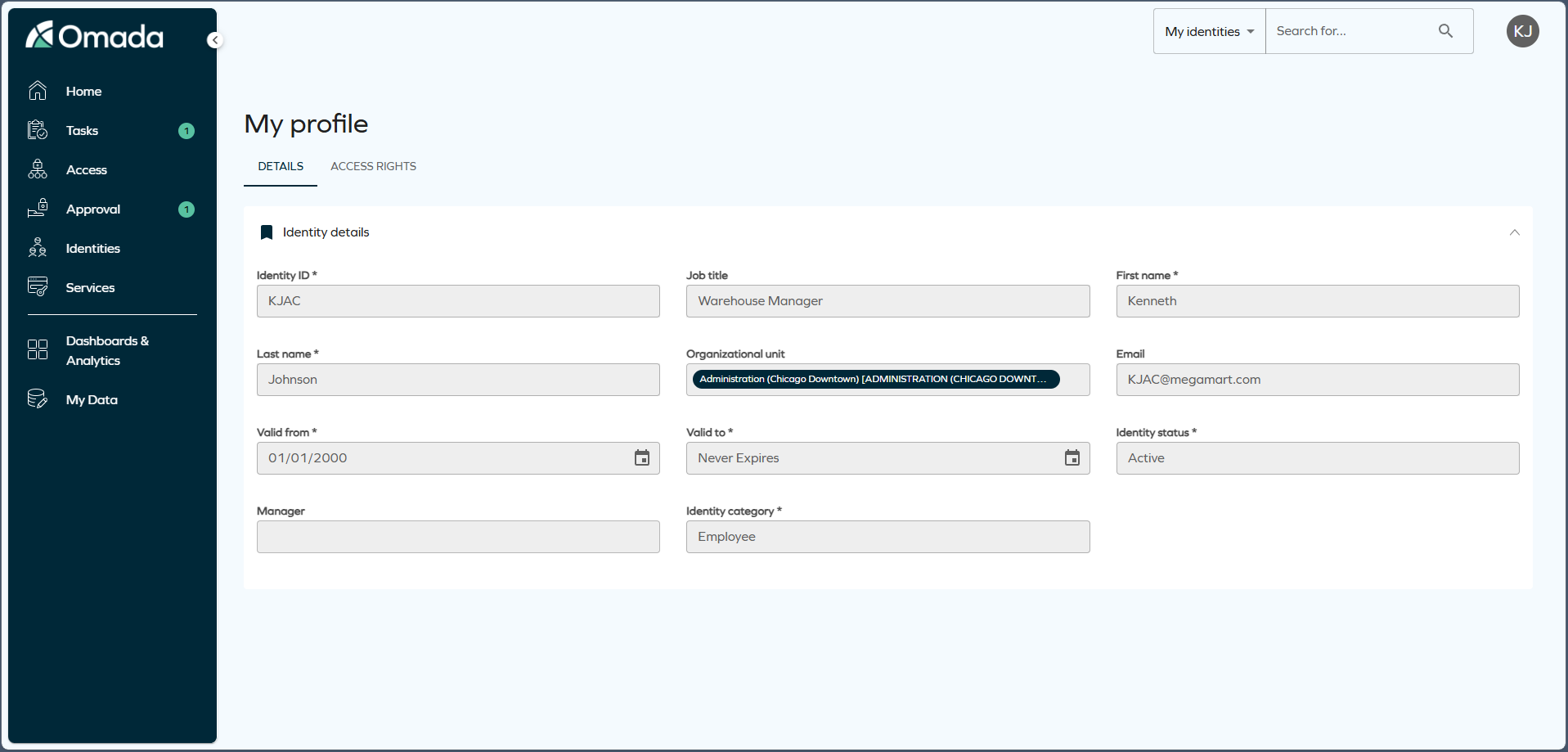
My profile is organized into two tabs:
-
Details: displays your identity information, including identity ID, job title, organizational unit, contact details, validity dates, identity status, manager, identity category, and IT access profile.
-
Access rights: displays the resources assigned to your identity, grouped for easier navigation. For each assignment, you can see the resource, account, resource type, validity dates, and attributes. To review the origin of an assignment, open the row menu and select Direct assignments.
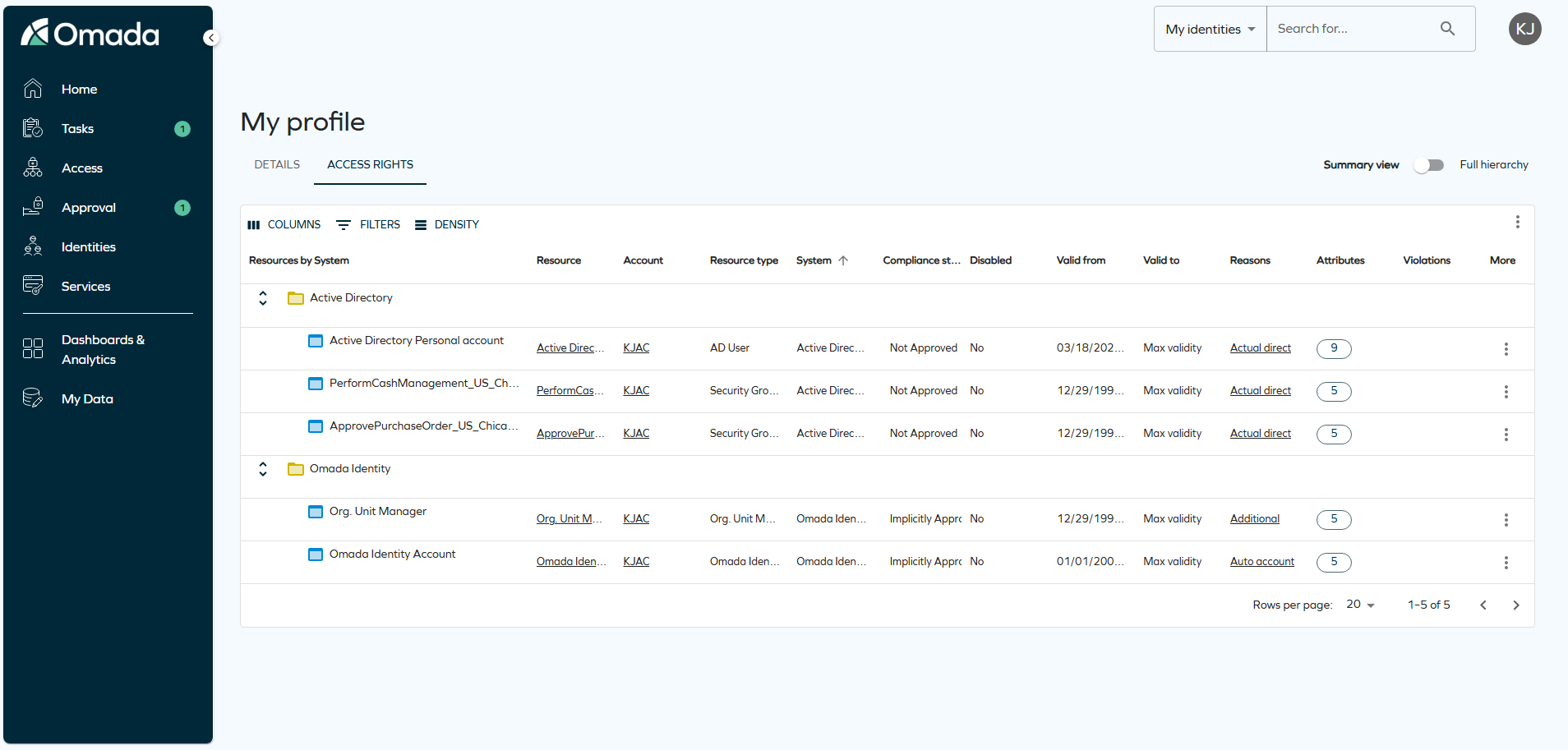
From the Access rights tab, you can search, filter, adjust columns, change density, and export the list.
For more details, see Menus and settings documentation.
Form and list sent emails
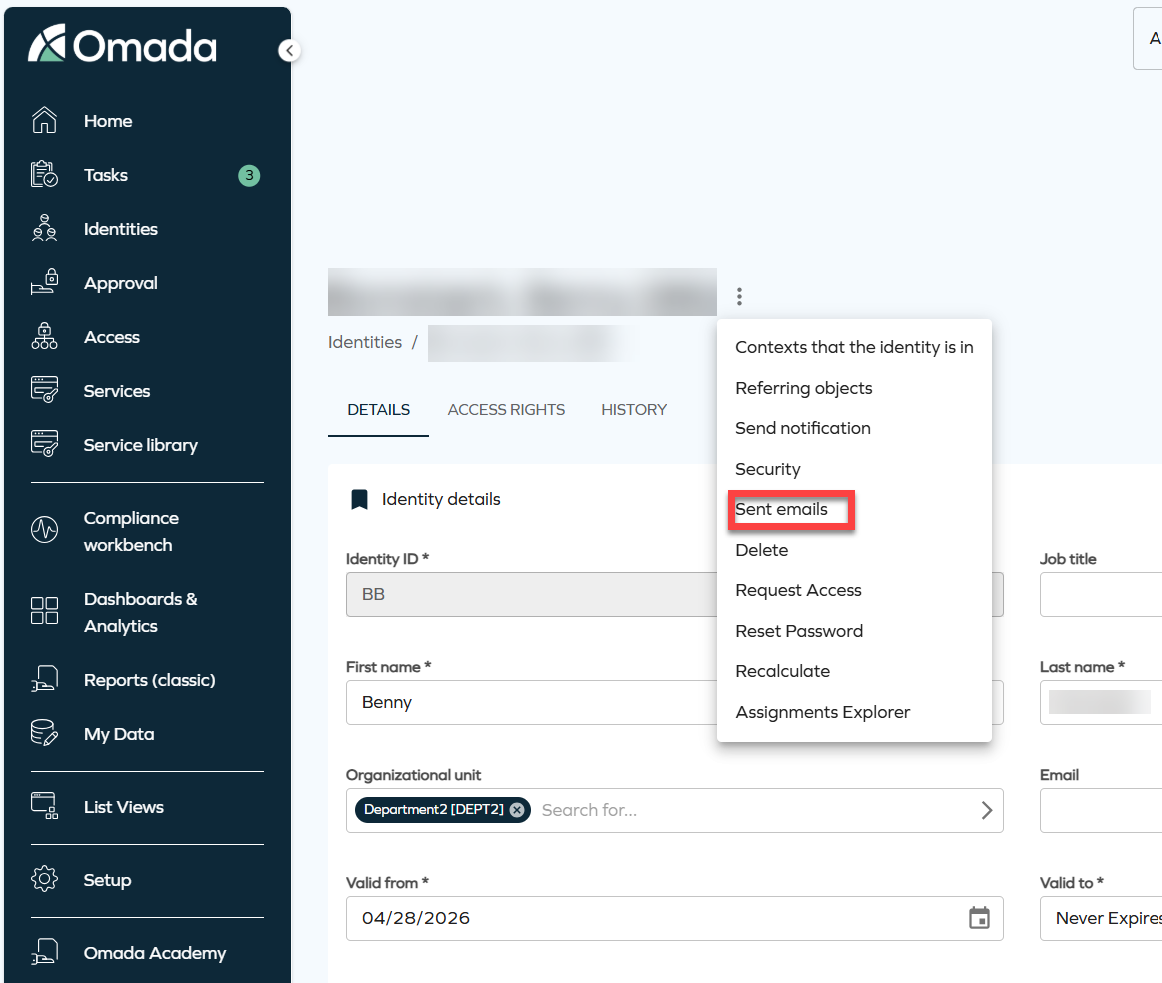
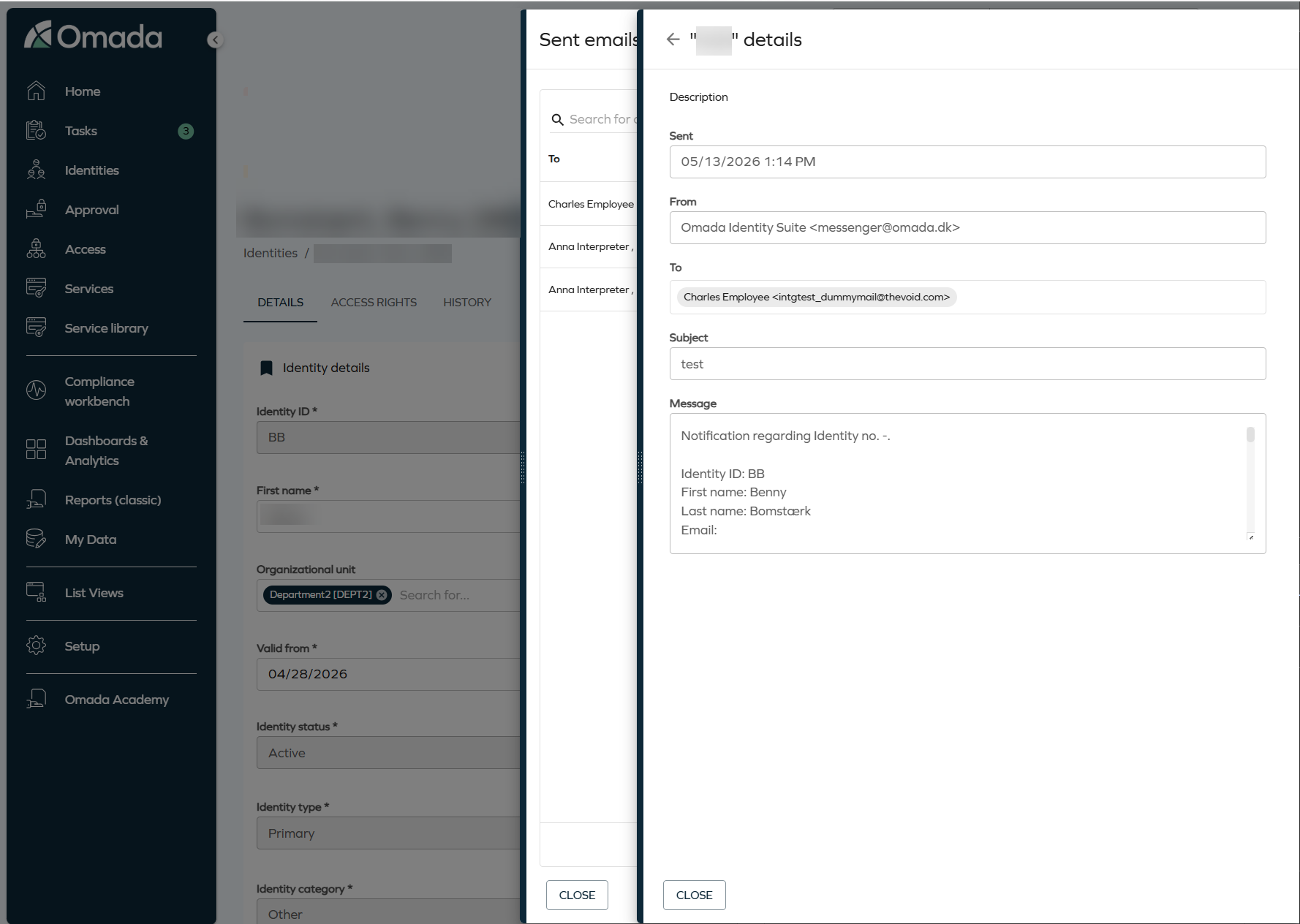
It is now possible to review the history of email notifications sent for a specific data object directly from the object's page. The new Sent emails option is available from the three-dots menu on the Identity details page, identity list rows, and resources.
Selecting Sent emails opens a side panel displaying a list of all email notifications sent in relation to that object.
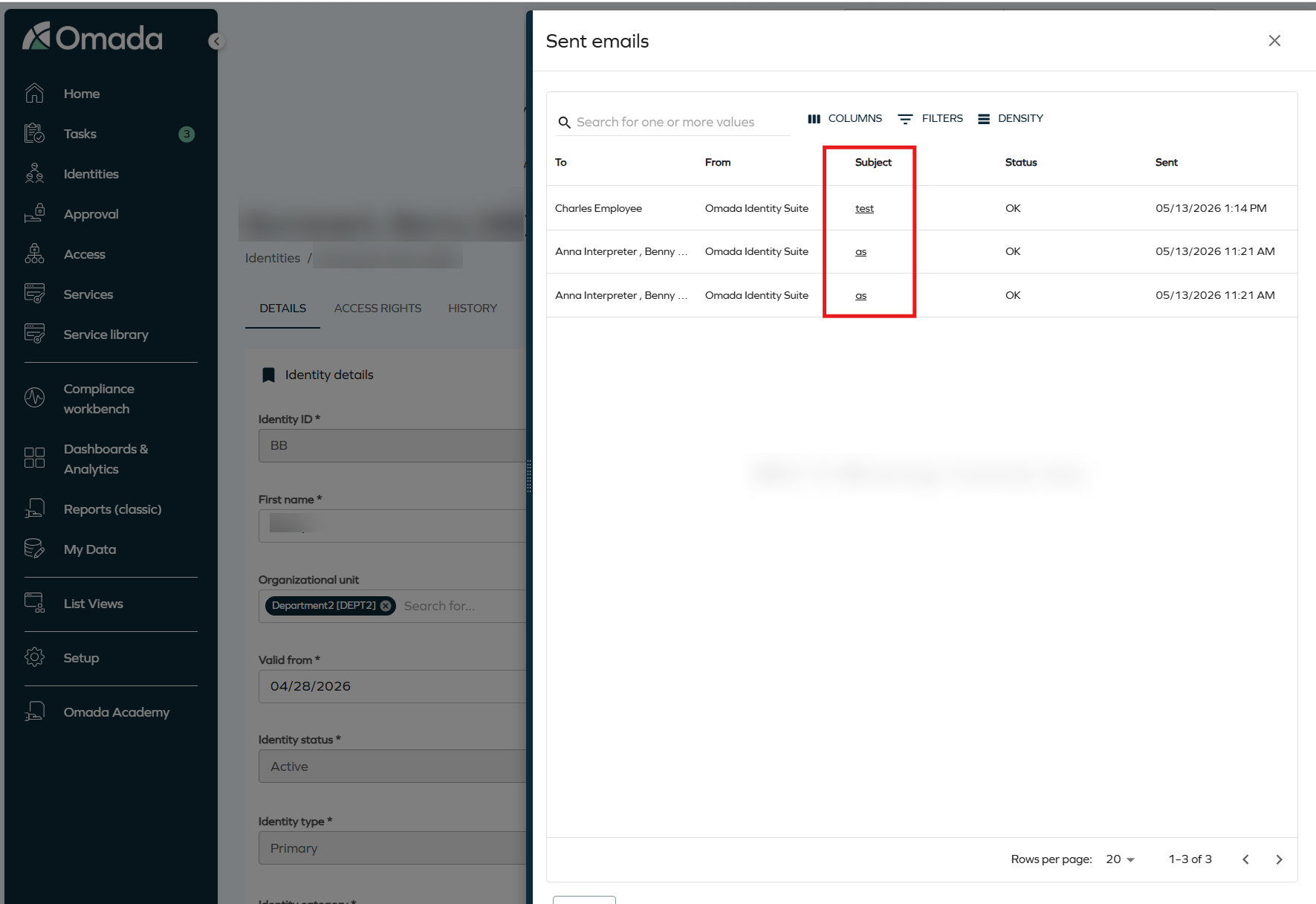
To review the full content of an email, click the subject link. A secondary panel opens with the complete details of the email, including the sender address, recipient, subject, and message body.
Modernised CSS styling for legacy interfaces
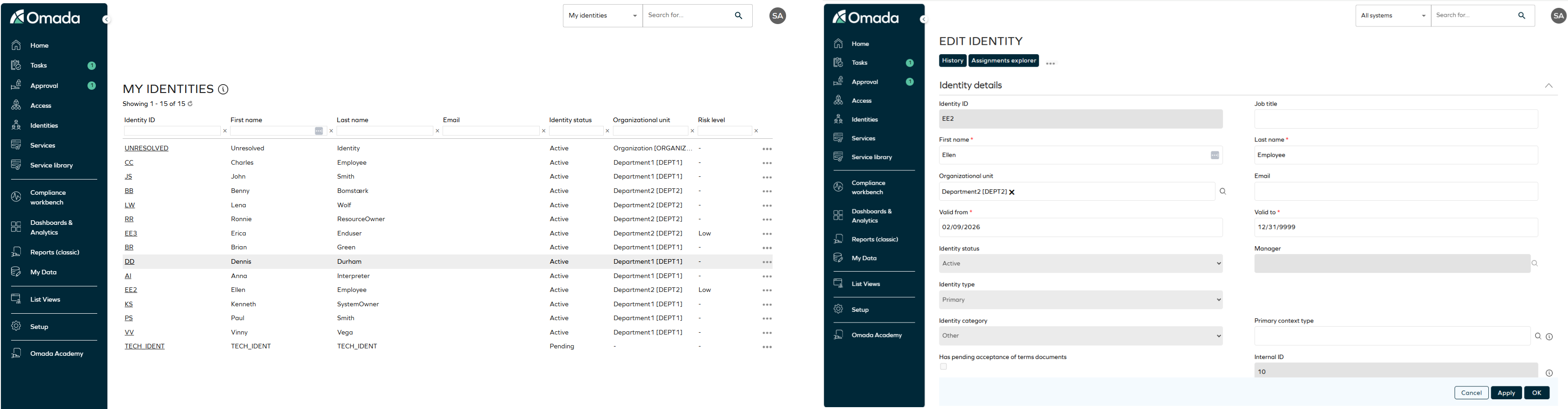
We have refreshed how our legacy interfaces look to bring them more into line with our new UI. The main key details are:
- Enabled by default when using the standard Omada theme.
- You can enable the feature using the
useRefreshedThemecustomer setting. - When a Corporate Theme is configured via the Management Portal:
- CSS Rollout is automatically enabled.
- The feature cannot be disabled.
New customer setting for CSS Rollout
A new customer setting, useRefreshedTheme, has been introduced to control the activation of the CSS Rollout feature for the Legacy UI. This customer setting enables modernized CSS styles for forms in the Legacy UI, aligning them with the New UI design language. When a Corporate Theme is configured via the Management Portal, the setting is automatically enforced and cannot be disabled.
Eligibility filtering - upwards inheritance in context-based filtering
You can now use upwards inheritance when the system evaluates contexts for eligibility. When you assign an identity to a context, the system also includes all parent contexts in the hierarchy as part of the evaluation.
This change means that an identity assigned to a child context can also access resources associated with its parent contexts. For example, if you assign an identity to Denmark, the system also includes Europe and Global, allowing access to resources tagged with these contexts.
Upward inheritance works in one direction only. There is no way to restrict a resource so that it is visible only to identities assigned directly to a given context. For example, a resource tagged with Europe is also visible to identities in Denmark or Germany — not just those whose context is exactly Europe.
For more details, see Eligibility filtering in the Access request documentation.
New UI enhancements
Updated side panel navigation
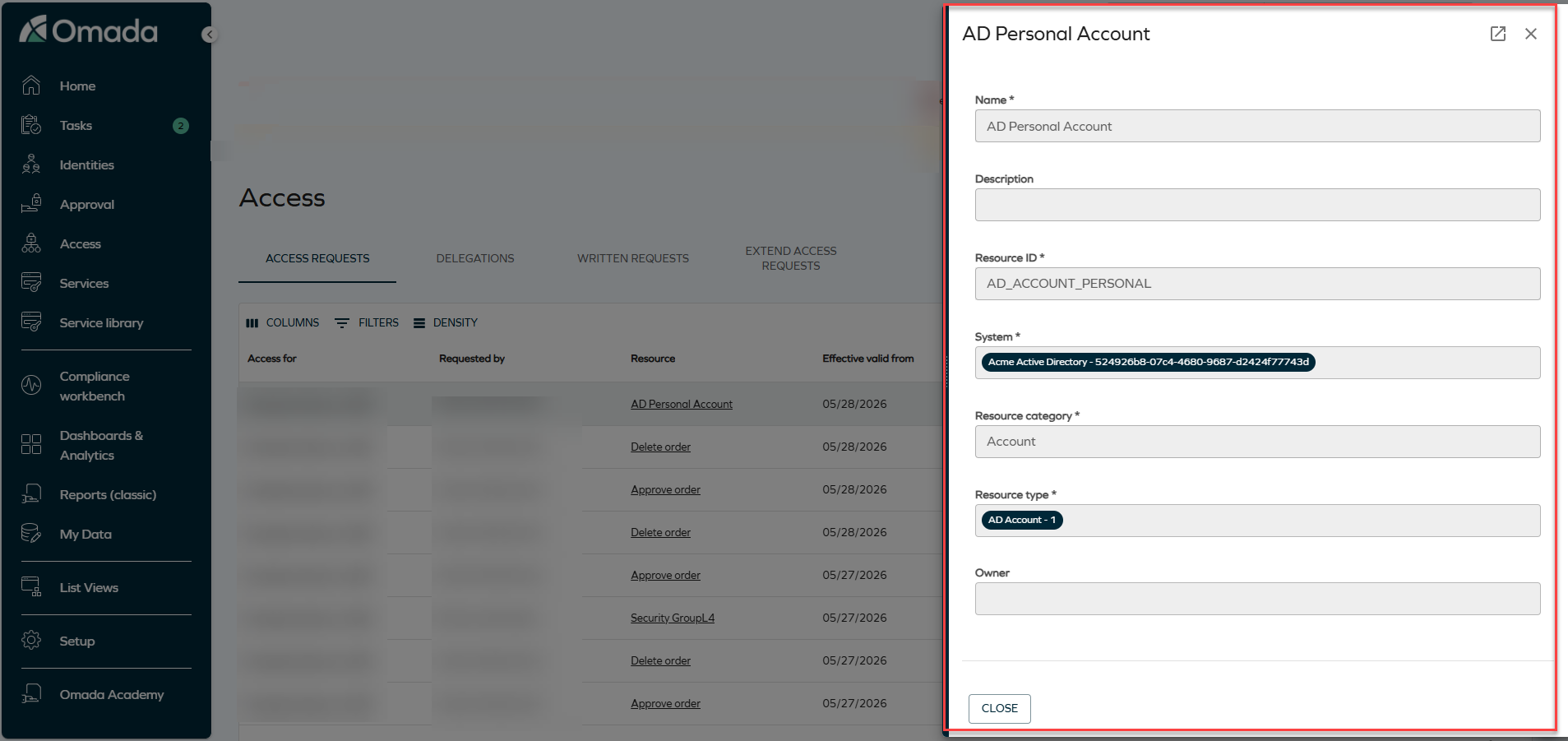
We have updated how side panels behave when you navigate between related objects. Side panels now replace each other when you select a chip, instead of stacking. Changes made in a side panel are automatically reflected in the chip that opened it.
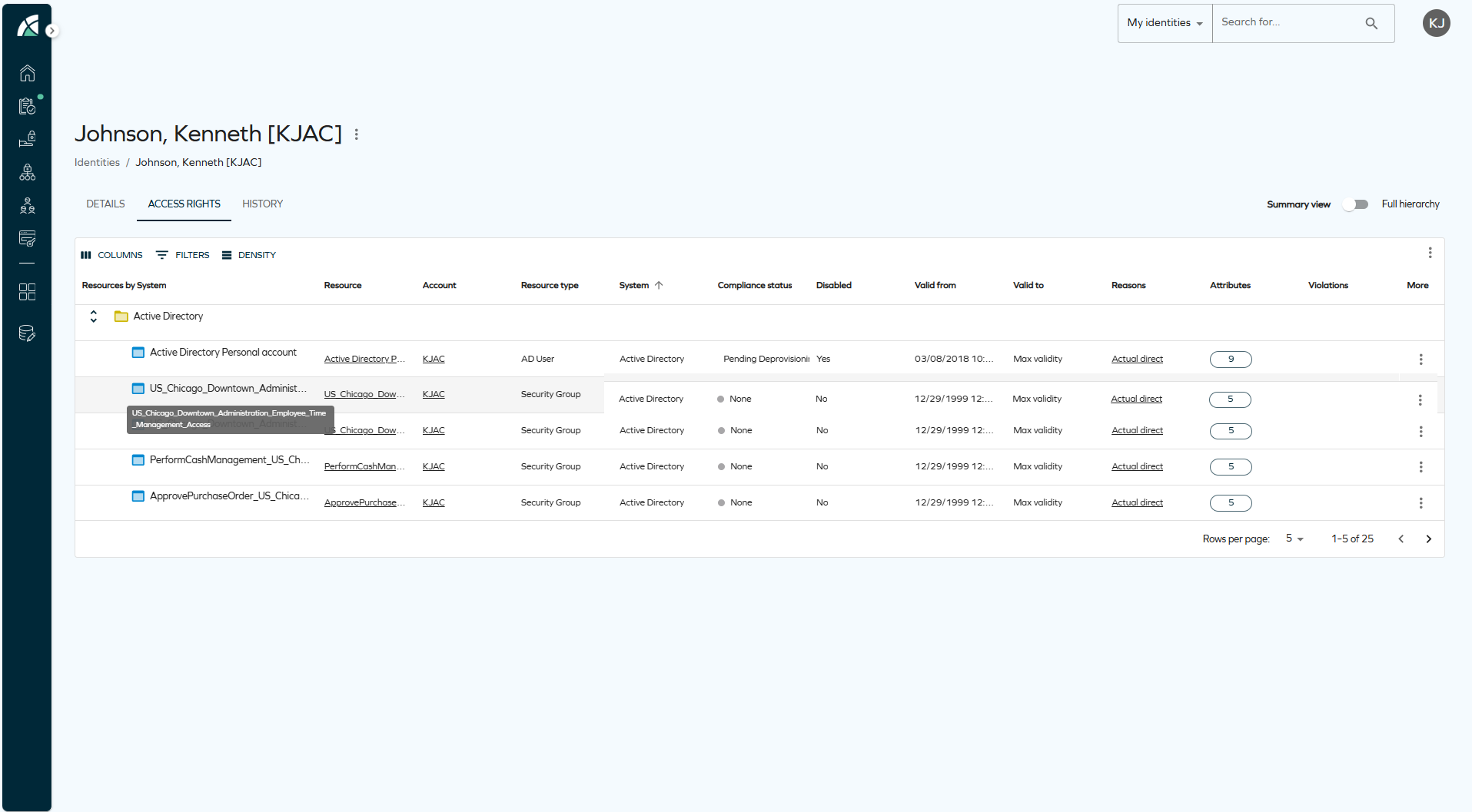
Default sorting for the Access rights grid
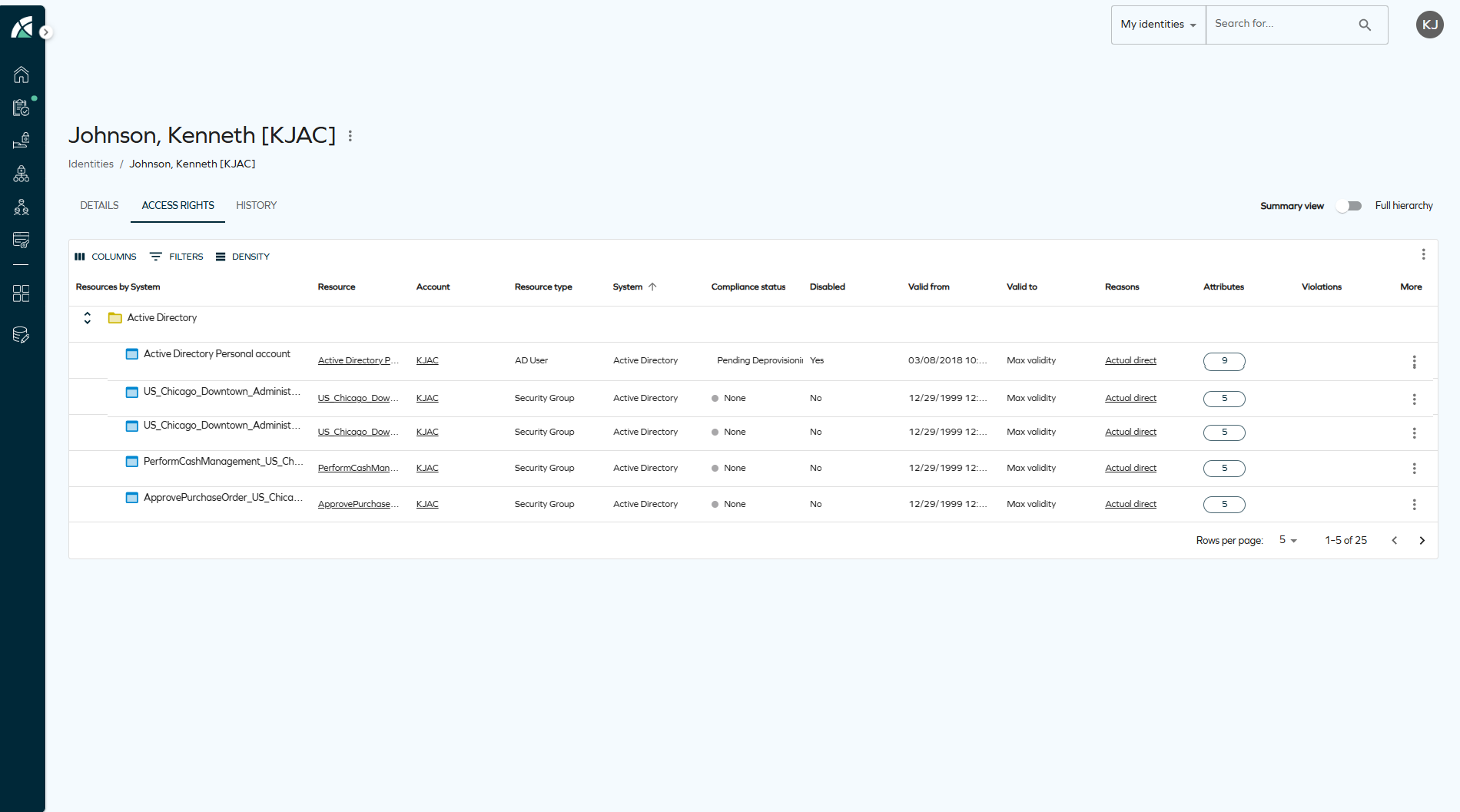
We have updated the default sort order for the Access rights grid on the identity details page. When no custom sorting preference has been saved, the grid now sorts by the System column by default. This ensures that assignments are correctly grouped by system before being grouped by parent resource.
Grouping column in Access right
We have updated the grouping column in the Access rights grid to truncate long values with an ellipsis. A tooltip now displays the full text when you hover over a truncated value.
Multi-language support for surveys
Survey names and descriptions are now displayed according to your language settings. This improvement ensures that surveys appear consistently in the appropriate language across the user interface and in notifications.
This change applies to the areas where survey information is shown, such as To Do cards and email templates. For example, when a survey name is used in a notification template, it is now resolved in your language instead of using a single default value.
- Built-in survey templates already include translations for supported languages, so they are ready to use in multi-language environments without additional configuration.
- Custom survey templates do not include translations by default. To ensure consistent behavior across languages, you must update the name and description in each language you want to support.
When you edit a survey template, the system updates the name and description in the language currently selected in the user interface. For example, if your interface is set to Spanish when you save the template, the Spanish values are updated.
Access page column visibility behavior
Column behavior in the Access page follows the default visibility settings. Columns that are not enabled by default, such as the Access reference key, are hidden and only shown when selected.
To display the column, open the column selector in the grid and select Access reference key. The selected columns are then shown in the grid, allowing you to tailor the view based on your needs.
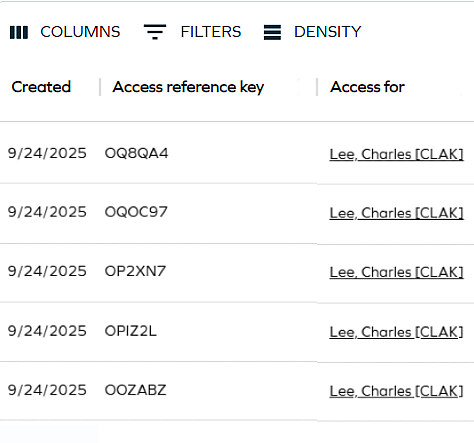
Refer to Access to know more.
New email templates
You can now download email templates as a .zip file. The templates include a modern and updated design to improve the look and feel of your email communication. After you download the file, you can update the HTML to match your requirements. Then copy the template into Setup > Email templates.
This update makes it easier to customize templates and align them with your branding. These are the available email templates:
- Access request mobile approval
- Access request mobile approval (original)
- Account created notification (identity)
- Account created notification (manager)
- Account created notification (owner)
- Activity overdue
- Activity rejected
- Approval process launch failed - Requester
- Approve data changes
- Contractor onboarded
To download these email templates, go to: New email templates.
Customer setting Exclude deleted data objects from SearchData
We have added the ExcludeDeletedDataObjectsFromSearchData customer setting, which is Enabled by default, and excludes deleted data objects from SearchData, improving performance during search updates and full-text search operations.
Improved required context during access approvals
Access approval questions now load without errors even if a required context has been deleted while the approval is still Pending.
When you submit an approval and the required context is no longer available, the affected resource assignment is cancelled. The system removes the missing context from the resource assignment, updates its status to reflect that it can no longer be fulfilled, and records the action and its reason in the resource assignment description.
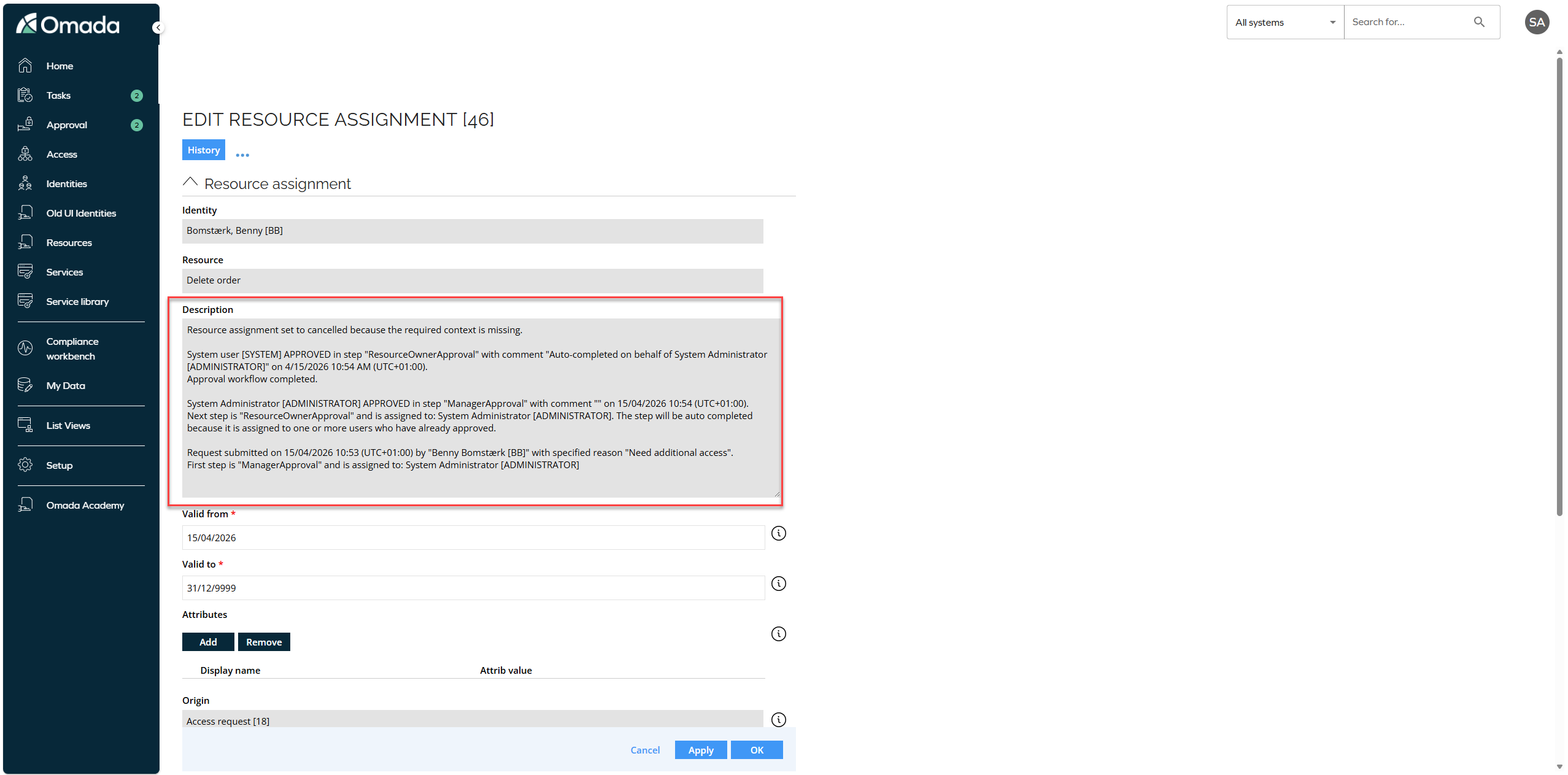
You see a message that explains that one or more approved items did not have a required context assigned and that the affected resource assignments have been cancelled.
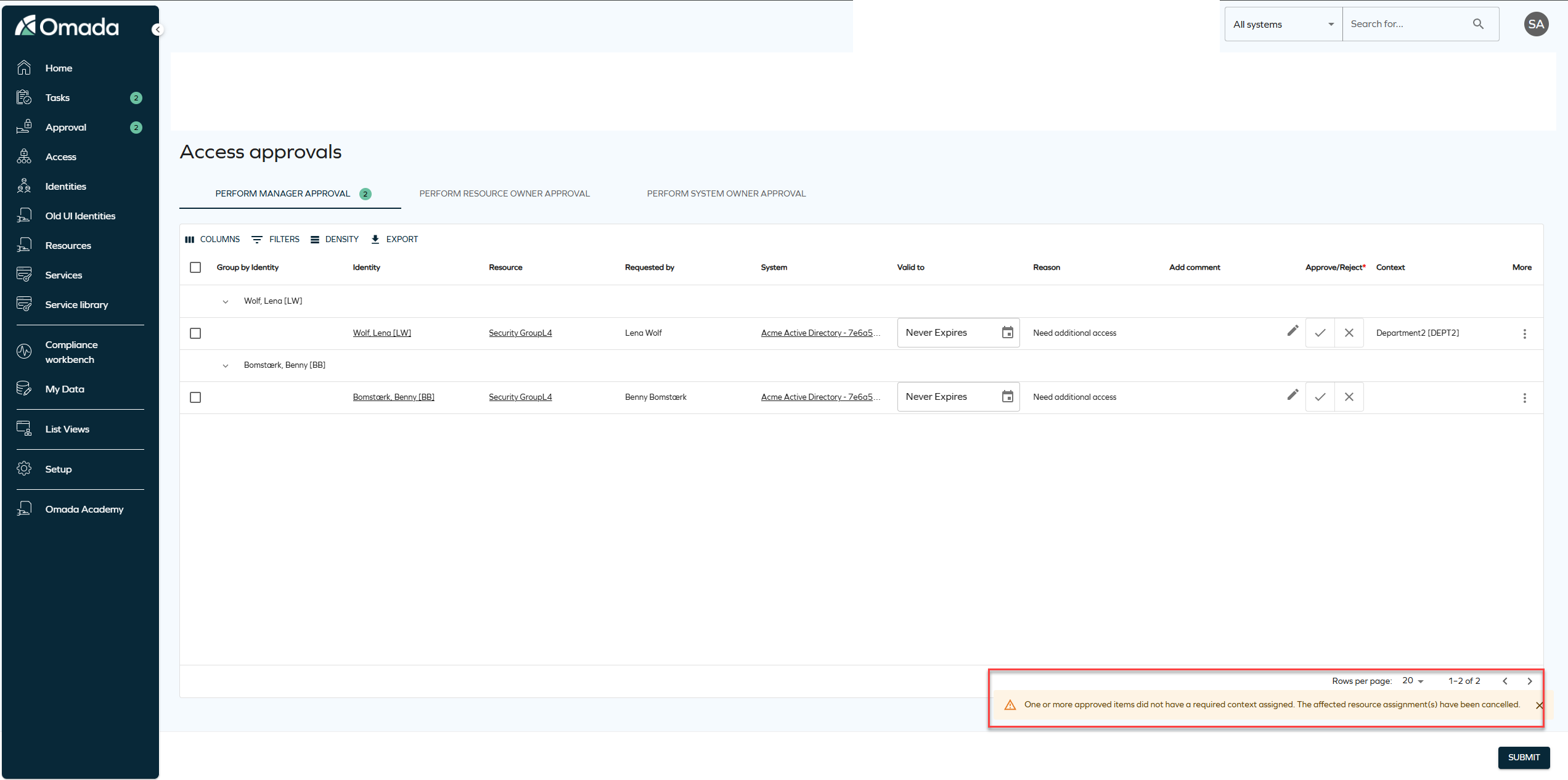
This change ensures that the approval flow continues without errors and that invalid or indeterminate assignments are handled consistently.
Improved description updates for obsolete resource assignments
The post-action logic for recertification surveys has been enhanced to ensure that direct resource assignments are updated with clear descriptions when they are set to Obsolete.
When access is Removed as part of a recertification campaign, the resource assignment description now records the removal context, date, acting user, and any campaign comment.
If a survey is closed without a response, the description explicitly states that no response was provided and that access was removed due to non-response.
Improved error visibility
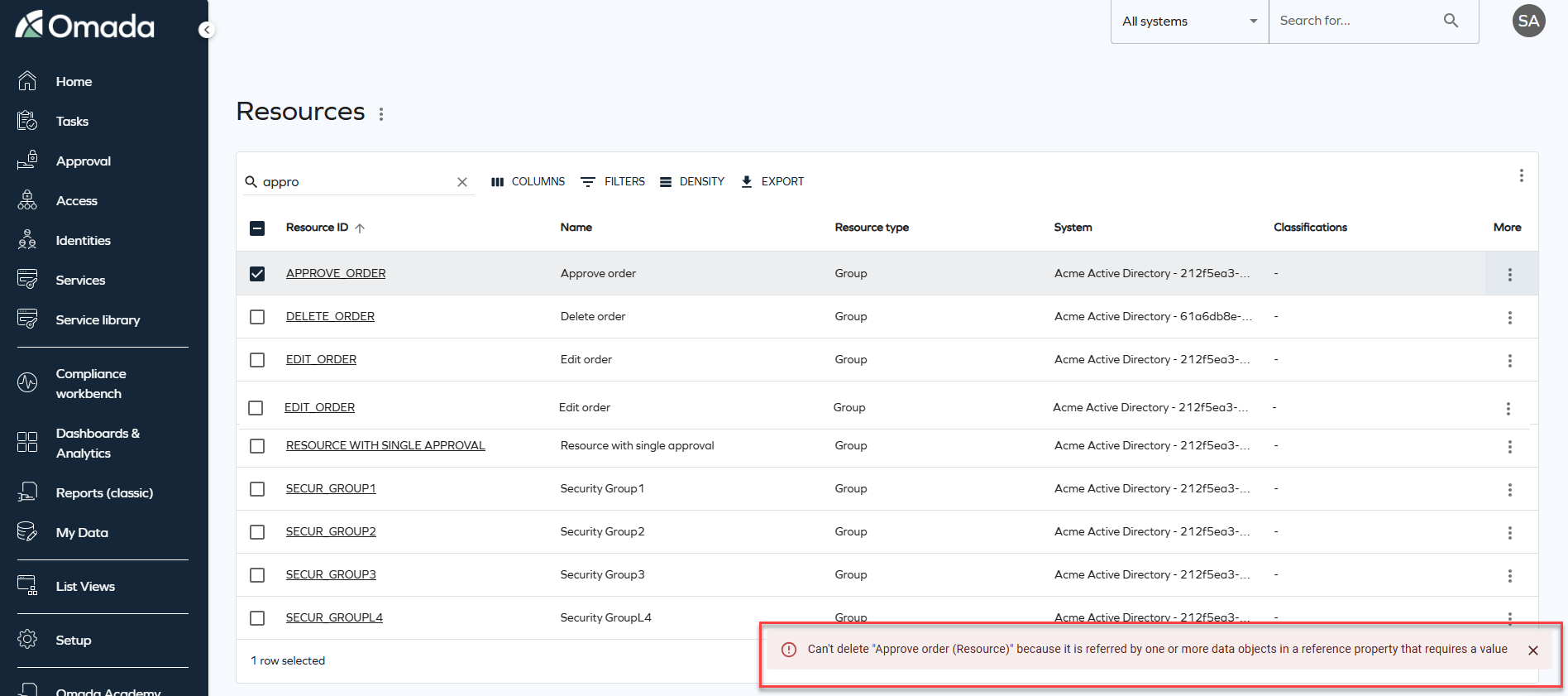
On-screen error notifications will now be displayed when data fails to load or an operation fails. Previously, these errors were only logged in the browser console. The new snackbar notifications provide clear feedback and context, helping you to understand when something goes wrong.
Improved full text search stability and performance
Full text search has been enhanced to improve performance and stability by optimizing how search data is evaluated. As part of this improvement, the SearchData column in tblDataObject is extended to include the corresponding ID of the DataObjectType.
For example, when searching for Resources, the search operation includes a filter on the Resource data object type ID and no longer evaluates search data belonging to other object types. This improves search performance by ensuring that only search data for the selected data object type is evaluated.
To support this change, an automatic background migration is executed by the timer service. This migration updates existing search data in batches until the search data for all data objects includes the data object type ID. During the migration period, full text search continues to behave as in previous versions.
Once the migration is completed successfully for all data objects, the system automatically enables the optimized search behavior, and the customer setting DataObjectSearchDataContainsTypeId is set to True, indicating that the migration is complete.
Deep links to pre-filter resources in request access
We have enhanced the deep link functionality in Access request to support filtering and more flexible configuration sharing. You can now apply filters when selecting identities and resources and share them in the generated link.
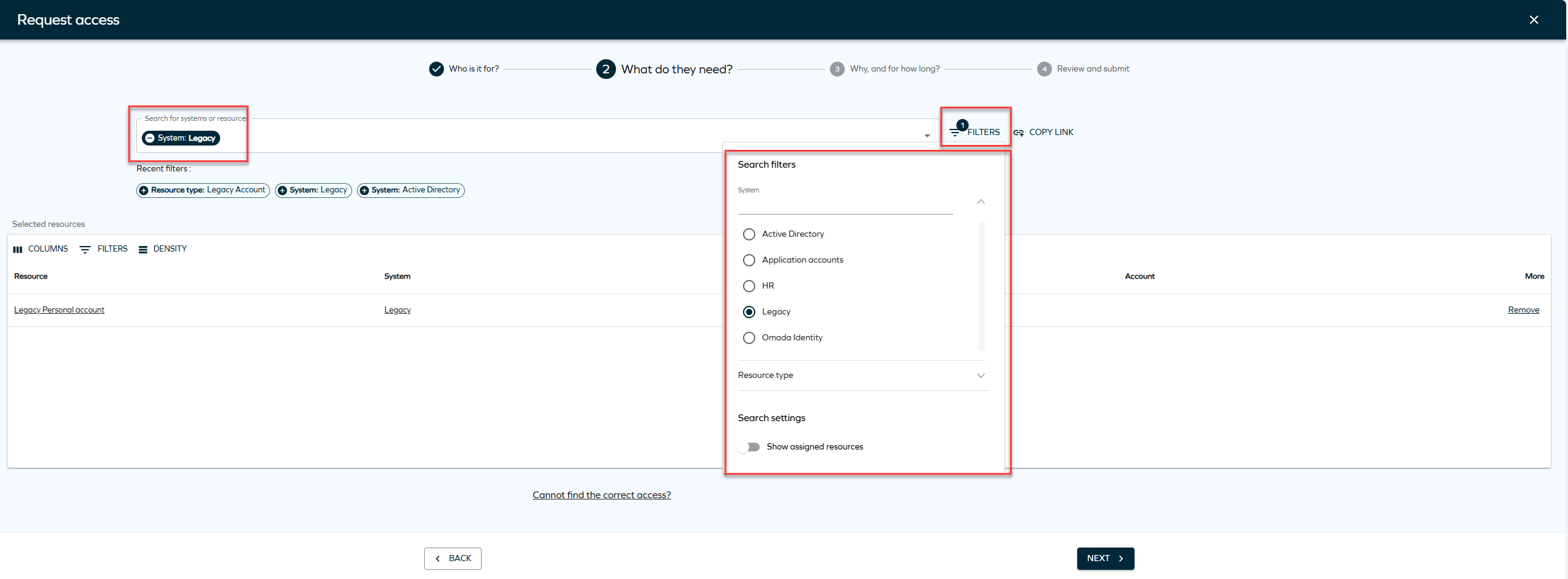
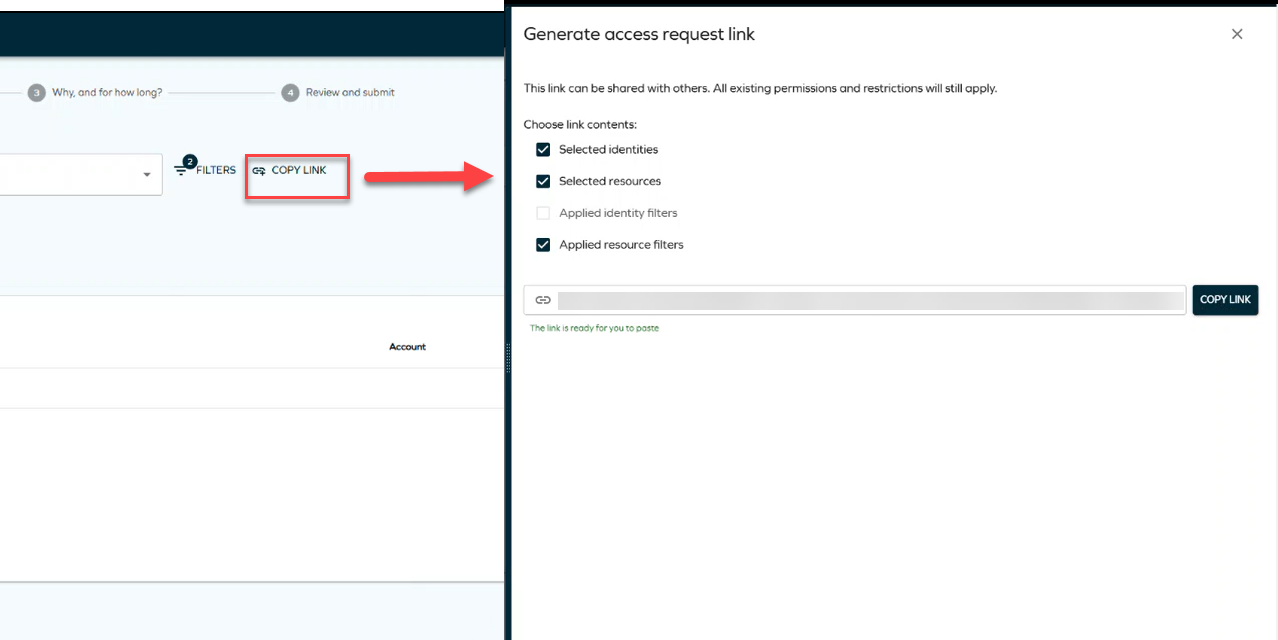
When you click Copy link, you can choose whether to include the applied filters in the generated link. The deep link can include selected identities, selected resources, and optionally the applied filters, allowing a preconfigured request to be easily shared and reused.
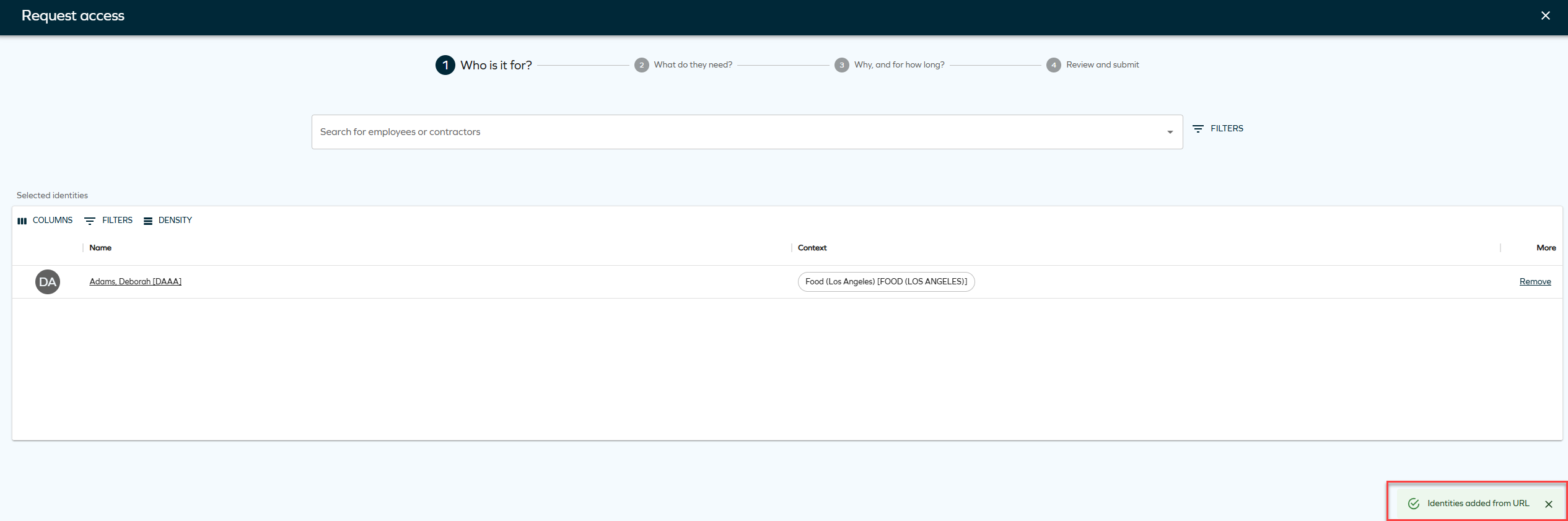
When the link is opened, the access request is automatically prefilled based on the saved configuration, while all existing validation and security rules are enforced.
For more information, see Access request documentation.
Send notifications
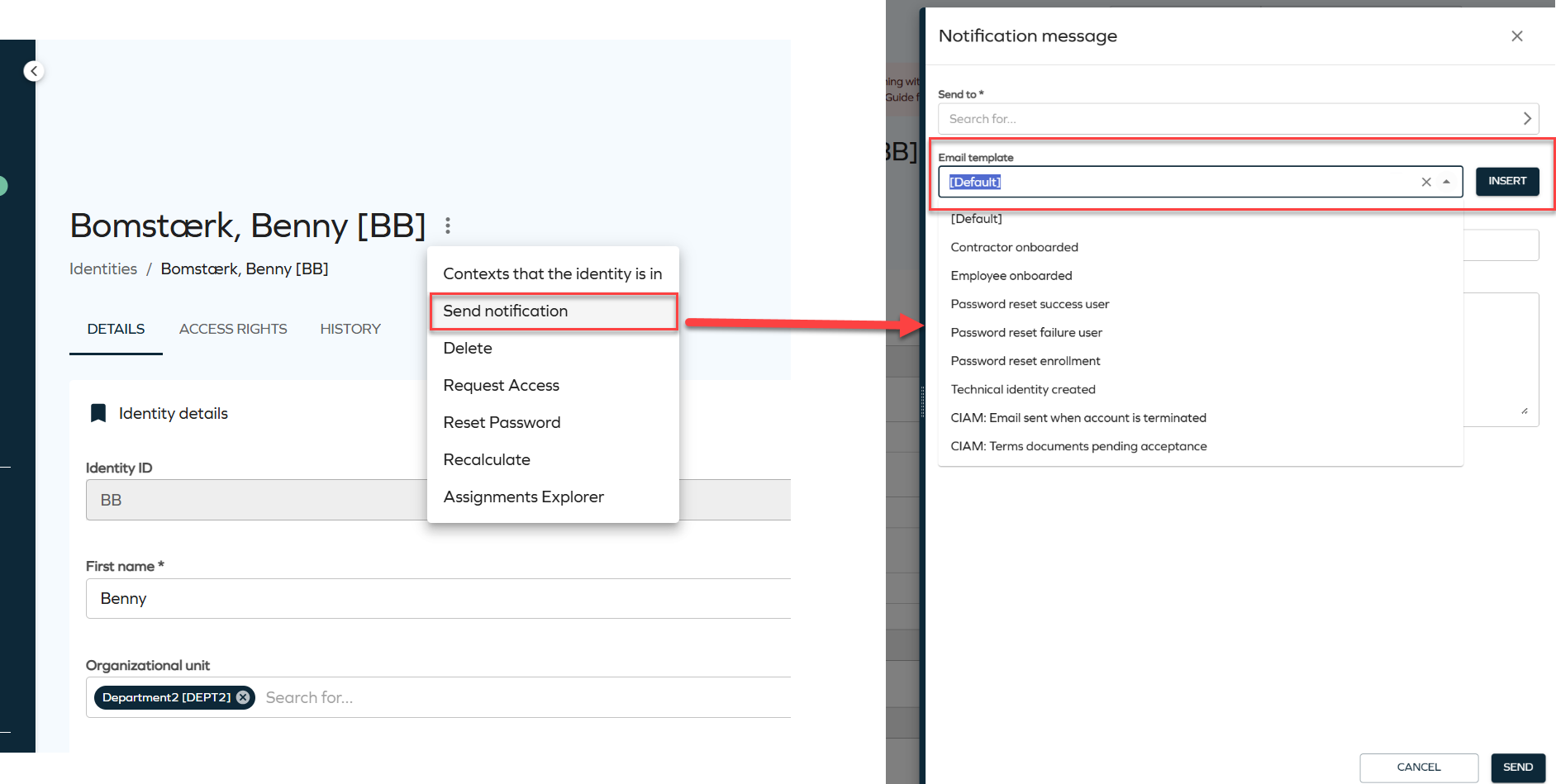
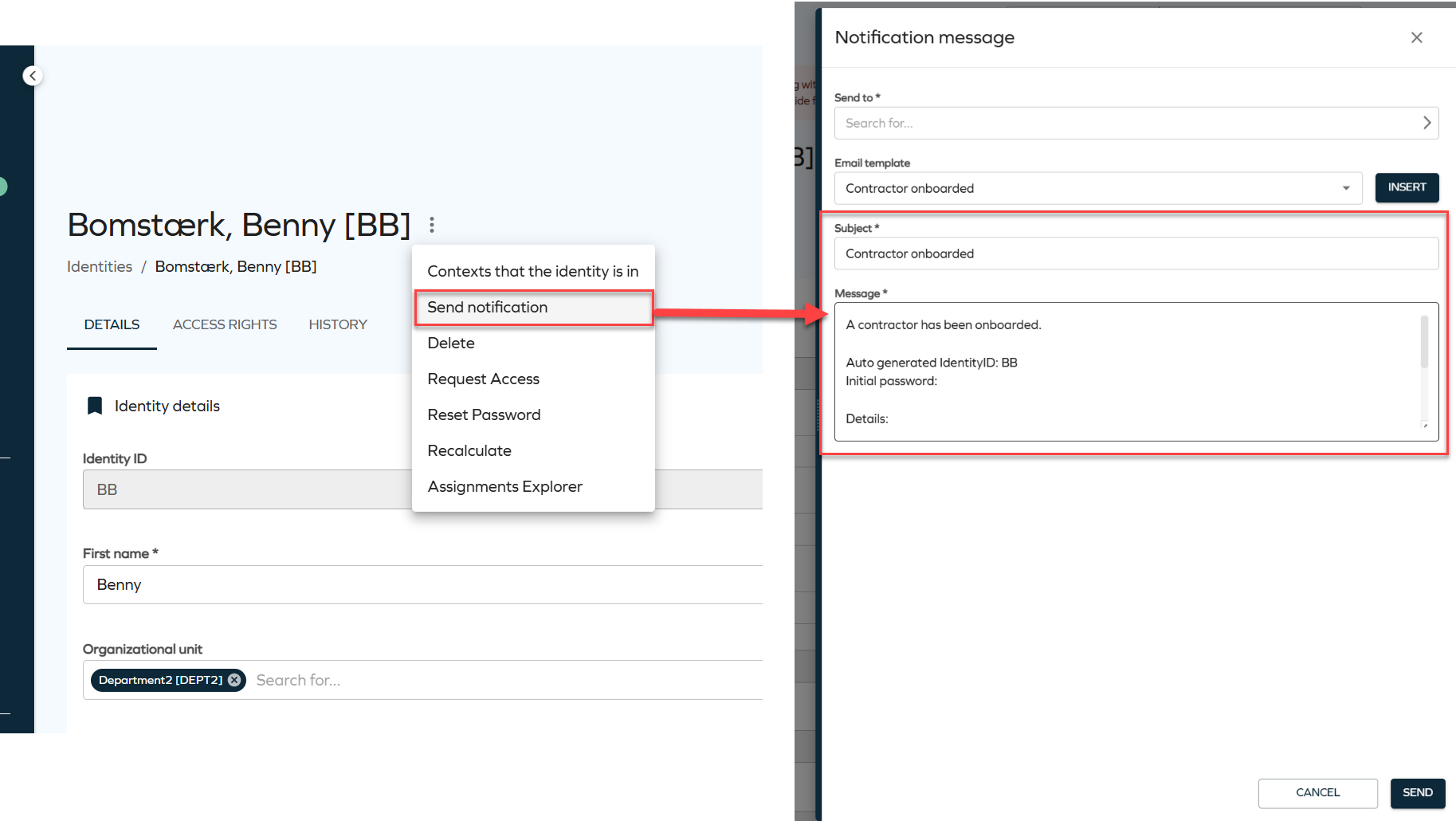
You can now send notifications directly from supported data objects, such as identities and accounts, from both object lists and object detail pages.
Selecting Send notification opens a side panel where you can configure and send a notification without leaving the current view. Recipients can be selected using the Send to field, which supports selecting one or more user groups.
Notifications can be created in two ways:
-
Using an email template: Select a predefined template and apply it to automatically fill the Subject and Message fields. You can edit them if needed.
-
Writing a custom notification: Manually enter the Subject and Message to send an ad-hoc notification.
For more details, refer to the Identities documentation.
Access requests: visibility of child assignment status
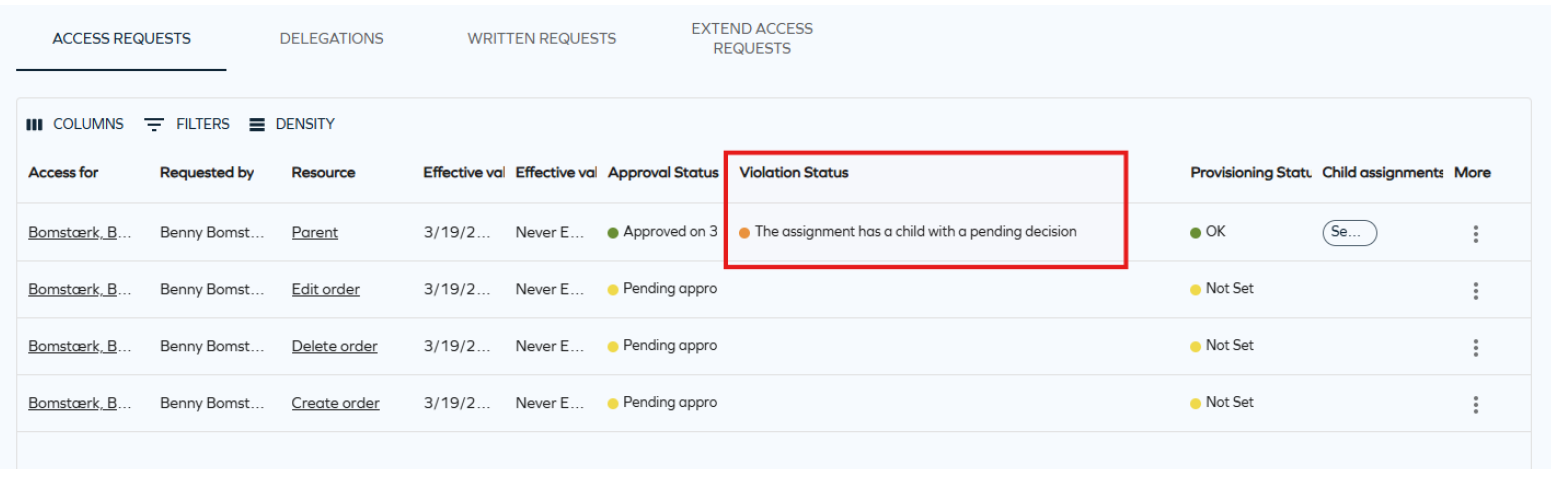
You can now see the violation and provisioning status for child assignments directly on the Access request page. A new violation status, The assignment has a child with a pending decision, highlights when a child assignment requires a decision. This status is shown with an orange indicator.
When you open an access request, the child assignments panel now includes Violation status and Provisioning status columns, giving you more insight into the state of each assignment.
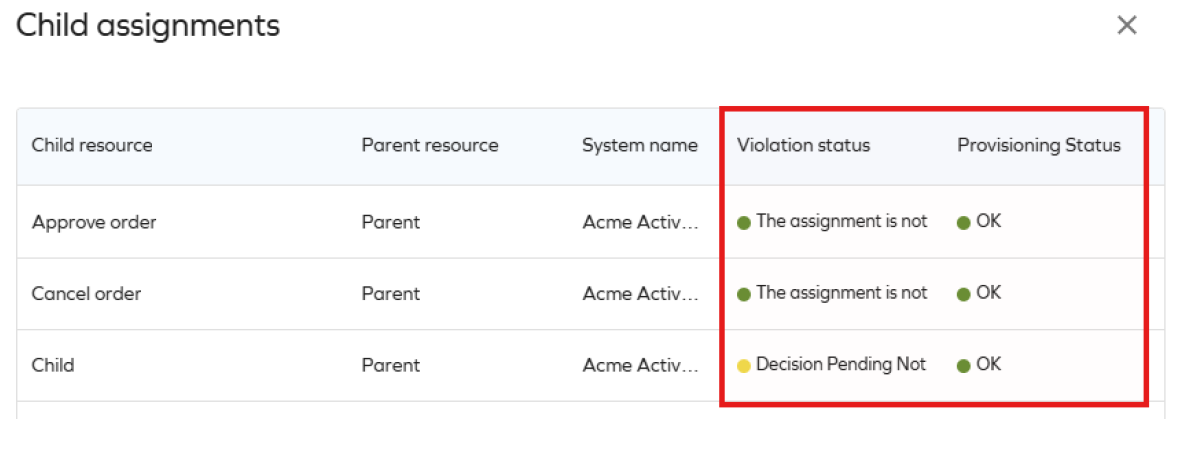
This new value will only be shown if the customer setting Show child assignment violations is set to True.
For more information, see Access request documentation.
New customer setting Show child assignments violations
A new customer setting, Show child assignment violations, controls whether child assignment violations are evaluated and displayed. When you enable this setting, the system evaluates child assignments when loading the Access request page. This evaluation is currently limited to 100 child assignments per request and may impact performance.
Referring objects view for identities
A new Referring objects option has been added to the Identities list and Identity details pages. The option is available from the three-dots menu in both views and opens a side panel displaying all data objects related to the selected identity, including the identity itself. This allows relationships to be reviewed directly from the list or details view.
-
From the Identities list, click the ellipsis button and select Referring objects.
-
From the Identity details page, click the ellipsis button next to the identity name and select Referring objects.
Security side panel for data objects
We have introduced a new Security side panel that allows you to manage permissions for data objects directly from the New UI. The side panel can be opened from the list view row or from the detail view of a data object, providing a streamlined way to review and override the users and user groups that can interact with the selected object.
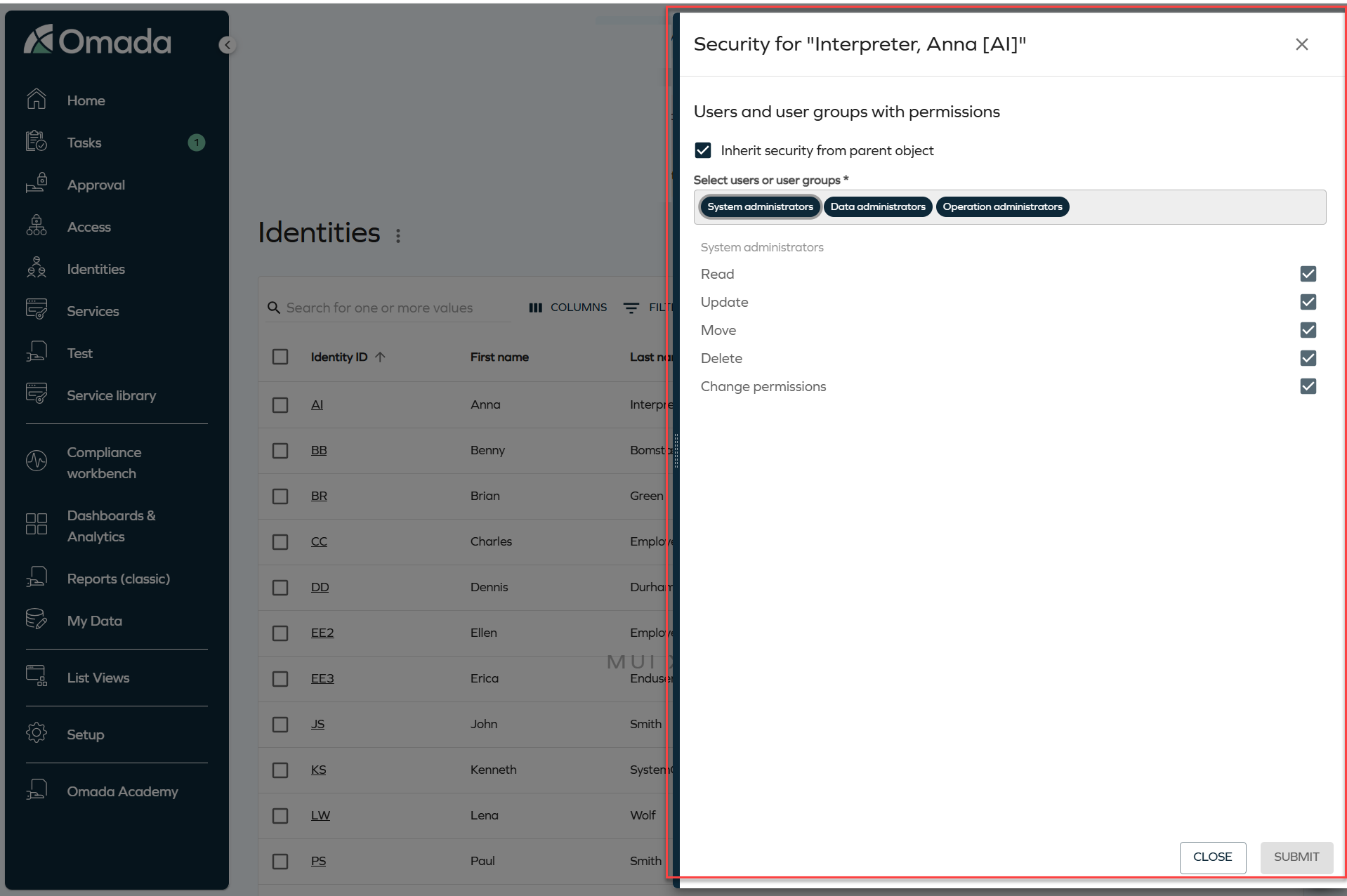
The side panel displays the users and user groups with permissions on the object, along with checkbox options to modify each permission. By default, the Inherit security from parent object checkbox is selected, meaning the object uses the security settings defined on its parent.
To modify permissions for the selected object, clear the Inherit security from parent object checkbox. This unlocks the user and user group selector and the permission checkboxes.
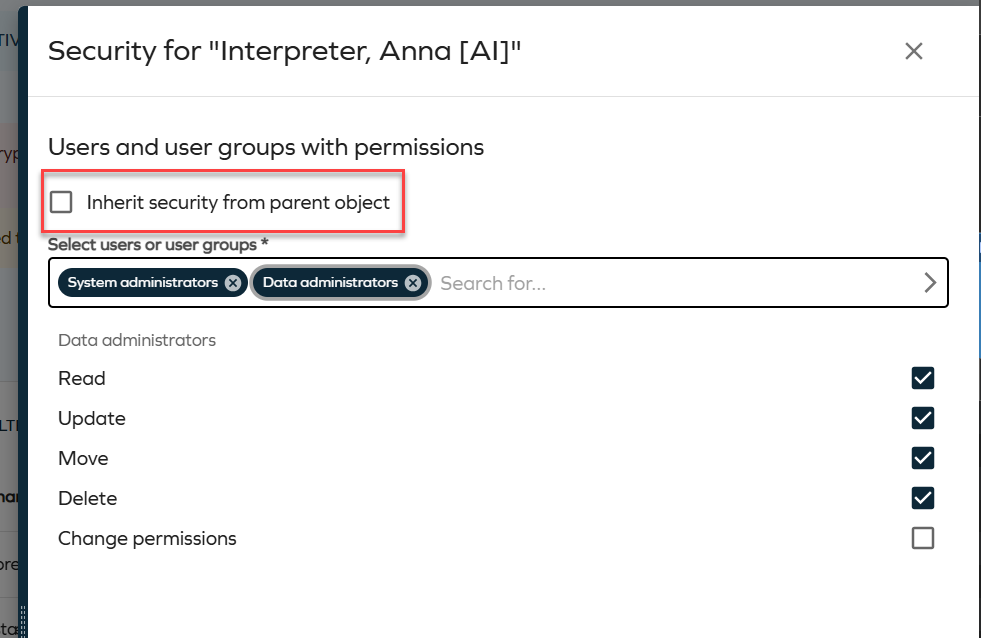
To add a user or user group, click the selector field and choose the relevant entry from the grid. The grid supports search, column selection, and filtering.
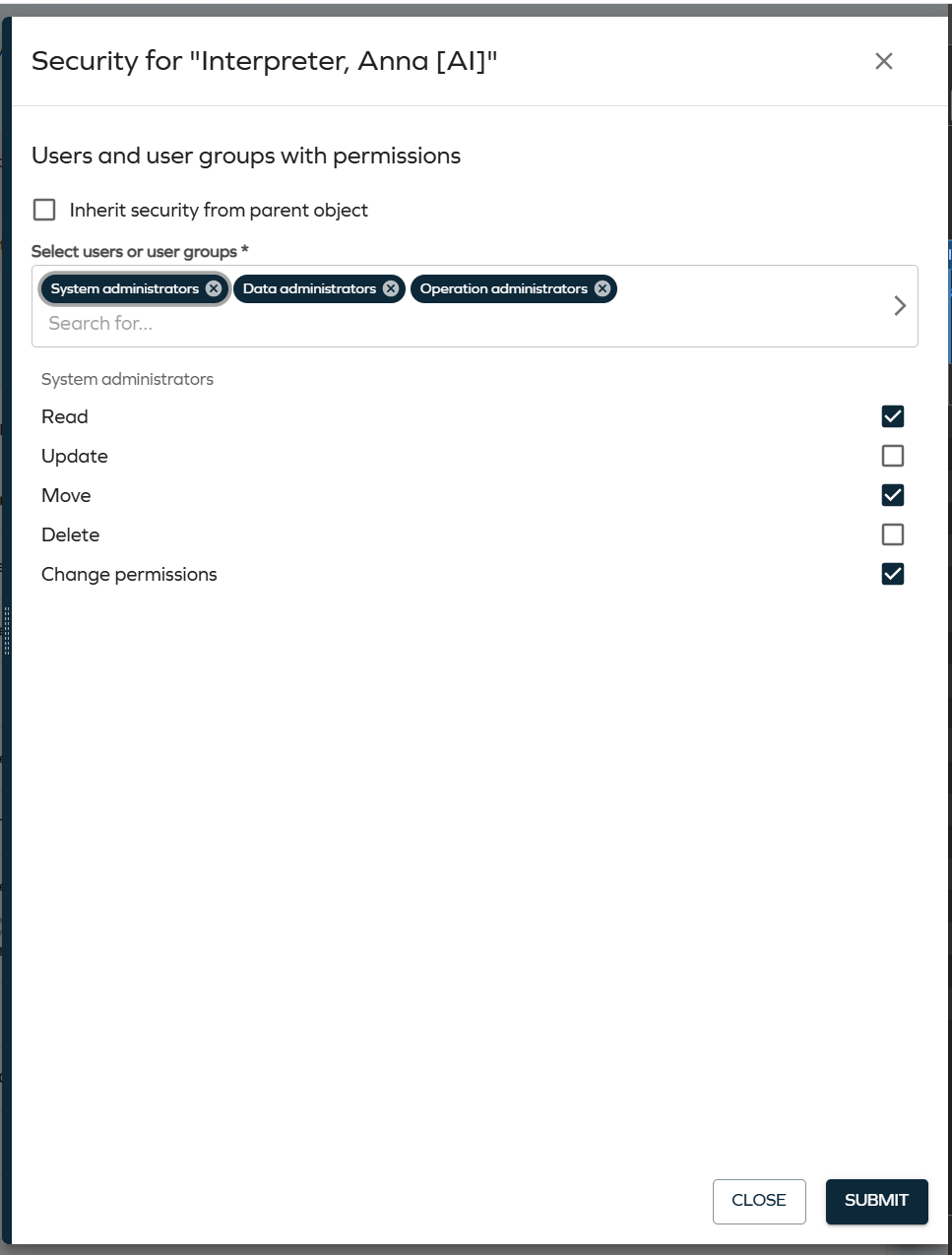
To remove a user or user group, click the X icon on the corresponding chip.
After selecting a user or user group, use the permission checkboxes (Read, Update, Move, Delete, Change permissions) to define the access level. Click Submit to save your changes.
For more information, refer to the Data object security model documentation.
Standardized date format in Access approval
We have introduced a change to standardize the date format used inside Access approval log text entries and reassignment notes. Dates now use a consistent, internationally unambiguous format: yyyy-MM-dd HH:mm:ss (UTC±Offset) (for example, 2024-06-15 14:30:00 (UTC+02:00)).
Previously, these dates were formatted according to the regional settings of the logged-in user, which meant the same audit trail entry could appear differently to a US user (6/15/2024 2:30 PM (UTC+02:00)) and a European user (15/06/2024 14:30 (UTC+02:00)), creating ambiguity when audit trails were shared or reviewed across regions.
The new format applies to the following log entries:
- The initial summary line written when an approval survey is launched (when the request was created).
- Each step decision line (when the approver approved or rejected).
- Valid to was changed to … lines, written when an approver modifies the validity period.
- The initial Access valid to: … info line in the approval log (for extend-access approvals).
- Step reassignment notes (when a step is reassigned to a new approver).
- Existing log entries are not retroactively updated. Only newly created entries from this version onward use the new format.
- If you parse the approval log text programmatically, review and adjust your scripts to account for the new format.
- Structured date input/display fields throughout the UI (such as Valid From and Valid To in the Access Request form) are not affected and continue to display dates in the user's regional format as before.
Default filter values for Access request
You can now define default values for Access request filters. When you configure a default value and open the Access request survey, the system automatically applies the filter.
You can define default values by configuring the customer settings AccessRequestIdentitiesPropertyFilters and AccessRequestResourcesPropertyFilters, for identities and resources, respectively.
To configure the default filter, use the following format: PropertyName=DefaultValue. The DefaultValue is optional. If you specify it, the value must be a valid GUID of an existing value for that property, for example: OUREF=dc0db0ca-aba2-4c93-b150-55b6f21a71d7.
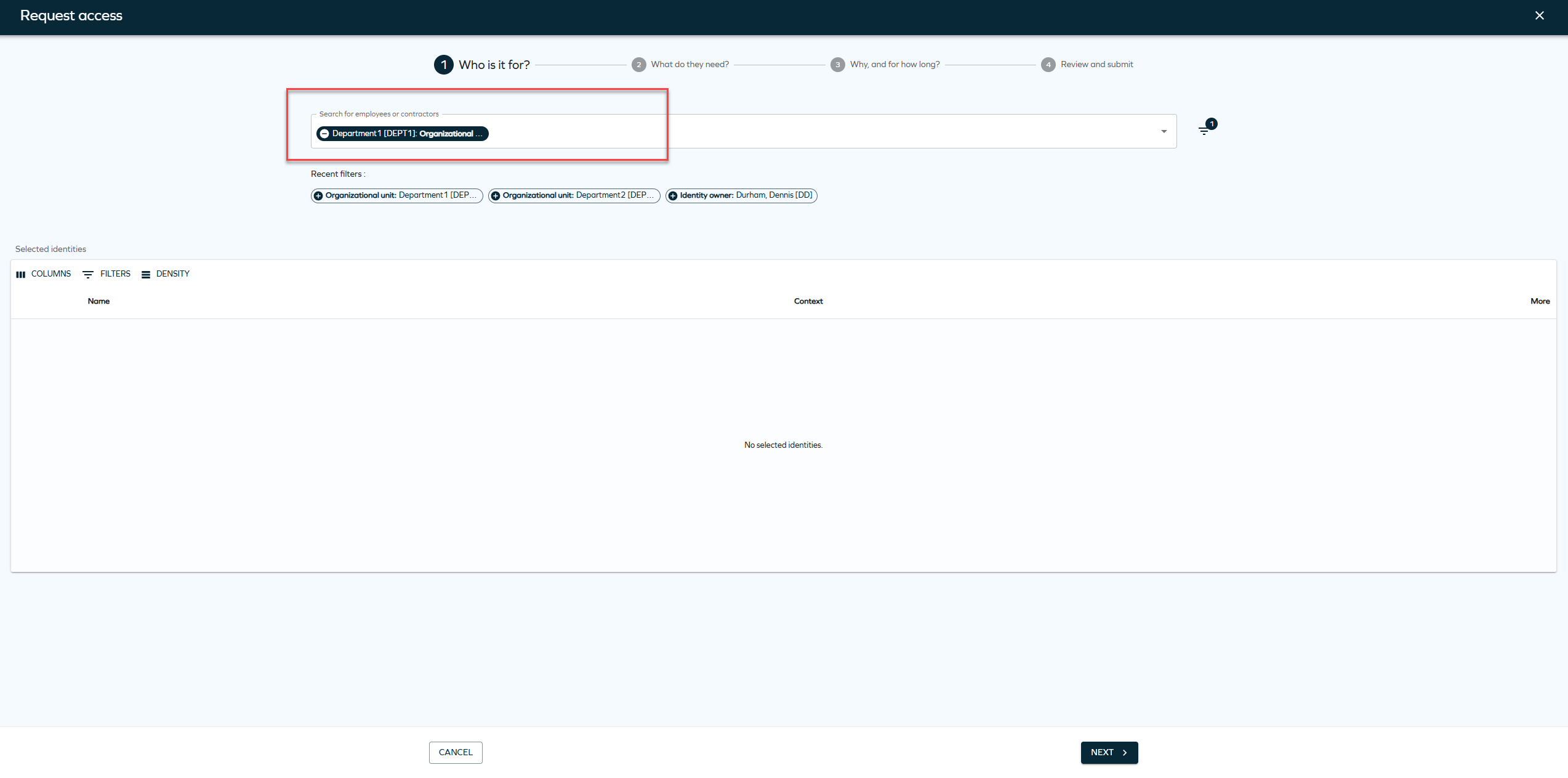
You can also configure multiple properties. Not all properties must have a default value, for example: SYSTEMREF,ROLECATEGORY=1bab597e-6d2a-4670-979b-0b2c1dc0ece8,ROLETYPEREF,ROLEFOLDER=5553d557-602e-40bd-9fc5-450e0cba5ed7. In this example, only ROLECATEGORY and ROLEFOLDER have default values.
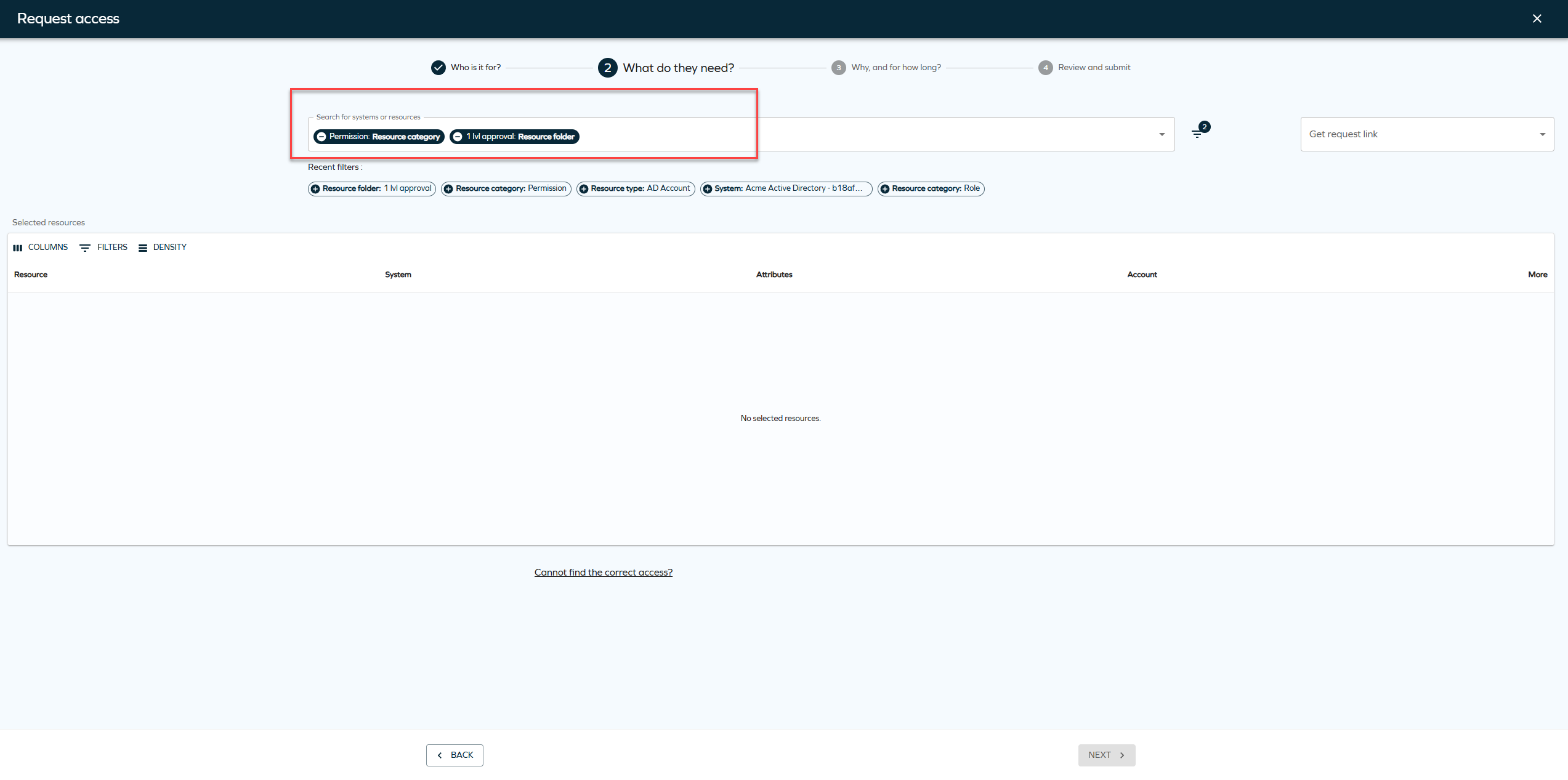
You can remove the default filters or add new filters when creating an Access request.
New customer settings for default Access request filters
We have introduced two new customer settings for default access request filters. To enable default filter values, you must configure the following customer settings:
-
AccessRequestIdentitiesPropertyFilters -
AccessRequestResourcesPropertyFilters
These settings control which properties are available as filters and which of them have default values. If you don't configure these systems, the system doesn't apply default filters on the access request page.
Updated Identity context view
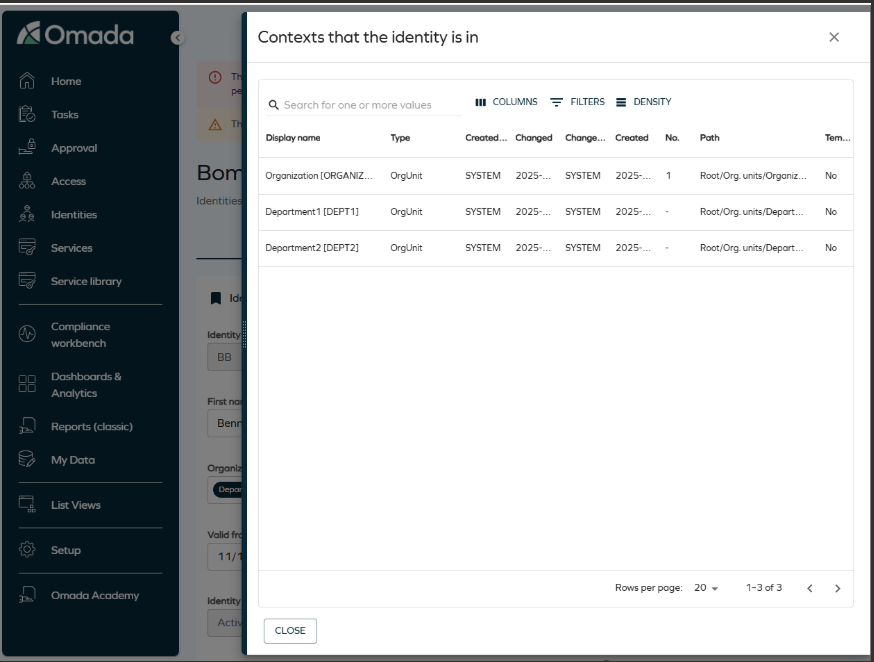
A UI action has been added to view the contexts an identity belongs to, providing the same functionality as in the legacy UI. From the Identities list or the Identity detail view, you can open a side panel displaying a configurable grid of all organizational contexts (such as organizational units) associated with the selected identity. The grid supports column selection, filtering, and row density controls, offering a modernized and more consistent user experience.
Enhanced navigation for reference properties
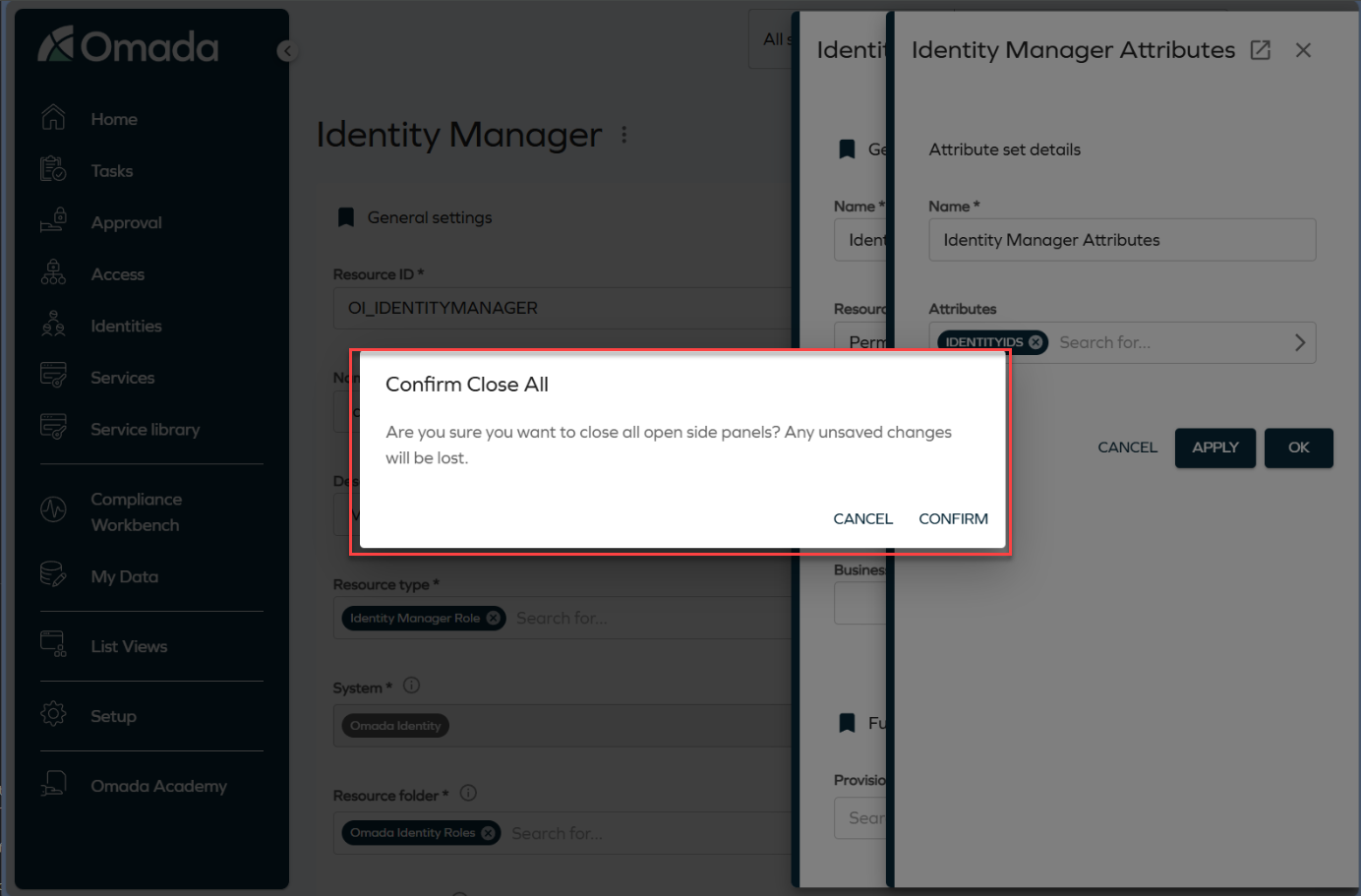
Reference properties now open directly in side panels, improving navigation. When you click a reference property chip, for example, an attribute set, the referenced object opens in a side panel. This allows you to view and edit related objects without leaving the current context.
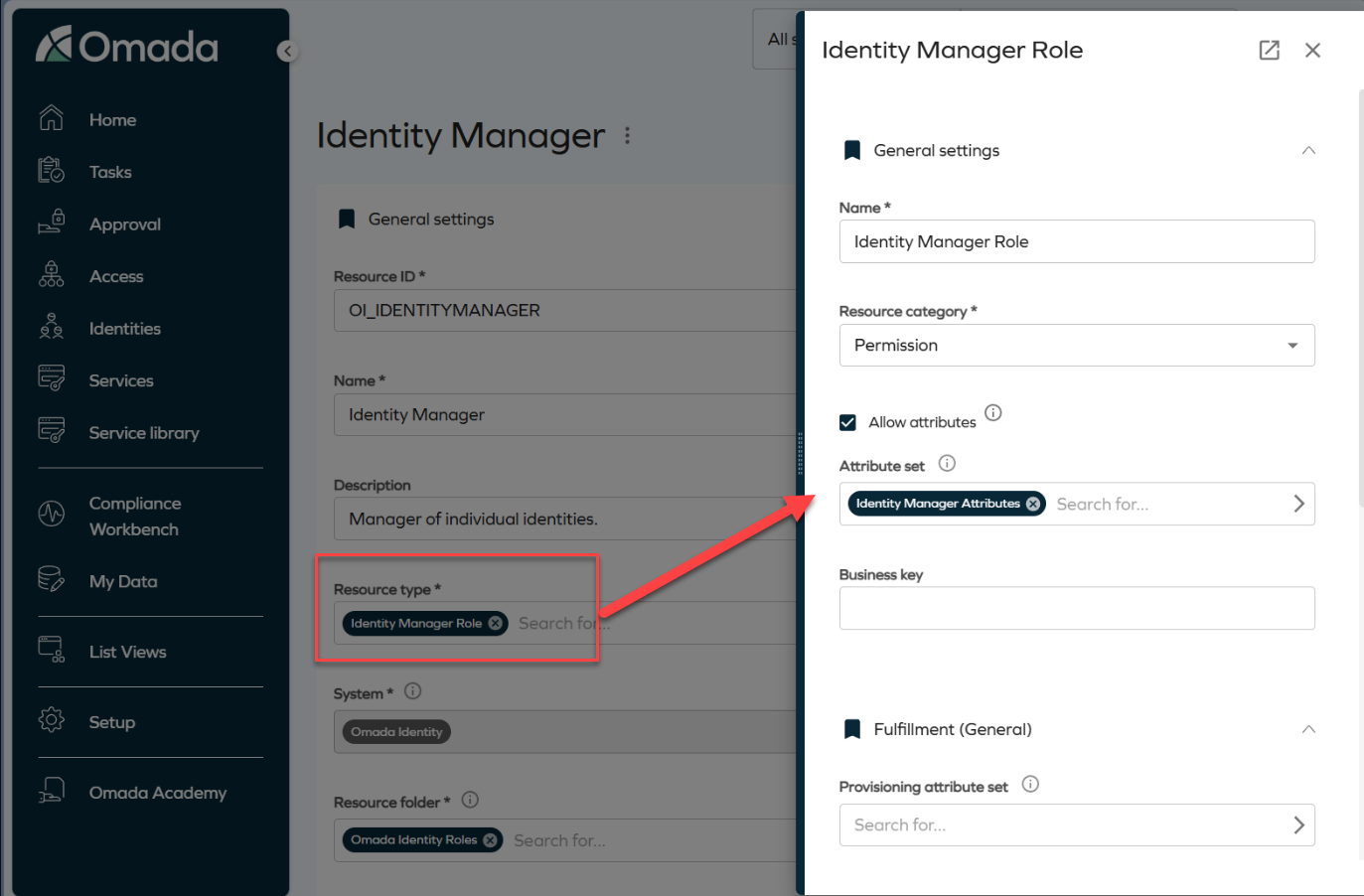
Side panels are stackable. For example, clicking an attribute set from within a role panel opens an additional panel layered on top of the existing one. Clicking the Identity Manager Attributes chip opens another panel, as shown in the image.
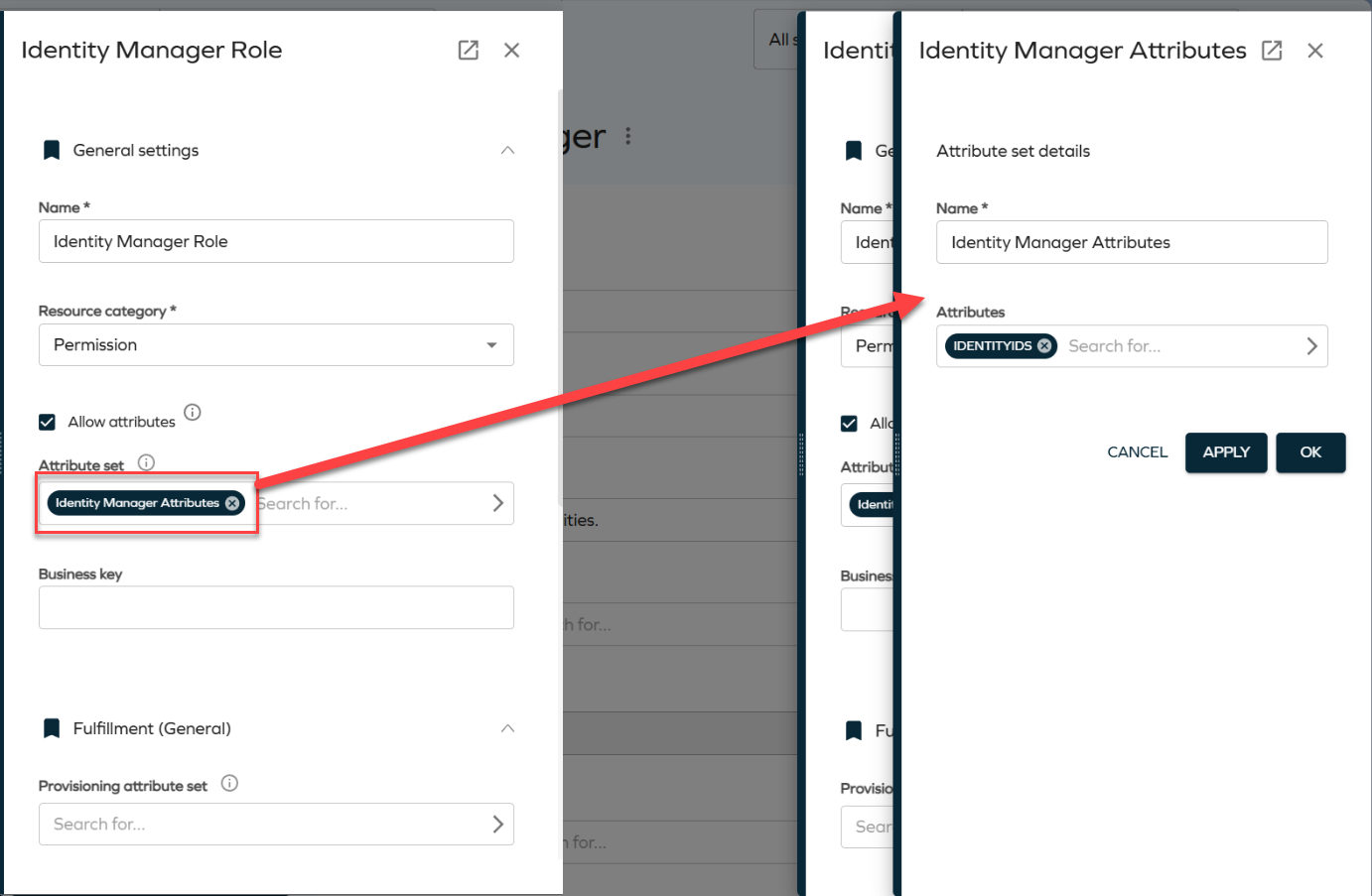
To close a panel, click the Close button or press the **Esc ** key. Clicking the backdrop closes all open panels at once. To prevent accidental data loss, the system displays a confirmation dialog before closing all panels.
Validation for unmapped extension attributes in Queries and Mappings
We have added validation that displays a warning if required extension attributes are not properly mapped when configuring Account or Resource Assignment queries in the Queries and Mappings dialog. You must now select valid Destination values before saving the configuration. For more information, refer to the Extension attribute validation documentation.
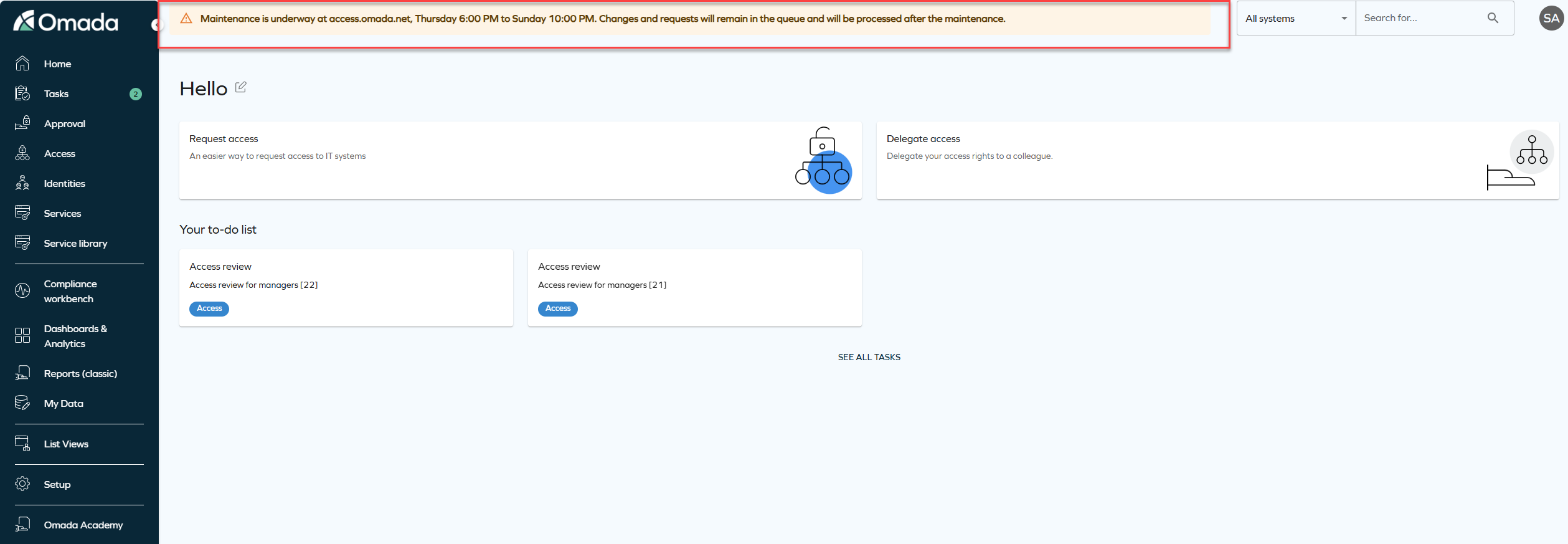
System message banner
We have introduced a new feature that allows you to display system-wide messages to all users. The feature is configured via the new customer setting SystemMessage to show an informational, warning, or error message at the top of the application.
The message is configured as a JSON value with the following format:
{ "message": "System maintenance on Sunday at 2 AM", "type": "info" }
The type value controls how the banner appears:
-
Info: shows a blue banner for general information, for example, scheduled maintenance or new features.
-
Warning: shows a yellow banner for situations that require special attention, for example, performance issues or upcoming changes.
-
Error: shows a red banner for critical issues, for example, system outages or urgent alerts.
Remove access panel
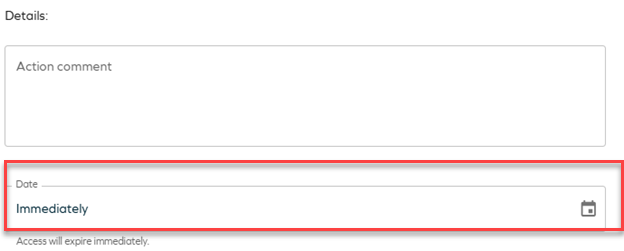
This update introduces terminology changes and clarifications to the Remove accessfunctionality. The term Revoke has been replaced with Remove access across relevant areas of the product to improve clarity and consistency in the user interface and documentation. Additionally, the Remove access panel now provides two options:
-
Immediate remove access:
- The resource assignment is expired immediately.
- RoPE recalculation and deprovisioning are triggered immediately.
-
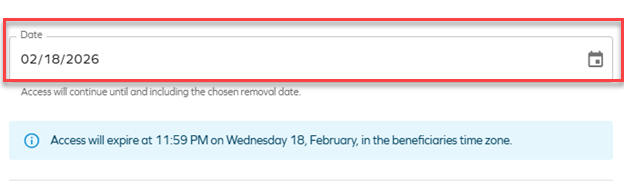
Scheduled remove access:
- Access removal can be scheduled for a specific date.
- By default, access is removed at the end of the selected day, based on the identity’s time zone.
- When the scheduled time is reached, RoPE recalculation and deprovisioning are triggered immediately, and the resource assignment expires within a few minutes.
-
If the default RoPE configuration parameter extendValidityPeriods has been set to False, access expiration will occur at the beginning of the selected day instead of the end of the day. To ensure consistent behavior, verify that the customer setting Enable RoPE extend validity periods is configured accordingly.
For more information about the Remove access panel, see Identities.
API
New Omada Identity Graph API version 3.6
We have released a new version of the Graph API (v3.6), which introduces the following updates:
- Three new queries related to user profile have been added —
allTimezones,allLanguages, andallRegionalSettings— which return all available time zones, enabled languages, and supported cultures/regional settings, respectively. - A new mutation
updateUserSettingshas also been introduced, allowing the active user's language, regional settings, and/or time zone to be updated. - The
UserSettingsTypenow includes the fieldslanguageandregionalSetting, which return the current user's language and culture/regional setting, andTimeZoneTypehas been extended with anidfield, returning the database ID of the time zone.
Refer to Omada Identity Graph API to know more.
Surveys
Approve survey questions create direct resource assignments
The Approve survey questions create direct resource assignments feature is no longer in Technical Preview and is now generally available. The feature is now enabled by default for all customers and can be configured through the CreateDirectResourceAssignmentsOnVerdicts customer setting.
For more information, refer to the Surveys documentation.
Policy and Risk Checks
New filtering options for Risk Analysis in SAP GRC
The Risk Analysis in SAP GRC Policy & Risk check now supports two new optional fields in the RiskAnalysisWebServiceConfiguration configuration object: RiskLevel and RuleSetId.
These fields give administrators greater control over which violations are returned by the SAP GRC risk check, making it easier to focus on specific risk levels or rulesets relevant to their organization.
-
RiskLevel: allows you to filter violations by their severity level, so that only violations at or above a specific threshold are returned. For example, you can configure the check to only surface high or critical violations, reducing noise for end users during access requests.
-
RuleSetId: allows you to target a specific ruleset defined in the SAP GRC system. When specified, only violations belonging to that ruleset are returned. If omitted, all rulesets are considered.
Both fields are optional and have no impact on existing configurations. The behavior remains unchanged if neither field is set.
For more information, see Policy & Risk check.
Support for additional UTC time zones
We have added support for the additional time zones with non-standard UTC offsets, including:
- UTC-11 - American Samoa, Midway Island, Niue
- UTC-09:30 - Marquesas Islands
- UTC+12:45 / UTC+13:45 (DST) - Chatham Islands (New Zealand)
- UTC+14 - Line Islands (Kiritimati)
These time zones are now mapped using the corresponding Windows time zone identifiers. For more information, refer to the Time zones documentation.
Connectors
Egencia - updated connectivity package
An updated connectivity package for Egencia is now available, allowing you to manage users and roles. See Egencia in the Connectors section for details.
REST cross-platform connectivity
When onboarding a new REST system (using the generic REST connectivity), you can now select the Cross Platform REST option in the Technology drop-down menu. This update provides better integration across platforms and environments (Windows/Linux).
You can onboard a new system only using Cross Platform REST. Migrating from the existing systems will be available in the subsequent releases.
Atlassian Guard
A new connectivity package for Atlassian Guard is now available. See Atlassian Guard for details.
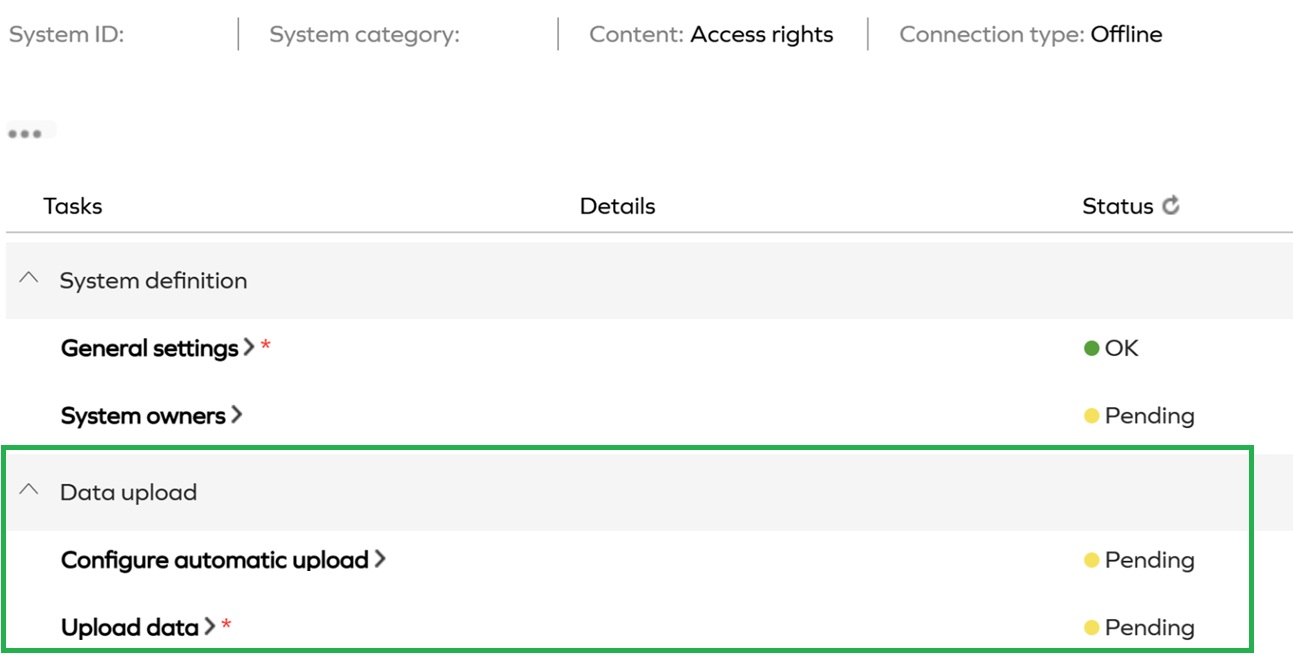
CSV data uploads to offline systems
The option of uploading CSV files to offline systems was removed. The related customer setting Identities are uploaded to staging DB (IdentitiesAreUploadedToStagingDB) was also removed. The customer setting is automatically disabled if it previously enabled.
Till this point, if your system was marked as offline in the general settings, two additional options became available in the general system view (in Data upload tab): Configure automatic data and Upload data. These two options were removed. This change is related to the removal of the following ASPX files:
- ASPX pages:
- OIM_AccessDataUpload.aspx
- OIM_AccessDataUploadHandler.aspx
Other
GraphQL API: updates to assignment and access request fields
We have released a new version of the GraphQL API (version 3.5) with additional fields to improve visibility into assignment and Access request states.
The following fields are now available on calculated assignments:
provisioningStatusviolationStatusviolationStatusText
There have been changes to the AccessRequestStatusType in version 3.5. A new field hasChildrenInViolation has been added. This boolean value represents whether the access requests has any child assignments with actively pending violation decisions. This field always returns False, unless the new customer setting Show child assignment violations has been
set to True, as not to impact the performance of users not intending to use this feature.
The new field hasChildrenInViolation is, as of introduction, already marked as deprecated. When the GraphQL API is updated to version 4.0, this field will be removed.
A new value will be added to the enum violationStatus, which will represent this new state. It is therefore not recommended to use the field hasChildrenInViolation outside of Omada Identity.
For more information, see GraphAPI changelog.
Privileged impersonation user
We have introduced a new Privileged Impersonation Service Users group designed for high-trust scenarios requiring full access.
Users in this group operate at a high authentication level, meaning that impersonated sessions inherit the full authentication context of the authenticated user. As a result, all user groups available at that level are included, and full permissions and process actions are granted.
For more information, refer to the new Impersonation and authentication levels section in the Security guide. It covers impersonation and the authentication level model, including how authentication levels are assigned, how they influence user group memberships and permissions, and how impersonation affects effective access.
New customer setting to select Account type in Access request
We have introduced a new customer setting AutoSelectAccountTypeInAccessRequest with the default value set to True to maintain the existing behaviour. With this customer setting, the system automatically selects the default account during an access request, maintaining the existing behavior. When set to False, users with more than one valid account for a resource will be required to explicitly select which account to use when submitting the access request.
Documentation
Documentation updates for filter expressions
We have added documentation for dynamic Right side (expression) filters, including:
-
$ActiveUserexpressions in view filters. For more information, see Creating a view section. -
$FORM_expressions in form field filters. For more information, see Creating reference property section. -
Event definition limitations and unsupported expression types. For more information, see Event definitions section.
Deprecation of the documentation chatbot
The documentation chatbot was deprecated and removed from the homepage. The Omada Identity documentation portal is a public site that allows traffic from all major AI models and services. You are welcome to use your preferred AI assistant to search and interact with the documentation directly.
Email template documentation enhanced with standard mail variables reference
The Email templates documentation has been expanded with a reference for standard mail variables (Fixed Fields), including recipient, editor, workflow, URL, and object identifier variables. The update also clarifies the differences between standard mail variables and object type properties, provides usage examples, and includes troubleshooting guidance.
For more information, see Email templates documentation.
Documentation update for Role and Policy Engine customer settings
We've added documentation for the existing Role and Policy Engine (RoPE) customer setting IsRopeExtendValidityPeriods and introduced the new customer setting RoPEContextMembershipsIncludeInvalid.
RoPEContextMembershipsIncludeInvalid is related to the policy evaluation behavior changed by the resolved issue RoPE removing AD account even though identity is in an active context (INC-303500). As of this update, context memberships whose validity period has not started yet or has already ended are no longer considered during policy evaluation.
The default value of RoPEContextMembershipsIncludeInvalid is false. Setting it to true restores the previous behavior in which such invalid context memberships are included. This setting is intended as a temporary compatibility option for environments that require the previous behavior.
For information about how context membership validity is determined, see Context membership validity.
For more information on RoPE settings, refer to the Role and Policy Engine and Hidden settings section in System settings.
Upcoming deprecation of SQL Server 2016
SQL Server 2016 will reach end of life on July 14, 2026. As such, SQL Server 2016 will no longer be supported, and the minimum required SQL Server version for the product will be updated to SQL Server 2017.
Customers currently using SQL Server 2016 should plan to upgrade to a supported version to ensure continued compatibility and support.
For more information, refer to the Deprecation calendar.