Security
The security in Omada Identity is enforced in several different places which are listed below:
| Enforcement Point | Description |
|---|---|
| Views | A view can be configured with a number of user groups who are allowed to see the view in the menu structure. |
| Menu Items | A menu item can be configured with a number of auth roles who are allowed to see the menu item in the menu structure. |
| Data Objects | A data object can be configured with a number of user groups and/or users having CRUD access to the data object and sibling data objects in case it is a folder. |
| Hard Coded Rules | Some security rules are hard coded in OIS. Examples: Auditors always have read access to surveys. System admins always have full access in a number of access modifiers. |
| Access Modifiers | Some access modifiers take parameters that specify that certain user groups have full access. The parameters are configured on the data object type or view where the access modifier is applied. |
| Dashboards | A dashboard can be configured with a number of user groups who are allowed to see the dashboard. |
| Surveys | A survey can be configured with a number of users and user groups who are survey admins. A survey admin is, for example, able to reassign questions. |
Data object security model
Data objects have a security model which resembles that of a file structure. A data object inherits security from its parent unless it specifically breaks the inheritance. If a data object has children, it is considered a folder data object.
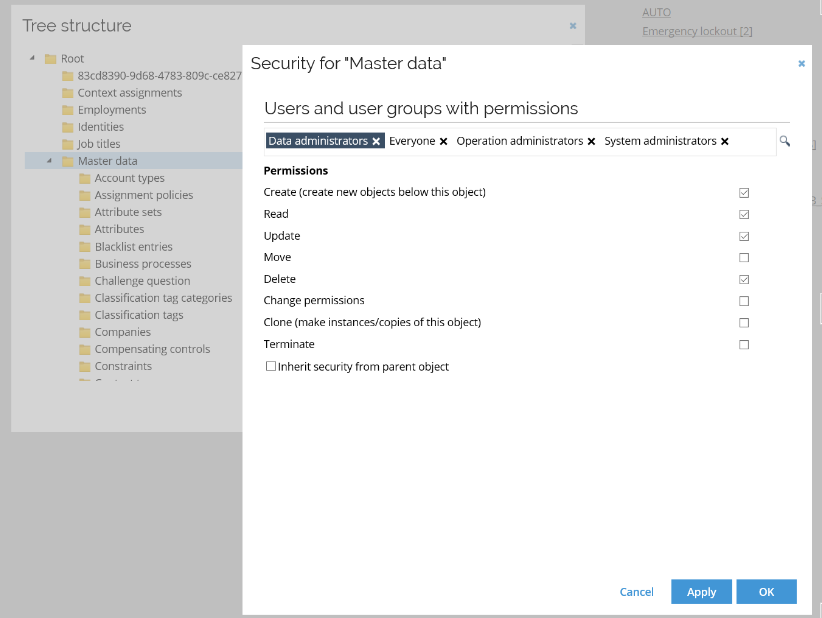
Edit security permissions for the individual context
-
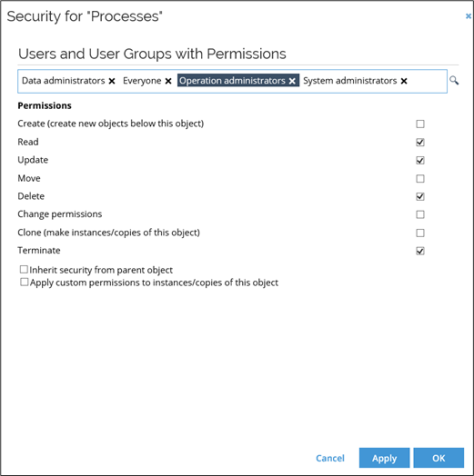
In the upper section of the Security for
[context]window, see a list of all users and user groups that have permissions defined for this object. If you need to, you can remove any existing user or user group, or click the lookup icon to add more users or user groups. -
When you are satisfied with the number of users or user groups, click and select the relevant user or user group to display its permissions in the bottom part of the window.
-
Select or clear the relevant checkboxes to enable or disable permissions. When you are satisfied with the setup for this user or user group, either select a different user or user group or click OK to save your settings and close the window.
Edit security settings from the data object side panel
You can manage security permissions for a data object directly from its list view or detail view, without navigating to the tree structure.
-
Open the list view or the detail view of the relevant data object (for example, Identities).
-
From the list row context menu or from the detail view, select Security. The Security for
[object]side panel opens, showing the users and user groups with permissions for the selected object.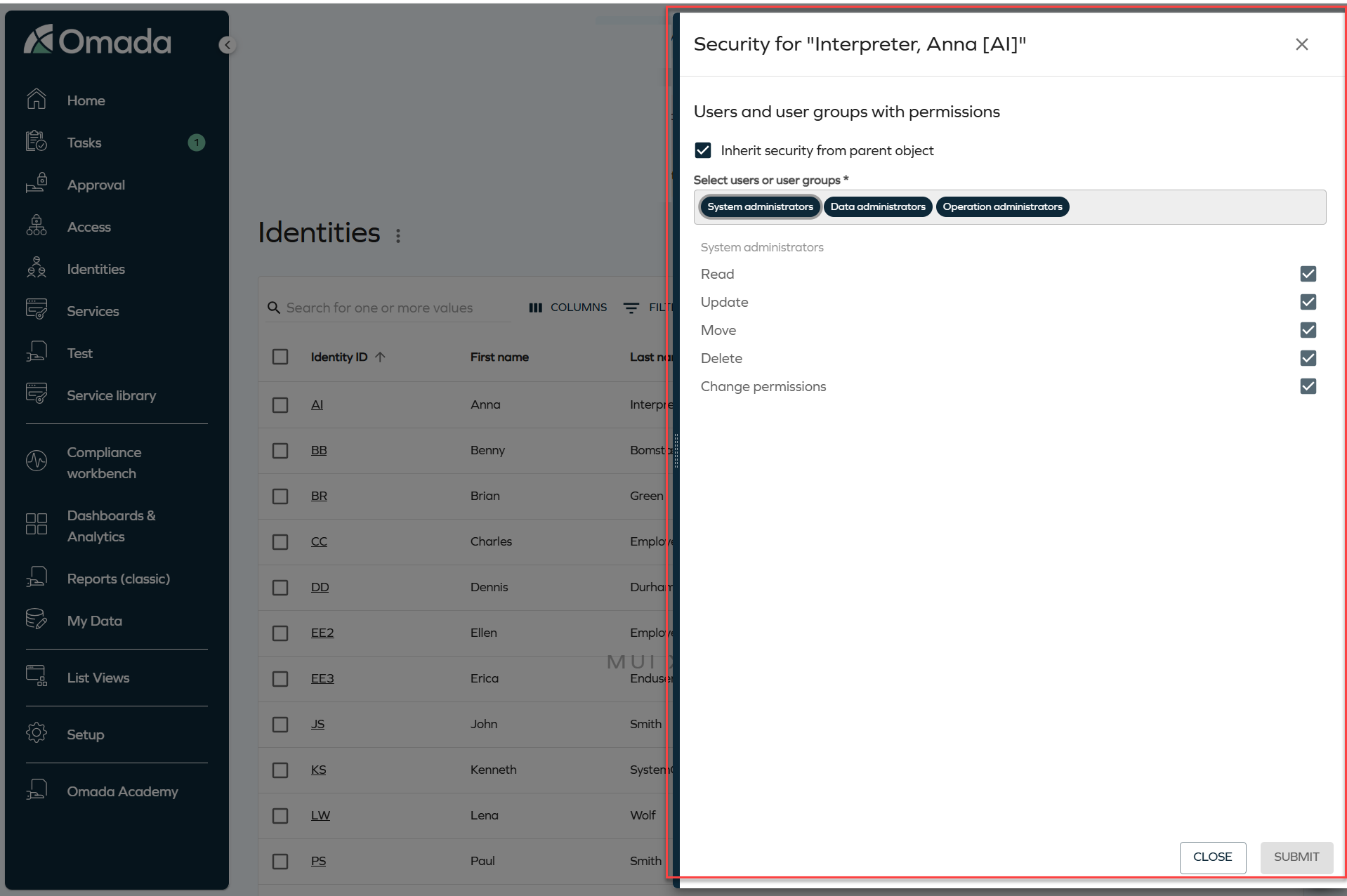
-
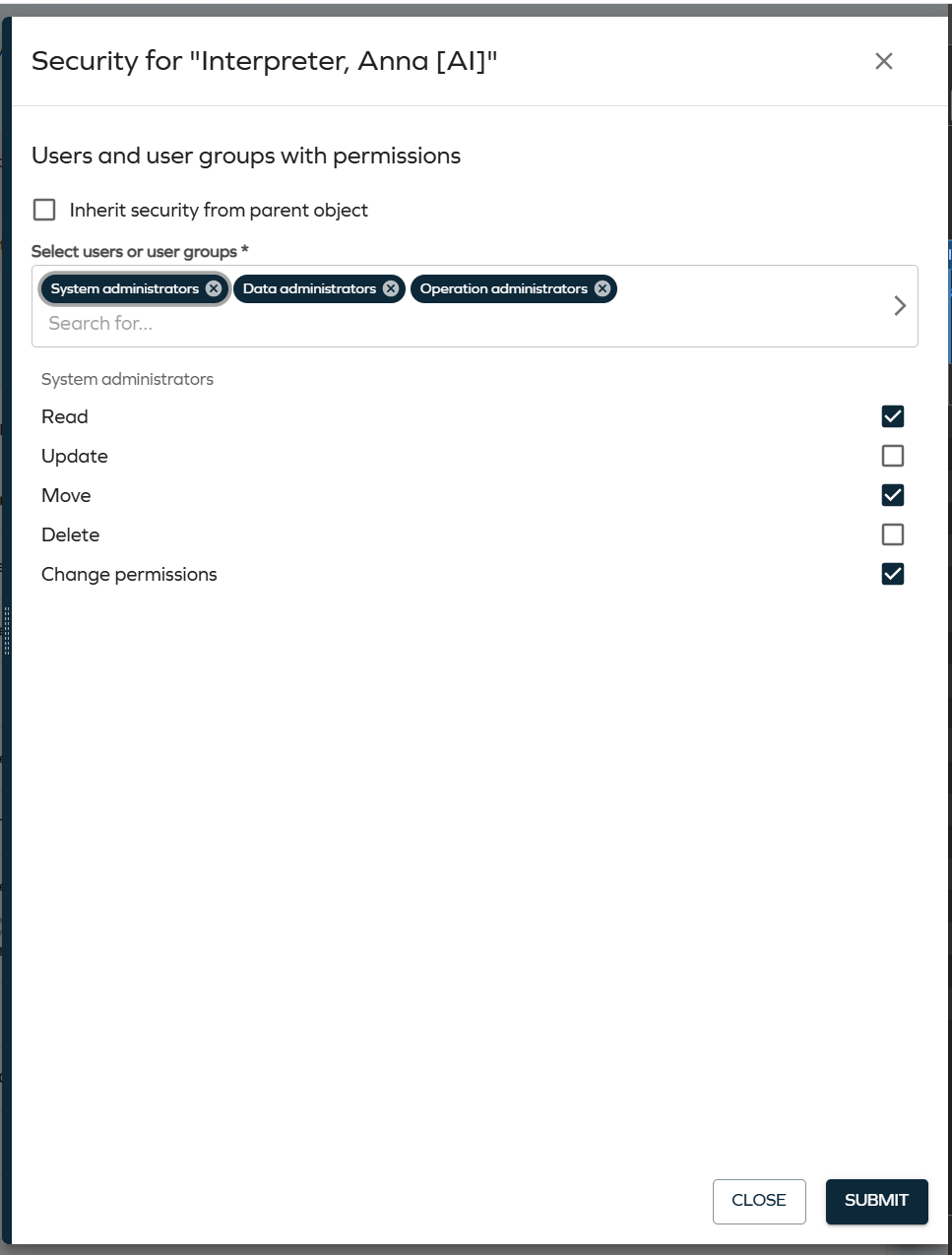
By default, the Inherit security from parent object checkbox is selected, and the permissions reflect those defined on the parent object. To override them, clear this checkbox.
-
Add or remove users and user groups:
- To add a user or user group, click the selector field and choose the relevant entry from the grid.
- To remove a user or user group, click the X icon on the corresponding chip.
-
Select the user or user group in the list to display its permissions, then select or clear the checkboxes (Read, Update, Move, Delete, Change permissions) to configure the access level.
-
Click Submit to save your changes, or Close to discard them.