Access
The Access page provides a centralized overview of all access-related activities within Omada Identity.
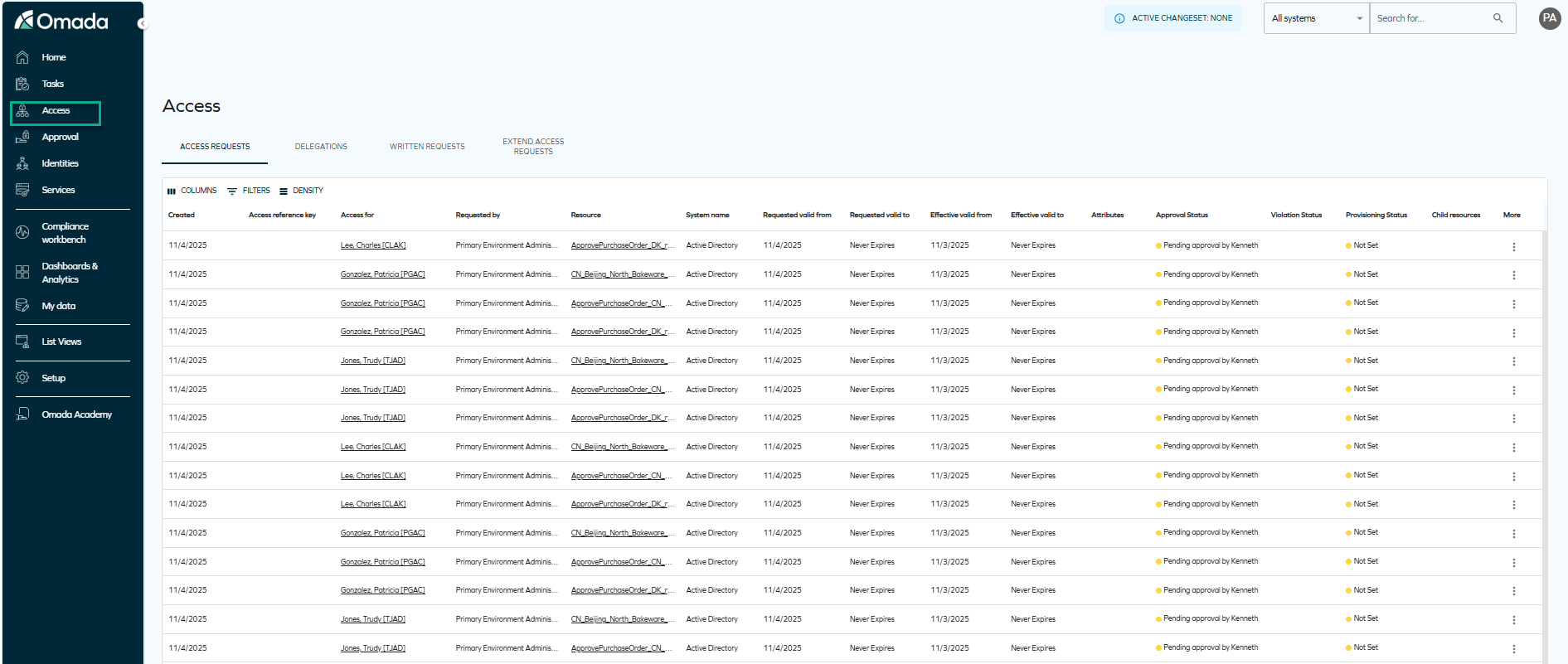
It allows users and administrators to view, manage, and track different types of access requests and delegations through four tabs:
-
Access Requests – Displays all requests for new access, showing details such as requester, resource, system, approval status, and provisioning status. For more details on the access request process, see Access request.
This tab also displays two different kinds of valid from and valid to dates:
-
Requested valid from and Requested valid to – These columns (previously named Valid from and Valid to) display the requested validity period originally specified by the requester when submitting the access request. They represent the requester’s intended validity dates before any adjustments made during approval.
-
Effective valid from and Effective valid to – These columns show the actual validity period applied to the resource assignment after approval. The values reflect any changes made by the approver to the valid from and valid to dates of the resource assignment, including revoking or expiring access. These columns always display the current state of those fields.
-
Violation status: - This column shows whether an assignment violates any policies or requires a decision. You can use this status to determine whether an assignment is compliant, in a Violation, or Pending evaluation. If a violation requires a decision, the system highlights it so you can take action.
-
Provisioning status - This column shows the current state of the assignment in the provisioning process. You can use this status to track whether access has been successfully provisioned, is in progress, or has not yet been set. This helps you understand if the requested access is already available or still being processed.
-
-
Delegations – Lists active delegations that allow one user to act on behalf of another for specific resources or actions, along with their activation and expiration details. For more details on access delegation, see Delegate access.
-
Written Requests – Shows manually submitted access requests, including request reasons and validity periods.
-
Extend Access Requests – Contains requests to extend the duration of existing access assignments, with information about the requested validity period and request status. For more details on extending access requests, see Extend access.
Violation and provisioning status on child assignments
In the Access requests tab, you can see additional details about child assignments directly in the table and in the child assignments panel. The Violation status column includes a new value, The assignment has a child with a pending decision, which indicates that a child assignment requires a decision. The system shows this status with an orange indicator.
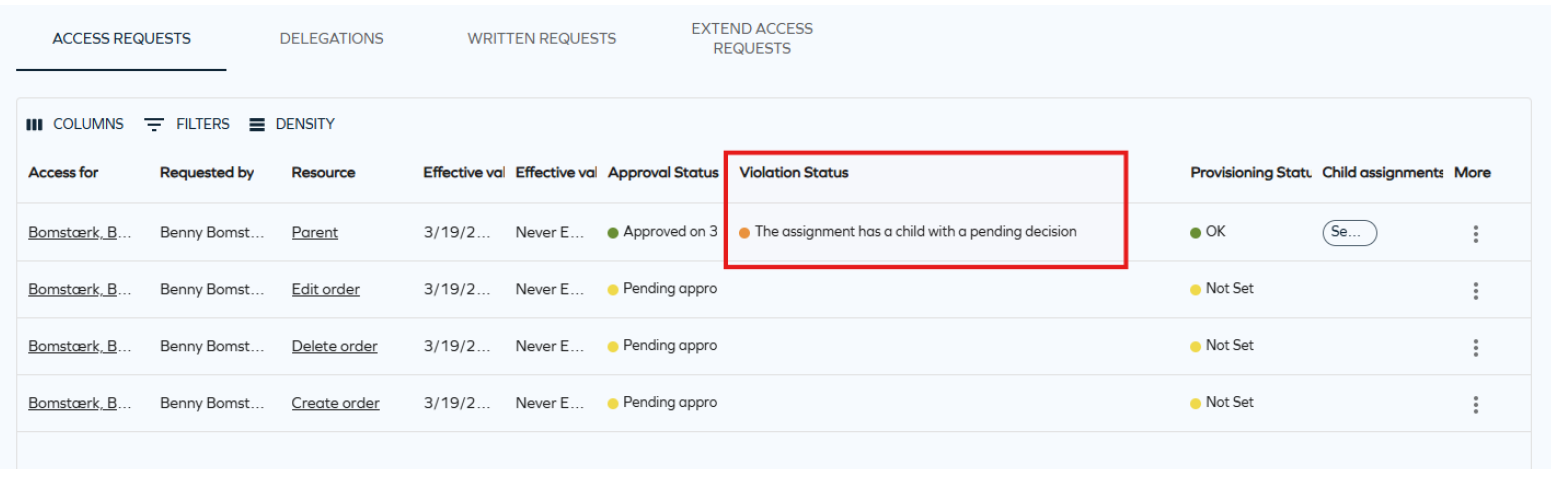
You only see this value if the Show child assignment violations customer setting is enabled. When you enable this setting, the system evaluates child assignments when loading the Access requests tab. This evaluation is currently limited to 100 child assignments per request and may affect performance.
When you open an access request, the child assignments panel includes Violation status and Provisioning status columns. These columns show the status of each child assignment and align with the information displayed in the table.
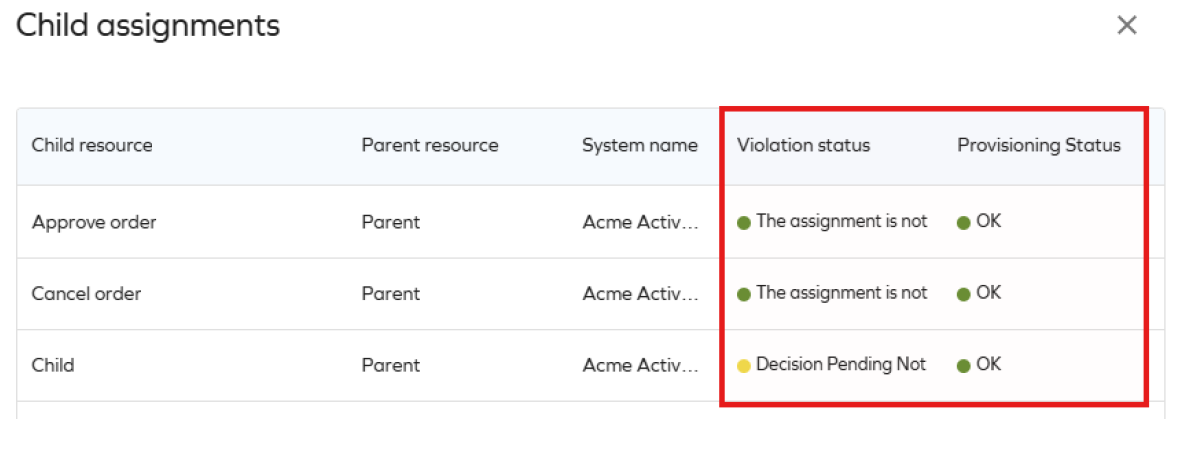
You only see violation information for direct child assignments. Violations in deeper levels are not shown.
Display and filtering
The tabs display access- and approval-related information stored in tables. The columns organize data per creation date, access reference key, the name of the beneficiary, the name of the requester, approval status, and more relevant parameters.
Each tab includes customization options such as Columns, Filters, and Density to tailor the displayed data, as well as pagination controls for navigating through records.
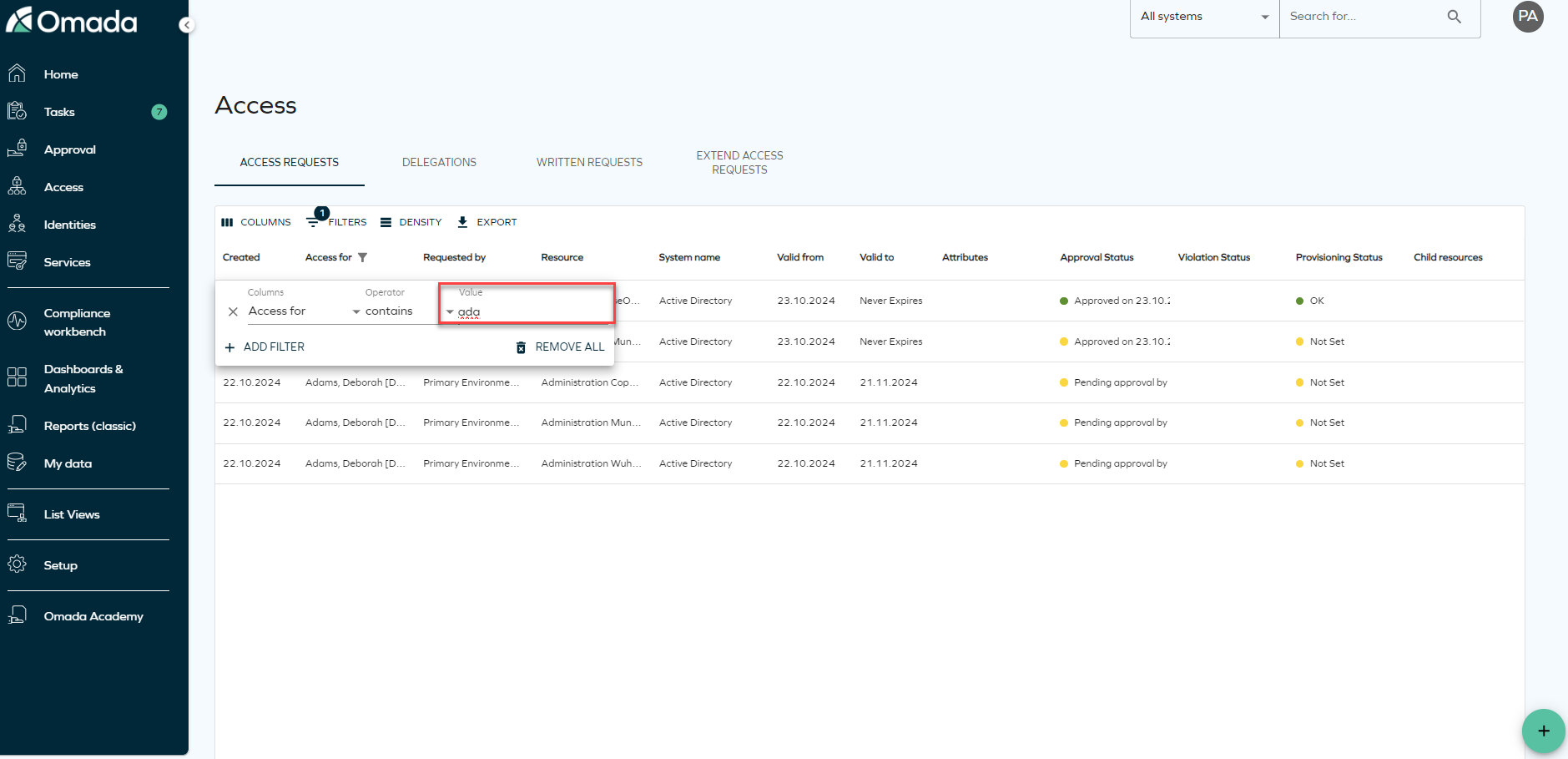
When using search filters, take into account that the search filter operates by matching the first letters of the word you are searching.
Access reference key
The Access reference key is a system-generated identifier that uniquely identifies each resource assignment created through an access request.
When the setting Create unique assignment code IDs for resource assignments is Enabled, the system generates a reference key for each new resource assignment. You can use this key to quickly identify and reference a specific assignment across access requests, approvals, and support processes.
The key is a 6-character uppercase alphanumeric value, for example, A7K2Q9, and is assigned per resource assignment, not per access request.
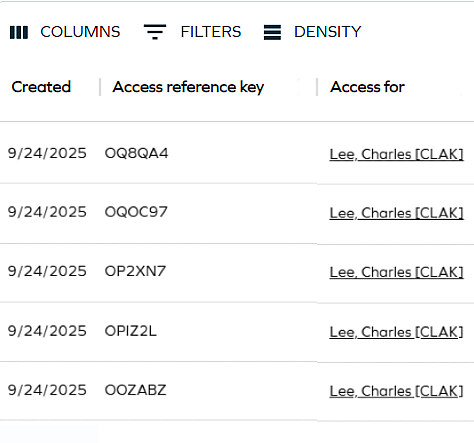
The following table describes how the Access reference key behaves in different scenarios:
| Scenario | Behavior |
|---|---|
| Setting Enabled | The system generates a key for each new resource assignment created through an access request. |
| Setting Disabled | The system does not generate keys for new assignments. |
| Existing assignments before enabling | Existing assignments are not updated with a key. |
| Assignment moved during identity transfer | The existing key is preserved. |
The Access reference key is system-generated and intended for reference purposes only. Assignments created outside the access request flow might not have a key, and empty values can appear for assignments created before the setting was enabled.
Access request overview through the Assignment Timeline
You can use the Assignment Timeline to verify the progress of the access request in detail. It allows you to review the steps that have already been completed, steps remaining, users/groups involved, and also the status of the background processes for this request.
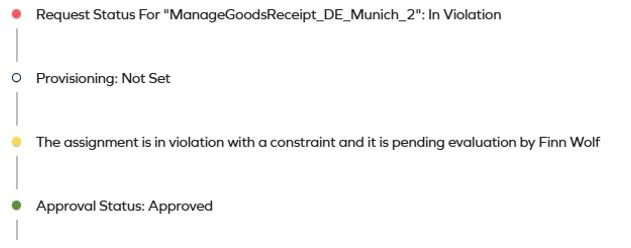
To open the Assignment Timeline, locate the access request you want to review, click the ellipsis (three dots), and then Assignment Timeline.
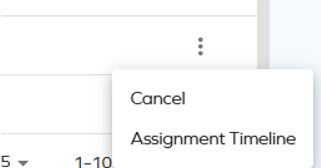
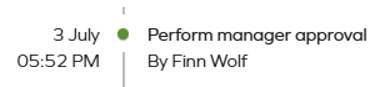
Color-coded indicators are used to present the status each step:
-
green - approval
-
yellow - action pending
-
white - the step is not started

-
red - rejection

Violation status and evaluation
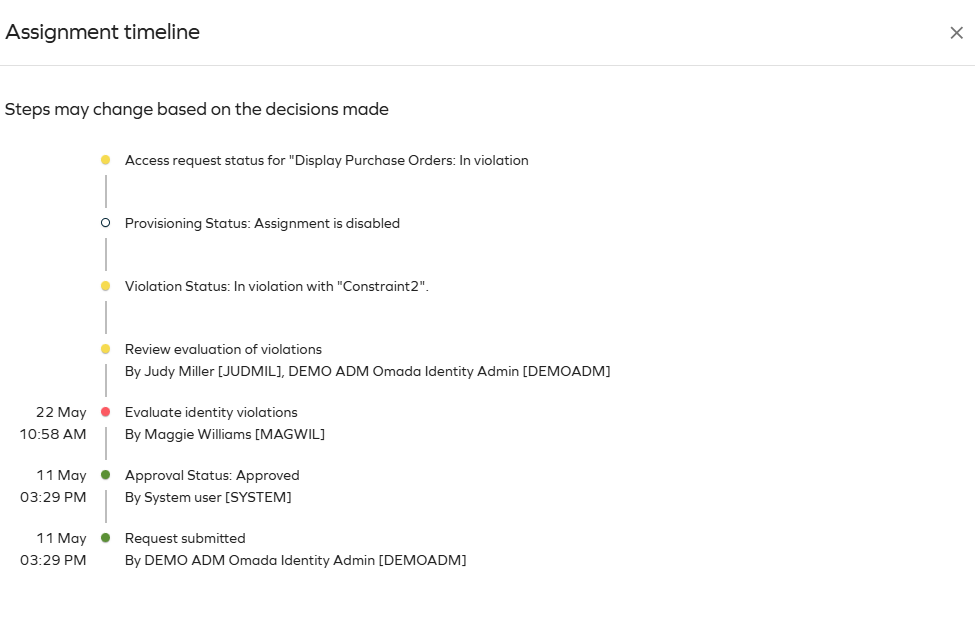
The timeline displays the following details about violations related to the access request:
- Violation status — shows the constraint name(s) being violated and the resolution outcome of the violation process.
- Violation evaluation — shows each step of the violation evaluation workflow, including the actor assigned or who took action and the timestamp. Steps follow the same color pattern as the rest of the timeline: red for Blocked (rejection) and green for Allowed (approval).
In the violation evaluation workflow, Allowed and Blocked are the equivalents of Approved and Rejected used in standard workflow steps.
Provisioning status and manual provisioning
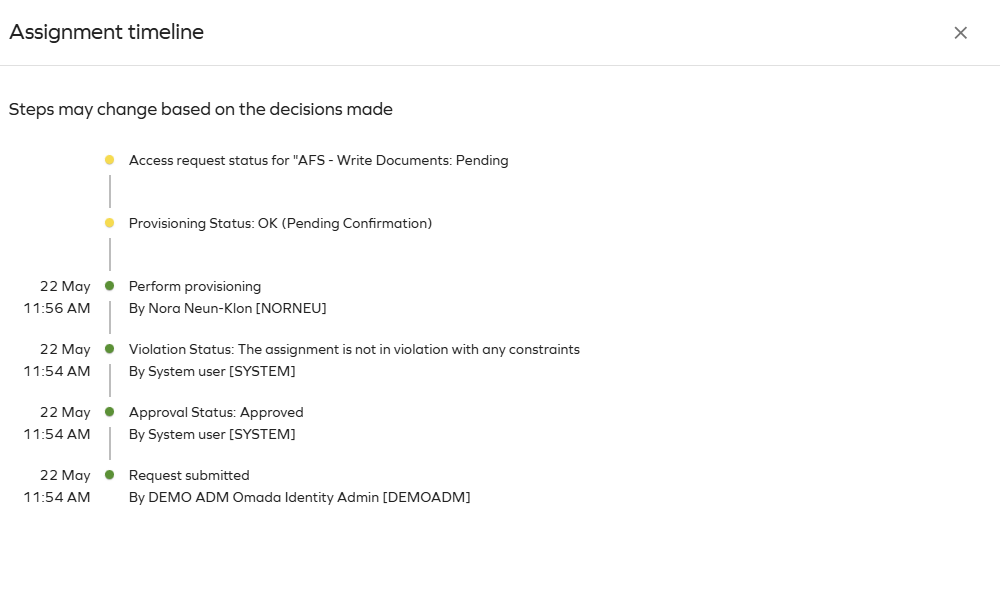
The timeline provides additional detail about the provisioning status and workflow:
- Provisioning status — indicates whether provisioning is pending a manual action (and by whom), or has not started because a previous step is still pending.
- Manual provisioning steps — show the user assigned to perform the action. Once completed, the step is marked green with the completion timestamp.
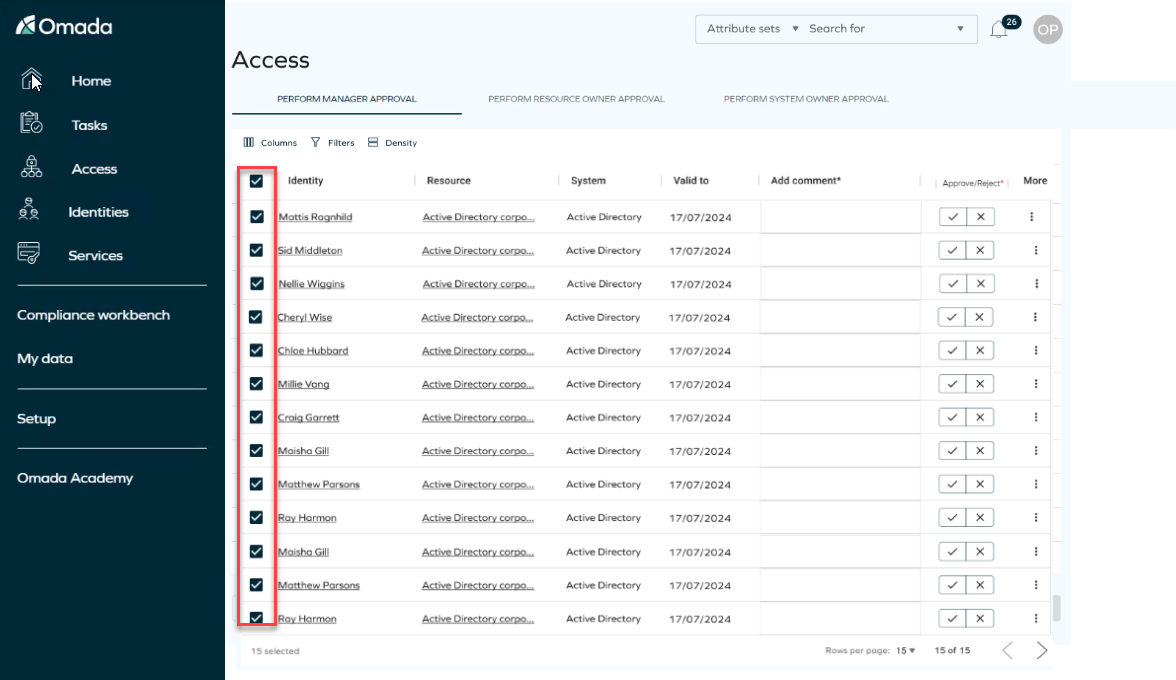
The Access link in the navigation pane allows you to view all the questions assigned to you. At the top, you will find different tabs based on your permissions and workflow steps. To view questions in each step, simply click on the corresponding tabs.
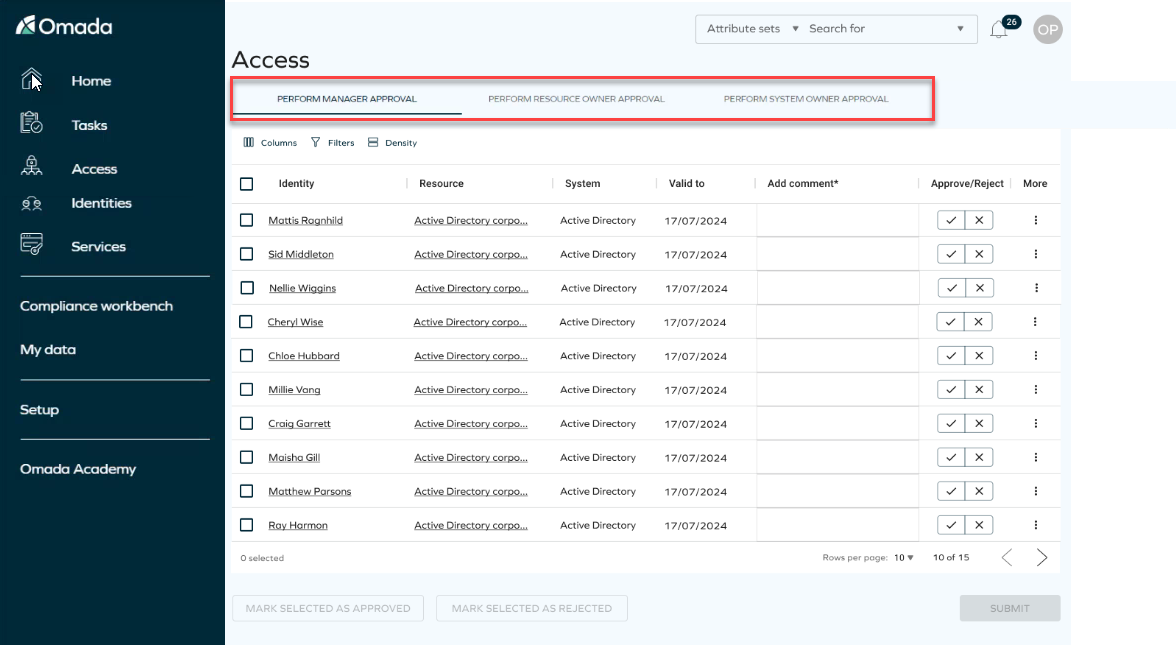
You can answer questions in bulk by selecting them all, choosing your answers, and then clicking Submit. It's crucial to submit your answers before closing the tab, as there is no option to save your changes for later retrieval.
Please note that the Decision field is no longer optional, as it was in the legacy Access flow. It is now mandatory for processing.
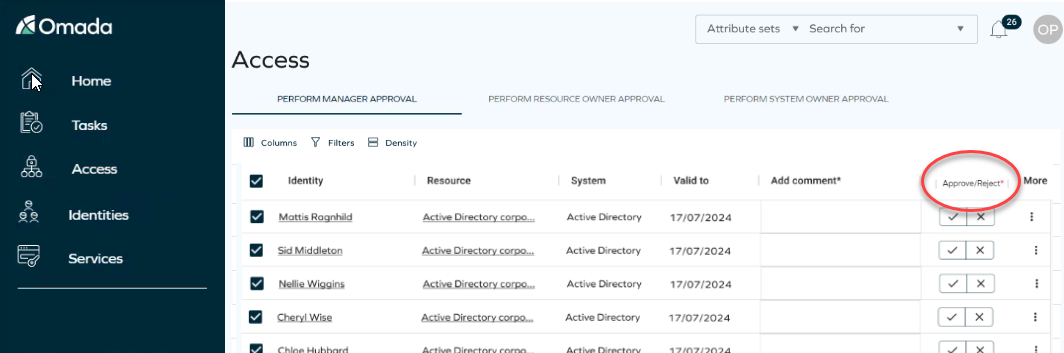
If there is a mandatory column, a red indicator will appear, indicating that you need to complete it. You must fill out these fields in order to enable the submit button.
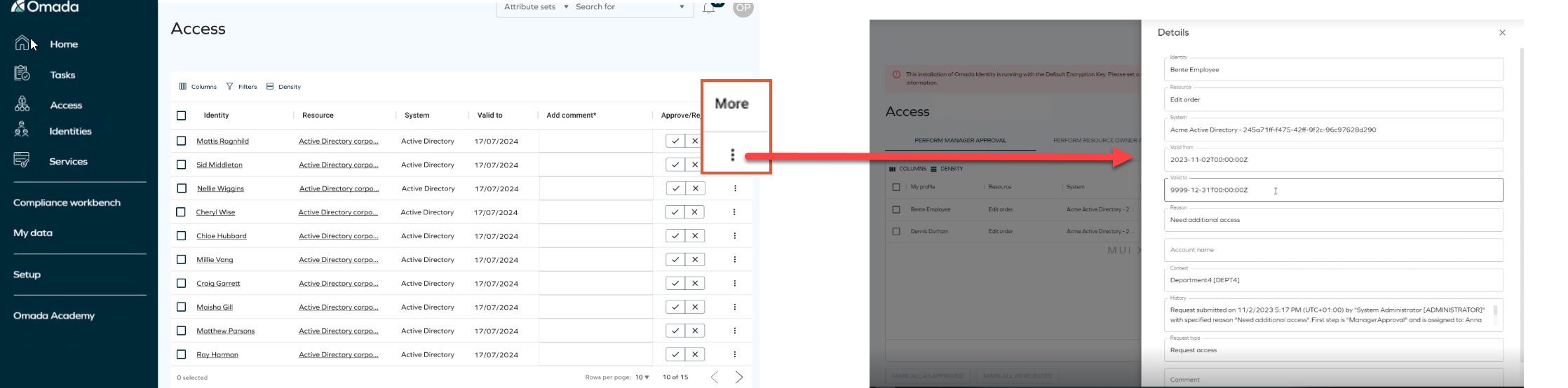
Clicking on the ellipsis menu under More allows you to access additional information about the form. However, editing is not possible.
The steps and assignees may change based on the decisions made.
Reviewing and editing a request
When you select a row, the details panel opens and displays the following fields:
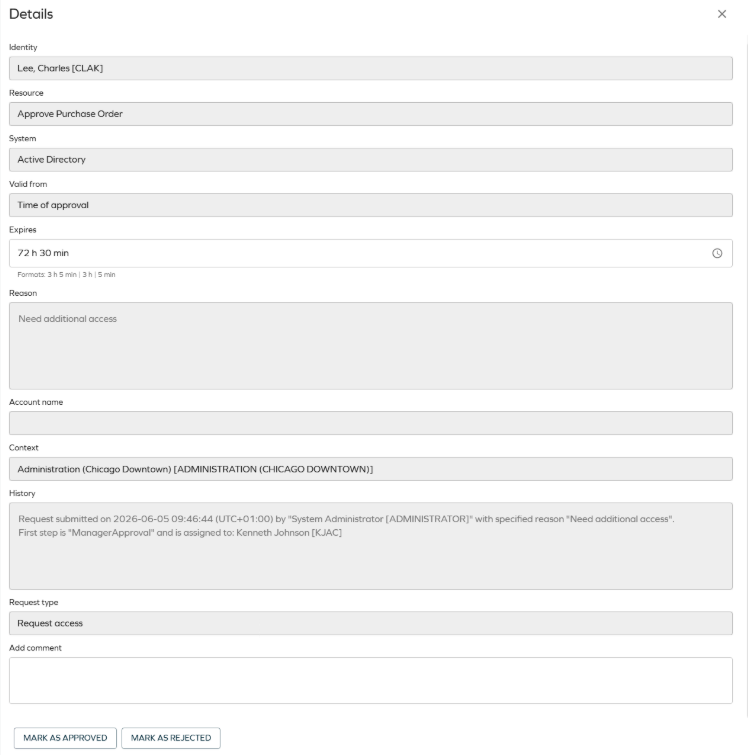
- Identity: the person requesting access (read-only).
- Resource: the resource being requested (read-only).
- System: the target system (read-only).
- Valid From: for date-based requests, the requested start date. For duration-based requests, this shows Time of approval, meaning access starts at the moment of final approval.
- Expires: editable. The field adapts to the request type:
- For date-based requests: a date (and time) picker where you can adjust the end date.
- For duration-based requests: a duration picker where you can modify the hours and minutes.
- Reason: the reason provided by the requester (read-only).
- Comment: an optional field where you can add your own note.
The following quick actions are available for date-based requests:
- Today: sets the expiry date to today.
- Max validity: sets the expiry to the resource's maximum allowed validity.
Cancelling a request
If you are the requester or beneficiary, you can cancel an access request in the pending state:
-
In the More column, click the ellipsis (three dots) button.
-
Confirm the operation.
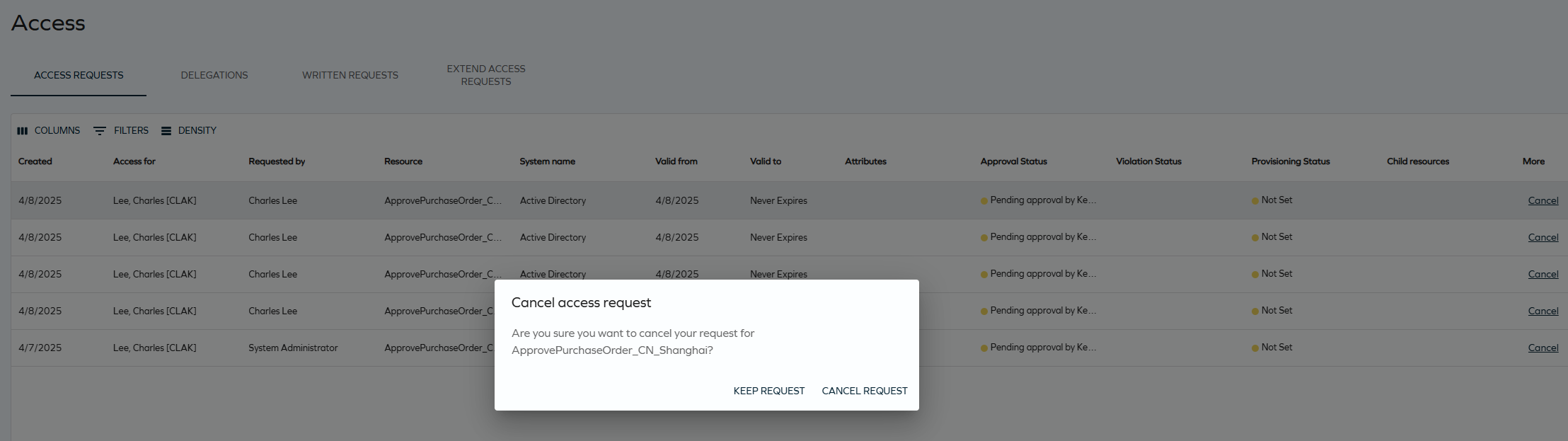
The request is now cancelled.
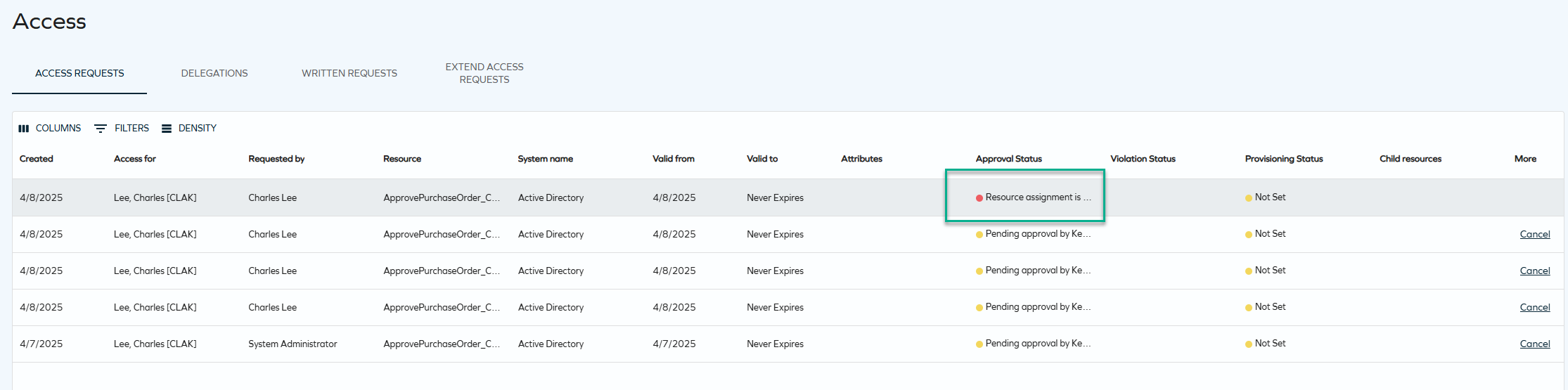
You can cancel one request at a time using the UI, and more than one request using the API. Assignees can be notified through an e-mail about the cancellation. The survey created after the access request is closed if all related resource assignments are cancelled (or has already been answered).
Time-based access
Time-based access gives you precise control over how long access is granted. When creating a request, you can choose between two validity types:
- Time window: access is granted for a specific start and end date. If time-based access is enabled, you can also specify exact start and end times using the All day toggle.
- Fixed duration: access is granted for a set number of hours and minutes, starting from the moment the request receives its final approval.
Prerequisites: enabling time-based access
By default, access validity is limited to date-based time windows. To unlock the full set of options, exact start/end times, and fixed durations, an administrator must enable time-based access.
Step 1: Enable the time-based access setting
- Sign in as an administrator.
- Go to Setup > Administration > More > Customer settings.
- Locate Enable time-based access (category: User Interface) and set it to True.
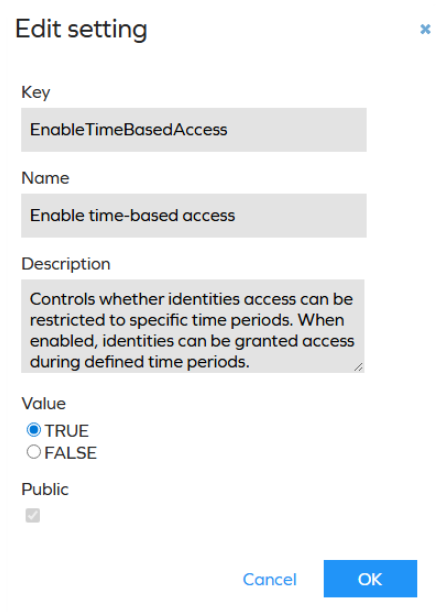
For more information, refer to EnableTimeBasedAccess in Customer settings.
What changes when the setting is enabled:
| Capability | Setting OFF (default) | Setting ON |
|---|---|---|
| Date selection | Date only (for example, 15 Mar 2026) | Date + time (for example, 15 Mar 2026 09:00) |
| All day toggle | Not shown | Shown on the request form (on by default). |
| Fixed duration option | Not available | Available as an alternative to the time window. |
| Dates in approval grids | Date only | Date + time |
| Dates in the approver's edit fields | Date picker | Date and time picker |
Step 2: Verify the Valid from / Valid to properties are visible
The Valid from and Valid to properties on resource assignments must be visible for users and approvers to interact with validity dates. They are included by default in the access request and approval views, so no extra configuration is normally required. If your form layouts were customized, confirm that both properties are present on the access request, approval, and resource assignment views.
Step 3 (optional): Configure a maximum validity
If access to a sensitive resource must not exceed a given period, set a Maximum validity at the resource, resource folder, or system level. The maximum validity now supports three levels of granularity: days, hours, and minutes.
- Open the resource (or resource folder / system) configuration.
- Set the Max validity properties to the desired limit and save.
When a maximum validity applies, the system automatically caps any requested period; requesters see an informational alert that policies may shorten the requested period, and approvers cannot extend beyond the limit.
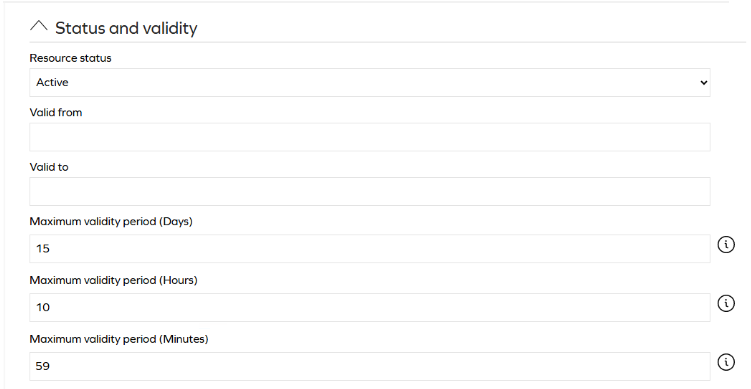
Step 4 (optional): Configure a default validity period
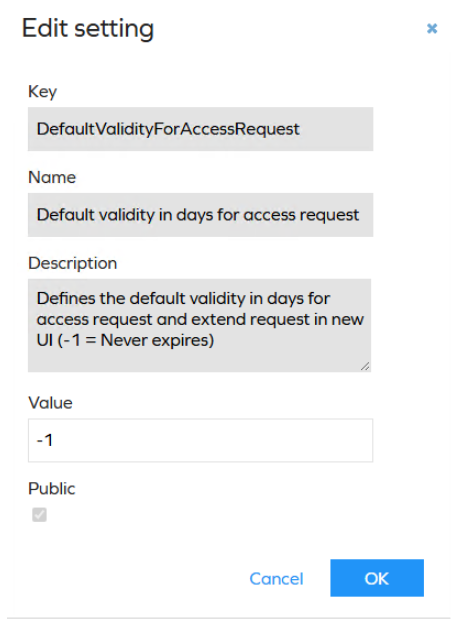
Administrators can pre-fill the Valid to date on the request form. Set the customer setting DefaultValidityForAccessRequest to -1 for no default expiry.
Step 5 (optional): Configure the organization's default time zone
Time-based access displays and calculates validity dates and times using time zone context. If an identity does not have an individual time zone set in the Timezone property of the Users view, the system falls back to the organization's default time zone, configured with the customer setting Default time zone (DefaultTimeZone).
Click to check out the supported time zones
| Code | Time zone |
|---|---|
| 0 | (UTC-12:00) International Date Line West |
| 1 | (UTC+13:00) Samoa |
| 2 | (UTC-10:00) Hawaii |
| 3 | (UTC-09:00) Alaska |
| 4 | (UTC-08:00) Pacific Time (US & Canada) |
| 10 | (UTC-07:00) Mountain Time (US & Canada) |
| 13 | (UTC-07:00) Chihuahua, La Paz, Mazatlán |
| 15 | (UTC-07:00) Arizona |
| 20 | (UTC-06:00) Central Time (US & Canada) |
| 25 | (UTC-06:00) Saskatchewan |
| 30 | (UTC-06:00) Guadalajara, Mexico City, Monterrey |
| 33 | (UTC-06:00) Central America |
| 35 | (UTC-05:00) Eastern Time (US & Canada) |
| 40 | (UTC-05:00) Indiana (East) |
| 45 | (UTC-05:00) Bogota, Lima, Quito, Rio Branco |
| 50 | (UTC-04:00) Atlantic Time (Canada) |
| 55 | (UTC-04:00) Caracas |
| 60 | (UTC-03:30) Newfoundland |
| 65 | (UTC-03:00) Brasilia |
| 70 | (UTC-03:00) City of Buenos Aires |
| 73 | (UTC-03:00) Greenland |
| 80 | (UTC-01:00) Azores |
| 83 | (UTC-01:00) Cabo Verde Is. |
| 85 | (UTC+00:00) Dublin, Edinburgh, Lisbon, London |
| 90 | (UTC+00:00) Casablanca |
| 95 | (UTC+01:00) Belgrade, Bratislava, Budapest, Ljubljana, Prague |
| 100 | (UTC+01:00) Sarajevo, Skopje, Warsaw, Zagreb |
| 105 | (UTC+01:00) Brussels, Copenhagen, Madrid, Paris |
| 110 | (UTC+01:00) Amsterdam, Berlin, Bern, Rome, Stockholm, Vienna |
| 113 | (UTC+01:00) West Central Africa |
| 120 | (UTC+02:00) Cairo |
| 125 | (UTC+02:00) Helsinki, Kyiv, Riga, Sofia, Tallinn, Vilnius |
| 130 | (UTC+02:00) Athens, Bucharest |
| 135 | (UTC+02:00) Jerusalem |
| 140 | (UTC+02:00) Harare, Pretoria |
| 145 | (UTC+03:00) Moscow, St. Petersburg |
| 150 | (UTC+03:00) Kuwait, Riyadh |
| 155 | (UTC+03:00) Nairobi |
| 158 | (UTC+03:00) Baghdad |
| 160 | (UTC+03:30) Tehran |
| 165 | (UTC+04:00) Abu Dhabi, Muscat |
| 170 | (UTC+04:00) Baku |
| 175 | (UTC+04:30) Kabul |
| 185 | (UTC+05:00) Islamabad, Karachi |
| 190 | (UTC+05:30) Chennai, Kolkata, Mumbai, New Delhi |
| 193 | (UTC+05:45) Kathmandu |
| 195 | (UTC+06:00) Astana |
| 200 | (UTC+05:30) Sri Jayawardenepura |
| 203 | (UTC+06:30) Yangon (Rangoon) |
| 205 | (UTC+07:00) Bangkok, Hanoi, Jakarta |
| 207 | (UTC+07:00) Krasnoyarsk |
| 210 | (UTC+08:00) Beijing, Chongqing, Hong Kong, Urumqi |
| 215 | (UTC+08:00) Kuala Lumpur, Singapore |
| 220 | (UTC+08:00) Taipei |
| 225 | (UTC+08:00) Perth |
| 227 | (UTC+08:00) Irkutsk |
| 230 | (UTC+09:00) Seoul |
| 235 | (UTC+09:00) Osaka, Sapporo, Tokyo |
| 240 | (UTC+09:00) Yakutsk |
| 245 | (UTC+09:30) Darwin |
| 250 | (UTC+09:30) Adelaide |
| 255 | (UTC+10:00) Canberra, Melbourne, Sydney |
| 260 | (UTC+10:00) Brisbane |
| 265 | (UTC+10:00) Hobart |
| 270 | (UTC+10:00) Vladivostok |
| 275 | (UTC+10:00) Guam, Port Moresby |
| 280 | (UTC+11:00) Magadan |
| 290 | (UTC+12:00) Auckland, Wellington |
| 300 | (UTC+13:00) Nuku'alofa |
| 301 | (UTC-04:00) Georgetown, La Paz, Manaus, San Juan |
| 302 | (UTC-03:00) Cayenne, Fortaleza |
| 303 | (UTC-02:00) Mid-Atlantic |
| 304 | (UTC±00:00) Monrovia, Reykjavik |
| 305 | (UTC+02:00) Eastern Europe |
| 306 | (UTC+04:00) Yerevan |
| 307 | (UTC+06:00) Ekaterinburg |
| 308 | (UTC+05:00) Ashgabat, Tashkent |
| 309 | (UTC+07:00) Novosibirsk |
| 310 | (UTC+11:00) Solomon Islands, New Caledonia |
| 311 | (UTC-11:00) American Samoa, Midway Island, Niue |
| 312 | (UTC-09:30) Marquesas Islands |
| 313 | (UTC+12:45 / +13:45 DST) Chatham Islands (New Zealand) |
| 314 | (UTC+14:00) Line Islands (Kiritimati) |
For more information, see DefaultTimeZone in Customer settings and Time zones.
-
No recurring access: each request grants a single continuous window, not a repeating schedule (for example, every Monday 09:00–17:00).
-
No per-day time restrictions: access is continuous within the validity period; there are no active hours inside a multi-day window.
-
Fixed duration starts at final approval, not at submission.
-
Approvers cannot switch modes: time window vs. fixed duration is set by the requester, approvers only adjust values within that mode.
-
Free-text requests do not support fixed duration: only the time window option is available.
-
Very short durations may be partially consumed by provisioning.
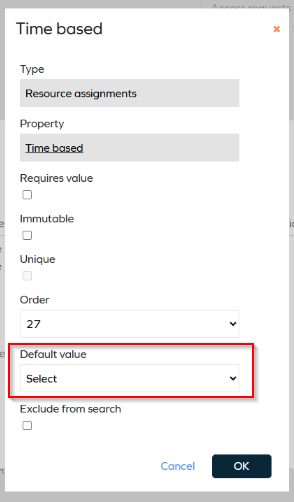
To prevent time-based from being automatically set to True when objects are edited and saved, you must explicitly define its default value.
- Go to the object (for example, Resource Assignment, Access Request).
- Locate TIME_BASED.
- Set a default value (False or True).
- Save and repeat for other objects.
How validity dates are calculated
The following rules determine how the system converts your inputs into access dates:
Time window requests
| Input | Result |
|---|---|
| All day ON · From 1 Mar · To 15 Mar | 1 Mar (start of day) to 15 Mar (end of day); rounded to day boundaries |
| All day OFF · From 1 Mar 09:00 · To 15 Mar 17:00 | 1 Mar 09:00 to 15 Mar 17:00, preserved exactly |
| Valid to = Max validity / Never expires | Access does not expire (subject to any resource max validity policy) |
Fixed duration requests (clock starts at final approval)
| Duration | Approved at | Result |
|---|---|---|
| 4h 30min | 14:30 on 24 Feb 2026 | 24 Feb 14:30 → 24 Feb 19:00 |
| 8h | 22:00 on 24 Feb 2026 | 24 Feb 22:00 → 25 Feb 06:00 (crosses midnight) |
| 48h | 10:00 on 24 Feb 2026 | 24 Feb 10:00 → 26 Feb 10:00 |
Maximum validity enforcement (example: 90-day policy)
| Requested Valid to | Valid from | Max allowed | Result |
|---|---|---|---|
| 1 Sep 2026 | 1 Mar 2026 | 29 May 2026 | Capped to 29 May 2026 |
| 15 Apr 2026 | 1 Mar 2026 | 29 May 2026 | 15 Apr 2026 (within limit) |
If you are using a custom approval survey template, additional configuration is required for time-based access to work correctly. See Custom templates for time-based access.