Querying IDS data with GraphQL
You can use the GraphQL viewer to retrieve data from the Internal Data Store (IDS), including raw IDS data and GraphQL export views. The viewer provides the schema for all Data Object types used in Horizons imports, allowing you to inspect the data at different stages of processing.
Accessing the GraphQL viewer
You can access the GraphQL viewer by adding the APIDoc.aspx?api=ids suffix to the Omada Identity URL, for example: https://<instancename>.omada.cloud/APIDoc.aspx?api=ids
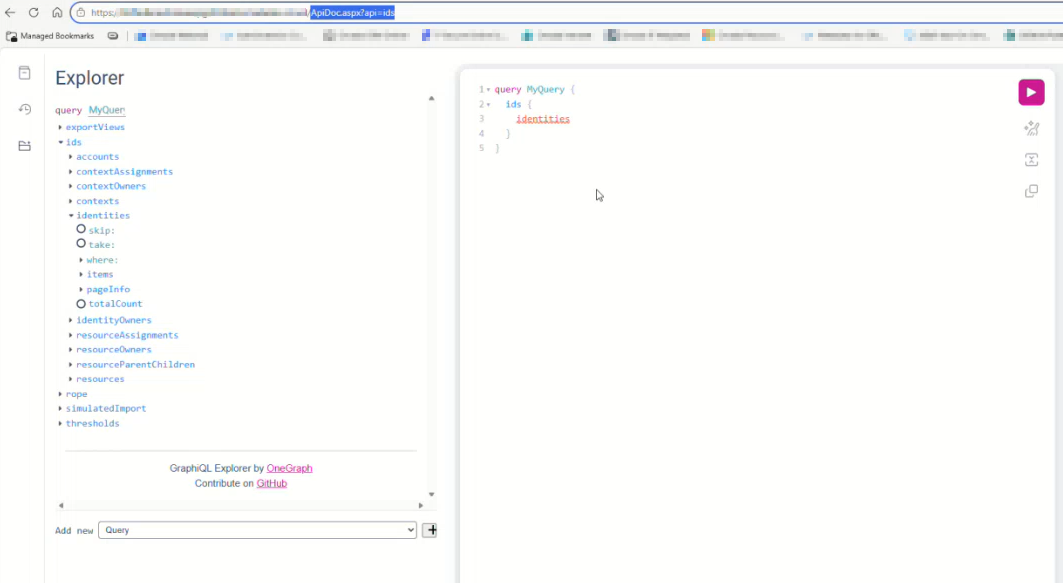
The GraphQL viewer is a part of the API documentation UI. For more information on enabling the API documentation UI and exploring the schema, go to the Omada Identity Graph API documentation.
Building a query
The Explorer tab lets you build queries interactively. Select the fields you want to retrieve from a Data Object type, and the viewer creates the corresponding query. You can add filters through the where argument to narrow the returned data.
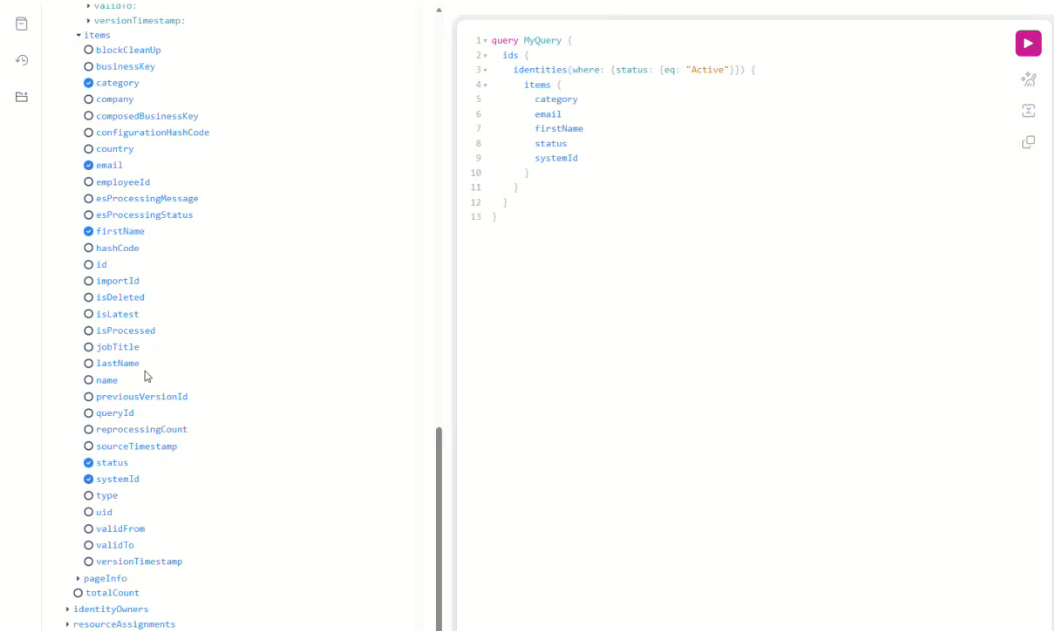
Filtering results
Use the where argument to return only the records that match a condition. Filters can be applied to any field exposed by the Data Object type.
Paginating results
All fields that return data in an array format use offset pagination. Use the skip and take arguments to select a specific range of records:
skipsets the number of records to bypass.takesets the maximum number of records to return.
The following example retrieves 10 merged public identities, skipping the first 20:
query {
  publicIdentitiesMerged(skip: 20, take: 10) {
    id
    displayName
  }
}
When you omit skip and take, the query returns the default page of results. Use both arguments together to page through large result sets in predictable batches.
Querying export views
In addition to the raw IDS tables, the GraphQL viewer exposes the GraphQL export views. Export views represent the data as it is shaped for export, after Horizons processing, rather than the raw imported values held in the IDS tables.
Query export views the same way you query raw IDS data:
- Select the fields in the Explorer tab.
- Apply
wherefilters as required. - Use
skipandtakefor pagination.
Use the raw IDS tables to inspect data as it was imported, and the export views to inspect data as it will be exported. Comparing the two is useful when you are troubleshooting differences between imported and processed data.