Context Hierarchies
The Context Hierarchies dashboard visualizes context hierarchies, so you can inspect their structure, navigate relationships between contexts, identify orphaned contexts, and understand where contexts are used in access controls.
The dashboard is intended for identity governance administrators and auditors who need to answer questions such as:
- What does our context hierarchy actually look like today?
- Are there contexts that have become disconnected from the hierarchy (orphaned)?
- Where is a given context used, that is, in which assignment policies or through Eligibility Filtering?
- Which identities belong to a given context?
Prerequisites
A context only appears in the dashboard if it meets both of the following conditions:
- The context type has a Parent property defined, and the Contexts are personal checkbox is cleared. Personal contexts and context types without a Parent property are not shown.
- The underlying Data Object Type is enabled for OData. This is the Enable this type for OData checkbox on the Data Object Type configuration page, available at Setup > Administration > Process configuration > Data object types. For more information, see Data objects and OData REST API.
Opening the dashboard
You can find the Context Hierarchies dashboard under Dashboards & Analytics in the navigation side panel.
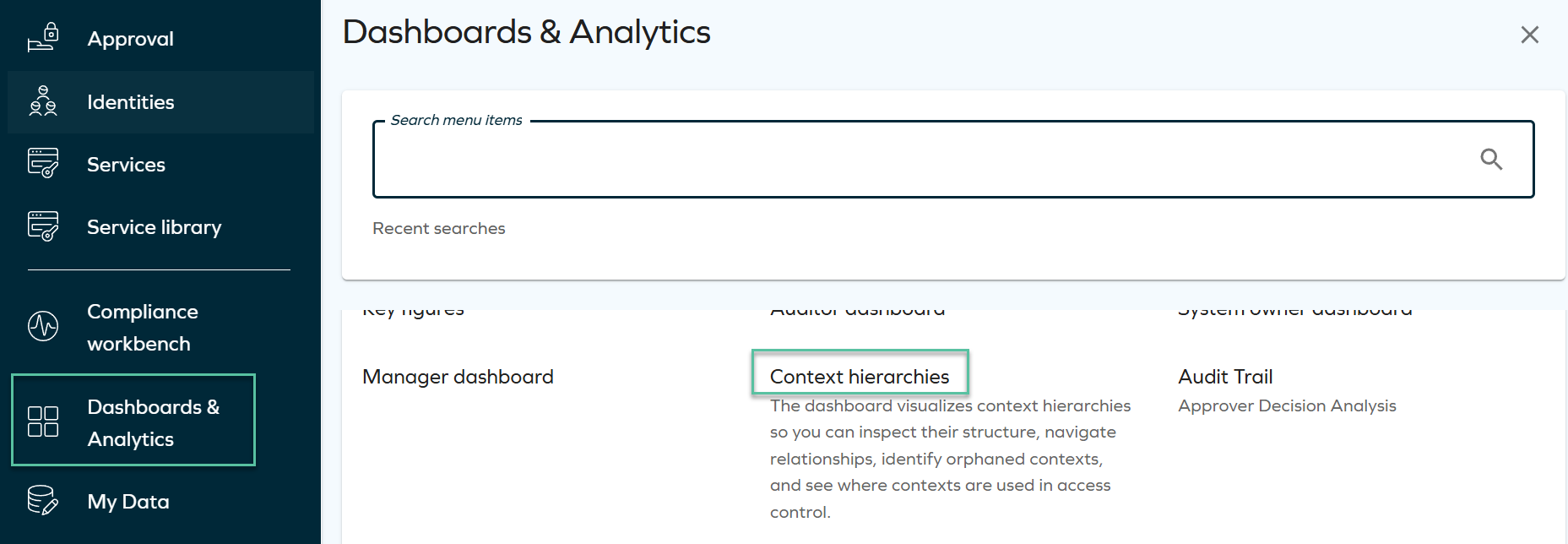
The dashboard offers four views, selectable from the tabs at the top: Tree view, Graphic view, Statistics, and Usage.
Tree view tab
The Tree view tab shows a hierarchical, expandable list of contexts. Each row displays the context's type and level, and can be expanded or collapsed individually. Use Expand all or Collapse all to expand or collapse the whole tree, and To top to scroll back to the top of a long tree. The tree is paginated, with an adjustable number of rows per page.
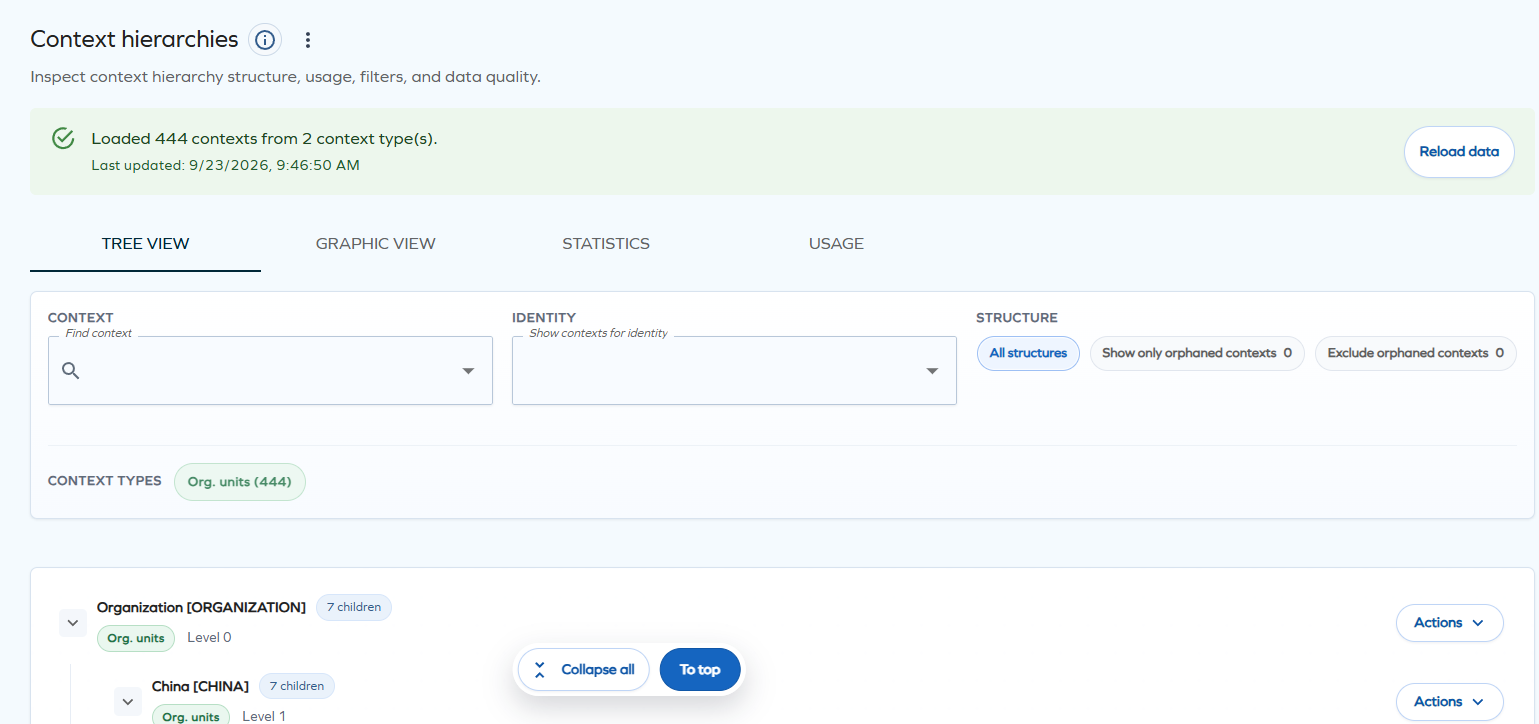
Row actions
Each row has an Actions menu offering:
-
Open in tab — opens the context details in a new browser tab.
-
Focus context — narrows the view to that context and its descendants.
-
Open side panel — opens a side panel with the context's own details form.
-
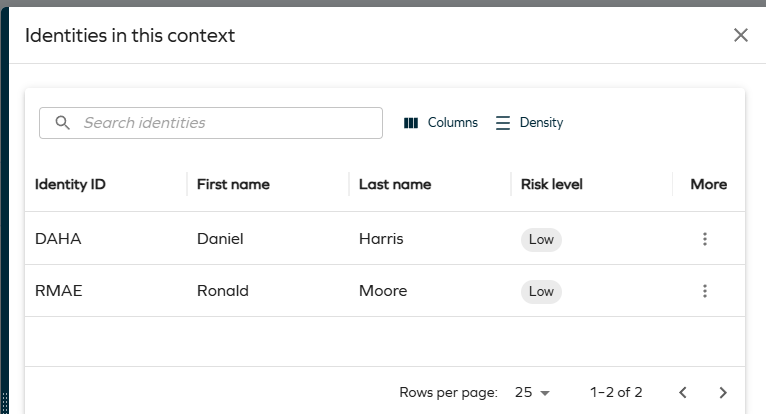
Identities in this context — opens a side panel listing the identities that belong to the context.
-
Show usage — jumps to the Usage tab, filtered to that context.
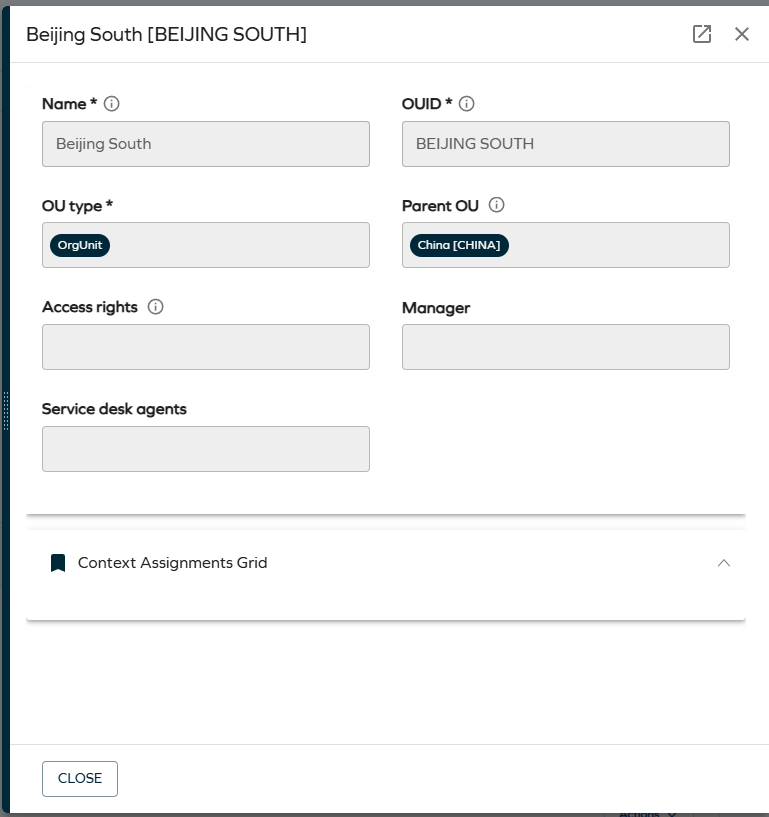
Actions that require information the context doesn't have, for example, a missing context GUID, are shown disabled, with a tooltip explaining why.
Selecting Identities in this context opens a side panel listing the identities that belong to the context, with search, column, and density options.
Graphic view tab
The Graphic view tab renders the same hierarchy as an interactive org chart of context cards. Each card shows the context's type, level, and number of direct children, or indicates that it's a leaf node.
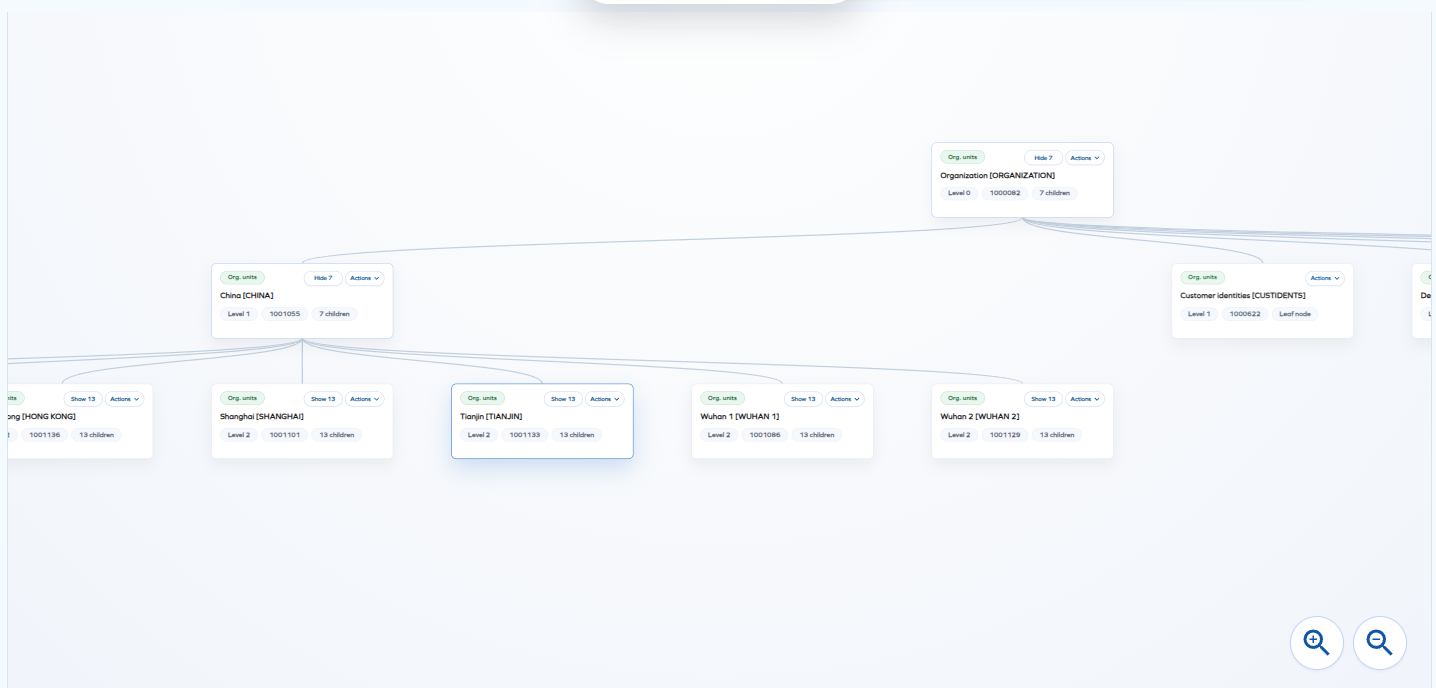
Supported interactions:
- Drag to pan, or Alt + scroll to zoom. You can also use the Zoom in and Zoom out buttons.
- Fit frames the whole chart.
- Click a context card to select it and filter the view.
- Click Show # or Hide # on a card to show or hide that context's children.
- Expand all shows the whole tree of all contexts.
Statistics tab
The Statistics tab shows summary metrics and a health analysis for the currently filtered set of contexts.

The summary metrics include:
-
Total contexts — the number of unique contexts in the loaded hierarchy.
-
Maximum and average depth.
-
Leaf contexts — contexts with no children.
-
Orphaned contexts — contexts with no parent and no child contexts.
-
Contexts used in policies/eligibility — shows as not available until usage data is loaded.
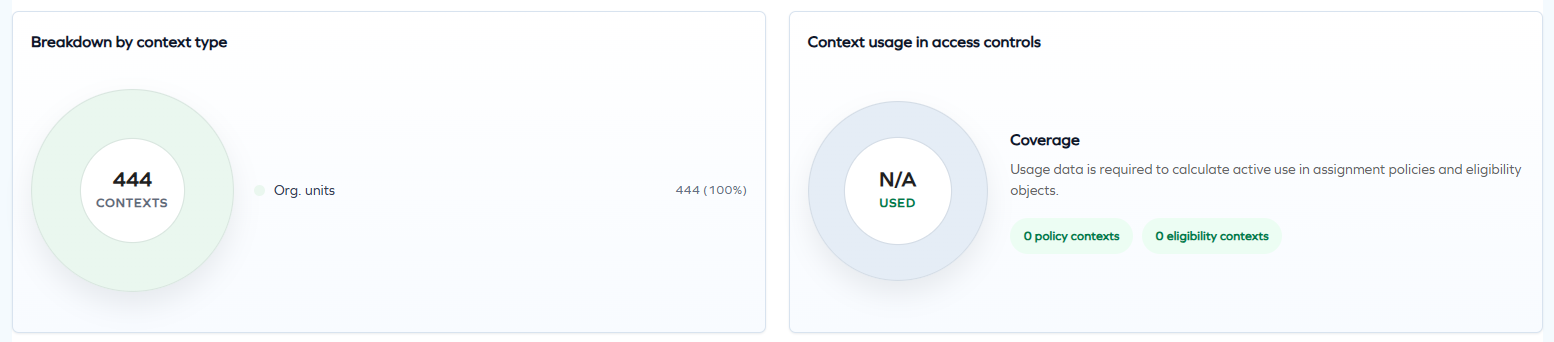
Below the summary metrics:
- Breakdown by context type shows how contexts are distributed across context types.
- Context usage in access controls shows the coverage of contexts by assignment policies and Eligibility Filtering, once usage data has been loaded.
Health analysis
The health analysis shows the depth and distribution of contexts in the hierarchy, and a health score with recommended actions:
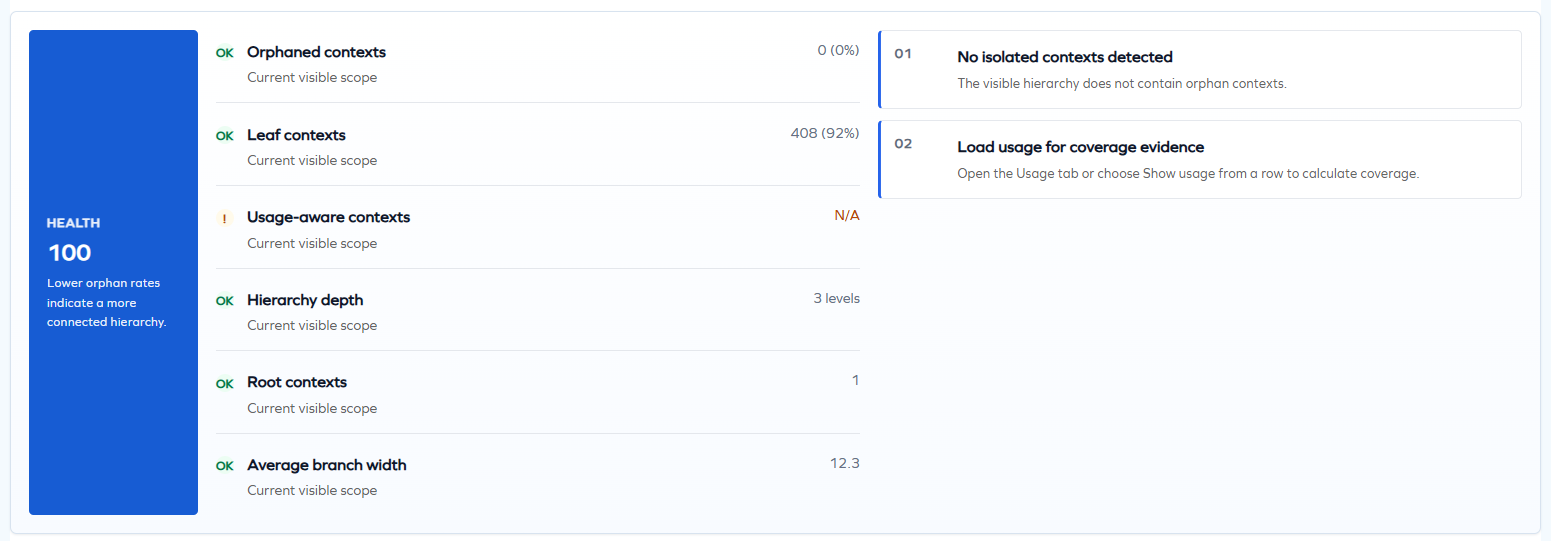
-
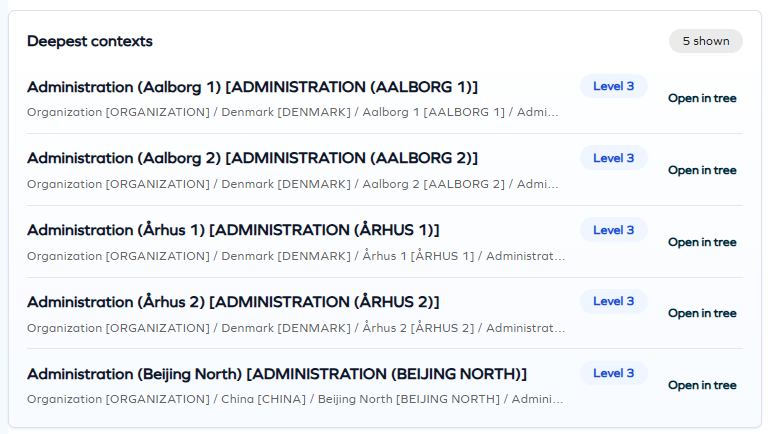
Deepest contexts — the top 5 contexts by hierarchy depth, deepest first, with ties broken alphabetically. Each is shown with its full lineage path and a Level N badge, and a link to open it in the Tree view tab. A Hierarchy depth health row warns when depth exceeds 8 levels.
-
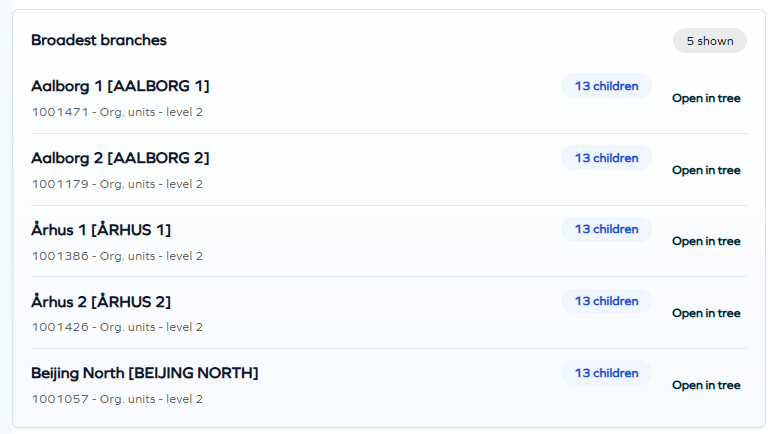
Broadest branches — the top 5 contexts with the most direct children. An Average branch width health row (total child links divided by non-leaf nodes) warns above 20.
-
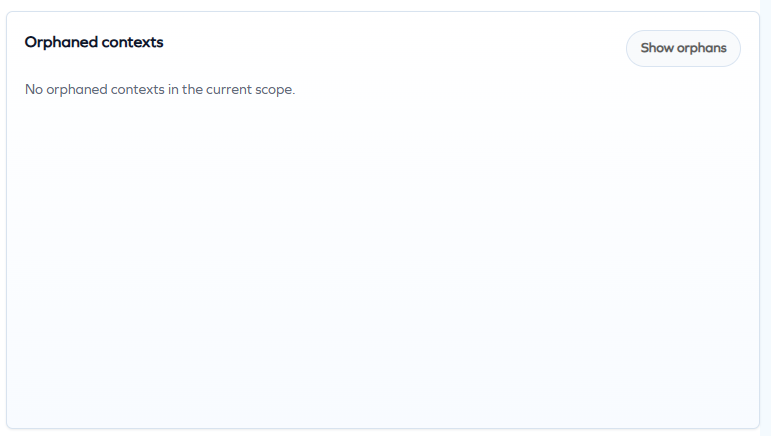
Orphaned contexts — contexts that have no parent and no child context relationships.
-
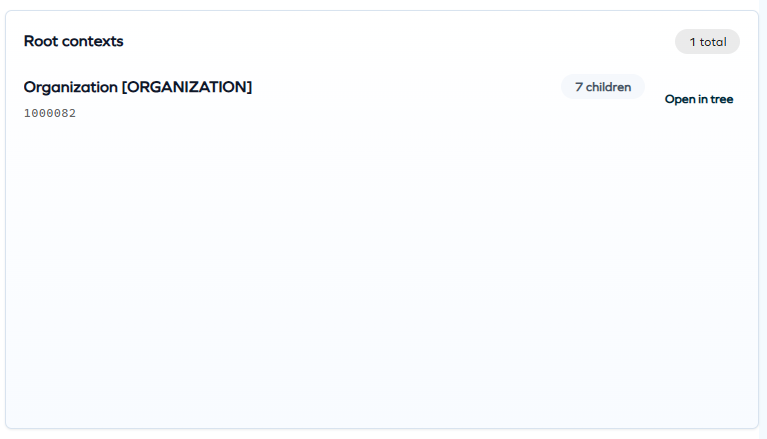
Root contexts — contexts at the top of the hierarchy, with no parent.
Usage tab
For a selected context, the Usage tab shows where it is referenced: the assignment policies and, through Eligibility Filtering, the eligibility objects that use it. Long lists use Show more and Show fewer paging.
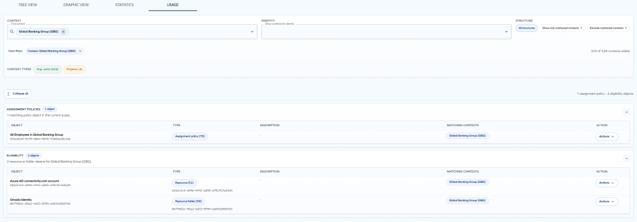
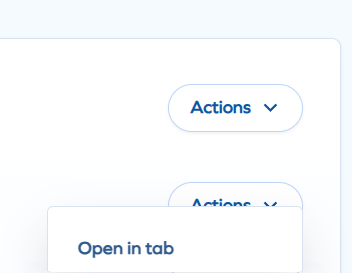
For each usage row, click Open in tab from the Actions menu to navigate to the details of the related assignment policy, resource, or resource folder.
Filtering and search
The filters panel lets you narrow the hierarchy down to what you're investigating:
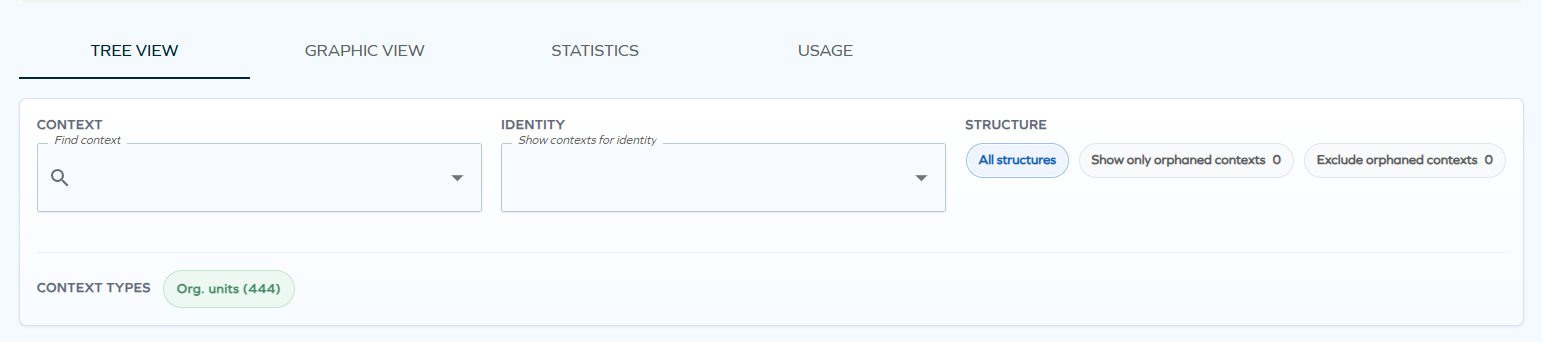
- Context search — search and filter by context name.
- Show contexts for identity — show only the contexts a selected identity belongs to.
- Structure — All structures (default), Only orphans, or Exclude orphans.
- Context types — restrict the view to one or more context types, selected as chips.
Active filters are shown as removable chips, and the panel summarizes their effect. Clear filters, Clear selected context, and Clear selected identity reset the corresponding filter individually.
Exporting
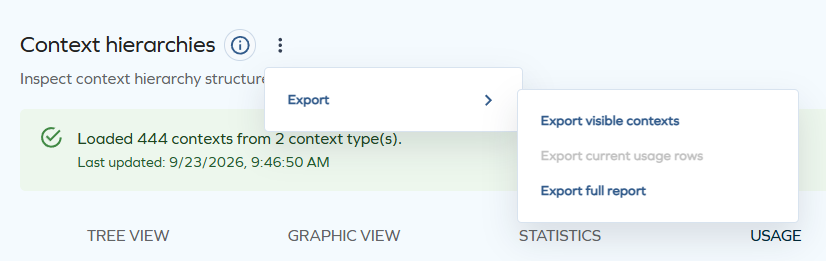
The Page actions menu in the page header offers three export options:
-
Export visible contexts — a CSV of the contexts currently shown, respecting active filters.
-
Export current usage rows — a CSV of the rows shown in the Usage tab.
-
Export full report — a printable HTML report capturing the current investigation: dashboard URL, active tab, visible contexts, active filters, selected context and identity, and key metrics such as maximum and average depth, eligibility objects, and usage status.
Sharing a view
You can copy the browser URL to share the exact view you're looking at with a colleague. They land on the same tab with the same filters applied.