Access Intelligence (previously: Role Insights)
The Access Intelligence dashboard provides actionable insights into role mining results, helping organizations evaluate proposed roles and improve access governance through data-driven analysis.
This dashboard requires a paid subscription.
If you have not purchased the subscription, you will still be able to see the dashboard on the Dashboards & Analytics list; however, after clicking you will see an error message.
Overview
The Access Intelligence dashboard visualizes the output of the Role Mining process, which uses machine learning to identify identity clusters and resource clusters and suggest candidate roles. It allows administrators to:
- Review how well proposed roles align with actual access patterns.
- Identify inconsistencies between identities and clustered resources.
- Investigate outliers and refine access assignments.
- Iteratively improve role quality by adjusting access.
By supporting structured analysis of role proposals, Access Intelligence reduces the time and effort required to evaluate cluster relevance and helps organizations move from raw clustering results to well-defined, governable roles.
The data displayed on OIA dashboards reflects the state of the last successful build, which occurs every day after midnight; it is not streamed live. For more information, see the introduction to dashboards: Omada Identity Analytics – Data model.
This dashboard consists of three tabs:
-
Clusters provides an overview of generated role proposals, allowing you to review role quality and select items for further analysis.
-
Role overview displays how accesses are distributed within the selected scope and lets you request access directly from the dashboard or proceed to remove it.
-
Advanced offers detailed analytical views and supporting metrics to investigate outliers, scope relationships, and assignment patterns in depth.
Based on the data from each tab, you can also promote the generated role proposals to actual roles that will exist in your system (Promoting to roles).
Before proceeding to taking action on each tab, read below to understand the concept of roles in a system.
Understanding roles
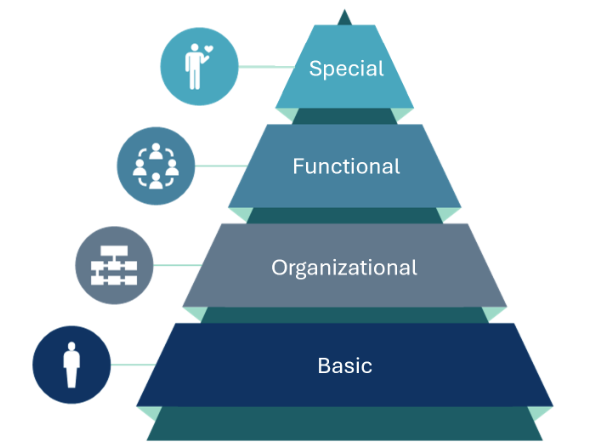
| Role type | Role description |
|---|---|
| Special | Provides access to individual application roles that are not universally required for all identities within a job function. These roles are assigned through access requests and require appropriate approval. They are managed by role owners. |
| Functional | Provides job-specific access to functions or business processes. These roles are typically requested through an access request process and require proper approval. Ownership of functional roles lies with individuals accountable for the respective job functions or business processes. |
| Organizational | Provides identities with access rights specific to their organizational area. Business roles of this type are generally assigned automatically through assignment policies. These roles often include access to shared resources like distribution lists, department drives, and shared folders. Organizational roles can be assigned to a specific organizational unit (for example, a department) or inherited through a hierarchical organizational structure. Members of the management community, who are typically the owners of the organizational units, are responsible for managing these roles. |
| Basic | Grants essential access based on identity type. Roles of this type are automatically assigned through assignment policies. These roles apply universally to all identities within scope and rely on accurate and unambiguous master data. Typically, the roles of the basic type include access to essential IT resources such as Active Directory and email. Ownership of these roles usually lies with members of the IT or IGA solution team. |
Reviewing role quality in the Clusters tab
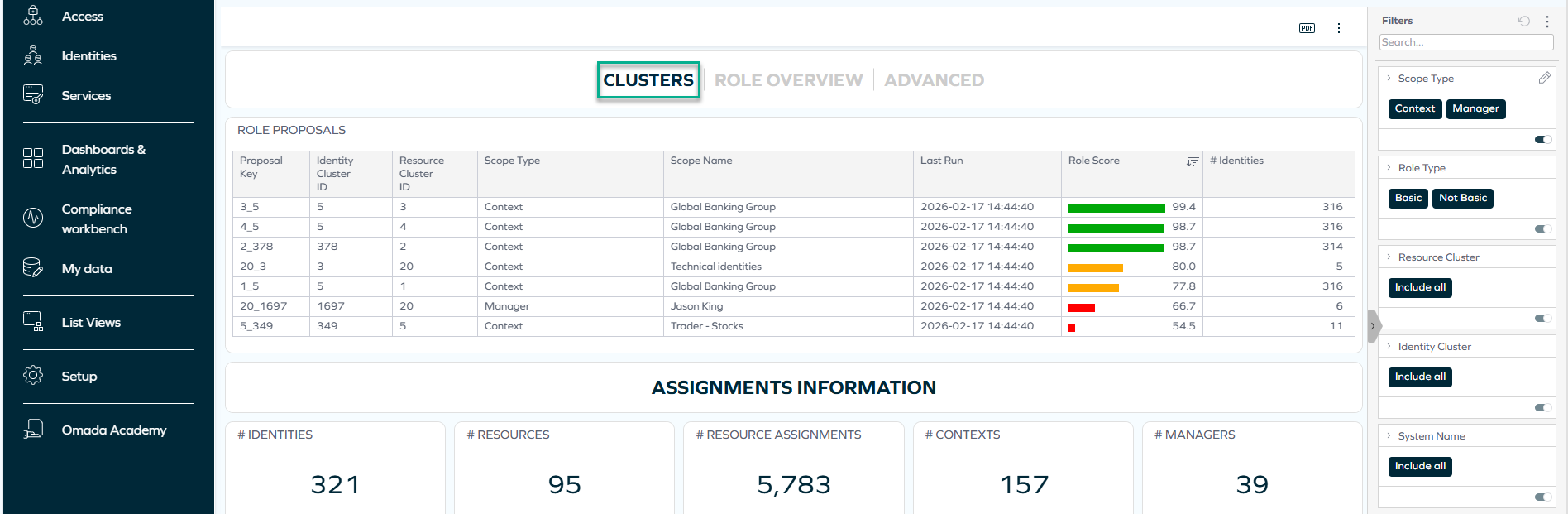
The primary purpose of this tab is to:
-
Evaluate the available role proposals.
noteRole proposals are generated by the Role Mining process, which uses machine learning to identify recurring access patterns and suggest candidate roles based on clustered identities and resources.
-
Select a specific role proposal (identified with a Proposal Key) for deeper analysis in the remaining tabs of the dashboard, where you will also be able to adjust accesses.
See below for a detailed explanation of the Role Proposal table and the Assignments Information widget, which, in combination, let you evaluate the strength of role proposals within a defined scope and understand the underlying access distribution.
Role Proposal table
In the Role Proposal table, each row represents a role proposal. Key columns include:
-
Proposal Key – unique combination of identity and resource cluster.
noteThe Proposal Key is a concatenation of the Identity Cluster ID and the Resource Cluster ID. This ensures that each role proposal is uniquely identified, even if different clusters share the same numeric ID. For example, even though two resource clusters may have the same number in different identity scopes, combining them with the identity cluster creates a unique key.
tipYou can select Proposal Keys for analysis by right-clicking on them and then clicking Select. This way, the data shown on the widget gets sorted by the particular Proposal Key.

-
Identity Cluster ID – group of identities identified by the algorithm.
-
Resource Cluster ID – group of resources frequently assigned together.
-
Role Score – color-coded quality indicator of how well the resource cluster aligns with the identity cluster.
note- A high Role Score indicates strong alignment between the identities in scope and the proposed resources.
- A low Role Score indicates inconsistencies such as:
- Identities within the scope that do not have the clustered resources.
- Identities outside the scope that do have the clustered resources. Low scores signal that the proposal should be investigated further.
-
Scope Type – common manager or context by which the algorithms identify identities and resources frequently grouped.
Assignments Information widget
Below the cluster table, the Assignments Information widget provides a high-level summary of the current dataset, including the number of identities, resources, resource assignments, contexts, and managers included in the analysis. These values reflect the scope defined by the active filters.
After selecting a Proposal Key in the Clusters tab, navigate to the Role overview tab.
Analyzing missing or extra access in the Role overview tab
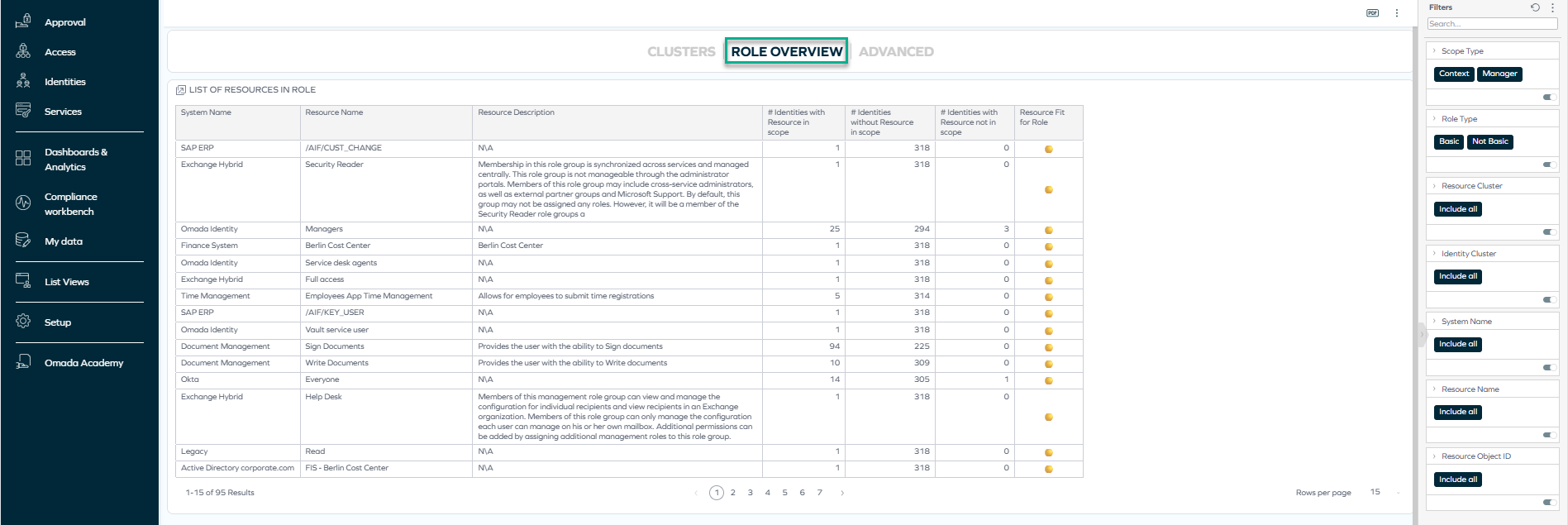
At this stage, you assess whether the proposed role reflects actual business intent: that is, if any access is missing or extraneous. In the List of resources in role table, you can review:
- The resources included in the proposed role.
- The number of identities:
-
With the resource in scope.
-
Without the resource in scope.
-
With the resource outside scope.
importantThis allows you to identify:
- Access that may be incorrectly assigned outside the intended scope.
- Access that may be missing for identities within the intended scope.
-
You can further refine your analysis by using filtering to limit the scope (for example, by system or resource). Adjusting the filters helps focus on a particular organizational unit, manager scope, or system to better interpret the cluster composition.
To gain an even more detailed view of the selected role proposal and investigate identity, resource, and organizational relationships in depth, you can now navigate to the Advanced tab.
Based on all the above information, you can proceed to corrective action: requesting or removing access.
Examples: Investigating missing or extra access
Let's assume that in the Clusters tab, you have selected a particular proposal key for investigation, because its role score was particularly low.

For a reminder of how to select an item (such as a proposal key) for investigation, go back to the Role proposal table section.
You can now proceed to:
Example: Requesting access through Access Intelligence
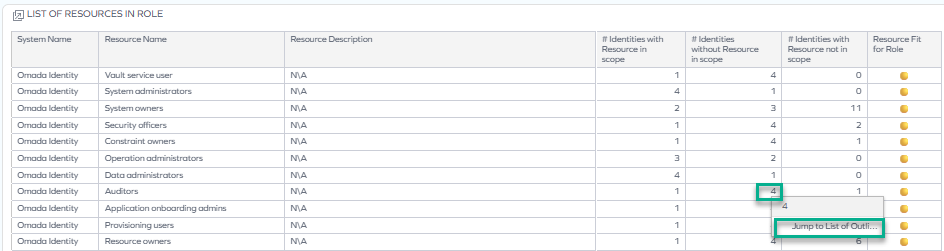
While reviewing the List of resources in role table on the Role overview tab, you notice that for the Auditors resource, there are 4 identities without a particular resource despite belonging to the scope. This may mean that those identities should be given that access.
To investigate these outliers and adjust their accesses, focus on the Identities without resource in scope column, and:
-
Select the number of identities by right-clicking it.
-
Click Jump to list of outliers. A new dashboard opens.

-
If you decide that the identities should get the missing access, you can proceed to request it on their behalf by clicking Request access for selection. This request will go through a standard approval process.
infoFor more information on requesting access outside the Access Intelligence dashboard, see Access request.
Example: Removing access
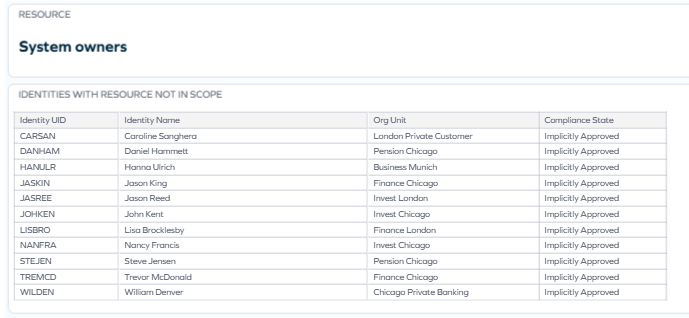
While reviewing the List of resources in role table on the Role overview tab, you notice that for the System owners resource, there are 11 identities with a particular resource that are not in the scope. This may mean that those identities should not have that access.
To investigate these outliers and adjust their accesses, focus on the Identities with resource not in scope column, and:
-
Select the number of identities by right-clicking it.

-
Click Jump to list of outliers. A new dashboard opens.
-
If you decide that the identities should not have those accesses, you can proceed to removing them. To learn how to do it, see Remove access.
upcoming changeIn future releases, removing access directly from the dashboard will become available.
Refreshing role scores by running Role Insights
After reorganizing access (and getting the necessary approvals), you can select the Run Role Insights action at the top of the dashboard so the data gets updated with the newest changes. The changes applied by you should cause the role scores to improve.
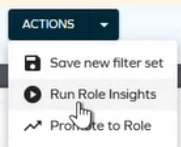
For more details on this and other available actions, proceed to the Actions section.
Investigating additional details in the Advanced tab
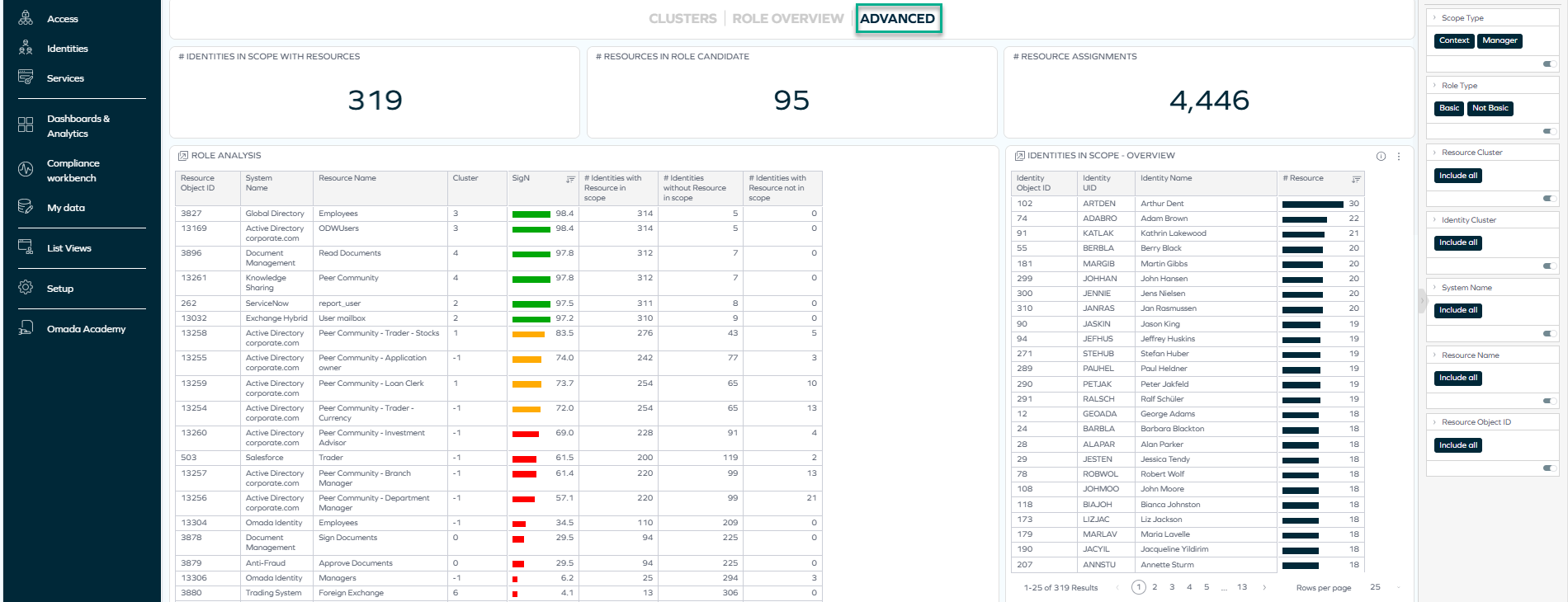
The Advanced tab can be used to investigate the selected role proposal in greater detail. It provides deeper analytical views that help you understand how identities, resources, and organizational structures relate to the selected cluster and identify potential outliers or inconsistencies.
At the top, this tab contains three widgets that provide information on the number of identities in the selected scope having the selected resources, the number of selected resources, and the total number of assignments for the selection.
Under the widgets, there are five tables:
-
Role analysis
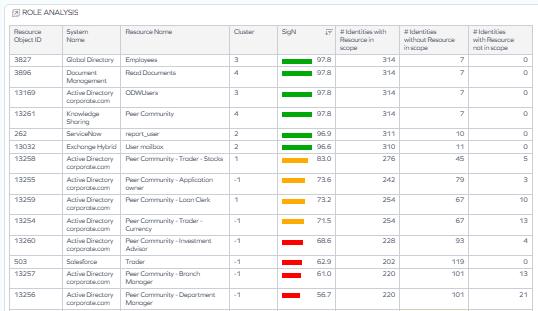
This table provides an overview of the access that the identities in scope have. It includes all resources within a selection and gives different scores and metrics such as:
-
SigN – significance metrics, that is, the role score.
-
If a role proposal has the score of 100 or close to 100 (and, therefore, is green), it means all identities in the selected scope (for example, a context) have particular resources, and no identities outside the scope have those resources. In other words, all data supports that the role proposal is a perfect role.
-
If a role has a score significantly below 100 (and, therefore, is yellow or red), it means that not all identities in the selected scope (for example, a context) have some particular resources, and there may be some identities outside the scope that have those resources.
-
-
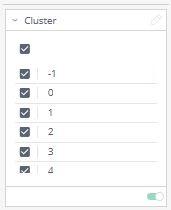
Clusters – list of groups of resources (numbered starting from 0; an exception is -1 which means that resources could not be assigned to any cluster).
-
Numbers of identities in the scope and outside the scope having (or missing) resources.
noteA less detailed overview including this metric can also be seen on the Role overview tab. Analyzing both tabs can contribute to a fuller and richer investigation of role proposals.
-
-
Identities in scope - overview – This table provides a view of the identities in scope as well as the number of resources in the scope they have access to.
To view more details about the identities of interest to you, right-click an identity and select Identity Details.
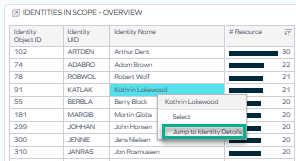
A new widget opens, displaying additional information about the identity and its contexts.

-
Organizational units
-
Contexts
-
Managers
The last three tables provide information on the organizational units, contexts, and managers relevant for the selection.
To narrow down the scope, you can use the right-pane filtering or simply select items in the tables. However, when filters are applied, some widgets or tables may be empty if the particular information is not present in the narrowed scope.
Actions
At the top of the dashboard, you can perform 3 different actions: save a filter set applied in your role analysis, run Role Insights (the algorithm analyzing role scores), and promote a role proposal to an actual role.
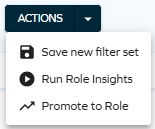
Save new filter set
This option lets you save a selected filter set as private or public.
Saving a filter set allows you to quickly return to a defined analytical scope without reapplying filters manually. This is especially useful when reviewing the same organizational unit, manager scope, system, or resource cluster over time, or when collaborating with other stakeholders who need to analyze the same dataset.
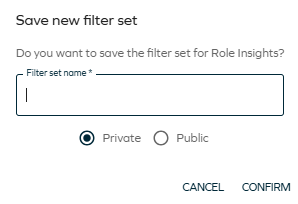
Run Role Insights
This option lets you initiate the Role Mininig process and reload the information stored on the Access Intelligence dashboard. When you select it, a message appears at the bottom of the screen:

Promote to Role
You can select a role candidate and save it as a new role in your system, that is, promote the role proposal to an actual role:
- Click on an item of interest to you (or select it through the filters in the right pane).
- Select the Promote to Role action.
- Provide the details of the new role:
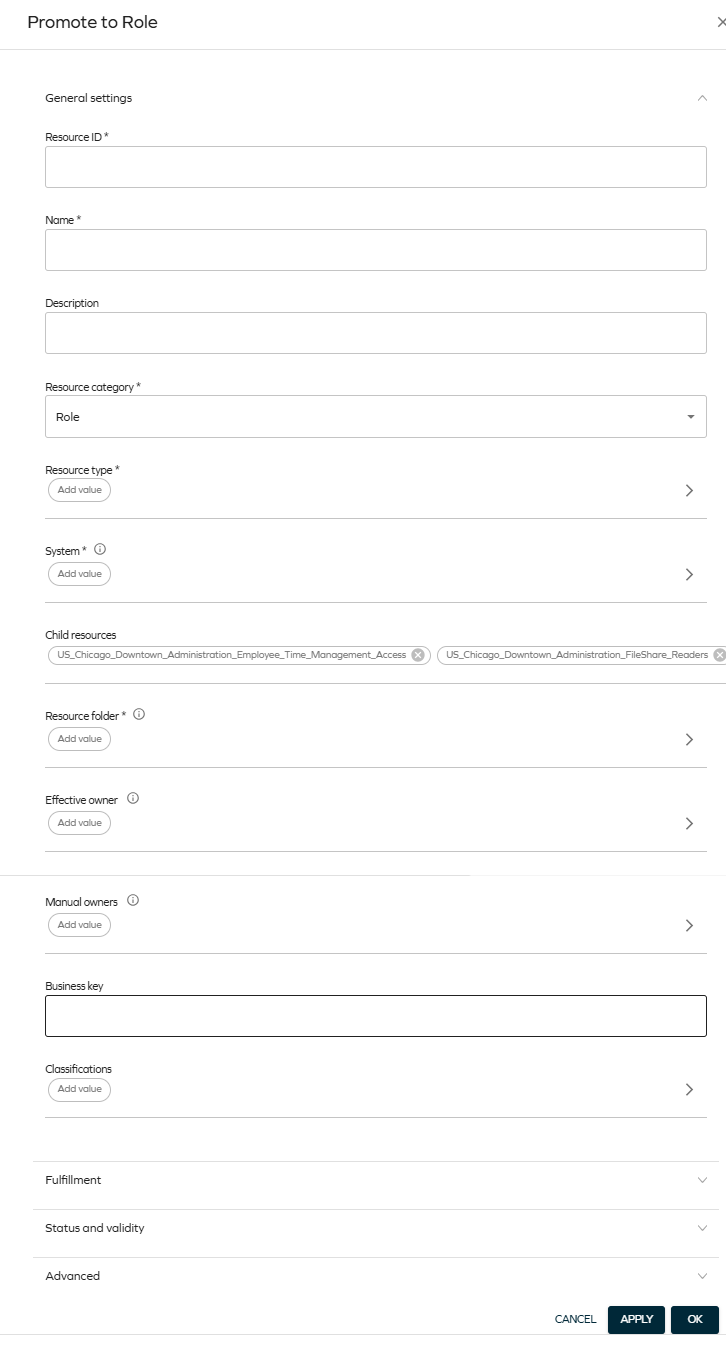
After this process is finished, you will be able to find your new role on the list of resources (List Views > Resources).
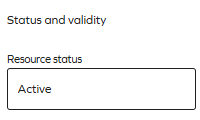
By default, the newly created role is an inactive resource. To make it active, select your resource from the Resources list view, and below Status and validity, change the status to Active:
Sorting and filtering
You can sort tables, filter by particular items and drill into the details of a particular item.
Sorting
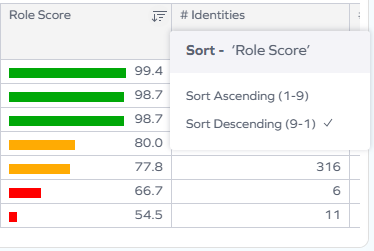
By default, the resources are sorted from highest to lowest score. To change it, select the sorting icon in the column whose sorting you wish to change:
Filtering
-
You can filter by any resource, system name, or other item in a number of ways:
-
By selecting an item, as described in the Role proposal table.
-
By clicking on a selected item in a table. When you hover over it, it becomes highlighted:

-
By selecting an item in the right pane:
-
-
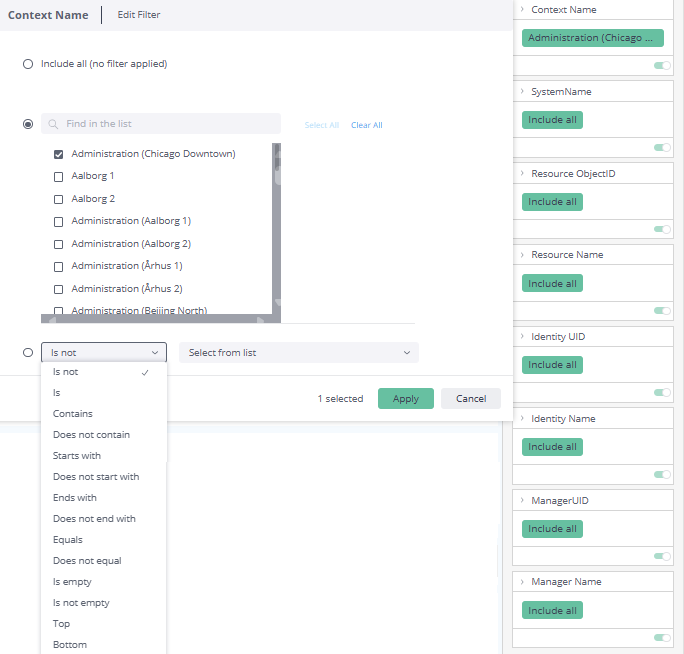
You can also edit filters by clicking on the pencil icon which appears when you hover over the top right corner of the rectangle:
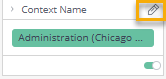
Then, you can select from a variety of options such as Is not, Contains, or Is not empty:
-
You can also disable filtering in a number of ways, for example:
-
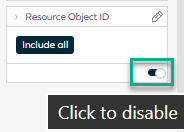
By disabling the toggle:
-
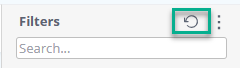
By resetting the filtering in the right pane:
-
Downloading and exporting
To export (download) the content of any widget, open the three-dots menu next to it, select Download, and choose a format.
Before you download the content of a widget, read Omada Identity Analytics – Downloading and exporting for details on the available formats as well as their limitations.
Access to this dashboard
To learn which user groups have access to this dashboard, see Access to dashboards.