Omada Identity Analytics (OIA)
Omada Identity Analytics (OIA) offers comprehensive data analytics dashboards designed to provide seamless, quick, and intuitive access to data through advanced technical innovations.

In Q1 2026, the Omada Identity Analytics (OIA) dashboards will be visually updated to match Omada's current branding, including colors and typography. The following screenshot reflects the updated look.

Updates to individual screenshots throughout the documentation will be applied incrementally in subsequent updates.
Overview
To access OIA, navigate to Dashboards and Analytics on your left-side menu.
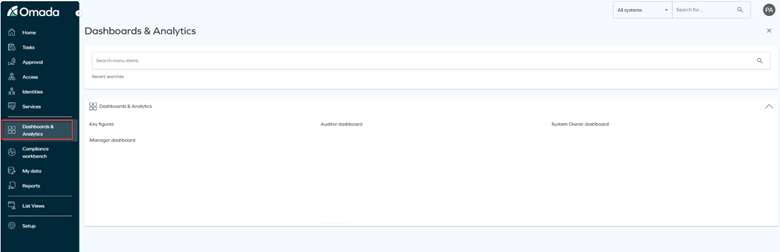
OIA dashboards provide focused views tailored to different audiences, such as auditors, managers, system owners, and administrators, each surfacing the key metrics and trends most relevant to their role.
Each dashboard is described on a separate documentation page, for example: Access Navigator or Access Intelligence (previously Role Insights).
Old Resource Assignments and Identity Details dashboards are now part of Access Navigator.
Data model
OIA dashboards do not display data streamed live; instead, they use a daily-built data model refreshed every day after midnight.
The data that you can see on the dashboard reflect the state of the last successful build. Therefore, certain discrepancies may occur between OIA and Enterprise Server (ES) due to:
- differences between ES and ODW (source for OIA dashboards)
- time lag since the last model refresh.
The timestamp of the last data model build is visible within the dashboards:
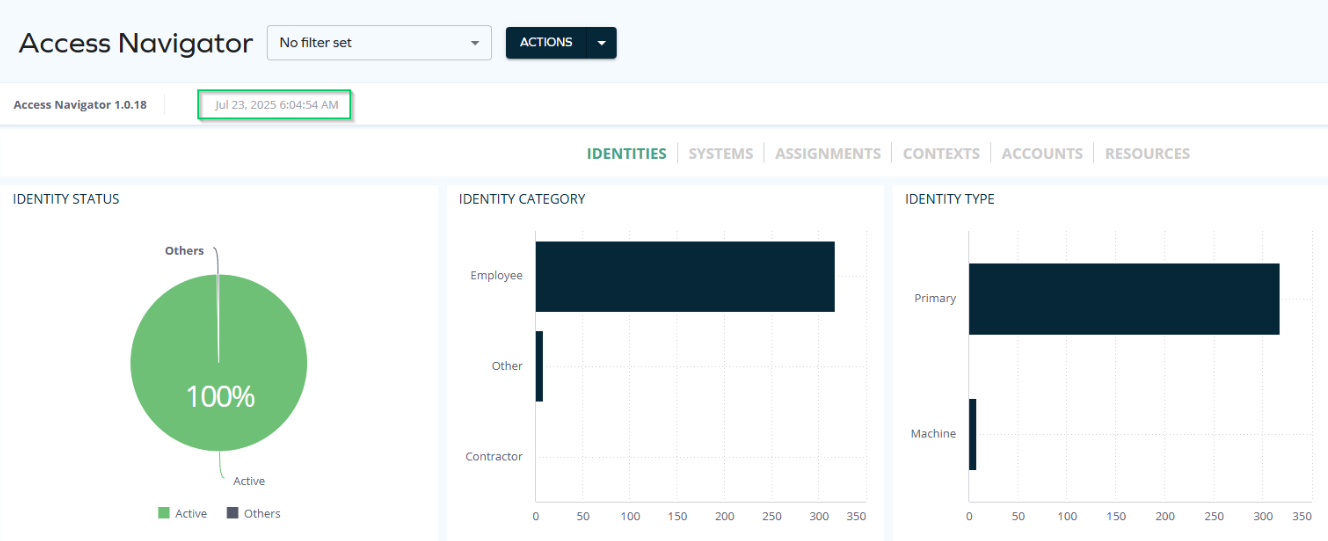
For real-time accuracy, consult ES or ODW directly.
Access to dashboards
Particular dashboards can be accessed by different user groups. See the table to learn which user groups can see particular dashboards:
| Dashboard | Manager | Auditor | Resource Owner | System Owner |
|---|---|---|---|---|
| Certifications | X | X | ||
| Access Intelligence (previously Role Insights) (paid subscription) | X | X | ||
| Audit Trail | X | X | X | X |
| Identity Comparison | X | X | X | X |
| Access Navigator | X | X | X | X |
| Report Generator | X | X | X | X |
| Data Quality | X | X | X | X |
Dashboard navigation
From operational health and compliance indicators to recertification progress, process efficiency, and high-level IGA scorecards, the dashboards give a clear and actionable overview of identity governance through insightful widgets, charts, and tables.
Navigation between dashboards and Identities list
Identities can be viewed both in Omada Identity Analytics (OIA) dashboards and in the Omada Identity Portal (Enterprise Server).
- Enterprise Server (ES) shows current, operational production data.
- OIA provides analytical views and historical insights based on the daily-built data model.
This bidirectional navigation reduces manual context switching and helps you move seamlessly between operational details and analytical insights. You can navigate directly:
-
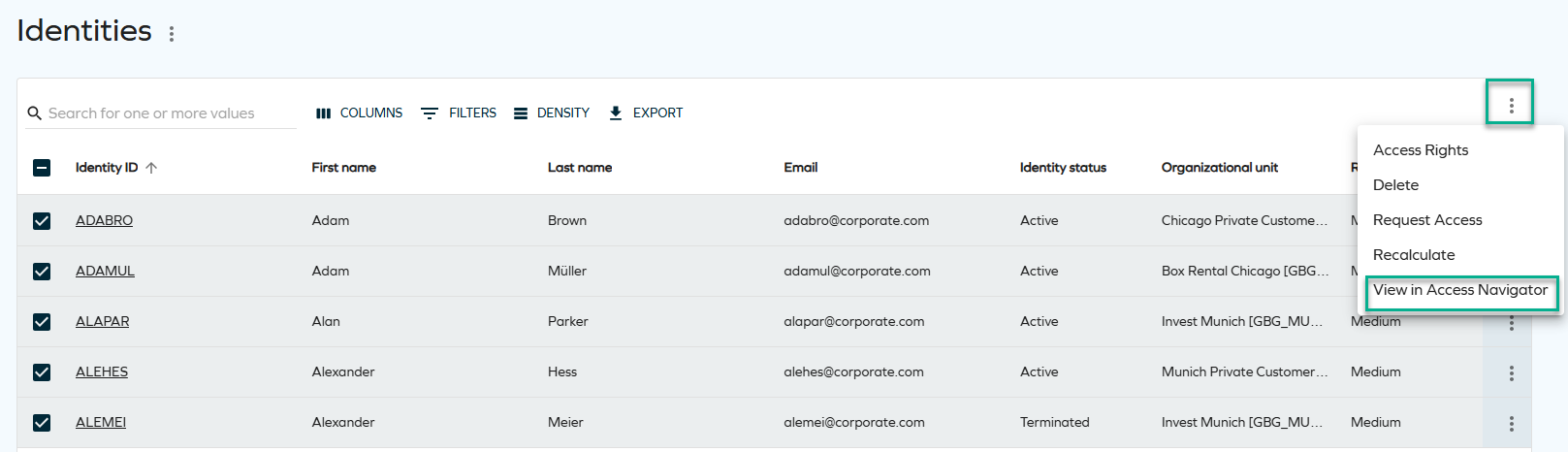
From ES to OIA, opening relevant OIA dashboards for the selected identities.
Select a number of identities and click View in Access Navigator to display the selected identities through the Access Navigator dashboard.
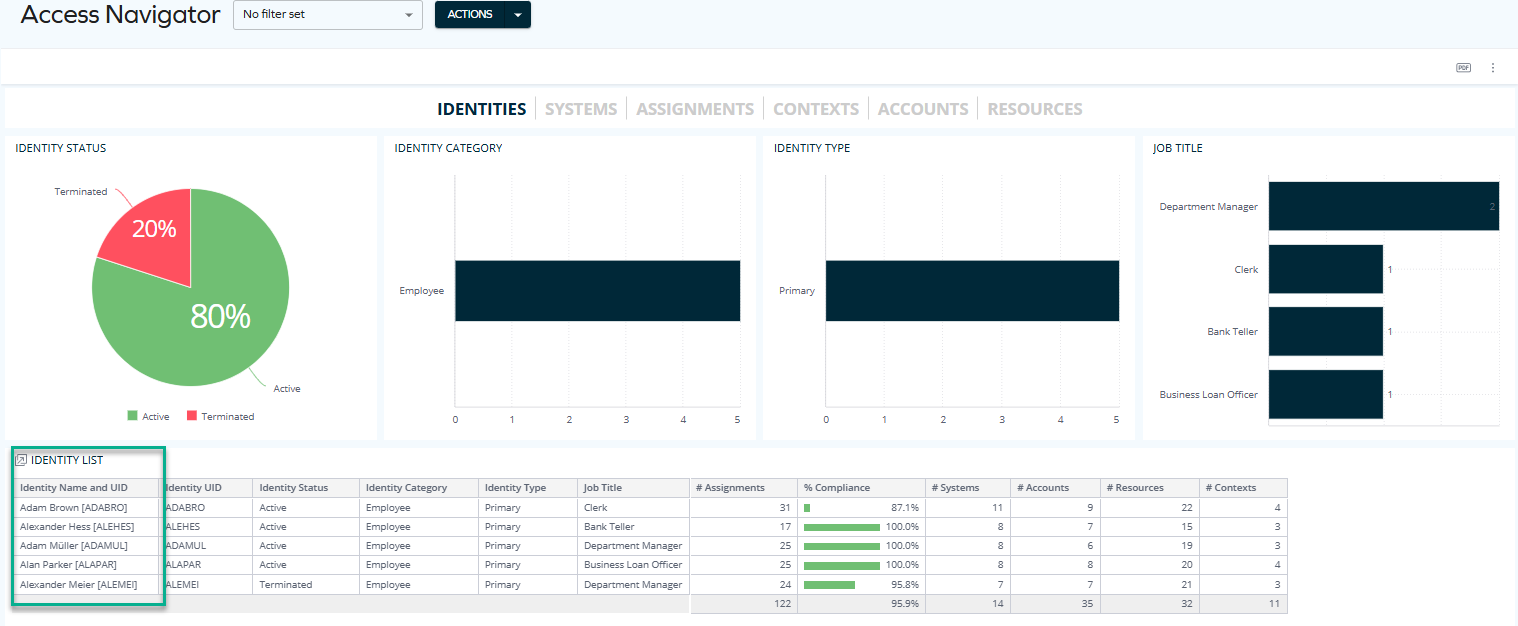
You can now see the identities populated on the dashboard.
 technical details & limitations
When navigating from the Identities list, the number of identities that can be pre-selected and passed to OIA is limited. It depends on the length of the Identity IDs, as they are included in the navigation request, for example:
-
With Identity IDs of approximately 6 characters, you can typically select more than 250 but fewer than 500 identities.
-
Shorter Identity IDs (for example, 4 characters) allow a higher number of identities to be selected.
This limitation exists to ensure reliable request handling and stable system performance. If you exceed the limit, you will see an error message on the screen.
-
-
From OIA to ES, opening the Identities list.
Click the Identities action item to view the pre-selected identities through the Identities list (Enterprise Server).

You can now see the identities populated on the list.
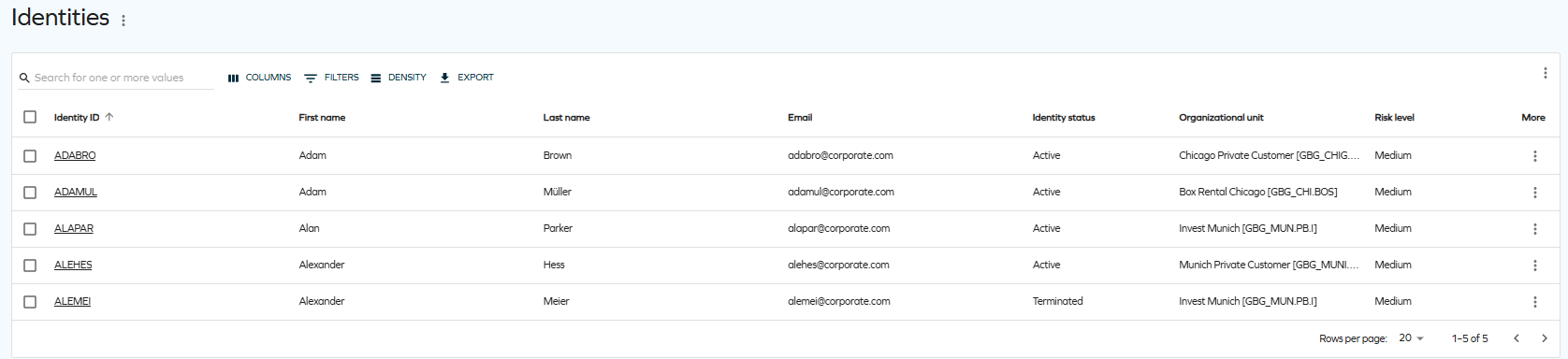 technical details & limitations
When navigating from OIA to the Identities list, you can pre-select a maximum of 40 identities. This limit is enforced to ensure reliable request handling and stable system performance. If you exceed the limit, you will see an error message on the screen.
Filtering
Most dashboards provide a variety of filtering options. While they may slightly differ between dashboards (and in such cases, they are documented on the relevant dashboard's page), some filtering options are standard:
-
You can filter by any resource, system name, or other item in a number of ways:
-
By clicking on a selected item in a table. When you hover over it, it becomes highlighted in yellow:

-
By selecting an item in the right pane:
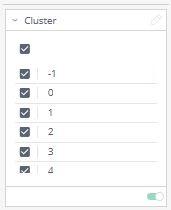
-
-
You can also edit filters by clicking on the pencil icon which appears when you hover over the top right corner of the rectangle:
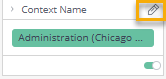
Then, you can select from a variety of options such as "Is not", "Contains", or "Is not empty":
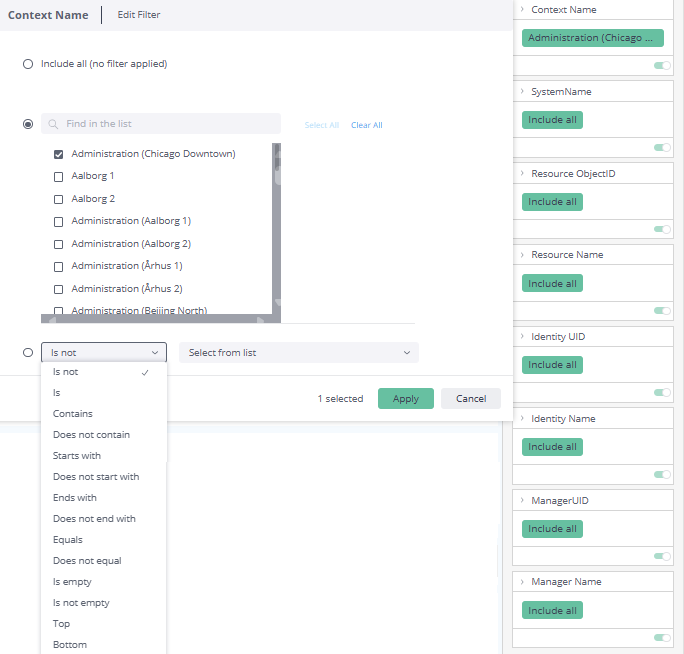
-
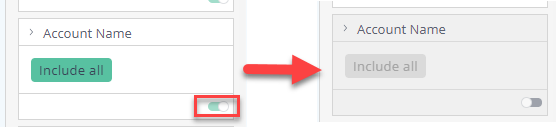
You can also disable filtering in a number of ways, for example:
-
By disabling the toggle:
-
By selecting Clear selection, which appears in the top right corner of a widget when you hover over it:

-
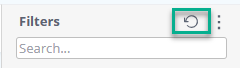
By reseting the filtering in the right pane:
-
The filters you apply are maintained on the page even if you refresh it or log out and log in again.
As each dashboard may offer slightly different filtering options, they are covered in detail on the pages dedicated to particular dashboards.
Downloading and exporting
To export (download) the content of any widget, open the ellipsis menu, click Download, and choose a format. Widgets can be exported in a variety of formats: as an image, a CSV file, a PDF file, or an Excel sheet (with repeating or merging rows).
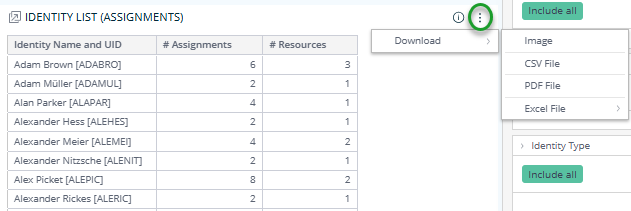
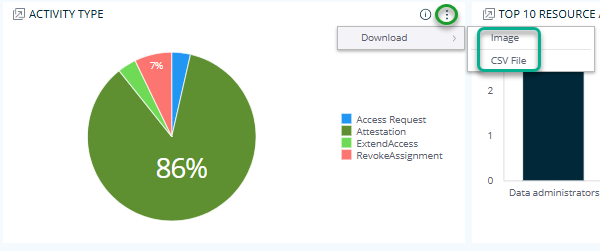
Some types of widgets (for example, pie charts) may offer fewer formatting options.
When exporting to Excel, pivot-table-based queries are limited to 10,000 rows by default. Increasing this limit is not supported, as it may significantly impact performance.
To export more than 10,000 rows, use the CSV format instead.
Legacy reports vs. Omada Identity Analytics Platform (OIA)

The Omada Identity Analytics Platform (OIA) is designed to fully replace the legacy SSRS reports with new dashboards that are a lot more interactive, informative, and easy to use. Currently, the legacy Reports (classic) page is removed from the main menu:
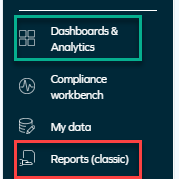
It now forms part of the Dashboards & Analytics page under the Legacy Dashboards & Analytics title:
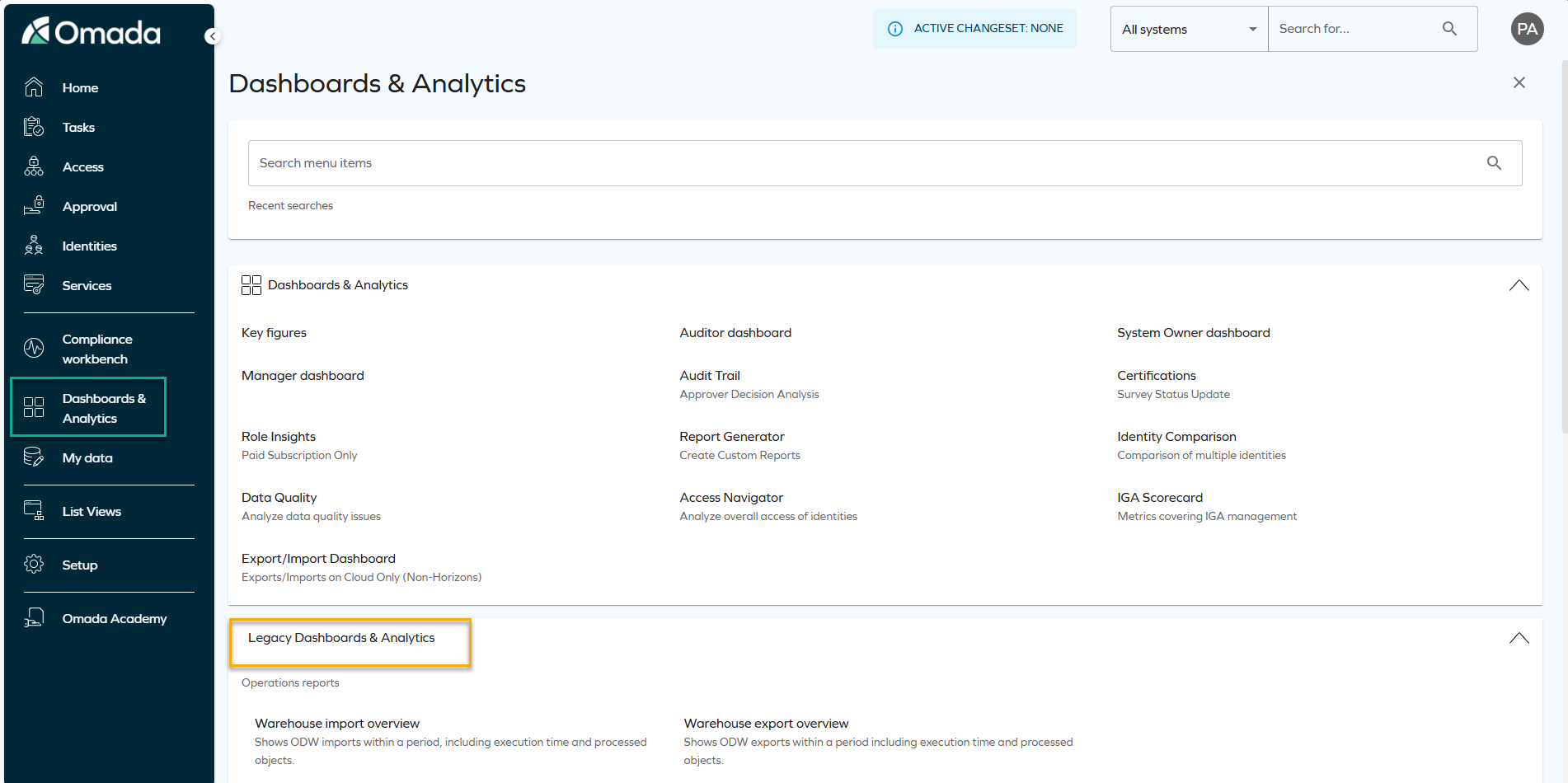
The Legacy Dashboards & Analytics page is scheduled to be fully deprecated starting from the August 2026 Cloud Update. Till then, the reports will be available in Omada Identity, but they will not be further developed.
In this period, you will be able to access the same data both through the deprecated reports and through the OIA Platform, however, only the latter will be constantly updated and improved.
New widgets and jump-to dashboards (JTD) provide updated views of the same data that can be viewed through the legacy reports.
Jump-to dashboards (JTD) are dashboards that you can jump to directly from another dashboard or widget.
For example, when on the Assignments tab of the Access Navigator dashboard, you can right-click on any item of the Identity list (Assignments) widget and jump directly to the Identity Change Log dashboard.

Dashboards and widgets that let you jump to another dashboard can be recognized by an opening icon next to their name, and you can find them in many places inside the Omada Identity Analytics Platform: for example, on the Access Navigator or Data Quality dashboards.
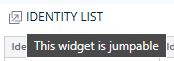
The table below lists the corresponding locations of the same information on the current Dashboards & Analytics and Legacy Dashboards & Analytics pages:
| Legacy Report Name and ID | OIA Platform Path |
|---|---|
| Account List (WAC001) | Access Navigator > Tab ACCOUNTS > ACCOUNT LIST visual |
| Account Details (WAC002) | 1. Access Navigator > Tab ACCOUNTS > ACCOUNT LIST visual > JTD Account details 3. Access Navigator > tab ACCOUNTS > Select an Account > tab ASSIGNMENTS 2. Access Navigator > Tab ACCOUNTS > ACCOUNT LIST visual > JTD Account Trend |
| Account Ownership (WAC003) | Access Navigator > Tab ACCOUNTS > ACCOUNT LIST visual > JTD Account details |
| Account Ownership Log (WAC004) | Access Navigator > Tab ACCOUNTS > ACCOUNT LIST visual > JTD Account log |
| Accounts Pending Deprovisioning (WAC005) | Access Navigator > Tab ACCOUNTS > Filtering Compliance Status = "Pending Deprovisioning" |
| Decision Log For Resource Assignments (WAT001) | Audit trail > RESOURCE ASSIGNMENTS visual |
| Decision For Resource Assignment (WAT002) | Audit trail > RESOURCE ASSIGNMENTS visual > JTD Reason details |
| Context Tree (WCO001) | Access Navigator > Tab CONTEXTS > CONTEXT TREE visual |
| Context Details (WCO002) | Access Navigator > Tab CONTEXTS > CONTEXT DETAILS visual > JTD Context details |
| Context Assignments (WCO003) | Access Navigator > Tab CONTEXTS > CONTEXT DETAILS visual > JTD Context details > Context Assignments visual |
| Dual Assignments (WDQ001) | Data Quality > Tab ASSIGNMENTS > DUAL ASSIGNMENTS visual |
| Groups Without Members (WDQ002) | Data Quality > Tab RESOURCE > GROUPS WITHOUT MEMBERS visual |
| Accounts Without Owner (WDQ003) | Data Quality > Tab ACCOUNTS > ACCOUNTS WITHOUT OWNERS visual |
| Resources Without Owner (WDQ004) | Data Quality > Tab RESOURCES > RESOURCES WITHOUT OWNERS visual > JTD Resources without owners > JTD Resources details |
| Accounts Recently Unused (WDQ005) | Data Quality > Tab ACCOUNTS > UNUSED ACCOUNTS visual > Accordion |
| Resource Assignment List (WEN001) | Access Navigator > tab ASSIGNMENTS > ASSIGNMENT DETAILS visual + JTD Assignments in Period |
| Resource Assignment Detail (WEN002) | Access Navigator > tab ASSIGNMENTS > ASSIGNMENT DETAILS visual + JTD Assignments in Period |
| Resource Assignments Pending Deprovisioning (WEN003) | Access Navigator > tab ASSIGNMENTS > ASSIGNMENT DETAILS visual + JTD Assignments in Period > Filtering Compliance Status = "Pending Deprovisioning" |
| Identities (from ODW Identities) (WID001) | 1. Access Navigator > Tab IDENTITIES > IDENTITY LIST visual 2. Access Navigator > Tab SYSTEMS > SYSTEMS OVERVIEW visual > JTD System Trend |
| Identity Details (WID002) | 1. Access Navigator > Tab IDENTITIES > IDENTITY LIST visual > JTD Identity details 2. Access Navigator > Tab IDENTITIES > IDENTITY LIST visual > JTD Identity trend |
| Identity Change Log (WID003) | Access Navigator > Tab IDENTITIES > IDENTITY LIST visual > JTD Identity change log |
| Identity Resource Assignment (WID004) | Access Navigator > (Select an identity in filters) > tab ASSIGNMENTS > ASSIGNMENT DETAILS visual > JTD Reason details |
| Accounts In Period For Identity (WID005) | Access Navigator > Tab IDENTITIES > IDENTITY LIST visual > JTD Accounts on date |
| Accounts Log For Identity (WID006) | Access Navigator > Tab IDENTITIES > IDENTITY LIST visual > JTD Accounts log for identity |
| Identities (from ODW Filtered Identities) (WID007) | Access Navigator > Tab IDENTITIES > (Select 1 (or more) Identity) > IDENTITY LIST visual |
| Import Jobs (WOP001) | Export/Import Dashboard > Tab IMPORTS > IMPORT OVERVIEW (LAST 30 DAYS) - CHART & IMPORT OVERVIEW (LAST 30 DAYS) - tabLE visuals |
| SSIS-Import Run Time (WOP002) | Export/Import Dashboard |
| SSIS Run Time (WOP003) | Export/Import Dashboard |
| ES Export Overview (WOP004) | Export/Import Dashboard |
| Failed Objects During ES Export (WOP005) | Export/Import Dashboard |
| Resource List (WRE001) | Access Navigator > Tab RESOURCES > RESOURCES visual |
| Resource Details (WRE002) | 1. Access Navigator > Tab RESOURCES > RESOURCES visual > JTD Resource details 2. Access Navigator > Tab RESOURCES > RESOURCES visual > JTD Resource trend |
| Resource Assignment List (WRE003) | Access Navigator > (Select a resource in filters) > tab ASSIGNMENTS > ASSIGNMENT DETAILS visual > JTD Reason detials |
| Resource Assignments Change Log (WRE004) | Access Navigator > (Select a resource in filters) > Tab RESOURCES > RESOURCES visual > JTD Assignments change log |
| Resource Assignments In Period (WRE005) | Access Navigator > (Select a resource in filters) > Tab RESOURCES > RESOURCES visual > JTD Assignments in period |
| Resource Assignments In Period (WRE006) | Access Navigator > Tab ACCOUNTS > ACCOUNT LIST visual > JTD Assignments in period |
| Change Log For Resource Assignments (WRE007) | Access Navigator > Tab ACCOUNTS > ACCOUNT LIST visual > JTD Assignments change log |
| Resource Assignments In Period (WRE008) | Access Navigator > Tab IDENTITIES > IDENTITY LIST visual > JTD Assignments in period |
| Change Log For Resource Assignments (WRE009) | Access Navigator > Tab IDENTITIES > IDENTITY LIST visual > JTD Assignments change log |
| Resource List (WRE010) | Access Navigator > Tab RESOURCES > (Select 1 (or more) Resource) > RESOURCE visual |
| System List (WSY001) | Access Navigator > Tab SYSTEMS > SYSTEMS OVERVIEW visual + JTD System Details |
| System Details (WSY002) | 1. Access Navigator > Tab SYSTEMS > SYSTEMS OVERVIEW visual + JTD System Details 2. Access Navigator > Tab SYSTEMS > SYSTEMS OVERVIEW visual + JTD System Trend |
| Omada Risk Check (WRC001) | Data Quality |
Practical example
The following example demonstrates how common reporting tasks that were previously performed using legacy reports can now be achieved more efficiently with the new dashboards.
Until now, the Identity details report could be used to get an overview of core information about an identity, their memberships, and accesses.
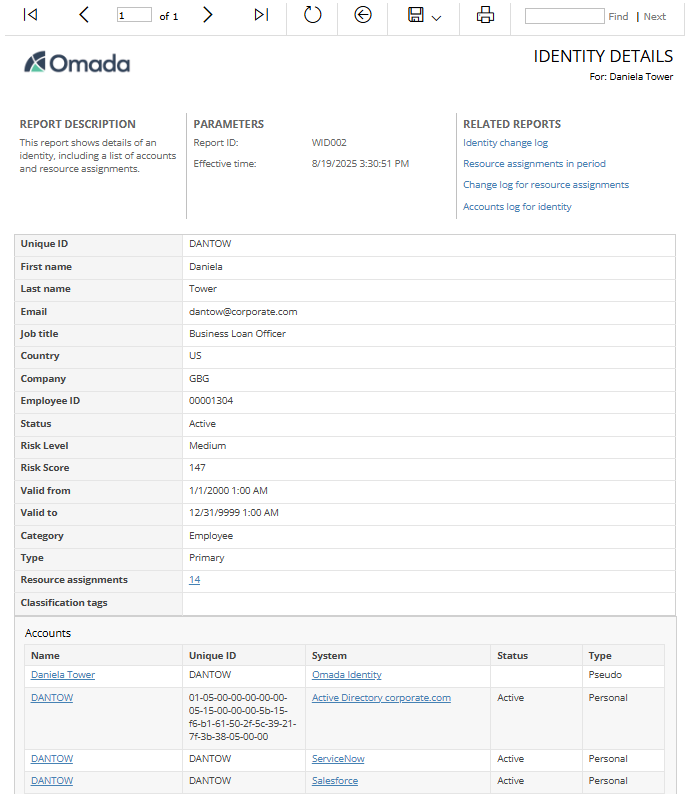
Now, you can access the same information in a new location, as described in the table above. To find it, go to Access Navigator > Identities tab > Identity list table. Right-click on an item of interest to you and select Jump to > Identity Details.
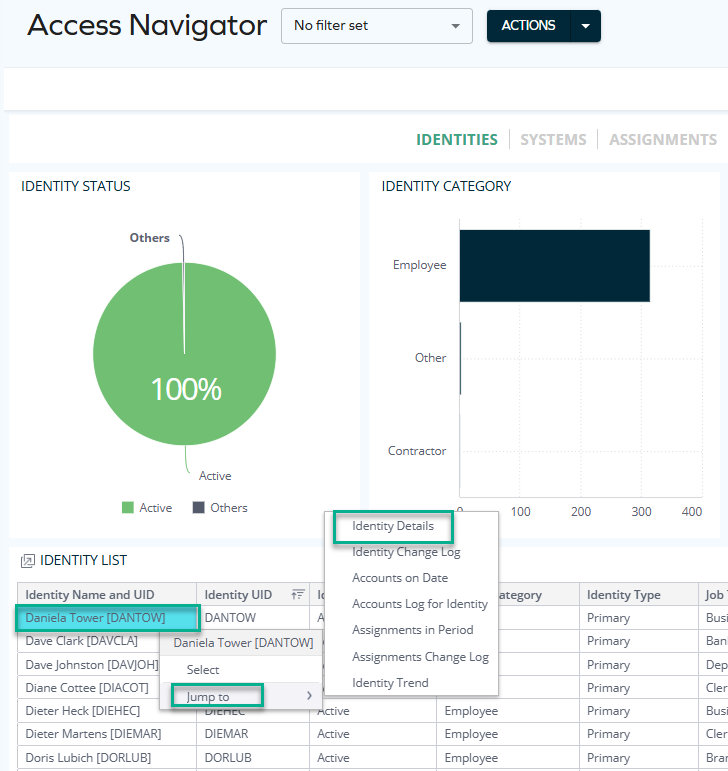
A new dashboard opens, showing you all the necessary details related to the same identity you viewed in the legacy SSRS report. It also lets you easily filter, drill down, and explore data on your own without requesting a new report run. Moreover, it consolidates multiple views in one place, reducing the number of separate reports needed. This can facilitate decision-making by showing the big picture as well as details without leaving the same interface.
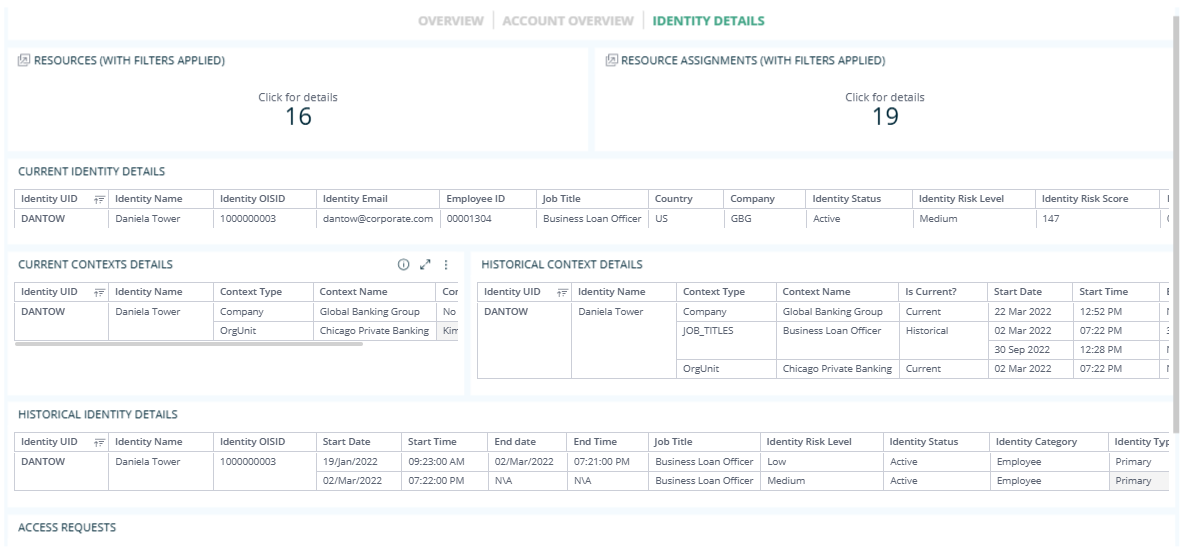
For more details on the dashboards mentioned in this example, see:
- Access Navigator documentation
- Identity Details section.
Since the OIA Platform is only available in Omada Identity Cloud, the deprecation of legacy reports is also only relevant to cloud customers. The Reports (classic) page will continue to be available and maintained for on-prem customers.