Azure Log Ingestion API configuration
Omada supports sending logs to Azure Log Analytics by using the Azure Log Ingestion API.
Microsoft is deprecating the HTTP Data Collector API, which will no longer function after September 14, 2026. Existing customer-managed Azure Log Analytics targets that use the HTTP Data Collector API must be updated to use the Log Ingestion API to ensure uninterrupted logging.
For new Azure Log Analytics targets, configure the target directly with the Log Ingestion API. No migration is required.
Here, you can find information on the following scenarios:
-
Configure a new Azure Log Analytics target using the Log Ingestion API – use this scenario when you are setting up Azure Log Analytics for the first time, for example, for a new cloud customer or a new logging target. Before you start, review the prerequisites and complete Azure authentication.
-
Migrate an existing custom Azure Log Analytics target from the HTTP Data Collector API to the Log Ingestion API – use this scenario only if you have an existing customer-managed logging target that still uses the HTTP Data Collector API. Before you start, review the prerequisites and complete Azure authentication.
The default Omada Azure log target is migrated automatically by Omada. No user interaction is required for the default Omada-managed target.
Manual migration is only required for customers who use their own Azure Log Analytics target.
Both scenarios preserve backward compatibility with existing configurations during the transition period.
Prerequisites
Before configuring or migrating an Azure Log Analytics target, ensure that the following requirements are met:
-
Azure CLI installed locally or access to Azure Cloud Shell.
-
An Azure account with permissions to create Data Collection Rules (DCRs) and manage Log Analytics workspaces:
Task Required Role Scope Alternative Permission Create Table Owner Log Analytics Workspace Microsoft.OperationalInsights/workspaces/tables/writeMigrate Table Owner Log Analytics Workspace Microsoft.OperationalInsights/workspaces/tables/writeCreate DCR Contributor or Monitoring Contributor Resource Group Microsoft.Insights/dataCollectionRules/writeAssign RBAC Owner or User Access Administrator DCR Resource Microsoft.Authorization/roleAssignments/write
After ensuring the above prerequisites are met, verify your role assignments:
az role assignment list --assignee <your-email> --resource-group <resource-group>
If you do not have the required permissions, contact your Azure administrator to request the Contributor role at the resource group level.
Azure authentication
Sign in to Azure using the Azure CLI:
az login
Configure a new Azure Log Analytics target
Use this option when you are setting up the Log Ingestion API for the first time and do not have an existing Log Analytics table.
Before running the commands in this section, review the prerequisites and sign in to Azure as described in Azure authentication.
Required permission: Microsoft.OperationalInsights/workspaces/tables/write, or the Owner role on the Log Analytics workspace.
The following example shows how to create the custom table using the Azure CLI:
az monitor log-analytics workspace table create `
    --resource-group <<resource-group-name>> `
    --workspace-name <<log-analytics-name>> `
    --name <<log-analytics-tablename>> `
    --columns `
		TimeGenerated=datetime `
        Category=string `
        Component_s=string `
        ContextId_s=string `
        Context_s=string `
        CorrelationId=string `
        DateTime_t=datetime `
        ElapsedTime_d=real `
        EventId_d=real `
        Event_s=string `
        Exception_s=string `
        HostName_s=string `
        Layer_s=string `
        Level_d=real `
        Location_s=string `
        MayContainPII_b=boolean `
        Message=string `
        MetaData_s=string `
        TenantId_d=real `
        UserId_s=string `
        Username_s=string `
    --retention-time 60
Make sure to replace <<resource-group-name>>, <<log-analytics-name>>, and <<log-analytics-tablename>> with values from your configuration. Custom table names must end with the _CL suffix.
After creating the table, continue with Create a direct DCR using Azure CLI.
Migrate an existing custom Azure Log Analytics target
The default Omada Azure log target is migrated automatically by Omada. No user interaction is required for the default Omada-managed target.
Manual migration is only required for customers who use their own Azure Log Analytics target.
Use this option only if you have an existing customer-managed Azure Log Analytics target that uses the HTTP Data Collector API.
Before running the commands in this section, review the prerequisites and sign in to Azure as described in Azure authentication.
Required permission: Microsoft.OperationalInsights/workspaces/tables/write, or the Owner role on the Log Analytics workspace.
Run the migration command for the OIS_CL Log Analytics table:
az rest --method post --url "https://management.azure.com/subscriptions/<<subscription-id>>/resourcegroups/<<resource-group>>/providers/Microsoft.OperationalInsights/workspaces/<<log-analytics-name>>/tables/OIS_CL/migrate?api-version=2025-02-01"
Replace the following placeholders with values from your configuration:
subscription-id- Azure subscription ID.resource-group- name of the Azure resource group.log-analytics-name- name of the Log Analytics workspace.
This migration preserves existing data and maintains continuity for dashboards, alerts, and integrations.
After migrating the table, continue with Create a direct DCR using Azure CLI.
Shared configuration steps
Create direct DCR using Azure CLI
Use the Azure CLI to create a Data Collection Rule (DCR) based on a JSON definition file.
For a new logging target, create the DCR using the table and stream names for the new target.
For a migrated custom logging target, use the existing table and field structure. The DCR must use exactly the same field names and structure to preserve existing data and maintain continuity for dashboards, alerts, and integrations.
Command template
Run the following command, replacing the placeholders with values from your configuration:
az monitor data-collection rule create `
    --location '<<location>>' `
    --resource-group '<<resource-group>>' `
    --name '<<dcr-name>>' `
    --rule-file '"<<path-to-dcr-json>>"' `
    --description '<<description>>'
Example
The following example creates a DCR in the westeurope region using a local JSON definition file:
az monitor data-collection rule create `
    --location 'westeurope' `
    --resource-group 'resgroup-name' `
    --name 'resgroup-name-la-dcr1' `
    --rule-file '"C:\Users\johndoe\Desktop\dcr1.json"' `
    --description 'DCR for log ingestion'
Required: A Data Collection Rule (DCR) JSON definition file (for example, C:\Users\johndoe\Desktop\dcr1.json).
Exemplary DCR JSON Content
Use the following example as a starting point for your Data Collection Rule (DCR) JSON definition. This configuration defines a Direct DCR for ingesting custom OIS_CL data into a Log Analytics workspace.
{
    "location": "westeurope",
    "kind": "Direct",
    "properties": {
        "streamDeclarations": {
            "Custom-<<log-analytics-tablename>>": {
                "columns": [
                    {
                        "name": "Category",
                        "type": "string"
                    },
                    {
                        "name": "Component_s",
                        "type": "string"
                    },
                    {
                        "name": "ContextId_s",
                        "type": "string"
                    },
                    {
                        "name": "Context_s",
                        "type": "string"
                    },
                    {
                        "name": "CorrelationId",
                        "type": "string"
                    },
                    {
                        "name": "DateTime_t",
                        "type": "datetime"
                    },
                    {
                        "name": "ElapsedTime_d",
                        "type": "real"
                    },
                    {
                        "name": "EventId_d",
                        "type": "real"
                    },
                    {
                        "name": "Event_s",
                        "type": "string"
                    },
                    {
                        "name": "Exception_s",
                        "type": "string"
                    },
                    {
                        "name": "HostName_s",
                        "type": "string"
                    },
                    {
                        "name": "Layer_s",
                        "type": "string"
                    },
                    {
                        "name": "Level_d",
                        "type": "real"
                    },
                    {
                        "name": "Location_s",
                        "type": "string"
                    },
                    {
                        "name": "MayContainPII_b",
                        "type": "boolean"
                    },
                    {
                        "name": "Message",
                        "type": "string"
                    },
                    {
                        "name": "MetaData_s",
                        "type": "string"
                    },
                    {
                        "name": "TenantId_d",
                        "type": "real"
                    },
                    {
                        "name": "UserId_s",
                        "type": "string"
                    },
                    {
                        "name": "Username_s",
                        "type": "string"
                    }
                ]
            }
        },
        "destinations": {
            "logAnalytics": [
                {
                    "workspaceResourceId": "<<log-analytics-workspaceresourceid>>",
                    "name": "<<log-analytics-name>>"
                }
            ]
        },
        "dataFlows": [
            {
                "streams": [
                    "Custom-<<log-analytics-tablename>>"
                ],
                "destinations": [
                    "<<log-analytics-name>>"
                ],
                "transformKql": "source | project TimeGenerated=now(), Category, Component_s, ContextId_s, Context_s, CorrelationId, DateTime_t, ElapsedTime_d, EventId_d, Event_s, Exception_s, HostName_s, Layer_s, Level_d, Location_s, MayContainPII_b, Message, MetaData_s, TenantId_d, UserId_s, Username_s"
            }
        ]
    }
}
Update the following values to match your Log Analytics workspace configuration:
workspaceResourceId- resource ID of the Log Analytics workspace.tablename- custom Log Analytics table name.- destination
name- name of the Log Analytics workspace.
Verify DCR Creation
After creating the Data Collection Rule (DCR), verify that it was created with the required properties.
Check DCR properties
-
In the Azure Portal, go to Data Collection Rules and select
[Your DCR Name]. -
Select JSON view (top right).
-
From the API version dropdown, select 2024-03-11.
Verify required properties
Ensure the following properties are present in the JSON definition:
"kind": "Direct""streamDeclarations"section
Fix missing properties (if required)
If any of the required properties are missing:
-
In the Azure Portal, go to Data Collection Rules →
[DCR Name]> Export template. -
Select Deploy and then choose Edit template.
-
Add the missing properties, leaving the rest of the template unchanged:
{"kind": "Direct","streamDeclarations": { /* your stream declarations */ }} -
Save the changes and complete the deployment.
Exemplary ARM Template for DCR deployment
Use this ARM template if the CLI-based DCR creation does not include the required kind: Direct and streamDeclarations properties. You can also merge these properties into your existing ARM or JSON definition to complete the DCR configuration before deployment.
{
    "$schema": "https://schema.management.azure.com/schemas/2019-04-01/deploymentTemplate.json#",
    "contentVersion": "1.0.0.0",
    "parameters": {
        "dataCollectionRules_example_dcr1_name": {
            "defaultValue": "<<dcr-name>>",
            "type": "String"
        },
        "workspaces_example_la_externalid": {
            "defaultValue": "<<log-analytics-workspaceresourceid>>",
            "type": "String"
        }
    },
    "variables": {},
    "resources": [
        {
            "type": "Microsoft.Insights/dataCollectionRules",
            "apiVersion": "2023-03-11",
            "name": "[parameters('dataCollectionRules_dcr_name')]",
            "location": "westeurope",
            "kind": "Direct",
            "properties": {
                "description": "DCR for log ingestion",
                "streamDeclarations": {
                    "Custom-OIS_CL": {
                        "columns": [
                            {
                                "name": "Category",
                                "type": "string"
                            },
                            {
                                "name": "Component_s",
                                "type": "string"
                            },
                            {
                                "name": "ContextId_s",
                                "type": "string"
                            },
                            {
                                "name": "Context_s",
                                "type": "string"
                            },
                            {
                                "name": "CorrelationId",
                                "type": "string"
                            },
                            {
                                "name": "DateTime_t",
                                "type": "datetime"
                            },
                            {
                                "name": "ElapsedTime_d",
                                "type": "real"
                            },
                            {
                                "name": "EventId_d",
                                "type": "real"
                            },
                            {
                                "name": "Event_s",
                                "type": "string"
                            },
                            {
                                "name": "Exception_s",
                                "type": "string"
                            },
                            {
                                "name": "HostName_s",
                                "type": "string"
                            },
                            {
                                "name": "Layer_s",
                                "type": "string"
                            },
                            {
                                "name": "Level_d",
                                "type": "real"
                            },
                            {
                                "name": "Location_s",
                                "type": "string"
                            },
                            {
                                "name": "MayContainPII_b",
                                "type": "boolean"
                            },
                            {
                                "name": "Message",
                                "type": "string"
                            },
                            {
                                "name": "MetaData_s",
                                "type": "string"
                            },
                            {
                                "name": "TenantId_d",
                                "type": "real"
                            },
                            {
                                "name": "UserId_s",
                                "type": "string"
                            },
                            {
                                "name": "Username_s",
                                "type": "string"
                            }
                        ]
                    }
                },
                "destinations": {
                    "logAnalytics": [
                        {
                            "workspaceResourceId": "[parameters('workspaces_dcr_name_externalid')]",
                            "name": "log-analytics-name"
                        }
                    ]
                },
                "dataFlows": [
                    {
                        "streams": [
                            "Custom-OIS_CL"
                        ],
                        "destinations": [
                            "log-analytics"
                        ],
                        "transformKql": "source | project TimeGenerated=now(), Category, Component_s, ContextId_s, Context_s, CorrelationId, DateTime_t, ElapsedTime_d, EventId_d, Event_s, Exception_s, HostName_s, Layer_s, Level_d, Location_s, MayContainPII_b, Message, MetaData_s, TenantId_d, UserId_s, Username_s"
                    }
                ]
            }
        }
    ]
}
Verify that all DCR information is visible in the JSON view and that API version 2024-03-11 is selected.
Create a Microsoft Entra ID application for log ingestion
Create a Microsoft Entra ID application registration that Omada Identity can use to authenticate when sending log data to Azure Monitor Logs through the Azure Log Ingestion API.
-
In the Azure portal, go to Microsoft Entra ID > App registrations > New registration.
-
Register a single-tenant application.
- No redirect URI is required.
-
After the application is created, record the following values:
- Application (client) ID.
- Directory (tenant) ID.
-
Go to Certificates & secrets and create a client secret.
-
Record the client secret Value.
warningThe client secret value is shown only once. Store it securely before leaving the page.
You do not need to configure Microsoft Graph delegated or application permissions for this app registration. Access to the Data Collection Rule is controlled through Azure role assignment.
After creating the application, continue with Configure RBAC permissions.
Configure RBAC permissions
Assign the required role to allow your application to send data using the Log Ingestion API:
-
Role -
Monitoring Metrics Publisher -
Scope - your Data Collection Rule (DCR)
-
Principal - your service principal / application
Permission propagation may take 10–15 minutes.
Configure the Omada log target
Configure the Omada log target with the Log Ingestion API parameters:
- For a new logging target, use the values from the new Log Analytics table and DCR configuration.
- For a migrated custom logging target, use the values from the DCR created for the migrated table.
Add the following parameters to your azureLogAnalytics target in the log configuration:
| Parameter | Value Source | Example |
|---|---|---|
dataCollectionRuleId | DCR JSON > properties.immutableId | dcr-abc123... |
streamName | DCR JSON > properties.streamDeclarations.[stream_name] | Custom-OIS_CL |
logsIngestionEndpoint | DCR JSON > properties.endpoints.logsIngestion | https://[endpoint].ingest.monitor.azure.com |
Omada Identity on-premises
Update your existing azureLogAnalytics target configuration by adding the Log Ingestion API parameters:
XML configuration example for on-prem
<target logTargetType="azureLogAnalytics" name="azureLog" disabled="false">
    <targetParameters>
        <targetParameter name="workspaceid" value="testWorkspaceId" />
        <targetParameter name="logname" value="OIS" />
        <targetParameter name="applicationid" value="testAppId" />
        <targetParameter name="sharedkey" value="testSharedkey" />
        <targetParameter name="clientsecret" value="testSecret" />
        <targetParameter name="azuretenantid" value="testAzureTenant" />

        <!-- Example of the 3 new parameters to configure logging through Log Ingestion API -->
        <targetParameter name="dataCollectionRuleId" value="dcr-9e6d24a9cae24556baa07f1a4a21f0ff" />
        <targetParameter name="streamName" value="Custom-OIS_CL" />
        <targetParameter name="logsIngestionEndpoint" value="https://environment-la-dcr1-6261-westeurope.logs.z1.ingest.monitor.azure.com" />
    </targetParameters>
</target>
Replace the values wrapped in << >> with the actual values from your DCR. For more information, refer to the table above.
Omada Identity Cloud
To configure Azure Log Analytics using the Log Ingestion API in the Cloud Management Portal:
-
Go to the Cloud Management Portal and click the Configure button next to the environment you want to configure.
-
In the Logging tab, click the Enabled toggle to activate logging.
-
Select the Azure Log Analytics (Ingestion API) option and provide the following information:
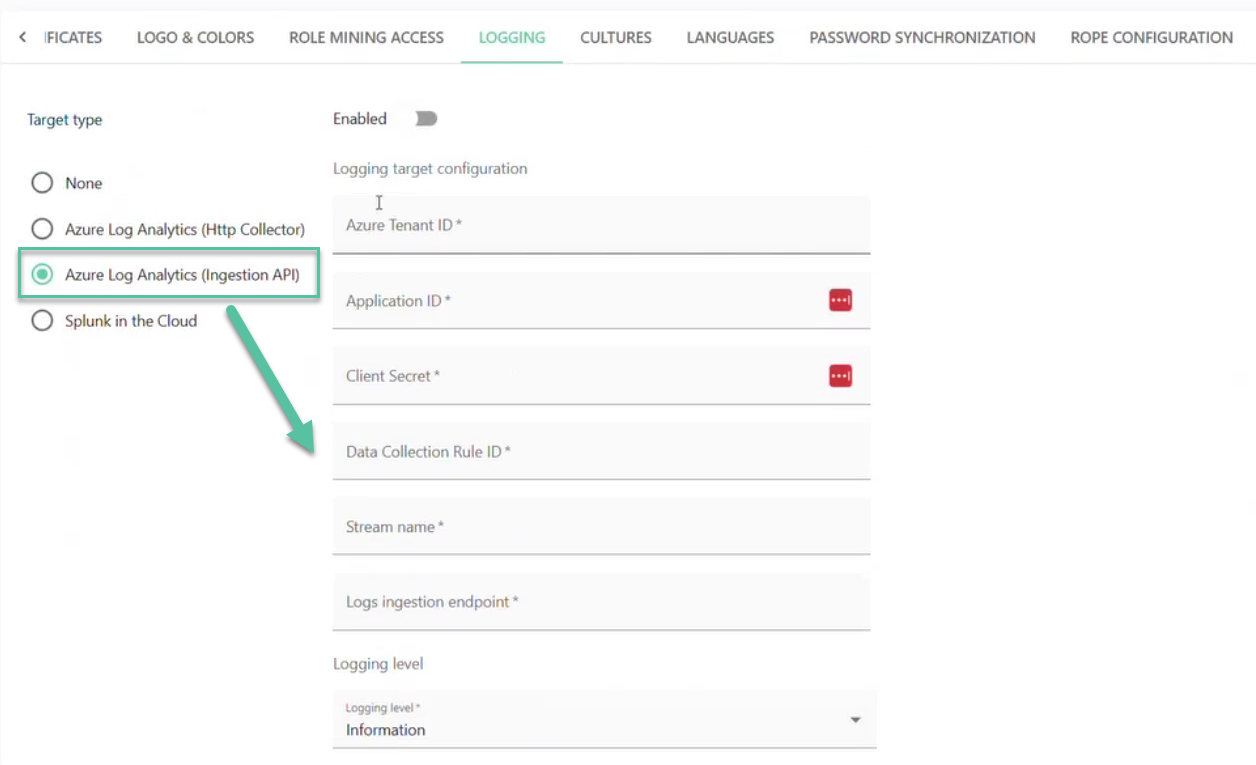
- Azure Tenant ID - the unique identifier of your Azure Active Directory tenant.
- Application ID - the client/application ID of the Azure AD app registered for log ingestion.
- Client Secret - the secret associated with the Azure AD application used for authentication.
- Data Collection Rule ID - the identifier of the Data Collection Rule (DCR) in Azure that defines how logs are processed and stored, that is,
"<<dcr-id>>". - Stream Name - the name of the stream defined in the DCR where logs will be sent, that is,
"Custom-<<log-analytics-tablename>>". - Log Ingestion Endpoint - the endpoint URL provided by Azure for sending logs via the Ingestion API, that is,
"<<logingestion-endpoint>>".
infoFor a new logging target, use the values from the new table and DCR configuration.
For a migrated custom logging target, use the values from the DCR created for the migrated table.
⚠️ If the environment uses the default Omada Azure log target, no manual migration is required. Omada migrates the default target automatically.
tipFor more information on logging configuration, refer to the Configuring environment section of the Cloud Management Portal documentation.
Once the configuration steps above are completed, your log target is ready to use the Log Ingestion API.
Backward compatibility
During the transition period, both APIs are supported:
-
If Log Ingestion API parameters (
dataCollectionRuleId,streamName,logsIngestionEndpoint) are configured, the log target sends logs using the Log Ingestion API. -
If these parameters are not configured, the log target continues to use the HTTP Data Collector API.
The HTTP Data Collector API is being deprecated and will no longer function after September 14, 2026.
After this date, customer-managed configurations that rely on the HTTP Data Collector API will no longer function and must be migrated.
The default Omada Azure log target is migrated automatically by Omada.