Troubleshooting
This page describes common issues encountered when running the Horizons imports in an Omada Identity Cloud Private environment, along with steps to identify and resolve them.
Import runs unusually long without completing
Import processing can occasionally stall partway through without failing outright, blocking dependent operations.
Symptoms:
- The import in Import history runs far longer than typical for the profile, without completing or failing.
- On the Operations dashboard, the import profile shows Potentially stale = Yes.
- Import history shows the Staging step completed, but Processing and/or Adapting are still running.
Resolution:
-
From the Operations dashboard, open the import profile flagged as Potentially stale.
-
Check Import history. If Staging is still running, the import is not stale — it may simply be waiting on a slow source system. Monitor it; no action is required at this point.
-
If Staging has completed but Processing or Adapting is still running, the import is likely stale. From the import profile, select Abort Stale Import.
-
The system verifies whether the import is actually stale before acting:
- If stale, confirm to abort it.
- If the system reports "Import is not in a state allowing for it to be aborted," the import is still processing normally — no action is needed.
Import fails as stale during long-running target system retrieval
Some target systems take significantly longer than the default pause tolerance to deliver data, which can cause Processing to mark a healthy import as stale.
Symptoms:
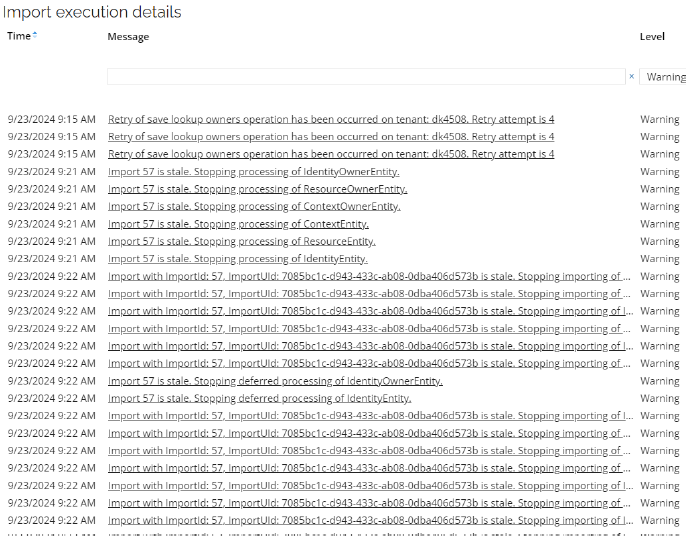
- The import ends abnormally and is marked Failed.
- Logs show errors such as:
Import XX is staleCannot receive datagrams when import is not in a Running or Stale stateImport xyz is already in a final state
- The affected target system is one where data retrieval routinely exceeds the default two-minute Stale timeout (for example, Exchange).
Resolution:
- Increase the Stale timeout setting value on the import profile for target systems where data retrieval is expected to take longer than two minutes.
- Alternatively, you can configure the WorkerHeartbeatTimeout customer setting (Platform Admins only). This setting allows Processing to treat Staging as active, rather than stale, as long as a heartbeat is received from the Staging worker service within the configured interval, even if Staging itself runs long. The default stale threshold is set to 10 minutes.
Stale timeout and WorkerHeartbeatTimeout address the same failure mode at different levels:
- Stale timeout is a per-profile setting for expected long-running systems.
- WorkerHeartbeatTimeout is an environment-wide setting that confirms the Staging worker is still alive.
Import hanging with no progress with subsequent imports unable to start
An import can become stuck without failing, blocking the import queue for the same profile.
Symptoms:
- The import shows no progress over time in Import history. Numbers and timestamps are not changing.
- No further imports for the profile can start while the stuck import remains active.
Resolution:
Before taking action, confirm the EsAdapter has finished processing. If it is still running, cancel the adaptation before proceeding. If canceling is not possible at the moment, remember to restart the Timer service after the steps below.
- Confirm the import's exact state using the diagnostic query below. It reports status, queue state, and EsAdapter progress.
Tool: SQL (OIS database)
select top 50 i.Id as ImportId, i.IngestionId as IngestionImportId, sch.Name as ImportProfile,
    i.StartTime, i.EndTime, i.State,
    CASE WHEN i.ImportType = 0 THEN 'SystemImport'
         WHEN i.ImportType = 1 THEN 'Resynchronization'
         WHEN i.ImportType = 3 THEN 'Clean-up' END as ImportType,
    CASE WHEN iq.Id IS NULL THEN 'Import NOT in Queue' ELSE 'Import in Queue' END as QueueStatus,
    CASE WHEN adapter.Id IS NULL THEN 'Import not picked by EsAdapter'
         WHEN adapter.State = 0 THEN 'Adaptation not started'
         WHEN adapter.State = 1 THEN 'Import currently being Adapted'
         WHEN adapter.State = 2 THEN 'Adaptation done'
         WHEN adapter.State = 3 THEN 'Adaptation error'
         WHEN adapter.State = 4 THEN 'Adaptation cancelled' END as EsAdapterStatus
from isp.Import i
left join isp.ImportQueueItem iq on i.Id = iq.ImportId
left join dbo.tblImportStartedMessagesState adapter on adapter.ImportUId = i.ImportUid
left join isp.Schedule sch on sch.Id = i.ScheduleId
where i.ImportType <> 2 and EndTime is NULL
order by ImportId desc
- If the import shows no progress and EsAdapter has finished (or was never picked up), it can be forced into a final state.
The steps below directly modify import state records in production databases. Run them only against the specific import identified as stuck, verify @importId before proceeding, and confirm EsAdapter has finished (or cancel adaptation) first. Incorrect use can corrupt history for other, healthy imports. If in doubt, contact Omada Support before proceeding.
- Connect to the OIS database (
%tenantId%-ois-db). - Identify the stuck import: the most recent row in
isp.importwith aNULLEndTimeand a state other thanQueued. - Set
@importIdto that import's ID and run:
Tool: SQL (OIS database)
declare @importId int = 0; -- replace 0 with the stuck import's Id
declare @importUId as uniqueidentifier = (select importuid from isp.Import where id=@importId)

update isp.Import set State='Error', EndTime=GETUTCDATE(), ErrorMessage = 'Manually set to error' where id=@importId
update isp.SystemImport set State='Failed', Message='Manually set to failed' where importid=@importId and State = 'Stored'
update dbo.tblImportStartedMessagesState set State=2 where ImportUId=@importUId
delete from isp.ImportQueueItem where ImportId = @importId
- Connect to the ODW database (
%tenantId%-odw-db) and run:
Tool: SQL (ODW database)
declare @importId int, @version int, @state int, @configurationId int, @importUid uniqueidentifier;

select @state=state, @importId=ImportId, @version=[Version], @configurationId=ConfigurationId,
    @importUid=ImportServiceImportUid
from [state].[ImportStates] where id = (select max(id) from [state].[ImportStates])

if @state != 5
insert into [state].[ImportStates] ([importid],[state],[lastchange],[version],[sent],[started],[description],result,configurationId,ImportServiceImportUid)
values (@importId, 5, GETUTCDATE(), @version+1, 1, GETUTCDATE(), 'Force ImportStatus.Finished', 0, @configurationId, @importUid)
- If EsAdapter was still running before these steps were applied, restart the Timer service.
Import stuck in the Queued state
An import can be added to the queue but never picked up for processing, blocking subsequent imports for the profile.
Symptoms:
- Import state remains Queued and does not progress.
- The Horizons Import Queue Items dashboard shows the import waiting without being picked up.
Resolution:
Check the following causes in order.
-
Import Check Timer or its event definition is disabled.
Check with:
Tool: SQL (OIS database)
select t.Name, t.Disabled as TimerDisabled, ed.Disabled as EventDefinitionDisabledfrom dbo.tblEventDefinition edinner join dbo.tblTimer t on ed.TimerID = t.IDwhere t.[Name] = 'Import Check Timer'Alternatively, verify the timer and event definition status in the UI. Enabling both the timer and its event definition resolves the issue.
-
Import Worker is not running.
Check the Horizons Workers Overview dashboard for the environment:
- If Environment status is not Running, the environment is suspended and the import was not started and no action is needed.
- If the time since the Worker's last heartbeat exceeds 20 minutes, the Import Worker is not running:
- Self-hosted CAG: the customer must start the Worker.
- Other environments: restart the Import Worker. If restarting does not resolve it, the Worker may be broken. In this case reach Omada for assistance.
-
The previous import is still running or was not terminated correctly.
Check the previous import's state:
Tool: SQL (ODW database)
select top 5 * from [state].[ImportStates] order by id descIf the top row's State is not
5, the import is still running on the CoreIngestion side and no action is needed.Tool: SQL (OIS database)
select top 5 * from isp.Importwhere IngestionId = <ImportId from the ODW query>order by Id desc- If the import has no
EndTimeand State is notError, it is still running and no action is needed. - If the import has finished (has an
EndTime, or State =Error), it finished incorrectly. Follow the remediation steps in Import hanging with no progress with subsequent imports unable to start.
- If the import has no
EsAdapter not starting
The EsAdapter can fail to pick up an import for adaptation even though Staging and Processing have completed.
Symptoms:
- Import history shows Staging and Processing complete, but adaptation never starts.
- The diagnostic query from Import hanging with no progress with subsequent imports unable to start reports EsAdapterStatus = "Adaptation not started" or "Adaptation cancelled."
Resolution:
The steps below directly modify state records in the OIS production database. Confirm the affected import before running either script. If in doubt, contact Omada Support before proceeding.
- If adaptation was cancelled before the import started (EsAdapterStatus = "Adaptation cancelled"), reset the adapter state:
Tool: SQL (OIS database)
update adapter set State = 0
from dbo.tblImportStartedMessagesState adapter
inner join isp.Import i on adapter.ImportUId = i.ImportUid
where i.State in ('Started', 'StagingCompleted') and i.EndTime IS NULL
- If the EsAdapter queue contains stale failed imports blocking new ones, clear them:
Tool: SQL (OIS database)
update dbo.tblImportStartedMessagesState set State = 4
where State < 2 and Id not in (select Max(Id) from dbo.tblImportStartedMessagesState)
After running either script, restart the timer for the environment.
Import hanging in the ReadyToStart state
An import can remain in ReadyToStart without transitioning to Started.
Symptoms:
Import history shows the import stuck in ReadyToStart with no transition to Started.
Resolution:
Investigate why the Import Worker is not running, and start it.