Policy & Risk Check
The Policy & Risk checks help you spot rule violations before submitting and approving access requests. Organizations can enable the policy check simulation feature to avoid that user request access to resources that they should not have access to by checking for violations and or risks when users request access to resources. This provides transparency of the policies that the organization has implemented and gives a higher compliance level.
Similarly, managers can use the policy & risk check feature to look for violations and risks before they approve the access requests. In this way, both parties review the access request before the resources are approved and given to the users.
In Omada Identity, there are three available policies or risk checks available:
-
The first is the Policy check that checks for violations to constraint policies defined in Omada Identity. This check evaluates Segregation of Duties conflicts via a RoPE calculation.
-
The second policy check is Peer Access Analysis. This compares the identity's peer group via its context assignments and calculates a percentage of how closely the requested assignment matches the peer group. For example, a 100 % match indicates that all of the person's peers are already assigned to the resource.
-
The third policy check is the external Risk analysis that is performed in SAP GRC Access Control (SAP GRC). Organizations can define risks and Segregation of Duties rules in SAP GRC for SAP roles that are more granular than normally handled in Omada Identity.
For more information, refer to the Segregation of Duties section.
Policy check
When you as a user request access to resources, the requested access may violate one or more established policies that your organization has set up in Omada Identity. The Role and Policy Engine (RoPE) component calculates assignments when all defined approvers (for example, managers and/or system owners) have accepted the access requests.
If there are violations, RoPE detects the violations and sends a task to the manager. This task is different from the access request survey because in these cases, the manager must approve the violation and provide a compensating control to show the mitigation that the organization does to compensate for the violation of the established policy.
In a standard installation of Omada Identity, a security officer must always approve the manager’s approval of violations. Only when the security officer has approved the manager’s decisions does the requesting user receive the requested access rights.
Policy check in Access request and approval processes
Because the RoPE policy check takes place after both a user has requested access and after the requesting user's manager has approved the access request, organization may want their users to be aware of violations before they even submit their access requests. For this reason, organizations can enable the policy check simulation feature to prevent users from requesting access to resources that they should not have access to by checking for violations when users request access to resources.
Similarly, managers can use policy check simulation feature to look for violations before they approve the access requests. In this way, both parties can review the access request before the resources are approved and given to the users. RoPE carries out the same calculations that are carried out in the true policy check but does not trigger a task to evaluate violations.
Before users submit a request for approval, users can see if any constraints are violated if the policy check feature is enabled. If a constraint is violated, users can then decide to either request the access, even though at least one violation is found, or to cancel submitting the request.
There are several configuration options that you must set to be able to use policy check in Omada Identity, including whether the policy check simulation will be mandatory or optional in the Access Request.
- If the policy check simulation is set as mandatory, the policy check simulation runs when the user clicks Submit during the normal access request workflow.
- If the policy check simulation is set as optional, a user can run a policy check before submitting an access request by clicking Run policy & risk checks at the bottom of the page.
Running policy check simulation is not a default configuration of the workflow in Omada Identity. Organizations can choose not to use policy check simulation in access requests and access approvals if this is not relevant to their needs.
Peer Access Analysis
The Peer Access Analysis provides intelligent decision support for requesters and approvers to confirm that the resources requested and approved match the users peer group. The information is presented visually to the user to provide immediate feedback, while still allowing drilldown to the data that is the basis for the decision. Your organization can configure the Peer Access Analysis.
When requesting access to a given resource, a risk analysis of the assignment is performed, based on the business context. When the context is selected during the access request, the system analyzes the assignments of the identity's peers within the same context and shows the results in the Selected Context section of the window.
If the assignment matches the access that the peers of the identity have, no warning is issued. If a mismatch is found, a warning is displayed. Depending on the percentage of peers with access to the same resource within the same context, a low, medium, or high risk is assigned to the request. The thresholds for medium and high risk are configurable. No warning is the same as low risk.
Peer access analysis requires a selected context to provide meaningful results. Without this context, while the analysis can be enabled, it will yield empty results. Therefore, we strongly recommend using peer access analysis in cases where context is necessary.
The Employments personal context is the only personal context used in the Peer Access Analysis process. The associated contexts are not considered for employment contexts. When the Peer Access Analysis is done for employment, the parent org. unit is shown as the result.
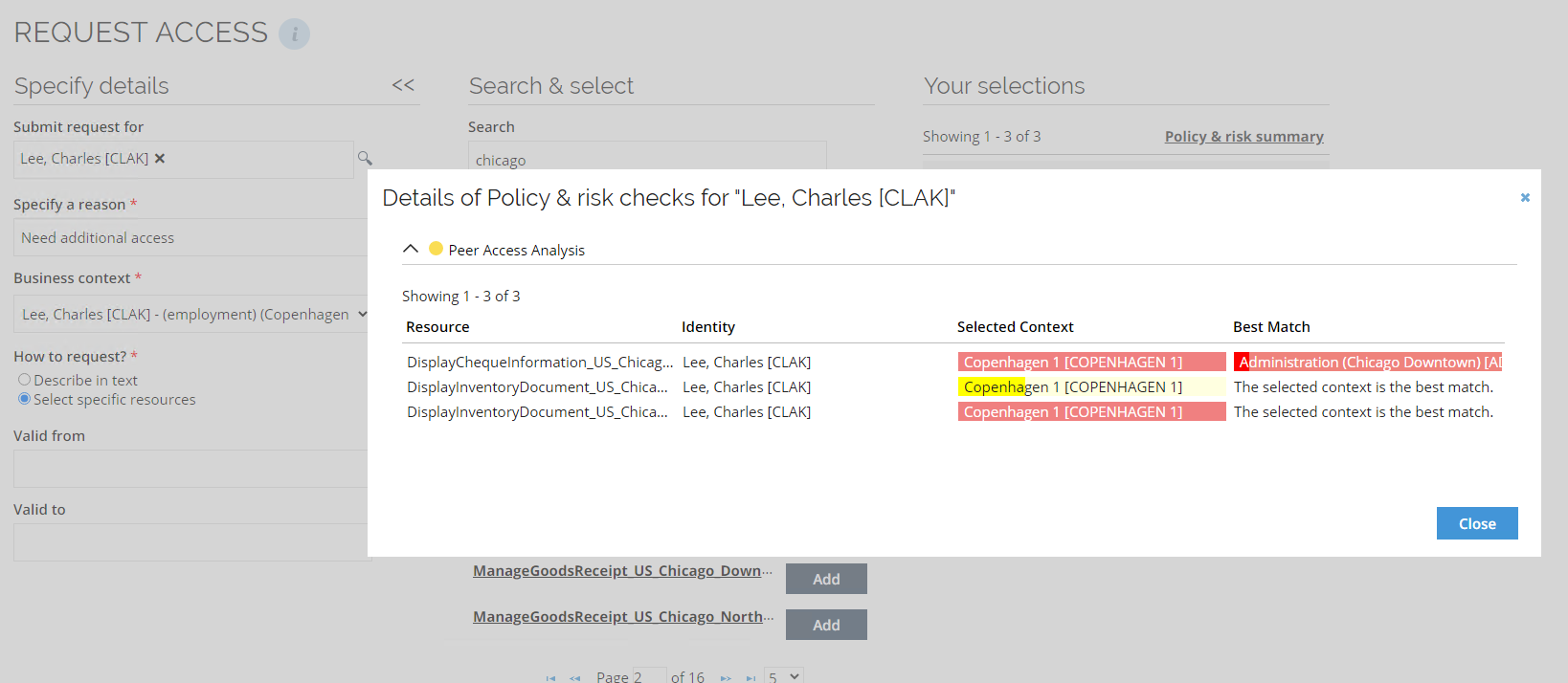
Peer access analysis in Access approval
The Peer Access Analysis is performed again within the access approval workflow, so that the approver can see it in the access approval survey when deciding to approve or reject the access request.
Risk Analysis in SAP GRC
Risk analysis in SAP GRC checks assignments for risks and SoD violations in SAP GRC using the Risk Analysis Web Service. The result is returned to the user in both the Access Request and Access Request Approval processes.
This check is performed for the entire Access Request basket in one simulation and is triggered when the user clicks Run policy & risk checks in the bottom toolbar.
The result of the check is shown via an icon in the processes to visualize and provide immediate guidance to the user. A summary of the GRC check is shown once the policy & risk checks have returned a result.
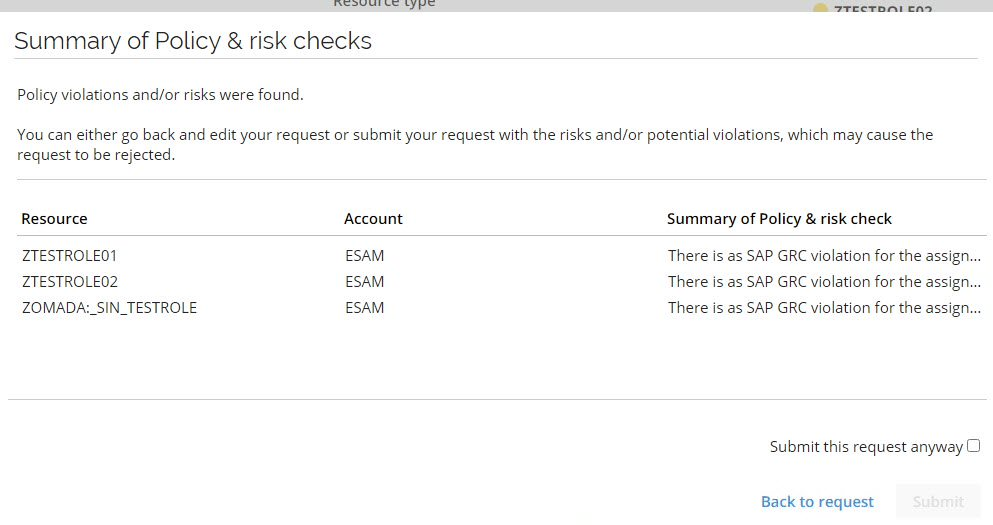
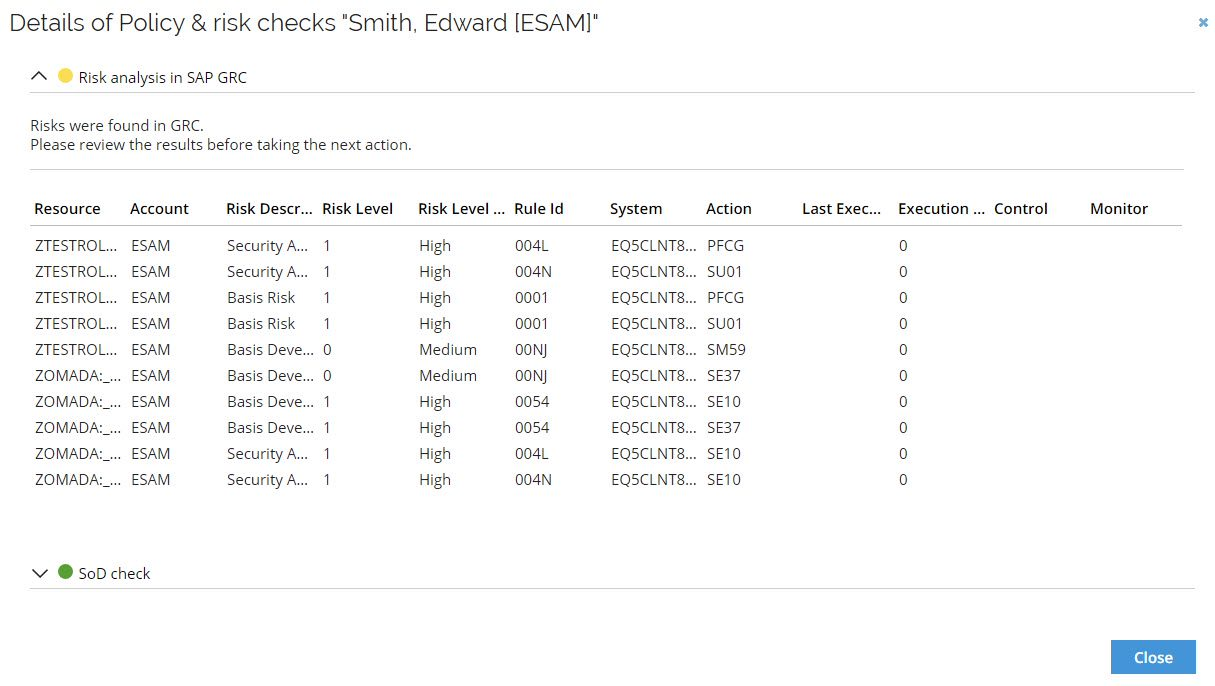
You can open the Details dialog for each identity to see additional details. All risks discovered in the Risk analysis are shown. Details about the resource, the identity, the risk level, as well as additional details related to the SAP GRC system are available.
The Role and Policy Engine (RoPE) component calculates assignments when all defined approvers (for example managers and/or system owners) have accepted access requests.
Unfolding request and approval resources to fit SAP roles
Omada Identity allows access requests for any collection of resources, representing access at any level (for example, permission, application role, business role) and unfolding into a distinct list of resources at the permission level. Each SAP role will match one-to-one with a resource permission in Omada Identity, thus enabling greater mapping between Omada and SAP, and facilitating the migration to SAP S4/HANA.
Configuration
Policy & Risk check configuration options
This section provides information about the configuration options of the selected Policy & Risk check and explains how each option affects the behavior of the selected Policy & Risk check during access request and access approval processes. Some of the options described on this page are configurable and can be enabled or disabled. Other options are informational only and reflect capabilities of the selected Policy & Risk check that cannot be changed.
You can access these options from Setup > Policy & Risk check, where you can view and configure the available Policy & Risk checks, including Segregation of Duties, Peer Access Analysis, and Risk analysis in SAP GRC. Once you get there, you will be able to see these options:

Below is a description of each configuration:
-
Inactive:
When you enable Inactive, the selected Policy & Risk check is disabled. If a Policy & Risk check is inactive, it is not executed during access request or access approval processes, regardless of other configuration options. The Policy & Risk check remains visible in the configuration view, but it does not produce any results or evaluations.
You can use this option to temporarily disable a Policy & Risk check without deleting its configuration.
-
Optional in access request:
When you enable Optional in the access request, the Policy & Risk check becomes optional during the access request process, and you can manually trigger the Policy & Risk check by clicking the arrow on the Next button.

When this option is unchecked, then the Policy & Risk check will run automatically.

-
Hide in access request approval survey:
When you enable the Hide in access request approval survey, the Policy & Risk check is not shown during the access request approval process. If this option is enabled, the Policy & Risk check results are hidden from the approval survey. Functionally, the Policy & Risk check is treated as disabled during approval, even if it was executed during the access request.
infoThis option overrides whether the Policy & Risk check is optional or mandatory during approval.
-
Mode:
This setting controls how the Policy & Risk check is executed. For Optional in access request and Hide in access request approval survey to work as expected, Mode must be set to Simulation or Both.
- Allow mode change:
This field is informative and indicates whether the selected Policy & Risk check supports switching between Calculation, Simulation, or Both modes.
- RoPE extension:
This field is only informative and indicates whether the selected Policy & Risk check uses a Role and Policy Engine (RoPE) extension.
- Used for all resources:
When you enable it, the selected Policy & Risk check is applied to all resource assignments.
For example, if you enable this option for Segregation of Duties, SoD checks are applied to all resource assignments in the system.
If this option is not enabled, you can select different Policy & Risk checks per resource assignment or per resource folder.
- Configuration data:
It holds additional configuration information used by the selected Policy & Risk check.
This data is used internally by the Policy & Risk check during execution to support specific behavior or integrations. The content and structure of the configuration data depend on the type of Policy & Risk check, for example, Segregation of Duties, Peer Access Analysis, or Risk analysis in SAP GRC.
You typically configure this field only when required by the selected Policy & Risk check. If no additional configuration is needed, the field can remain empty.
Enable GRC PRC
The configuration necessary for enabling the GRC PRC can be found in Set up > Policy & Risk checks > Risk analysis in SAP GRC. The configuration data object supports multiple WebRequestConfigurations objects, which allows for multiple configurations to be used for multiple systems.
The properties of the configuration data object are as follows:
-
HitCount: The maximum number of hits (results) to return in the analysis. [Optional] Default: 100
- PropertyType: int
-
ReportType: Determines the report types. [Optional] Default: [2, 3, 4]
- PropertyType: IEnumerable:int
- EnumValues:
- 01: Action Level
- 02: Permission Level
- 03: Critical Action
- 04: Critical Permission
- 05: Critical Role/Profile
- 06: Analytical Report
- 07: Mitigating Controls
- 08: Invalid Mitigating Controls
- 09: Alerts
- 10: Access Risk Assessment
- 21: SoD Reports
- 22: ERM Role
- 30: ROLE
- 31: USER
- 32: PROFILE
- 33: USERORG
- 34: ROLEORG
- 35: HROBJ
-
SystemPropertyName: System name of a property on the system data object type to use as the connector name in the risk analysis request. [Required]
- PropertyType: string
-
ResourcePropertyName: System name of a property on the resource data object type to retrieve the resource identifier to be used in the risk analysis request. [Required]
- PropertyType: string
-
OrgRule: The organizational rule to be applied in the analysis. [Optional] Default: null
- PropertyType: string
-
WebRequestConfigurations: List of web request configurations to use in the risk analysis request. [Optional]
- PropertyType: List: RiskAnalysisWebRequestConfiguration
If you are not using SoD checks in RoPE, disable the SOD Policy & Risk Check object in Enterprise Server (ES). If left enabled while unused, it triggers calls to ES during every RoPE calculation and may cause unnecessary latency and external requests.
The following properties are part of the RiskAnalysisWebRequestConfiguration object:
-
SystemUId: System UID of the system to use in the risk analysis request. [Required]
- PropertyType: Guid
-
RiskAnalysisWithoutRequestWebReqConfig: Risk analysis web request configuration UID to use in the risk analysis request. [Required]
- PropertyType: Guid
An example configuration data object (using defaults) is as follows:
{
  "SystemPropertyName": "exampleSystemProperty",
  "ResourcePropertyName": "exampleResourceProperty",
  "WebRequestConfigurations": [
    {
      "SystemUId": "123e4567-e89b-12d3-a456-426614174000",
      "RiskAnalysisWithoutRequestWebReqConfig": "123e4567-e89b-12d3-a456-426614174001"
    },
    {
      "SystemUId": "123e4567-e89b-12d3-a456-426614174002",
      "RiskAnalysisWithoutRequestWebReqConfig": "123e4567-e89b-12d3-a456-426614174003"
    }
  ]
}
If you choose to configure multiple web request configuration objects, you must leave the Web request config field blank.
Backwards compatibility
The new GRC PRC configuration is backwards compatible, meaning that the usual way of configuring the Web request config is still valid.
If you choose to use this method, you must exclude the field WebRequestConfigurations from the configuration data.
An example of a valid configuration data object is as follows:
{
  "ResourcePropertyName": "Resource",
  "SystemPropertyName": "System"
}
The configuration will use the default values for the missing fields.
Web request configuration
With this configuration you are connecting SAP GRC with a SOAP web request. The main purpose is to perform a risk an analysis with the grac_risk_analysis_wout_no_ws web service.
- Make sure that SAP web service is active and can be accessed.
- If authentication is required, configure the SOAP authentication type following the requirements.
- If your SAP instance requires HTTPS or any additional encryption, adjust the security protocol settings.
Configuration fields
-
URL: The URL points to the SAP web service endpoint for risk analysis.
http://[SAPSERVER]/sap/bc/srt/rfc/sap/grac_risk_analysis_wout_no_ws/100/grac_risk_analysis_wout_no_ws/grac_risk_analysis_wout_no_ws
Replace [SAPSERVER] with the actual SAP server hostname or IP. -
Action: This setting specifies the SOAP action for the request.
exampleurn:sap-com:document:sap:soap:functions:mc-style:GRAC_RISK_ANALYSIS_WOUT_NO_WS:GracIdmRiskWoutNoServicesRequest -
Request Type: For a SOAP-based integration, configure the setting to the SOAP value.
-
Content Type: Since SOAP messages follow XML format, configure the setting to the text/xml value.
-
Accept: Configure the setting to the text/xml value, for response to be also in XML format.
-
Timeout: Specifies how long Omada Identity waits for the response before a timeout occurs.
Ensure that in the EngineConfiguration.config RoPE configuration file, the SAPGRCPolicyCheckExtension part is not commented out.
...
<add type="Omada.RoPE.Controller.OISX.Extensions.SAPGRC.SAPGRCPolicyCheckExtension, Omada.RoPE.Controller.OISX"/>
  </extensions>
...
Composite role analysis
Follow the procedure to enable correct risk analysis of composite roles in SAP.
-
In the Resource data object type add the
SAPCompositeChildResourcesreference property. -
Go to the export mappings and change them so nested single roles in SAP system are stored as reference value in the
SAPCompositeChildResourcesreference property.- Go to Setup > All systems > Omada Identity and open Export mappings.
- Select New and afterwards Resources.
- Configure the settings in the Destination tab as shown below.
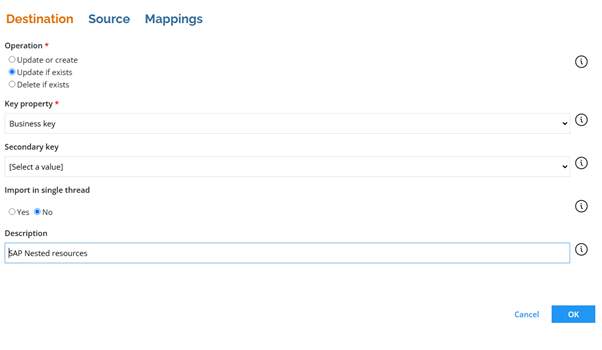
- Configure the settings in the Source tab as shown below.
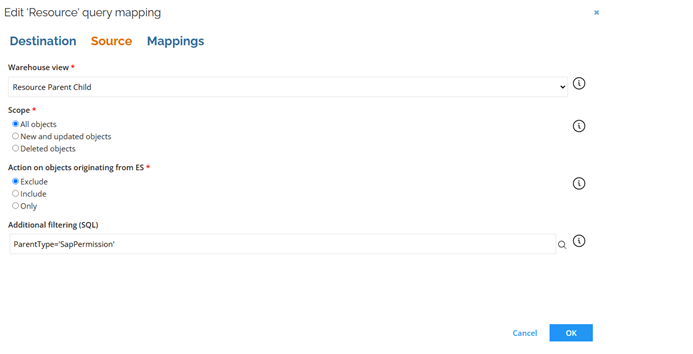
- In the Mappings tab add the following mappings:
Destination Operator Source Business key Map ParentComposedBusinessKey SAP nested resources Map ChildComposedBusinessKey -
Go to the ExportMappingsReportingViews configuration object and include the resource parent-child view.
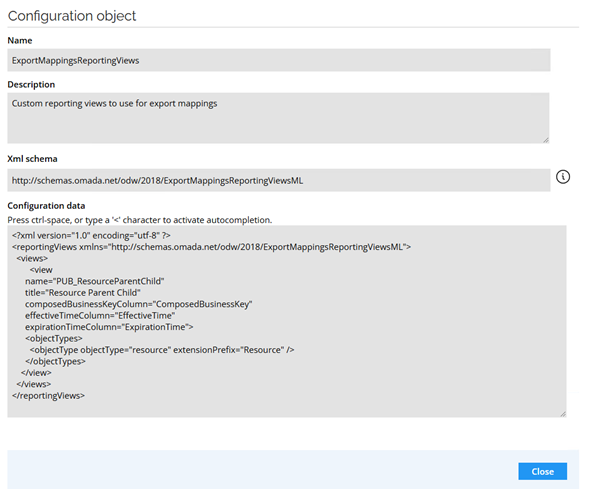
<view
   name="PUB_ResourceParentChild"
   title="Resource Parent Child"
   composedBusinessKeyColumn="ComposedBusinessKey"
   effectiveTimeColumn="EffectiveTime"
   expirationTimeColumn="ExpirationTime">
   <objectTypes>
     <objectType objectType="resource" extensionPrefix="Resource" />
   </objectTypes>
 </view>