Data import
Connection details
| Setting | Description |
|---|---|
| Host | Type a proper host name for the LDAP system. |
| Port | Type the relevant port number for the host name. |
| Connect using SSL | Enable this setting to connect using a secured connection.Remember to update the port number accordingly. |
| Skip certificate check | Enable this option to avoid checking the certificate.This setting can be useful when you are using self-signed certificates. |
| Base DN | Type the unique name of the directory entry to use as the default starting point for LDAP queries under this configuration. |
| Authentication type | The authentication type used for the LDAP connection.The authentication type corresponds to the System.DirectoryServices.Protocols.AuthType enumeration in .NET and can have the following values: Anonymous, Basic, Negotiate, Ntlm, Digest, Sicily, Dpa, Msn, External, Kerberos. The authentication type determines the use of user-, domain-, and password/settings. |
| User | Type a relevant user name to authenticate against the LDAP server. Bear in mind that some LDAP directories require this username to be a DistinguishedName. |
| Password | Type the relevant password for the user name. Each time you make a change to any of the settings in the Connection details dialog, you must type your password again. |
| Domain | Type the name of the domain from which to establish a connection. |
| Test connection | Enable this setting to test the specified connection details. |
Queries and mappings
The LDAP collector supports any number of queries. The collector has the following optional query parameters to be specified when creating or editing a query.
-
In the Base DN field, specify the DistinguishedName of the object from where to get data. If you want to use the Base DN specified under Connection Details, leave this field empty.
-
In the LDAP Filter field, enter an LDAP filter to ensure you get the objects needed. For details on LDAP filtering, see LDAP String Representation of Search Filters on the IETF Documents page.
-
In the Scope field, specify if the search should be Base, One-level, or Sub-tree.
Base: this will search only the object specified by the Base DN One-level: this will search all objects placed in the specified Base DN Sub-Tree: this will search all objects placed in the Specified Base DN, and all child containers.
-
In the Distinct field, specify if the collector should remove possible duplicate rows.
-
You can use the Filter filed to provide a Dynamic Expresso expression that is used for filtering the data imported into Omada Identity. It returns a TRUE/FALSE result for each imported data row. If the expression returns "FALSE" for the given row that row is skipped during import.
-
In the Description field, enter a description for what this query is doing.
While configuring mappings that in OSI LDAP connectivity, the dash character is illegal and is by default removed from the LDAP properties. This removal means that LDAP property msDS-UserAccountDisabled in the Omada Identity mapping should have the form msDSUserAccountDisabled.
AI assisted mappings
To simplify and accelerate the configuration of mappings, you can use the Discover option to automatically generate an AI-assisted proposal. The feature is applicable for account, resource, and resource assignment object types.

To generate mappings proposal, the following input is required after clicking the Discover button:
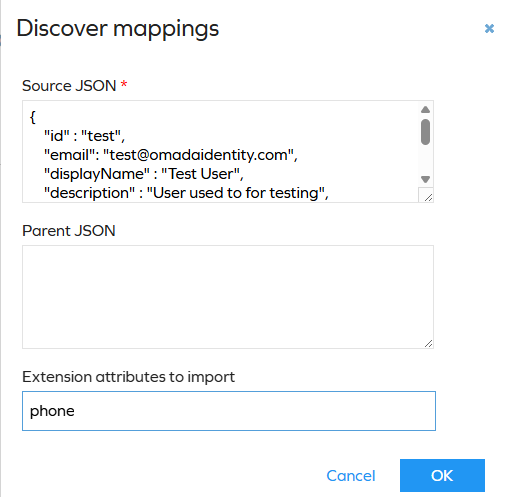
- Source JSON - a JSON file of a single object including properties. For REST and REST-based systems, it can be obtained directly from the source system response. For other systems, the JSON file must be created manually. If the
Nested Requestsfeature is enabled, the JSON for the nested request must be included. - Parent JSON - if the
Nested Requestsfeature is enabled, the JSON file for the parent request must be included here. - Extension attributes to import - a list of extension attributes included in the import. They can be provided in the CSV list format.
After accepting, a mappings proposal is generated including a confidence rating for each mapping. The confidence rating is based on the analysis of the provided JSON file and indicates the likelihood that the proposed mapping is correct. It is important to review the proposed mappings and their confidence ratings before accepting them to ensure that they align with your data import requirements.
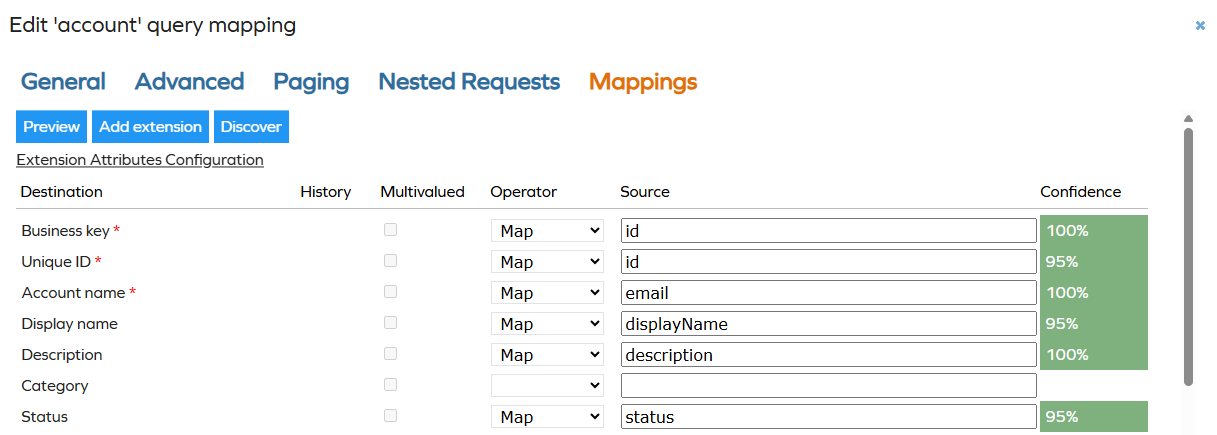
The Confidence column is visible only after the initial proposal generation and is not updated after accepting the proposal. This means that if you make any changes to the proposed mappings, the confidence ratings will not reflect those changes. Therefore, it is crucial to carefully review the proposed mappings and their confidence ratings before accepting them to ensure that they meet your data import requirements.
To disable the AI-assisted mappings feature, disable the Enable AI Assisted Queries and Mappings customer setting.
Mapping of resource owners
If you create a query to import resource owners, it is possible to specify the resource's owner in two ways. You can do it either by directly importing the UID of the identity or by specifying the account from which the resolved owner is imported as a resource owner.
When mapping directly to the UID of identity, Ensure that identities are already imported to Omada Identity.
When mapping to an owned account, it is possible to either specify the business key of the account or the composed businesskey. The former should be used if the account is in the same system as the resource; the latter should be used if the account is imported into any of the trusted systems.
When the account stems from another system, you should use a Lookup mapping.
Minimal required mappings
The Omada LDAP Connectivity requires the following mappings to be configured.
Accounts
| Destination | Description |
|---|---|
| Business key | The system’s key for the account. A unique value is required. |
| Unique ID | UID of the account. |
| Account name | Name of the account. |
Resources
| Destination | Description |
|---|---|
| Business key | The system’s key for the resource. A unique value is required. |
| Security resource business key | The system’s key for the resource. |
| Name | Name of the resource. |
| Category | Category of the resource |
| Type | Type of the resource |
Resource Assignments
| Destination | Description |
|---|---|
| Resource business key | The system’s key for the resource. A unique value is required. |
| Account - business key | The system’s key for the group member. |
| Account - CBK (composed business key) | The system's key composed from the business keys. |
Advanced configuration
- Click the Advanced task to open its advanced settings dialog box.
- In the Page Size field, type a value for the number of users and user groups to import at a time. The default value is 1000. Set the value to 0 to disable paging. This can be relevant for directories that do not support paging.
- In the Timeout field, you can set the LDAP connection timeout. The default value is 30 seconds.
- The Request timeout field allows you to set timeout for each LDAP request. The default value is 600 seconds.
- Choose an option for the SearchOption setting. It can be set to: blank (search option not set), DomainScope, or PhantomRoot. For a description of the DomainScope and PhantomRoot settings, check the Microsoft documentation.
When reading from AD with the LDAP collector, it may be needed to set SearchOption to DomainScope. Otherwise, only the first page of data is returned (by default 1000 entries).