Email templates
Email templates are used in Send email actions, enabling you to send email notifications whenever a defined process event occurs.
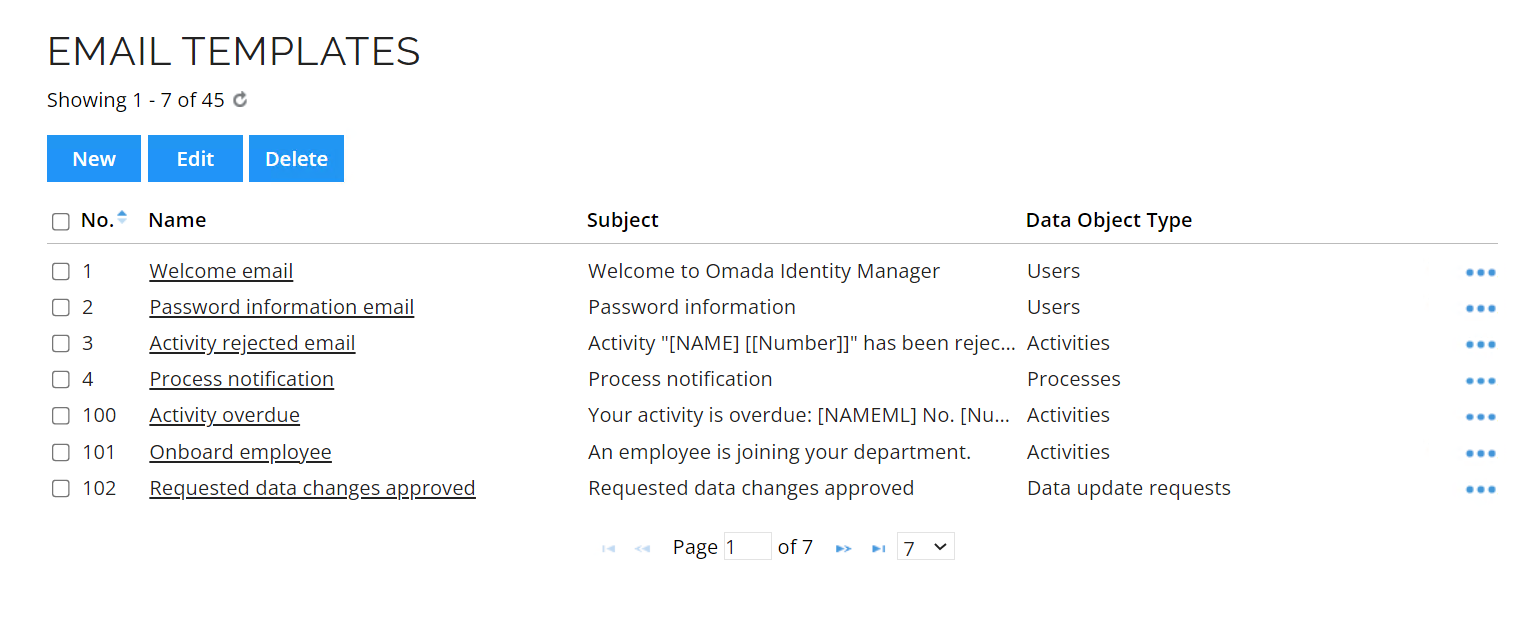
You can find this view in Setup > Administration > User Interface > Email templates.
In this view, you can browse through the predefined email templates, edit them, and create new ones.
You can find where each email template is used by clicking on the right-side of the list and select Usage.
Create and edit email templates
In the Email templates view, you can create templates that can be used to generate and send emails for the required cases (access requests, results of surveys, organizational changes, and such).
Variables and object properties allow you to include the information relevant to the particular recipient and the context of the email.
Follow these steps to create an email template:
- Go to the Email templates view.
- Click New.
- Enter a unique name for your template.
- In the field The template is used to send emails regarding an object of this type, select the object type the email template is used for (and whose properties will be used in the message body).
- Select the Email priority.
- Select the checkbox Template is used to send emails generated by a process event to use the email template in a process event, and define the type. This setting makes all properties available independent from whether they are available in your context or not.
- Click Apply.
Your email template is created, and you can now work on the email's subject and message.
The out-of-the-box email templates are already translated in all default languages.
To change the name that is displayed in the From line in system emails, change the value of the customer setting Mail sender display name.
Customizing templates with HTML
You can customize the message with HTML. Make sure to use that formatting in the Message field:
<html>
    <head>
    </head>
        <body>
            <img src="...">
            <h1>This is your message title.</h1>
            <b> This is the body of your message.</b>
        </body>
</html>
Displaying images in the email depends on your email client and local security settings. You can convert your images to base64 and embed them into HTML.
Download and customize email templates
You can download a set of email templates as a .zip file. The templates include a modern and updated design that improves the look and feel of your email communication.
After you download the templates, update the HTML to match your requirements. Then copy the content into the Message field in Setup > Email templates.
These are the available email templates:
- Access request mobile approval
- Access request mobile approval (original)
- Account created notification (identity)
- Account created notification (manager)
- Account created notification (owner)
- Activity overdue
- Activity rejected
- Approval process launch failed - Requester
- Approve data changes
- Contractor onboarded
To download these email templates, go to: New email templates.
Customizing templates with object type properties
You can customize the email subject and message with object type properties. To do so, follow these steps:
-
In the email template, in the right side of the Subject or Message field, click the + icon.
-
In the Select email variables window, you can see all the properties from the object type selected in the field The template is used to send emails regarding an object of this type as well as standard mail variables (Fixed fields), such as
[ReceiverEmail],[EditorFullName], and[ActionObjectURL].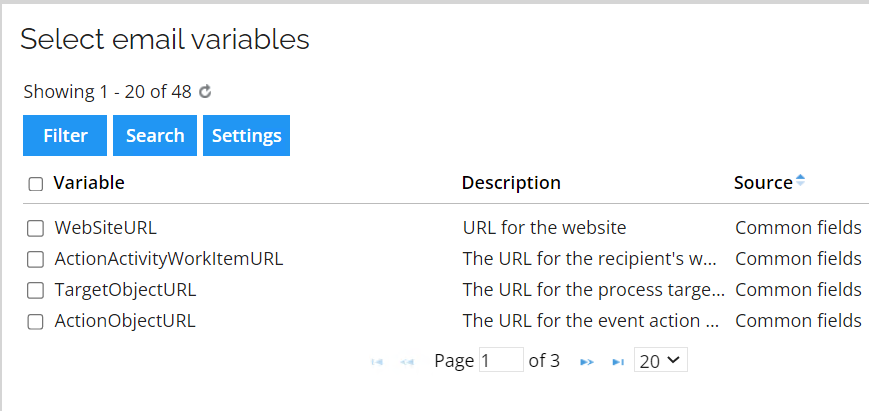
-
Check the properties to add and click OK. The properties are added to the corresponding field.
Email template variables
Email templates support two types of variables:
-
Standard mail variables (also known as Fixed fields), which are available in all email templates and can be used together with object type properties in the same template. Key characteristics:
- Universal - available in all email templates.
- Context-aware - values change based on who receives the email and what triggered the event.
- Always consistent - same variable name, same behavior across all templates.
- Predefined - cannot be customized. Omada Identity defines them.
-
Object type properties, which are available based on the selected object type for the template.
Both types can be used together within the same email template.
- Standard mail variables: Fixed fields such as
[ReceiverEmail],[EditorFirstName]that work in any template. - Object type properties: Properties specific to the object type selected in the template. For example, if the template is based on Identity, you can use properties such as
[FIRSTNAME],[JOBTITLE], and other Identity attributes.
Standard mail variable reference
If a variable cannot be resolved because the required information is unavailable, the variable may remain visible in the email or resolve to an empty value depending on the variable type and context.
Recipient information
| Variable | Description | Availability | Example |
|---|---|---|---|
[ReceiverEmail] | Email address of the recipient. | Always | john.doe@company.com |
[ReceiverFirstName] | Recipient's first name. If recipient user information is unavailable, the variable is not replaced and remains visible in the email. If the value exists but is empty, it resolves to blank text. | When recipient has UserInfo | John |
[ReceiverLastName] | Recipient's last name. If recipient user information is unavailable, the variable is not replaced and remains visible in the email. If the value exists but is empty, it resolves to blank text. | When recipient has UserInfo | Doe |
[ReceiverUserName] | Recipient's user name. If recipient user information is unavailable, the variable is not replaced and remains visible in the email. | When recipient has UserInfo | jdoe |
[ReceiverFullName] | Recipient's formatted full name according to the configured user name format. If recipient user information is unavailable, the variable is not replaced and remains visible in the email. | When recipient has UserInfo | Doe, John |
Event initiator information
| Variable | Description | Availability | Example |
|---|---|---|---|
[EditorFirstName] | First name of the user who triggered the event. Resolves to N/A for timer-triggered events. | All events except timer-triggered events | Jane |
[EditorLastName] | Last name of the user who triggered the event. Resolves to N/A for timer-triggered events. | All events except timer-triggered events | Smith |
[EditorUserName] | User name of the user who triggered the event. Resolves to N/A for timer-triggered events. | All events except timer-triggered events | jsmith |
[EditorFullName] | Full name of the user who triggered the event, formatted according to the configured user name format. Resolves to N/A for timer-triggered events. | All events except timer-triggered events | Smith, Jane |
[EditorEmail] | Email address of the user who triggered the event. Resolves to N/A for timer-triggered events or when no email address is configured. | All events except timer-triggered events | jane.smith@company.com |
Organization information
| Variable | Description | Availability | Example |
|---|---|---|---|
[CustomerName] | Name of the organization configured in Omada Identity. Useful for branding and organization-specific messaging. | Always | Omada |
Event definition information
| Variable | Description | Availability | Example |
|---|---|---|---|
[EventDefNumber] | Numeric identifier of the event definition associated with the notification. Resolves to N/A if no event definition is available. | Always | 15 |
[EventDefName] | Name of the event definition that triggered the notification. Resolves to N/A if no event definition is available. | Always | Employee Onboarded |
Workflow and activity information
| Variable | Description | Availability | Example |
|---|---|---|---|
[Transition] | Name of the workflow transition. A transition occurs when an activity moves from one state to another within a process. | Activity transition events | Approved |
[ReassignmentMessage] | Message entered when an activity is reassigned to another user. Resolves to N/A outside reassignment scenarios. | Activity reassignment events | Please complete this ASAP |
URL references
Use [ActionObjectURL] in most email templates because it provides a direct link to the object that triggered the notification.
| Variable | Description | Availability | Example |
|---|---|---|---|
[ActionObjectURL] | URL to the object that triggered the notification. The URL is generated automatically from the action object and the configured website settings, and includes all information required for direct navigation (such as customer ID and dialog type). This is the recommended URL variable for most templates. | Always | https://mycompany.omada.local/main.aspx?... |
[TargetObjectURL] | URL to the target object associated with a process. Not available when the notification is not related to a process or activity. | Activity and Process events | https://mycompany.omada.local/main.aspx?... |
[ToActivityWorkItemURL] | URL to the activity work item that an activity transitions to. | Activity transition events | https://mycompany.omada.local/main.aspx?... |
[ActionActivityWorkItemURL] | URL to the activity work item when the action object itself is an activity. | Activity-based events | https://mycompany.omada.local/main.aspx?... |
Object identifiers
| Variable | Description | Availability | Example |
|---|---|---|---|
[DataObjectId] | Internal numeric identifier of the data object. Typically used for troubleshooting, auditing, integrations, or API lookups. | Always | 4521 |
[DataObjectUId] | Globally unique identifier (GUID) of the data object. Recommended for integrations and scenarios requiring a persistent identifier. | Always | a1b2c3d4-e5f6-7890-abcd-ef1234567890 |
Deprecated variables
| Variable | Description | Replacement |
|---|---|---|
[WebSiteURL] | Deprecated and retained for backward compatibility only. The value is calculated automatically based on the action object and cannot be configured. Depending on the event context, it may resolve to an unexpected object (for example, during activity transitions). Use the dedicated URL variables instead. | [ActionObjectURL] |
Using object type properties
In addition to standard mail variables, email templates can include object type properties that are specific to the object type selected for the template.
When creating an email template, you select a data object type (for example, Identity, Organization Unit, or another object type). Once selected, any property belonging to that object type can be referenced in the template.
Object Type Selected: Identity
Available Properties: FirstName, LastName, Email, etc.

Template Text:
"Hello [ReceiverFullName], please note that [FirstName] [LastName]
(email: [Email]) has been onboarded."

Email Result:
"Hello Doe, Jane, please note that John Doe (email: john.doe@company.com)
has been onboarded."
Adding object type properties to your template
To add object type properties to your template:
- Open Setup > Administration > User Interface > Email templates.
- Open an existing email template or create a new one.
- In the Subject or Message field, select +.
- The Select email variables dialog displays all available properties for the selected object type.
- Select the properties you want to add.
- Select OK.
The selected properties are inserted into the template using the format [PropertyName].
You can use object type properties and standard mail variables together within the same subject or message.
Example template
Subject: Contractor onboarded

Dear [ReceiverFullName],

A contractor has been onboarded.

Auto generated IdentityID: [IDENTITYID]
Initial password: [INITIALPASSWORD]

Details:
First name: [FIRSTNAME]
Last name: [LASTNAME]
Email: [EMAIL]
Org. unit: [OUREF]
Valid from: [VALIDFROM]
Valid to: [VALIDTO]
Example output
Subject: Contractor onboarded

Dear Smith, Jane,

A contractor has been onboarded.

Auto generated IdentityID: ID-000012547
Initial password: TempPass#2026!xY9

Details:
First name: Robert
Last name: Johnson
Email: robert.johnson@contractor.com
Org. unit: IT Services
Valid from: 2026-06-01
Valid to: 2026-12-31
Variable troubleshooting
| What you see | Cause | Solution |
|---|---|---|
Property name appears in brackets, for example [FirstName] | The property does not exist on the selected object type and is not included in the list of Fixed fields. | Verify the selected object type and available properties. |
Shows N/A | The property exists but no value is available in the current context. | Expected behavior. The data is not available for the current object. |
| Nothing is displayed (empty text) | The property exists but either has no value or the user does not have permission to view it. | Verify data availability and permissions. |
Using public customer settings
You can also use public customer settings as properties in email templates with the format [CUSTSETTING:<name of public customer setting>], for example:
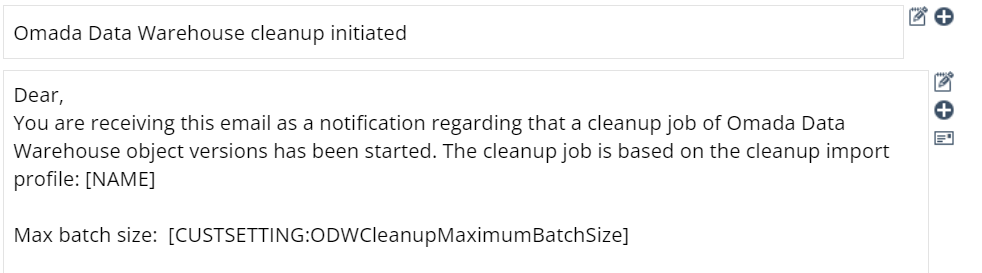
This option works for customer settings marked as Public. You cannot select this checkbox directly in the Omada Identity's user interface, but you can do so via the API.
Reference paths for email
In some cases, you may want to add a property which you cannot find on the target object to an email. For example, when the email template is linked to Activity as the data object type, you cannot access the target data object information on the basis of the available properties. You can still access many properties using the target data object and Reference Path features.
For the email template variables, the format is: [REFPATH:/HOPOBJECT:[PROPERTYNAME]]. This skips one step in the reference path and inserts the value of PROPERTYNAME.
-
[PROPERTYNAME]is the direct access to a property available in the email template, for example, Firstname, if available on the target object or common fields such as ReceiverFullName. -
[REFPATH:/HOPOBJECT:[PROPERTYNAME]]skips one step and inserts the value ofPROPERTYNAME. -
[REFPATH:/HOPOBJECT/[ANOTHERHOPOBJECT]:[PROPERTYNAME]]skips two steps and inserts the value ofPROPERTYNAME. -
[TARGET_PROPERTYNAME]enters the property that is directly referred from the target. This should work if you have Activity as the object type of an email but send it from within a process.
- The use of reference paths for emails is only supported for regular data objects. Reference paths for shadow data objects are not supported.
- Email templates can only dynamically populate properties that are available on the selected object type or can be accessed through supported reference paths. Properties belonging to related objects (such as resource assignments) may not be resolved in emails if there is no relationship to the target object of the email template.
Troubleshooting
-
If the property that you entered in the Message field does not exist in your object type, the property name within brackets remains in the email instead of being replaced by any value, for example,
ROLEASSIGNMENTS. -
If
N/Ais displayed, it means that your property exists but not in this context, for example,ROLEASSIGNMENTSis not on the target object of the email template. -
Nothing is shown in the email if the property exists and in the correct context, but the value is actually empty.
-
Nothing is shown either if you use an invalid reference path.
-
If you select A specific user/group as the email recipient, it will impact the mail template reference paths (if the template contains any). Only the values for which the recipient has permission will be replaced; keys for which the user lacks permission will be replaced with empty strings. This applies separately to each key that must be replaced in the subject/message.