Known Issues
Read more about the issues that are known to still exist at the moment of introduction of the Omada Identity update.
If you have a customized version of the Approve requested access survey template, you must update the survey template by comparing the changes to the out-of-the-box Approve requested access survey template. Specifically, a new property with the system name REQUESTTYPE must be added in the Survey object tab, and the Data source must be updated with the new scope variable and filter for resource assignment.
Microsoft Identity Manager 2016 SP3 is not supported
Omada Identity does not support Microsoft Identity Manager 2016 SP3. The Management Agent for MIM Sync is validated against MIM 2016 SP2 and earlier service packs only. Cases have been reported where the Management Agent stops working after an upgrade to MIM 2016 SP3 (with export operations failing). Omada has not validated against MIM 2016 SP3.
If you use MIM Sync for provisioning, do not upgrade to MIM 2016 SP3. MIM support was deprecated in Omada Identity 15.0.0 and removed in Omada Identity 16.0.0. If you currently provision through MIM Sync, plan the migration to the Omada Provisioning Service. See the Deprecation calendar for details.
Software Development Kit not available in the installation
The Software Development Kit (SDK) is not part of the installation package.
Workaround
In the Software Development Kit section, follow the instructions and use the content tailored for the 15.0.6/16.0.0 release.
ODWUpdater error during Import configuration in new 15.0.6 installations
In an empty and new 15.0.6 installation, the Import configuration profile may fail with an error related to ODWUpdater.
This can occur in some environments, especially when ODW is installed on a separate server and the required library is not loaded into the server’s Global Assembly Cache.
Workaround
Edit the C:\Program Files\Omada Identity Suite\Datawarehouse\Support Files\ODWUpdater\Omada.Identity.OdwUpdater.Tool.exe.config configuration file and add the following entry to the list of assembly bindings:
<dependentAssembly>
  <assemblyIdentity name="System.Threading.Tasks.Extensions" publicKeyToken="cc7b13ffcd2ddd51" culture="neutral" />
  <bindingRedirect oldVersion="0.0.0.0-4.2.4.0" newVersion="4.2.4.0" />
</dependentAssembly>
After saving the file, run the Import configuration profile again.
INC-316402
Binding redirects required for ODW when using the Log Ingestion API
When configuring the logging module to send logs to Azure Log Analytics using the Azure Log Ingestion API, ODW logging may fail due to an assembly version conflict.
This issue is caused by a transitive dependency conflict introduced in Omada.Logging:
Azure.Monitor.IngestionandAzure.Identityare both direct dependencies of this package, and each brings in a different version ofAzure.Core, resulting in a version conflict. This originates from Microsoft's package versioning, where the latest stable releases of these libraries are not aligned to the sameAzure.Coreversion.
At runtime, this mismatch leads to assembly binding conflicts. Since ODW relies on SSIS packages executed by DTExec.exe, the issue manifests within that process. The Omada.Logging assemblies are loaded into DTExec.exe, which does not inherit the binding redirects defined in the main application configuration. As a result, binding redirects must be added manually to the DTExec.exe.config file on the SSIS server.
This issue only occurs in environments where both of the following conditions are met:
- The logging configuration has been set up to send logs to Azure Log Analytics using the Azure Log Ingestion API.
- ODW imports are executed via SSIS packages on an SSIS server.
Once Microsoft resolves the underlying dependency misalignment, we will implement a solution that does not require manual binding redirects. In the meantime, use the workaround described below to address the issue.
Workaround
To add binding redirects to DTExec.exe.config file, follow these steps:
-
Locate the correct
DTExec.exe.configfile.-
The
DTExec.exeexecutable may exist in multiple locations, depending on the SQL Server versions installed. You must update the configuration file associated with theDTExec.exeinstance used by the SSIS jobs in your environment.-
Common locations include:
| SQL Server version | Default path | |--------------------------|------------------------------------------------------------------------------| | | SQL Server 2017 (14.x) |
C:\Program Files\Microsoft SQL Server\140\DTS\Binn\DTExec.exe.config| | SQL Server 2019 (15.x) |C:\Program Files\Microsoft SQL Server\150\DTS\Binn\DTExec.exe.config| | SQL Server 2022 (16.x) |C:\Program Files\Microsoft SQL Server\160\DTS\Binn\DTExec.exe.config|
-
-
If the configuration file does not exist, create a new XML file named
DTExec.exe.configin the same directory asDTExec.exe.
-
-
Add the binding redirects.
-
Open the
DTExec.exe.configfile and locate the<runtime>section. If it does not exist, create it. Add the following<assemblyBinding>configuration:<dependentAssembly><assemblyIdentity name="Azure.Core" publicKeyToken="92742159e12e44c8" culture="neutral" /><bindingRedirect oldVersion="1.47.1.0-1.50.0.0" newVersion="1.50.0.0" /></dependentAssembly><dependentAssembly><assemblyIdentity name="System.Threading.Tasks.Extensions" publicKeyToken="cc7b13ffcd2ddd51" culture="neutral" /><bindingRedirect oldVersion="4.2.0.1-4.2.1.0" newVersion="4.2.0.1" /></dependentAssembly><dependentAssembly><assemblyIdentity name="System.Memory" publicKeyToken="cc7b13ffcd2ddd51" culture="neutral" /><bindingRedirect oldVersion="4.0.1.2-4.0.5.0" newVersion="4.0.5.0" /></dependentAssembly><dependentAssembly><assemblyIdentity name="System.Diagnostics.DiagnosticSource" publicKeyToken="cc7b13ffcd2ddd51" culture="neutral" /><bindingRedirect oldVersion="6.0.0.1-9.0.0.3" newVersion="9.0.0.3" /></dependentAssembly><dependentAssembly><assemblyIdentity name="System.Text.Json" publicKeyToken="cc7b13ffcd2ddd51" culture="neutral" /><bindingRedirect oldVersion="8.0.0.5-9.0.0.3" newVersion="9.0.0.3" /></dependentAssembly><dependentAssembly><assemblyIdentity name="System.Buffers" publicKeyToken="cc7b13ffcd2ddd51" culture="neutral" /><bindingRedirect oldVersion="4.0.3.0-4.0.5.0" newVersion="4.0.5.0" /></dependentAssembly><dependentAssembly><assemblyIdentity name="System.Runtime.CompilerServices.Unsafe" publicKeyToken="b03f5f7f11d50a3a" culture="neutral" /><bindingRedirect oldVersion="4.0.4.1-6.0.3.0" newVersion="6.0.0.0" /></dependentAssembly><dependentAssembly><assemblyIdentity name="System.Numerics.Vectors" publicKeyToken="b03f5f7f11d50a3a" culture="neutral" /><bindingRedirect oldVersion="4.1.4.0-4.1.6.0" newVersion="4.1.6.0" /></dependentAssembly>
-
If multiple SQL Server versions are installed, verify which DTExec.exe is used by the SSIS jobs and update only the corresponding configuration file. Alternatively, update all instances to avoid ambiguity.
IdentityOISID filter issues in Audit Trail report
In the legacy Audit Trail report, entering an invalid value (for example, a string instead of a valid OISID) in the IdentityOISID filter may cause the report to fail with an error.
This issue is related to the legacy reporting framework and will not be fixed. Users must ensure that only valid OISID values are entered when filtering by IdentityOISID.
Expire resource assignments if last context assignment has expired - incorrect functioning
In the November 2025 Cloud Update, the Expire resource assignments if last context assignment has expired event definition was added. It was detected that this event definition triggers a code method that executes wrong data object type. This issue will be corrected in the January 2026 Cloud Update.
The issue does not impact performance or correct system operation. A hotfix is available for customers impacted.
Popular resources are always displayed first
The arPopularityEnabled customer setting enables customers to enable sorting resources by popularity on Resources Search field in Access Request flow. Introducing the filtering version for the resources autocomplete, coexisting with the existing paged version, can be configured with the EnableSearchFiltering setting. Configuring it to true results in replacing the Paged version with Filtering version.
Due to some issues with coexistence of both features the arPopularityEnabled customer setting by default is always turned on for the filtering version. In parallel, this parameter can be turned on or off for the paged version. As a result, Resources on the filtering version can't be sorted alphabetically unless the context is disabled.
Multiple activities in the survey process template
Configuring duration for the activities in the survey process template, requires ensuring that appropriate amount of time is allocated for each of the activities. Currently, when a survey is launched, all activities start simultaneously. This may result in lack of sufficient time for assignees in subsequent activities to complete their tasks effectively.
To mitigate the issue, carefully asses the extent of time that is required to effectively complete each of the tasks in the survey process template. By allocating enough time to each activity, you can ensure that assignees have adequate time to complete their tasks thoroughly and without time pressure.
After hiding all columns rows are clickable
On the new UI Tasks, Access Requests and Delegations views, if you hide all of the rows and columns you can still click on the rows. When hovering over a row, the row is highlighted and the pointer is changed to indicate that the row is clickable. When clicking, it navigates to the details of the hidden items. To fix it, always show at least one column.
Resource status update issue
When either ValidFrom or ValidTo fields are empty in a Resource object (but not both), the Resource status is not updated correctly with the associated event definitions.
The workaround is either to populate the empty date field, or to update the resource status field manually.
Configuration imports fails due to unsupported operations that write to the log file
In case you are using SQL Server 2014 or older in standard edition, the Configuration import profile might fail with:
The current transaction cannot be committed and cannot support operations that write to the log file.
If that happens, it can be fixed by:
- modifying
[dbo].CCreateColumnstoreIndexes]in the ODW database, so it skips all the logic. - running the Configuration import profile again
Attribute values in the legacy access request process
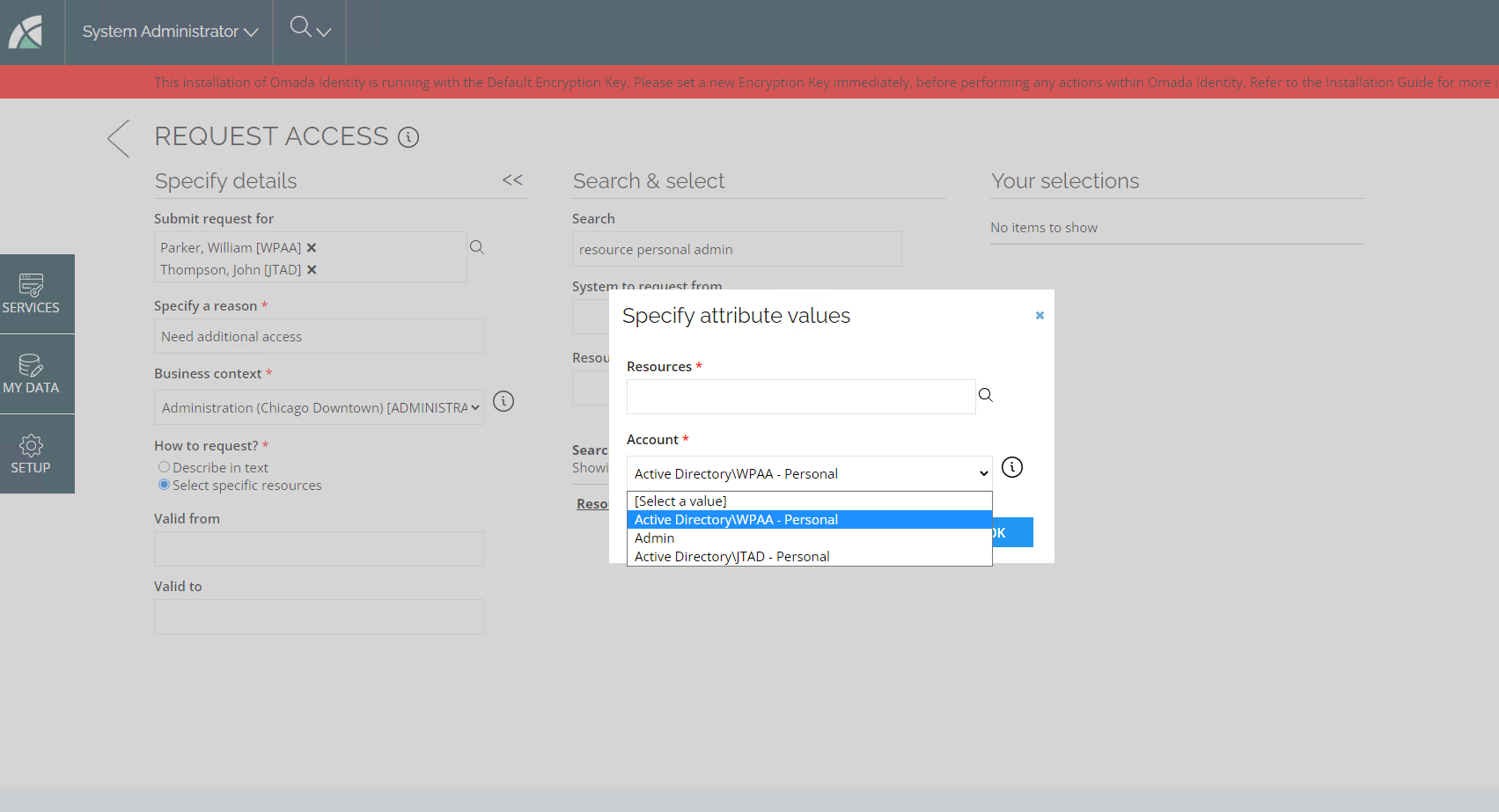
In the legacy request access process you will be asked for an account type when the resource allows more than one account type and the resource has visible attributes and a request is being made for the resource for more than one identity, where each identity has one valid account.
You'll be prompted a Specify attribute values dialog box, while trying to add a resource to the basket.
Attribute type property
In the new UI, for an attribute type based on the Integer data type, if you set the Max. length value to 0, you won't be able to enter any number. You need to leave the field value empty.
Access Request date pickers
In the Access Request process, the date picker for Valid from to Valid to dates will display according to your language browser and not the language is chosen in the 01.
Missing SSOTs in the cloud environment
The Survey Shadow Object Types are missing two survey templates DeletedContextSurvey and ODW_REVIEWJOINEDIDENTITIES in the cloud.
Onboarding guide tooltip reloads whole page
In the new UI, on the Access page with the Onboarding guide tooltip opened, if you click OK in the tooltip, the whole grid will reload.
RoPE fails to calculate identities
It is not possible to recover references between resources and resources assignments once they have been deleted. If you have deleted them, then you should create them again. The issue extends to all references between data objects.
Multiple import threads issue
Transferring a large volume of identities between organizations may result in an import issue. It is caused by multiple import threads updating transfer surveys from a single manager.
To resolve the issue perform multiple, consecutive synchronization imports.
Before a large-scale reorganization verify the ODWNumberOfConcurrentRequests setting value. If the value is set to 1, the parallel imports are disabled. To avoid performance issues Omada recommends configuring the value to 10.
First request for technical mailbox fails due to missing account
The first request for a mailbox fails with a warning due to a missing account. The request is successful in a second attempt using the same mailbox name.
Submission not allowed in Access Approvals with hidden columns
If you hide a required column, such as the Approve/Reject column in the access approvals grid before adding a value to the column, then clicking the Submit button won't produce any action.
Survey questions are assigned to a user but the respective activity is not
Sometimes a race condition could occur, when a user submitted a large number of survey questions in one step, while another user submitted a large number of questions in a subsequent step.
This would often result in the user submitting questions on the second step, which closes the work items for other assignees that were about to get new questions from the user submitting in the first step.
To mitigate this, we now batch survey questions in chunks of 20 and commit them. This also ensures that if a user submits a large number of questions, the whole transaction isn't rolled back if one question results in an error.
If an error occurs while submitting a large number of questions, the user is notified about the number of successfully submitted questions.
Access request interpretation issue
There is an issue in the Access Request approval process in the new UI. While using the text description of the resource, you use the Cannot find the resource? link, where you can write your description of the resource you want. When submitted, the request interpreter gets a task but the description is not copied over and it only displays "test".
Access request for technical identities
We have found an issue when requesting access for technical identities in the new UI. Please, use the old UI if you need to request access for technical identities.
Verdict is not expired after E-Role was assigned containing the CARA as child role
The assignment will be disabled due to the revocation if it has been explicitly revoked from the assignments grid or from the survey, and it has been assigned with a new direct assignment or an assignment policy before the deprovisioning has been confirmed.
Discrepancy in ValidTo datetimes possible
For consumers using Omada Identity Graph API version 2.3, all datetimes will adhere to the UTC time standard. A known issue arises concerning the ValidTo date of a resource assignment displayed in the Extend Access process versus other places in the system; the dates may not match.
UTC Time zone discrepancies
We have identified a known issue when switching time zones from user settings (to the day before or after), the dates entered during the submission of an Access Request may differ from the dates displayed in the access list or resource assignments list.
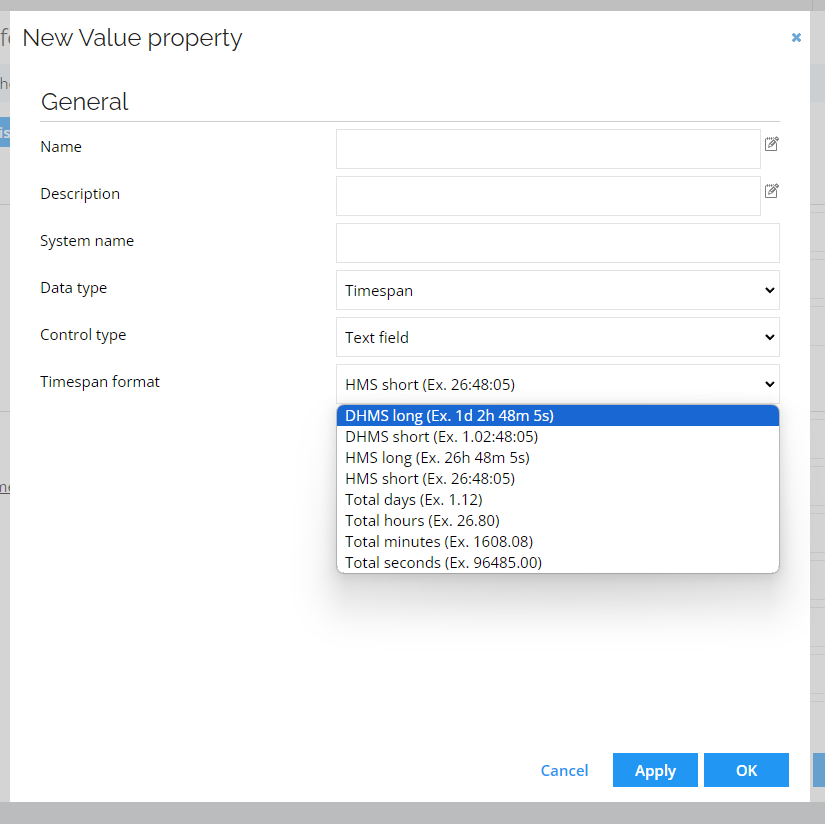
Unable to set days in forms
We've identified a known issue related to setting the number of days in a form when using the Timespan format for the value property. Please, use the legacy UI if you want to set days.
Left-side menu option is blank
We have identified a known issue within the left-side option menu in my Access Staging environment. Some group permissions, such as Employee or Manager, may not display all available options in the menu.
Account types are not displayed
There is a known issue when selecting account types in the Resource step when requesting access. If the account type in a resource doesn't match the account type associated with the identity you are requesting access for, then the dropdown will be empty.
Access request validation when parameter is unchecked
We've identified a known issue related to Access Request, where a validation message is erroneously triggered when the Reason field is empty and the Requires Value checkbox is unchecked.
Classification tags are not displayed
Some classification tags used in the classification process do not have multilingual functionality, and they always display in English, even if you have configured your regional settings and your language settings are in a different language. We are actively working to address this issue in upcoming releases.
Cannot add custom process to service shortcuts
We have found a known issue that prevents the addition of custom processes to service shortcuts in Omada Identity. To avoid this, before upgrading, back up the UIHomePageActions value in the customer settings to preserve customizations made in the JSON value of the customer setting. The value of the customer setting will be overwritten. Once the upgrade is complete, you can add the changes back into the JSON.
Policy check shows violation from all steps
We have identified a known issue in the Policy Check for Access Approval. The policy checks currently display violations for resources in all steps of the survey, rather than just the selected step. We are actively working to address this issue in upcoming release.
Lack of distinction for Extend Access Requests in Audit Log
Currently, there is an issue where Extend Access Requests in the audit log are logged simply as Request Access, without proper distinction.
Homepage link does not redirect to Access approval tasks
We've identified a known issue with the See all tasks button link on the Homepage. Clicking on it redirects to the Task list view but fails to display links for Access approval.
Access Request approval fails if a new package is not installed
To use the Access Request or the Approvals feature, you must install the Extend Access request application package.
Translations
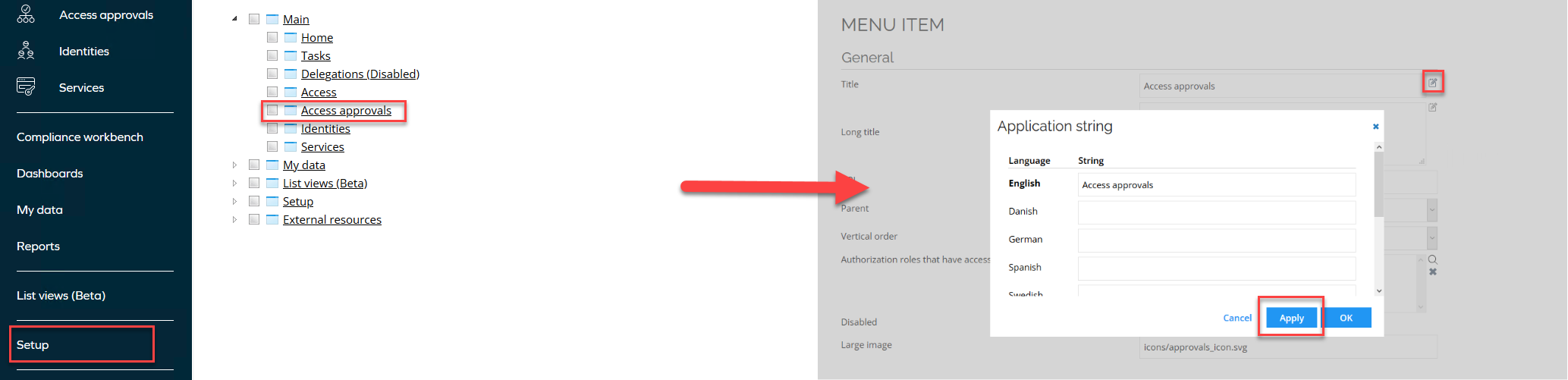
We have identified a known issue where some translations in the left-side menu, such as Access approval, remain in English. You can manually change the translations in Setup > Menu Structure. Locate the item you want to translate and provide its translation.
Error trying to request access for a technical identity
We have identified a known issue in the current approval system where it fails to correctly handle access requests for technical identities. This occurs when the determined approver does not have the necessary permissions for the resource assignment data object, failing when attempting to load the approval question. To avoid this, use the old approval UI as a temporary workaround.
Valid To always shows Never Expires in Access List
When the Valid To date is set by the approver during the approval process, it will always be displayed as Never expires in the Access list.
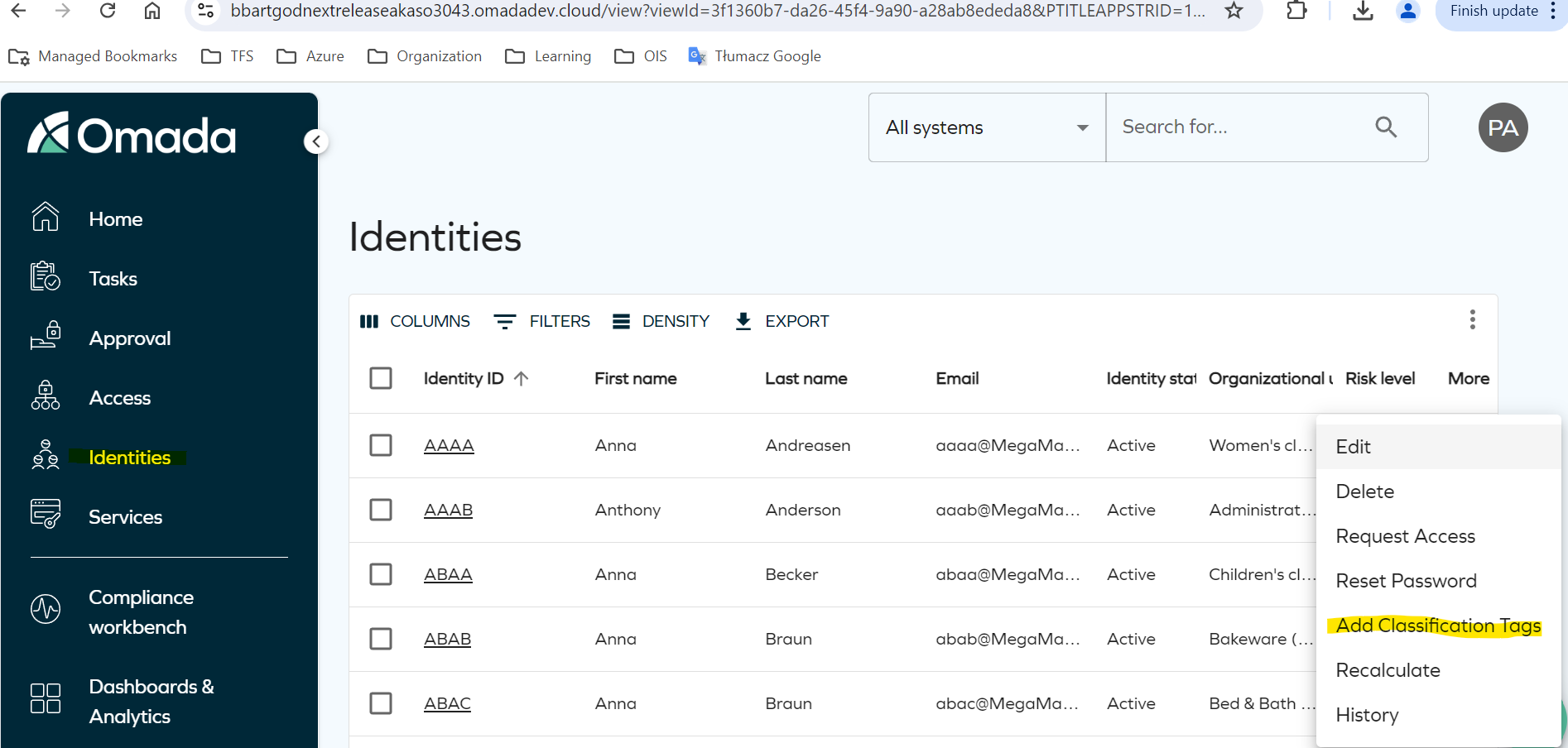
Add classification tag in Identities detailed view
We've identified a known issue in the Identities detailed view that prevents adding a Classification tag. To add a Classification tag, use the Identities table data grid as a workaround.
Surveys with SQL data source fails
We have identified a known issue in surveys. It is not possible to use a file as the keyField in a SQL data source for a survey template if the values of the field contain the . character. This issue causes the Survey UI to fail to render properly.
Scheduled surveys lead to verify task
We have identified a known issue in scheduled surveys. When using the Confirm before launch? option for scheduled surveys, verify action tasks are incorrectly assigned to the system user instead of the designated survey administratos. This occurs after the timer runs automatically.
Request and Approvals shows inconsistencies after request rejection
We have identified a known issue where the UI displays SoD checks after request is rejected, even where there are no SoD violations to assess.
Cannot delete Account Type
We have identified a known issue with deleting account types: this feature is currently unavailable.
Previous authentication details of onboarded systems remaining in the connection details
Despite changing the authentication method to a new one, the authentication details of the previous authentication method may remain in the connection details of an onboarded system.
To prevent unused connection details from being persisted in the database, manually clear all the fields in the screen before changing the authentication method.
Global search only searching old UI Identities
Performing an identity search in the global search bar at the top of the page may display results in the legacy Identities list view, even if you have chosen to use the new Identities list view.
HTML tags displayed instead of formatted text
You may encounter messages in fields and dialog boxes that include HTML tags instead of plain, formatted text. This issue is currently investigated.
Unable to purge deleted objects
Custom process templates and custom activity templates (that can be found in Setup > Deleted objects) cannot be purged.
ODW upgrade may cause transient errors in resource assignment reports
When Omada Data Warehouse is upgraded to a newer version (14.0.16 > 15.0.0 or later), the Internal_ResourceAssignment view is updated. In some cases, this can cause transient errors in the Audit_ResourceAssignment and Owner_ResourceAssignment reports.
The error message indicates that query execution failed: a view or function AUDIT_ResourceAssignment has more column names specified than columns defined.
The issue is temporary and resolves automatically after the next complete import is executed.
Manual fix
To resolve the issue immediately without waiting for the next import, you can run the following SQL commands:
EXEC sp_refreshview 'AUDIT_ResourceAssignment';
EXEC sp_refreshview 'OWNER_ResourceAssignment';
Remove verdict does not set Valid To on direct resource assignments
Since Omada Identity 15.0.5, submitting a Remove verdict for a calculated resource assignment (CRA) in an Access Review survey updates the status of the associated direct resource assignment (DRA), but does not set its Valid To date. In 15.0.4 and earlier, the Remove verdict also set Valid To on the DRA, expiring it as expected.
As a result, resource assignments removed through Access Review surveys are not correctly reflected as expired, for example in reports or views that filter by Valid To.
This issue is fixed in Omada Identity 16.0.0 and in the June 2026 Cloud Update.
Workaround
Until you upgrade, manually set Valid To on the direct resource assignment after a Remove verdict is processed. Assignments already removed while running an affected version need their Valid To corrected manually.
INC-316993