Troubleshooting
Solving the Could not load file or assembly error
When using the SQL Query collector, with PostgreSQL set as the Database platform, you may encounter the following error:
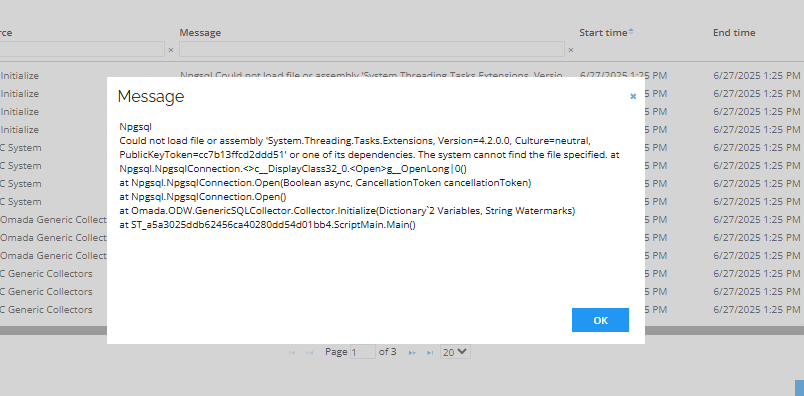
This is caused by the complex structure of dependencies inside the Standard Collectors connectivity package. Connectivity packages do not support several versions of the same dll.
- The dtexec.exe executable is used to run SSIS packages. Its location depends on your SQL Server version and whether you're using the 32-bit or 64-bit version:
Typical Locations
64-bit: C:\Program Files\Microsoft SQL Server<version>\DTS\Binn\dtexec.exe
32-bit: C:\Program Files (x86)\Microsoft SQL Server<version>\DTS\Binn\dtexec.exe
Replace <version> with your SQL Server version number:
SQL Server 2017: 140
SQL Server 2019: 150
SQL Server 2022: 160
-
Navigate to the folder containing dtexec.exe:
- If dtexec.exe.config exists, open it in a text editor. Add the binding redirects inside the
<configuration><runtime>section. - If dtexec.exe.config does not exist, create a new file named dtexec.exe.config in the same folder. Use the template below to define the configuration:
- If dtexec.exe.config exists, open it in a text editor. Add the binding redirects inside the
    <?xml version="1.0" encoding="utf-8" ?>
<configuration>
  <runtime>
    <assemblyBinding xmlns="urn:schemas-microsoft-com:asm.v1">
      <dependentAssembly>
        <assemblyIdentity name="System.Memory" publicKeyToken="cc7b13ffcd2ddd51" culture="neutral"/>
        <bindingRedirect oldVersion="0.0.0.0-4.0.1.2" newVersion="4.0.1.2"/>
      </dependentAssembly>
      <dependentAssembly>
        <assemblyIdentity name="System.Runtime.CompilerServices.Unsafe" publicKeyToken="b03f5f7f11d50a3a" culture="neutral"/>
        <bindingRedirect oldVersion="0.0.0.0-6.0.0.0" newVersion="6.0.0.0"/>
      </dependentAssembly>
      <dependentAssembly>
        <assemblyIdentity name="System.Threading.Tasks.Extensions" publicKeyToken="cc7b13ffcd2ddd51" culture="neutral"/>
        <bindingRedirect oldVersion="0.0.0.0-4.2.0.1" newVersion="4.2.0.1"/>
      </dependentAssembly>
    </assemblyBinding>
  </runtime>
</configuration>
Solving the System.Threading.Tasks.Extensions Version 4.2.0.0 Not Found error
Could not load file or assembly \'System.Threading.Tasks.Extensions, Version=4.2.0.0, Culture=neutral, PublicKeyToken=cc7b13ffcd2ddd51\' or one of its dependencies.
This issue typically occurs when the required assembly is missing from the Global Assembly Cache (GAC). Perform the following steps to manually install the correct version.
- Check if the assembly is already installed. Open PowerShell and navigate to the .NET Framework SDK tools folder:
cd \"C:\\Program Files (x86)\\Microsoft SDKs\\Windows\\v10.0A\\bin\\NETFX 4.6.1 Tools\". - Run the following command to check if the assembly is already installed:
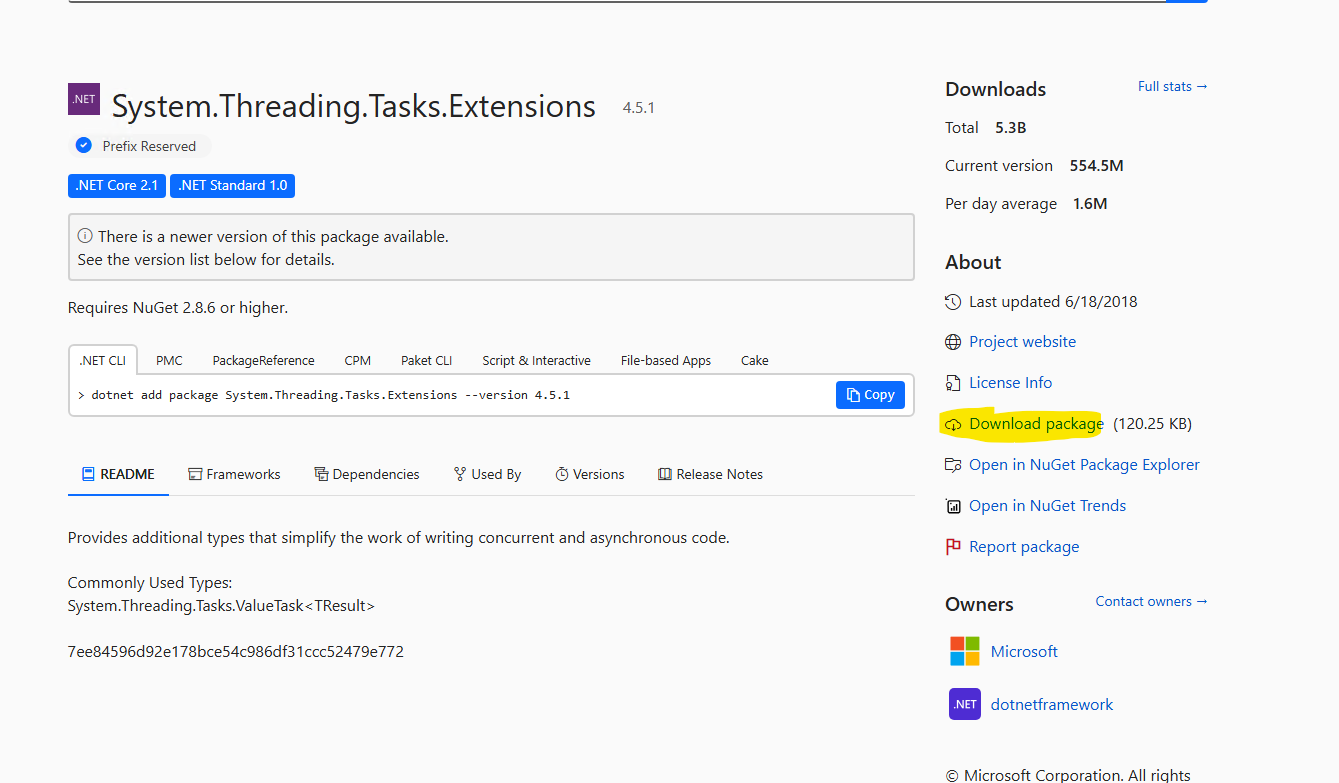
.\\gacutil.exe -l System.Threading.Tasks.Extensions. If the required version is not listed, continue with the following steps to download and install it. - Go to NuGet Gallery | System.Threading.Tasks.Extensions 4.5.1. Download the .nupkg file and locate it:
\System.Threading.Tasks.Extensions.4.5.1.nupkg.
-
Rename the file extension from .nupkg to .zip (system.Threading.Tasks.Extensions.4.5.1.zip). Extract the .zip file using Windows Explorer or a different tool.
-
Locate the System.Threading.Tasks.Extensions.dll file (typically found under
lib/netstandard2.0orlib/net45, depending on your environment). -
Open PowerShell as Administrator again. Navigate to the GAC utility path:
cd \"C:\\Program Files(x86)\\Microsoft SDKs\\Windows\\v10.0A\\bin\\NETFX 4.6.1 Tools\". -
Install the DLL to GAC:
.\\gacutil.exe /i\"C:\\your\\path\\to\\System.Threading.Tasks.Extensions.dll\" /f. -
Replace the path with the actual location of your extracted .dll. Confirm the installation:
.\\gacutil.exe -l System.Threading.Tasks.Extensions.
You should now see the correct version listed, and the error should be resolved.
Solving the System.Runtime.CompilerServices.Unsafe Version 4.0.4.0 Not Found error
System.Threading.Tasks.Extensions Could not load file or assembly 'System.Runtime.CompilerServices.Unsafe, Version=4.0.4.0, Culture=neutral, PublicKeyToken=b03f5f7f11d50a3a' or one of its dependencies.
This error indicates that the required assembly is missing from the Global Assembly Cache (GAC), which can prevent .NET components from functioning properly.
-
Open PowerShell. Navigate to the .NET Framework SDK tools folder:
cd \"C:\\Program Files (x86)\\Microsoft SDKs\\Windows\\v10.0A\\bin\\NETFX 4.6.1 Tools\". -
Run the following command:
.\\gacutil.exe -l System.Runtime.CompilerServices.Unsafe. If the required version is not found, perform the following steps to download and install it manually. -
Go to NuGet Gallery | System.Runtime.CompilerServices.Unsafe 4.5.1 and download the .nupkg file.
-
Locate the file:
\system.runtime.compilerservices.unsafe.4.5.1.nupkg. Rename the file extension from .nupkg to .zip (system.runtime.compilerservices.unsafe.4.5.1.zip).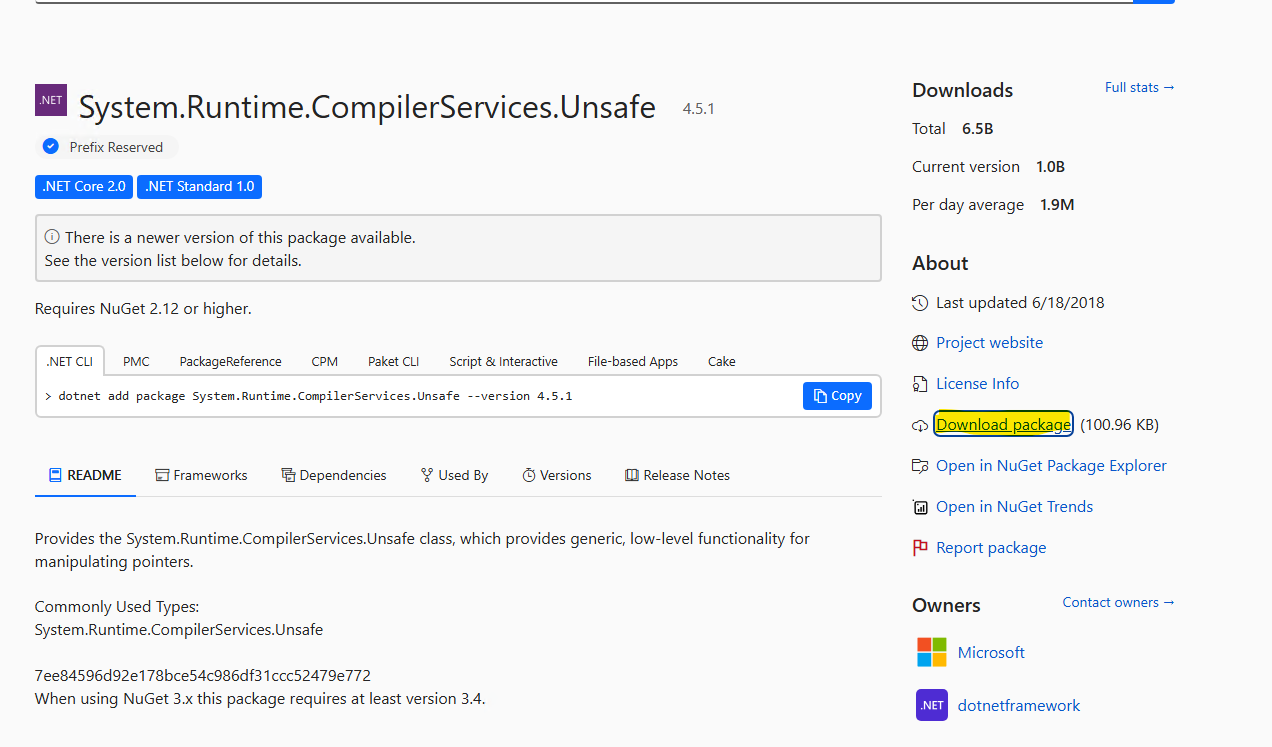
-
Extract the .zip file. Locate the DLL file:
\System.Runtime.CompilerServices.Unsafe.dll\(commonly found underlib/netstandard2.0orlib/net45). -
Open PowerShell as Administrator. Navigate to the GAC utility path:
cd \"C:\\Program Files (x86)\\Microsoft SDKs\\Windows\\v10.0A\\bin\\NETFX 4.6.1 Tools\". -
Install the DLL to GAC:
.\\gacutil.exe /i\"C:\\path\\to\\System.Runtime.CompilerServices.Unsafe.dll\" /f. Replace\"C:\\path\\to\\\...\"with the actual path where the .dll file is located. Confirm the installation:.\\gacutil.exe -l System.Runtime.CompilerServices.Unsafe.
At this point, the error should be resolved and your .NET application should load the required assembly correctly.
Solving the System.Runtime.CompilerServices.Unsafe Version 4.0.4.1 Not Found error
Could not load file or assembly \'System.Runtime.CompilerServices.Unsafe, Version=4.0.4.1, Culture=neutral, PublicKeyToken=b03f5f7f11d50a3a\' or one of its dependencies.
This error indicates that the expected version of the System.Runtime.CompilerServices.Unsafe assembly is missing from the Global Assembly Cache (GAC), which can prevent certain .NET libraries (such as Npgsql) from functioning properly.
-
Open PowerShell and navigate to the GAC utility path:
cd \"C:\\Program Files (x86)\\Microsoft SDKs\\Windows\\v10.0A\\bin\\NETFX 4.6.1 Tools\". -
Run the following command:
.\\gacutil.exe -lSystem.Runtime.CompilerServices.Unsafe. If version 4.0.4.1 is not listed, proceed with the following installation steps. -
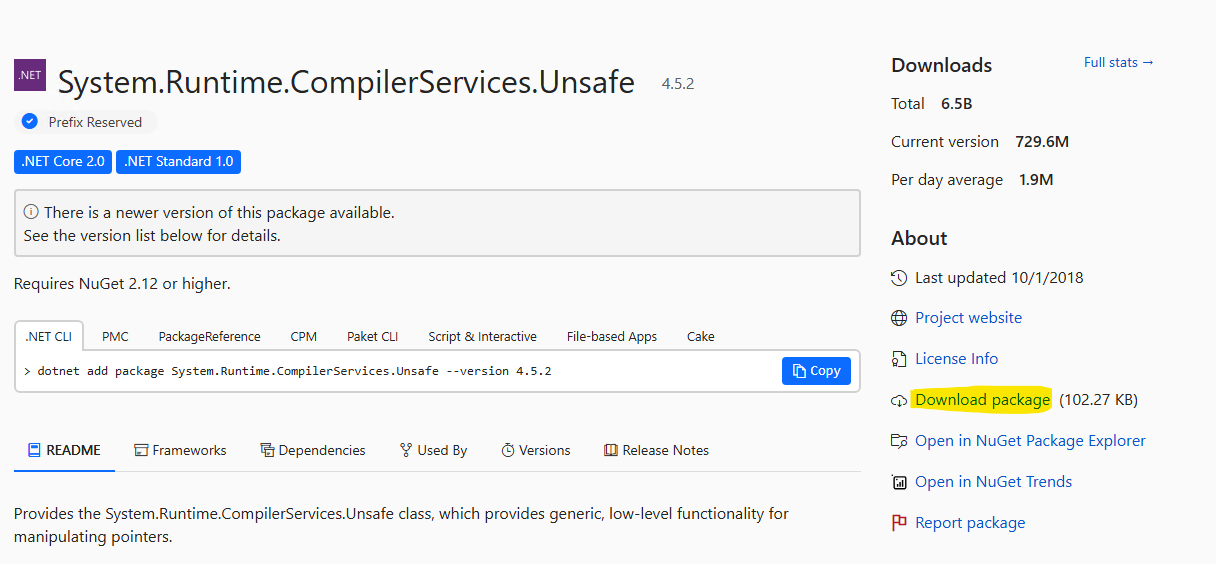
Go to NuGet Gallery | System.Runtime.CompilerServices.Unsafe 4.5.2 and download the .nupkg file.
-
Locate the file:
\system.runtime.compilerservices.unsafe.4.5.2.nupkg. Rename the file extension from .nupkg to .zip (system.runtime.compilerservices.unsafe.4.5.2.zip). -
Extract the .zip file using Windows Explorer or a different tool.
-
Locate the DLL file:
\System.Runtime.CompilerServices.Unsafe.dll\(usually under lib/netstandard2.0 or similar). -
Open PowerShell as Administrator. Navigate to the same tools folder:
cd \"C:\\Program Files (x86)\\Microsoft SDKs\\Windows\\v10.0A\\bin\\NETFX 4.6.1 Tools\". Install the .dll:.\\gacutil.exe /i\"C:\\path\\to\\System.Runtime.CompilerServices.Unsafe.dll\" /f. Replace\"C:\\path\\to\\\...\"with the actual location of the DLL. -
Confirm that the correct version is now installed:
.\\gacutil.exe -l System.Runtime.CompilerServices.Unsafe.
At this point, the missing assembly should be correctly registered and the error resolved.
Solving the System.Memory Version 4.0.1.1 Not Found error
Could not load file or assembly \'System.Memory, Version=4.0.1.1, Culture=neutral, PublicKeyToken=cc7b13ffcd2ddd51\' or one of its dependencies.
This error indicates that the required version of the System.Memory assembly is missing from the Global Assembly Cache (GAC). This is a common issue when working with Npgsql or .NET libraries that rely on memory-related operations.
-
Check if the assembly is already installed. Open PowerShell and navigate to the GAC tools folder:
cd \"C:\\Program Files (x86)\\Microsoft SDKs\\Windows\\v10.0A\\bin\\NETFX 4.6.1 Tools\". Run the command to check if the .dll is present:.\\gacutil.exe -l System.Memory. If the version 4.0.1.1 is not listed, perform the following steps to install it. -
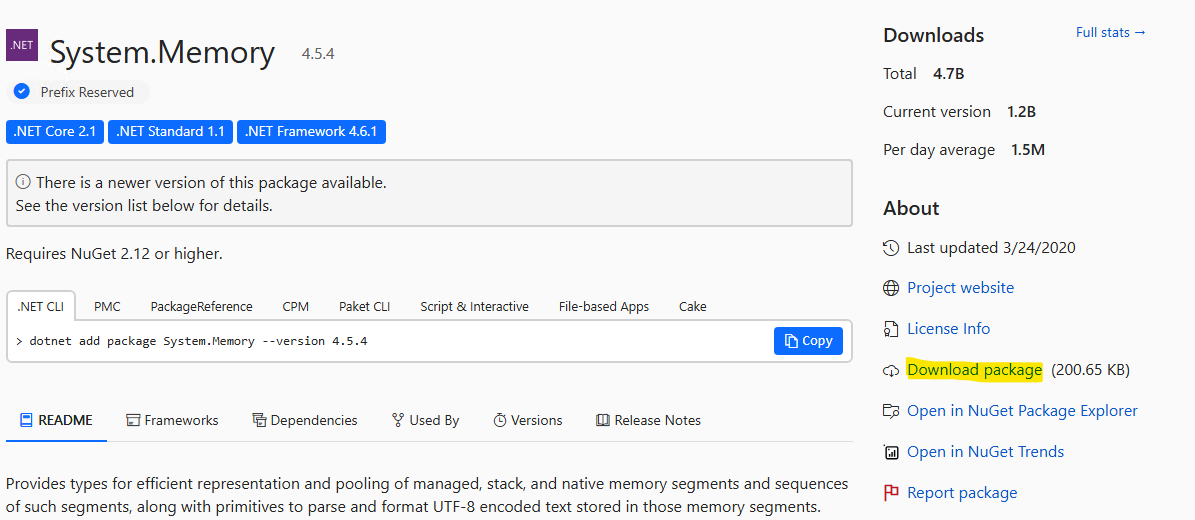
Go to NuGet Gallery | System.Memory 4.5.4. Download the file: system.memory.4.5.4.nupkg.
-
Right-click the file and choose Rename. Change the file extension from .nupkg to .zip (system.memory.4.5.4.zip). Extract the contents of the .zip file using Windows Explorer or a different tool.
-
Locate the DLL file:
\System.Memory.dll(usually under lib/netstandard2.0 or similar). -
Reopen PowerShell as Administrator. Go to the GAC tools folder:
cd \"C:\\Program Files (x86)\\Microsoft SDKs\\Windows\\v10.0A\\bin\\NETFX 4.6.1 Tools\"and install the .dll:.\\gacutil.exe /i \"C:\\path\\to\\System.Memory.dll\" /f. Replace\"C:\\path\\to\\\...\"with the full path to the extracted DLL. -
Confirm that the DLL was successfully installed:
.\\gacutil.exe -l System.Memory.
You should now see the correct version listed and the error should be resolved.