Extend access
The Extend access functionality is a feature designed to provide end users with a convenient way to prolong their access to specific resources, streamlining the process of managing and tracking access extensions. This functionality caters to the needs of end users, approvers, and auditors within an access management system.
You can extend resource assignments belonging to any identity you can request access for in Access request, not only your own. For example, a manager can now extend assignments belonging to their employees. This does not grant any new permissions - the identities you can select follow the same scope as Access request.
Extending access is different from delegating access. Extend access prolongs the validity of an assignment that already exists, while Delegate access temporarily transfers your own access to another identity.
To extend access:
-
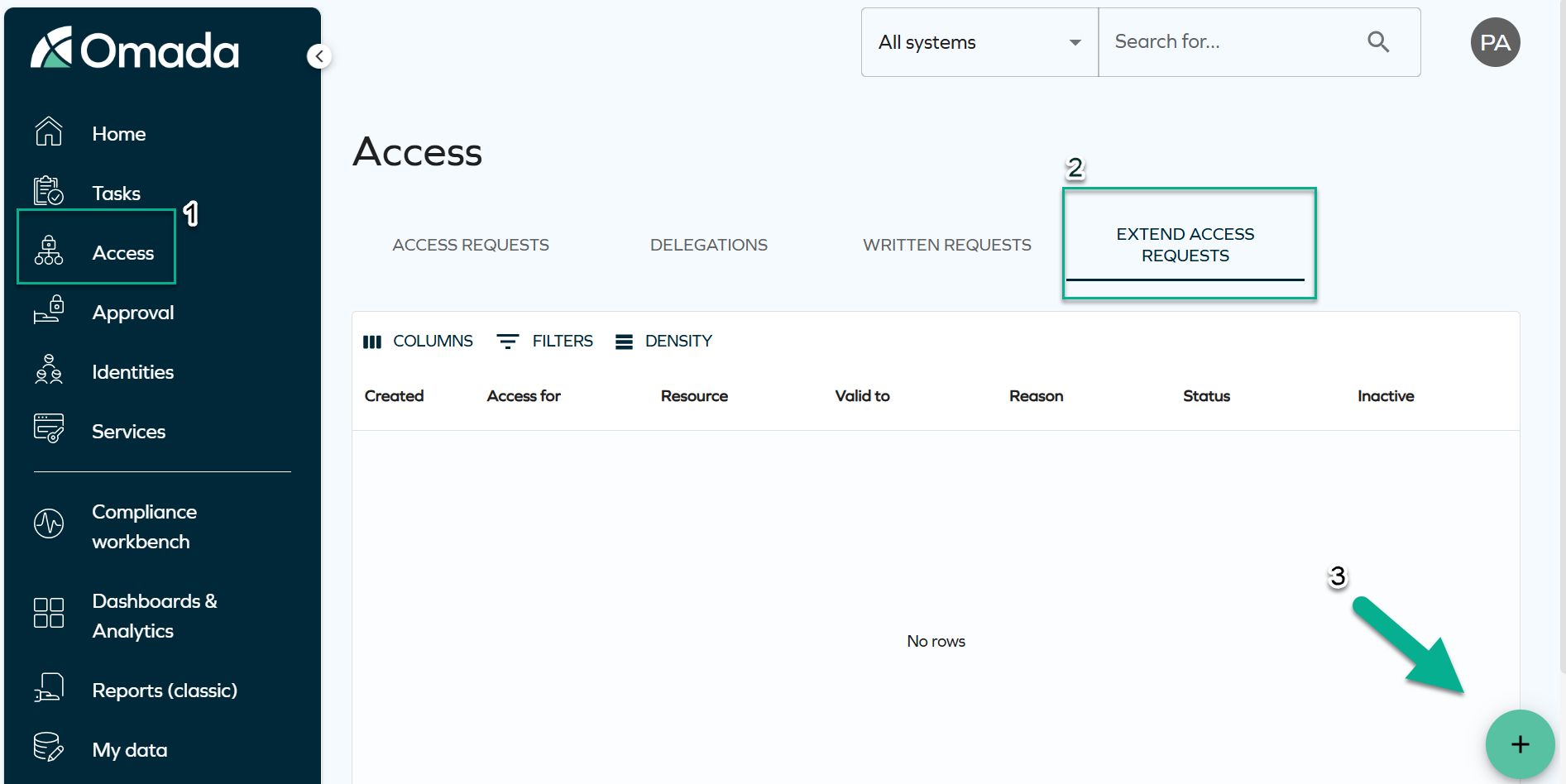
Navigate to Access > Extend access requests, and click on the plus icon.
-
On the Extend what? step, choose the resource assignments you wish to extend, then click Next. You can select one or more assignments, including assignments belonging to different identities you have visibility into.
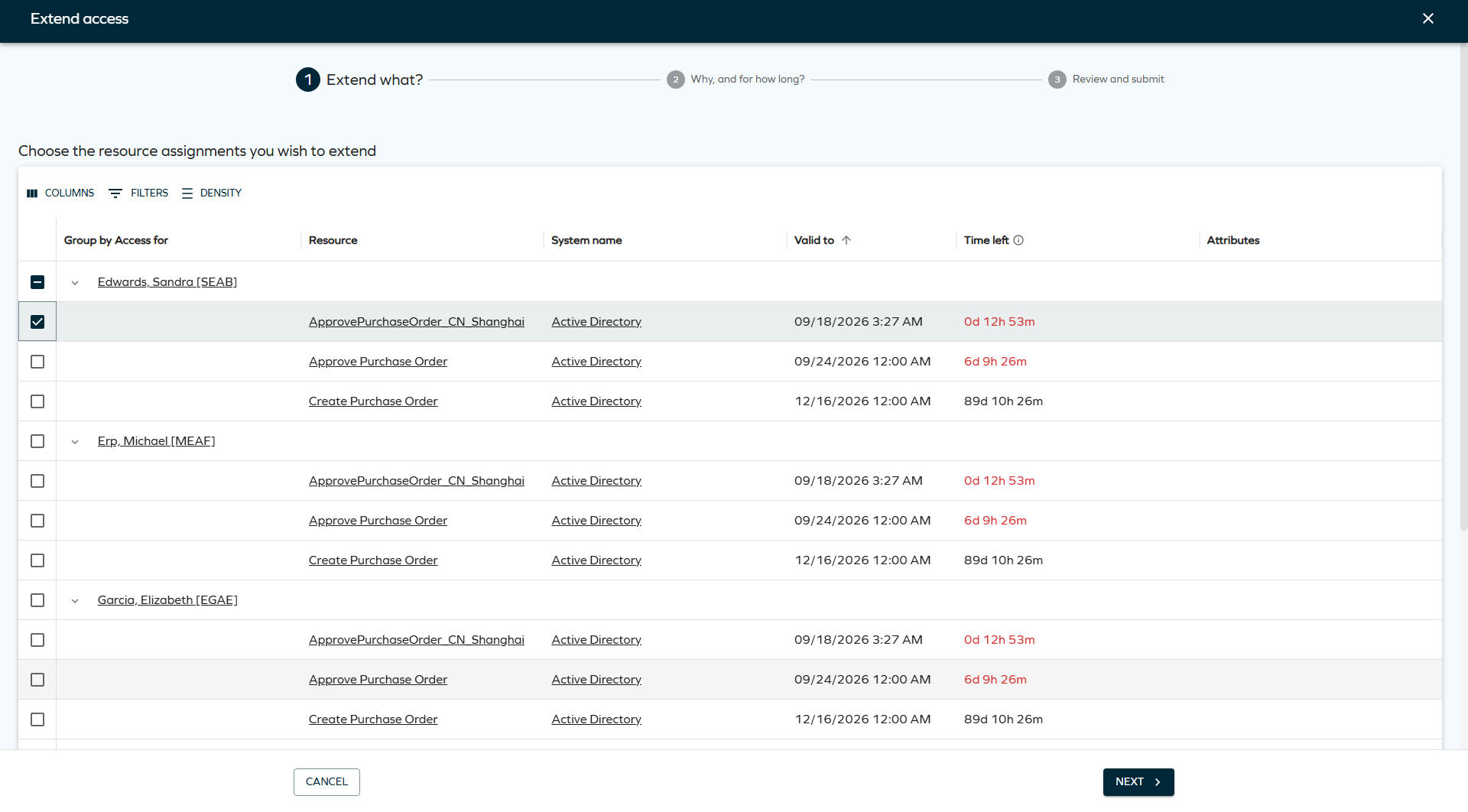
You can group the list by Identity, Resource name, or System name. When grouped by identity, the list shows a Group by Access for column with collapsible groups for each identity (identity name and ID), together with the Resource, System name, Valid to, Time left, and Attributes columns, making it easier to review and select assignments across multiple identities at once.
importantThe access extension process does not create a new resource assignment data object. Instead, it allows to extend access rights that have already been granted and have a validity set.
For a resource assignment to be available for selection:
- it must be active,
- it must have a valid end date that is less than the year 9999 (therefore, the
valid tovalue cannot be set to Never expires), - it must not be part of an existing access extension process.
-
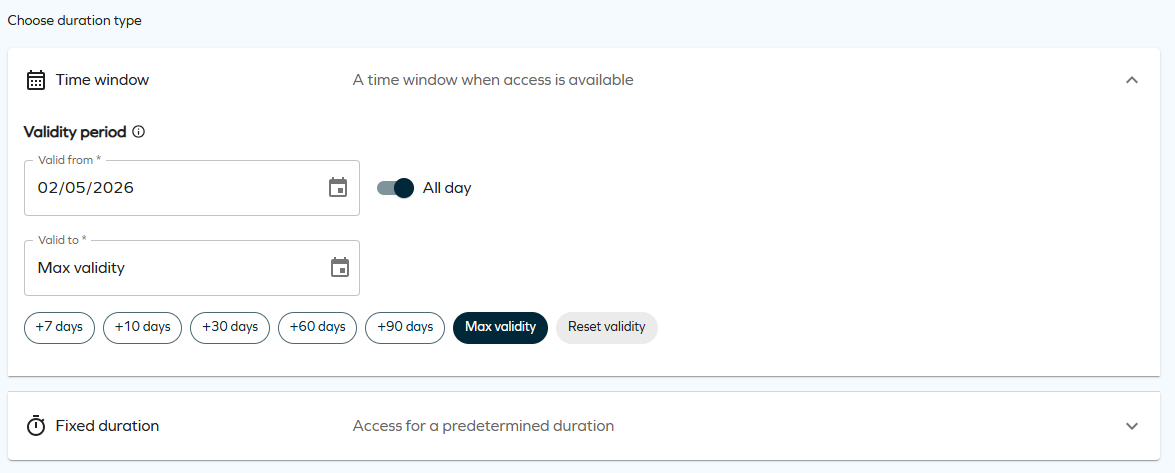
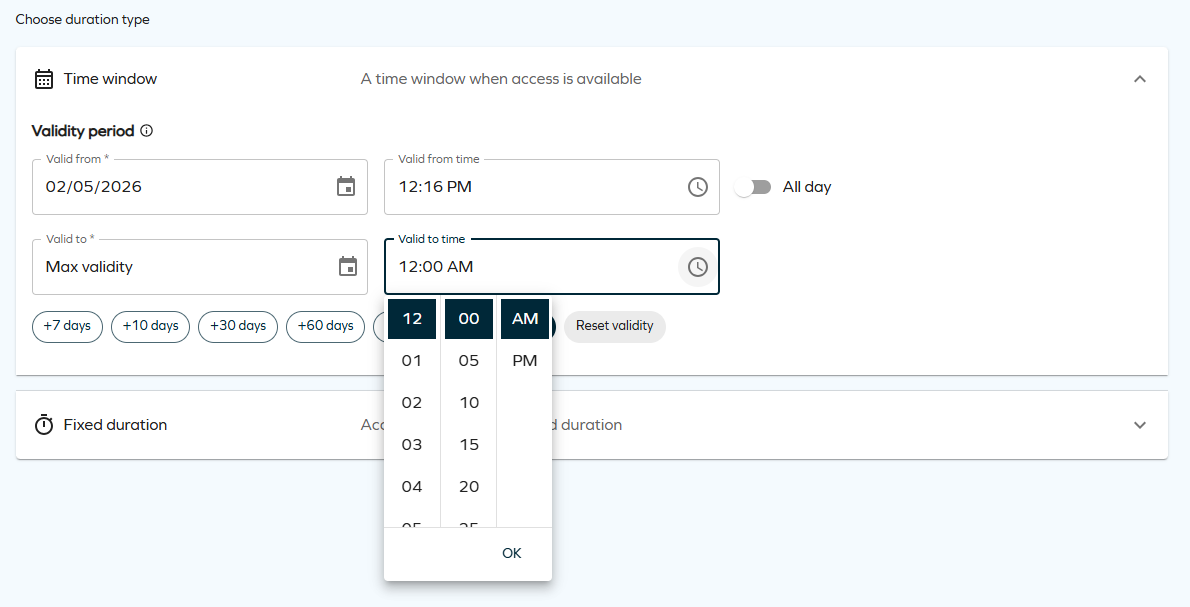
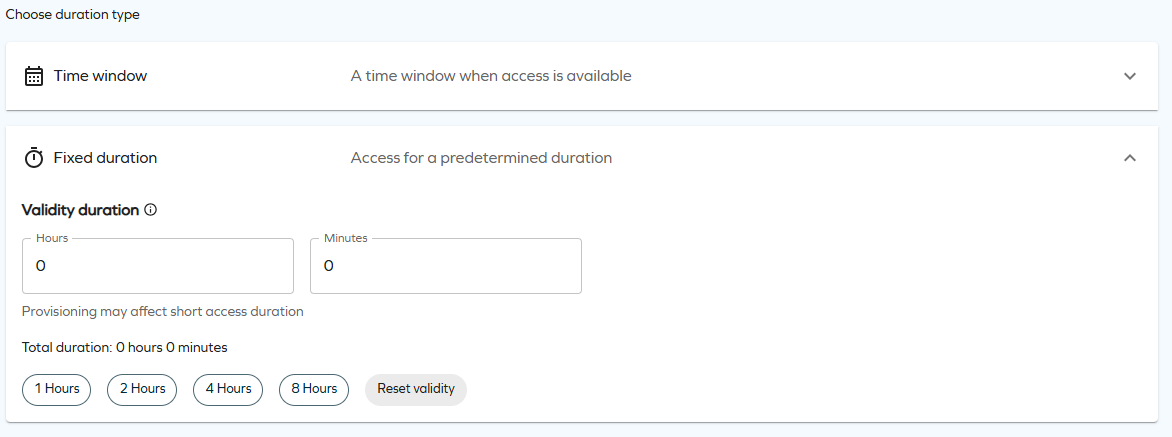
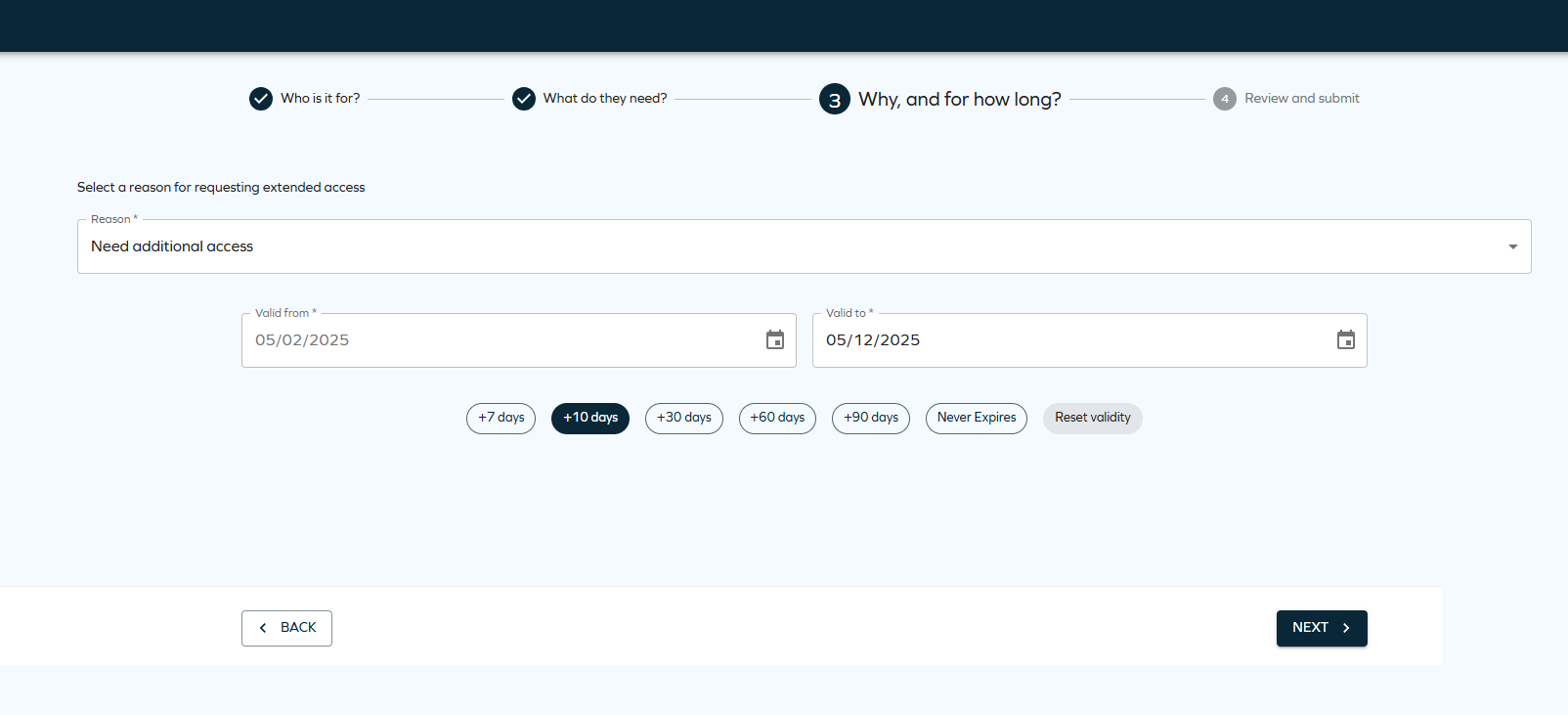
On the Why, and for how long? step, select the access validity period. When specifying how long access should be granted, you can choose between two different access validity types: Time window and Fixed duration. The available options depend on the customer configuration for time-based access.
- Time window allows you to request access for a specific period by selecting a Valid from and Valid to date. This option includes an additional All-day toggle. When this toggle is enabled, access is granted for the full selected days. If not, you can specify exact start and end times within the selected range.
- Fixed duration allows you to request access for a predefined amount of time by specifying a duration in hours and minutes. The access becomes active from the moment the request is approved. This duration type also includes chips that let you quickly select a short, fixed amount of time.
 info
infoFor more details, see Time-based access.
Max validity periodThe access validity period is determined by configurable Max validity period properties, ensuring that access is granted only for the required duration.
These properties can be configured for resources, resource folders, and systems. Three properties control the maximum validity: Max validity period (days), Max validity period (hours), and Max validity period (minutes). When the combined value is greater than zero, it limits the duration of resource assignments during Access request, Approval, and Extend access flows. The system automatically shortens the requested validity period if it exceeds the configured maximum, using the most specific value available (Resource > Resource Folder > System).
Affected validity fields are visually highlighted, and users are shown a warning of a potential restriction if there are any resources or assignments in the basket for which a maximum validity period restriction applies.
The system combines all three values when calculating the effective maximum:
maxValidityInMinutes = ([days] × 1440) + ([hours] × 60) + [minutes]
-
On the Review and submit step, review and make any necessary edits to the selected assignments.
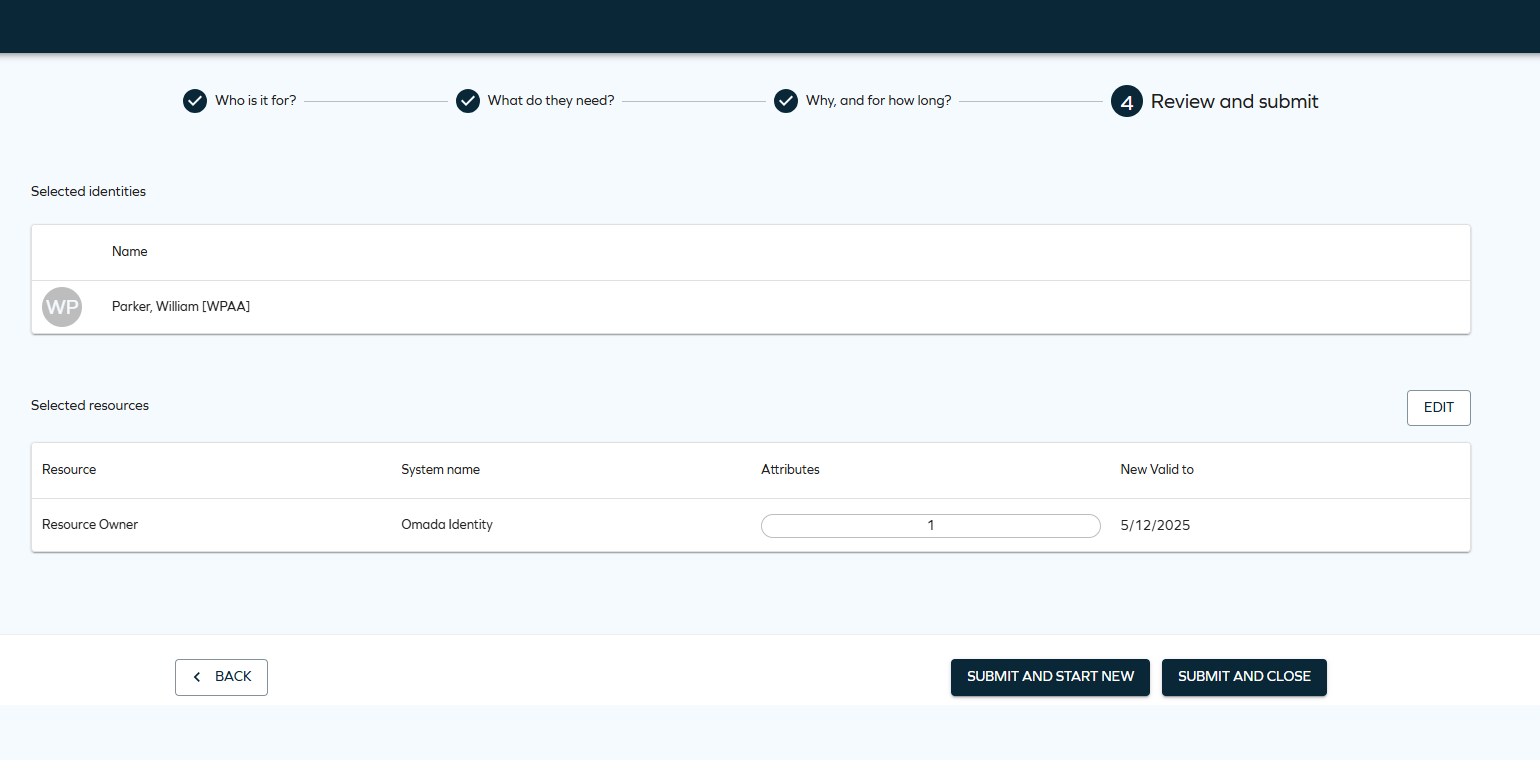
To finalize the access extension request, select Submit and complete. To finalize one request and start another one, select Submit and start new.
- In the access extension, the assignment does not necessarily go through the same approval steps as when it was requested. The approval steps are determined by the approval configuration of the resource folder at the time of the extension.
- The information about the extension is stored in the description field of the resource assignment object.
We recommend adding a default shortcut to the Extend Access process on the Homepage configuration page (Setup > Administration > Homepage Configuration).