Data object search
The search functionality allows you to search in data object data. Searches can be conducted using the global search which is available in the header of the site or by using the column search - when available. The search data for a data object is updated every time the data object is saved.
The search functionality performed for an auto-complete function in a reference property field works slightly different than column search and global search. Firstly, it searches on display name with right truncation, and if one or more objects are matched, then those objects are returned as a result. Only if such search does not find anything in the display name search, it performs a global search on all properties of the referenced objects.
Indexing of search data
In addition to the sequence number and display name of the data object, the following table depicts which data are indexed as search data:
| Property type | What is indexed (data type) |
|---|---|
VALUE |
|
SET |
|
REFERENCE |
|
For the following data object types, some additional data are indexed:
| Property type | What is indexed (data type) |
|---|---|
| User |
|
| Process |
|
| Activity |
|
Data object type property bindings which has security defined are not indexed. In addition, it is possible to manually exclude a specific data object type property binding from the search index, by checking the Exclude from search checkbox in the data object type property binding.
Search modes
The search functionality, regardless of search mode, uses right truncation, that is, the search term matches the beginning of the search word and not something in the middle.
Standard SQL search on-prem
The searches are performed using SQL like operators. In large databases, using the standard search mode can be significantly slower than the full-text search. It is not recommended to use this search mode in a production environment.
Full text search
This is the default search mode in ES. This search mode utilizes the full-text search index of the searchdata column in tbldataobject. The mode requires that the customer setting DisableFTISearch is set to false and the full-text search indexes have been created in the ES database. This is done automatically unless the Full-Text search engine hasn't been installed in SQL Server.
This setting can be edited only by Platform administrators.
Special characters, Unicode, and emoji in search
Search results depend on two separate steps:
- Generating search data – every time a data object is saved, Omada Identity builds a search string for it from the properties listed in Indexing of search data. This step is performed by Omada Identity itself, independently of the search mode used afterward.
- Executing the search – the generated search string is then matched against your search term using one of the search modes described above.
Because tokenization can happen in either step, some special characters affect search results in ways that are not obvious from the search term alone. For example, an underscore (_) in a value can split it into separate search tokens, so a value such as Project_X may not always be matched by searching for the full, unbroken term.
Omada does not currently publish a complete list of special characters that affect search tokenization. If your organization relies on special characters, symbols, or Unicode characters (including emoji) in data object properties, test search behavior for those values in your own environment.
Unicode symbols and emoji in Display name
Some customers include Unicode symbols or emoji (for example, decorative icons) in a data object's Display name. In some cases, a data object with such a display name cannot be found by searching for the surrounding plain text alone — the symbol or emoji must be included in the search term for the object to be found. See Global search and display names containing Unicode symbols or emoji for details.
Recommendation: if a data object needs to remain findable by plain-text search, avoid starting its display name with a Unicode symbol or emoji. Because search uses right truncation (matching only from the beginning of a word), a leading symbol or emoji can prevent the rest of the name from being matched by a plain-text search. Where possible, place decorative symbols or icons at the end of the display name, or keep them in a separate property that isn't relied on for search.
Search operators in the global search
Implicit and operator
When using the global search, all search words delimited by space will have an and operator between the words, for example, searching for William Parker will result in a search for William and Parker.
or operator
You can also search using multiple search words and an or operator, for example, searching for William or Parker will result in a search for William or Parker.
The or operator is case-insensitive. Searching for William Parker or Kenneth Johnson results in the following search: William and (Parker or Kenneth) and Johnson.
not operator (-)
Using the - character in front of a search word indicates that the word should be excluded from the search, for example, searching for William-Parker results in the following search: William andnotparker.
Search using quotes
It is possible to search for a phrase in quotes in order to search in indexed data which are in quotes.
Operator rules
The following rules applies for the usage of operators:
- The
orandnotoperator cannot be used in conjunction - The
notoperator cannot be used in front of a quoted sentence - The
oroperator cannot be used in front of the first search word
Quick filter
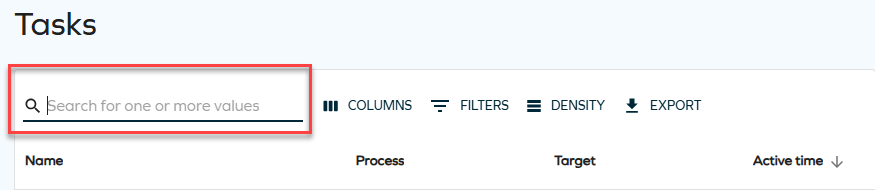
The quick filter is a filter based on search strings that acts on different columns. It is an input text field that allows for searching for one or more values.

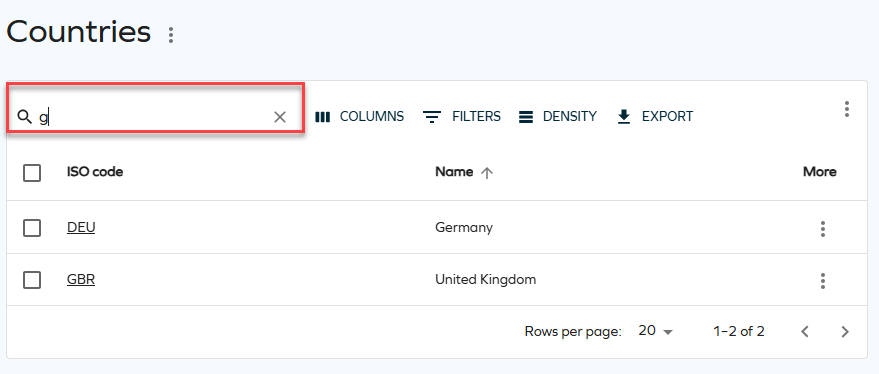
When you start entering text, your search string is filtered in different columns at once. For example, if you type the letter "g", you get results from various columns starting with this letter.
You can find the quick filter, for example, in the Access request process, when you select a resource and add attributes. A side pane opens with the following grid:
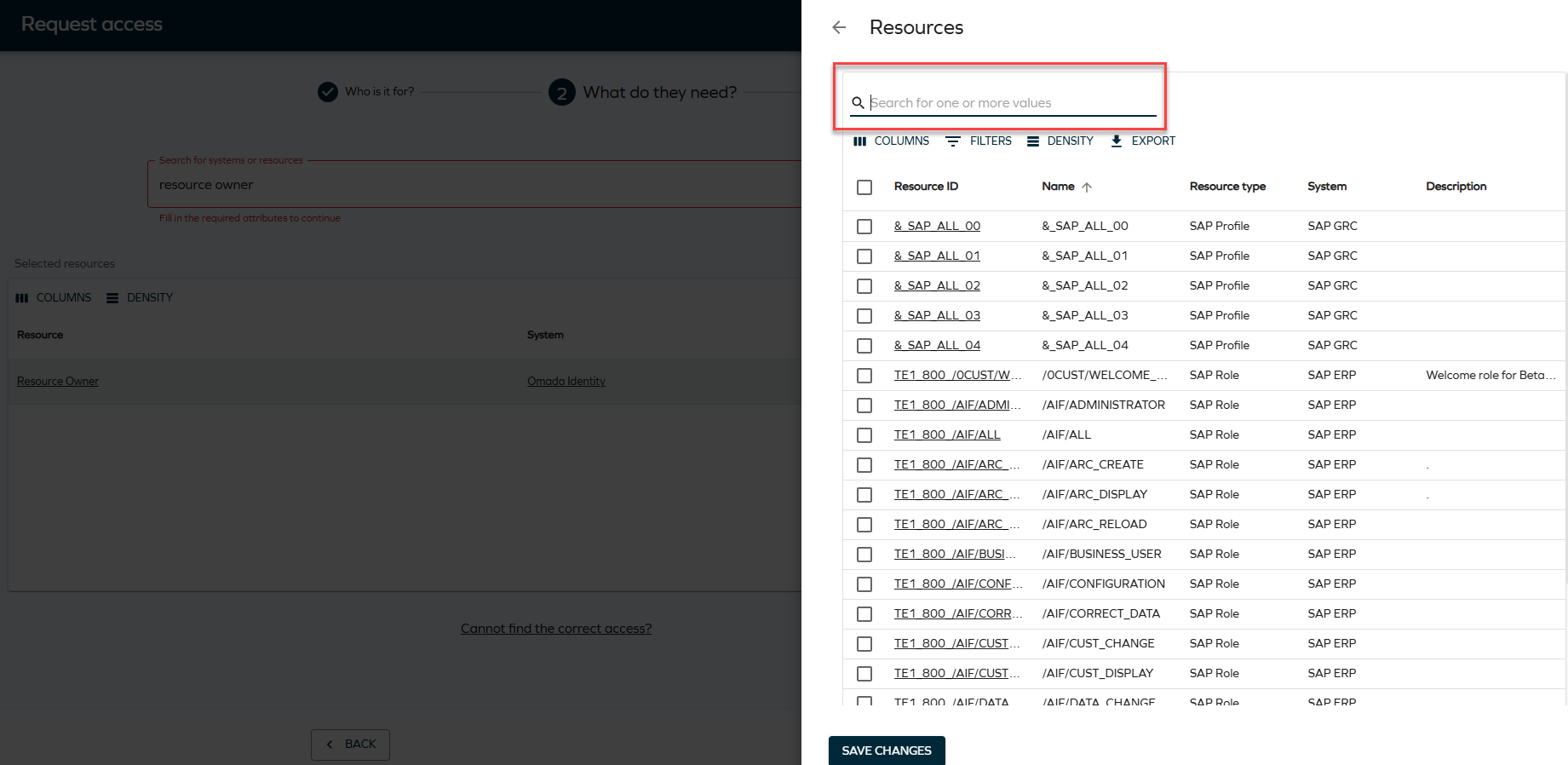
This filter is also available in all list views and side panes for forms, for example:
- Countries
- Tasks
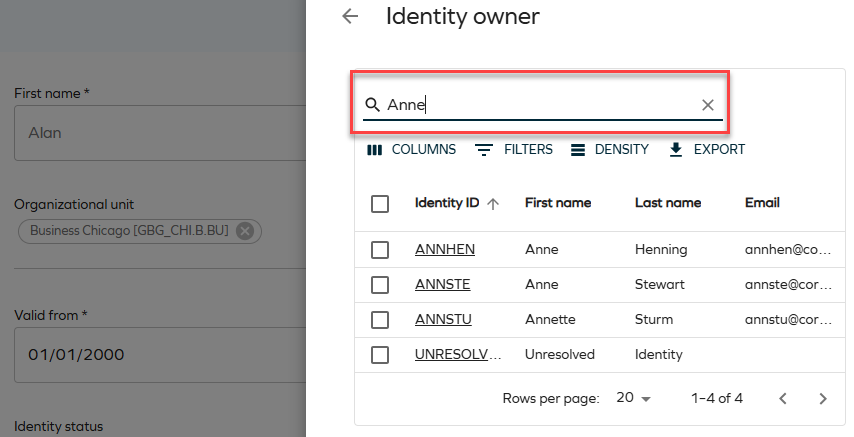
- Identity owners