Omada Identity portal
On this page you can find guidelines to navigate the Omada Identity user interface (UI) and understand its functionalities. Here, you can find an overview of the Omada Identity Portal, containing the following:
-
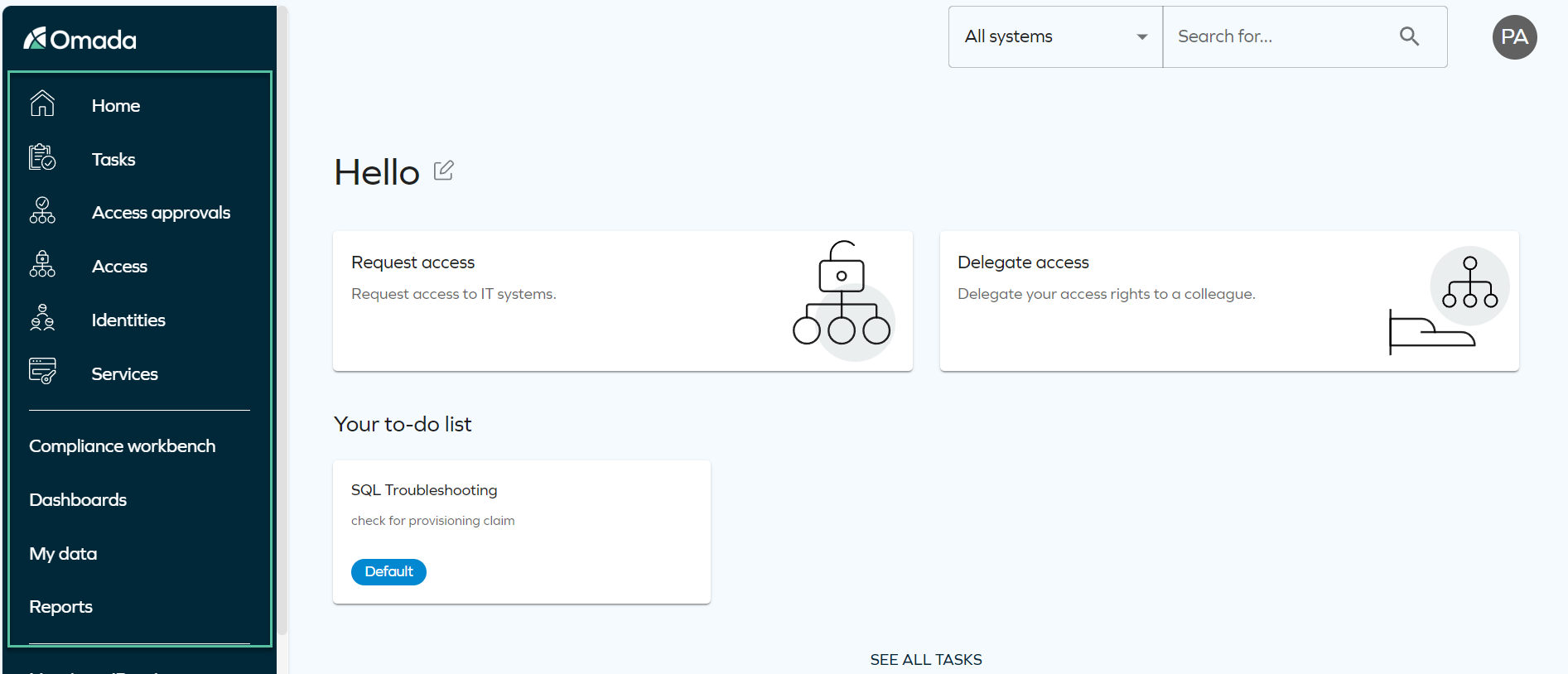
Omada Identity Portal homepage overview
-
some basic information about the most common settings, menus, and tools available in the Omada Identity portal.
-
documentation on views, forms, and properties in Omada Identity Portal
-
information on users and user groups
-
guidelines on data object search
Homepage
The Omada Identity Portal homepage serves as the central hub for users to access essential features and functionalities tailored to their identity and access management needs.
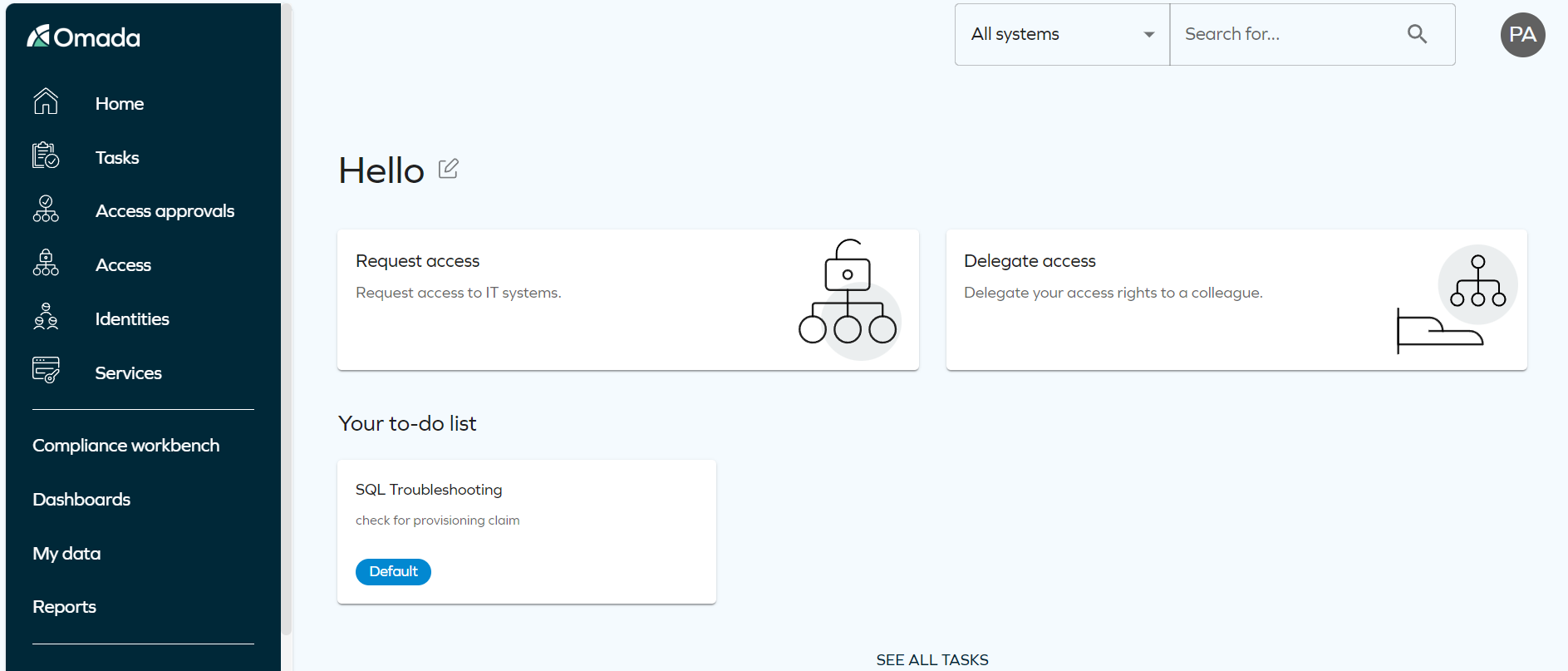
Here's an overview of what you can expect to find on the homepage:
-
Onboarding guide tooltips
-
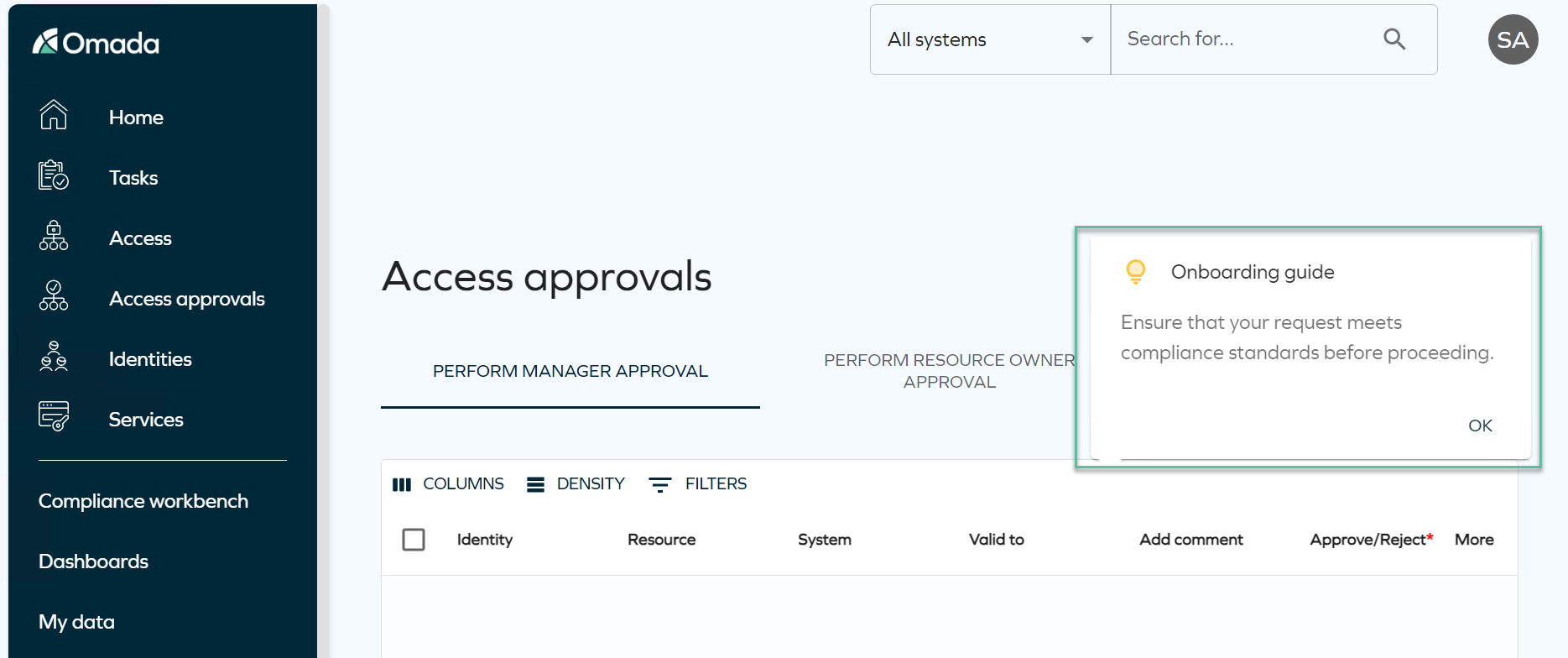
The first time you open a specific page, you will see an onboarding guide tooltip informing you about the page or a specific functionality on the page.
-
Some guides include arrows that point to specific areas or buttons on the page, directing your attention to key elements. In other instances, guides may provide information about entire pages without the use of arrows. This broader overview helps you grasp the functionality of the entire page at a glance.
-
To dismiss the tooltip, click the OK button. Once closed, the tooltip will not reappear, allowing you to explore the page without interruption.
noteAdministrators can disable this feature by adjusting the
EnableOnboardingGuidecustomer setting.
-
-
Default homepage configuration
-
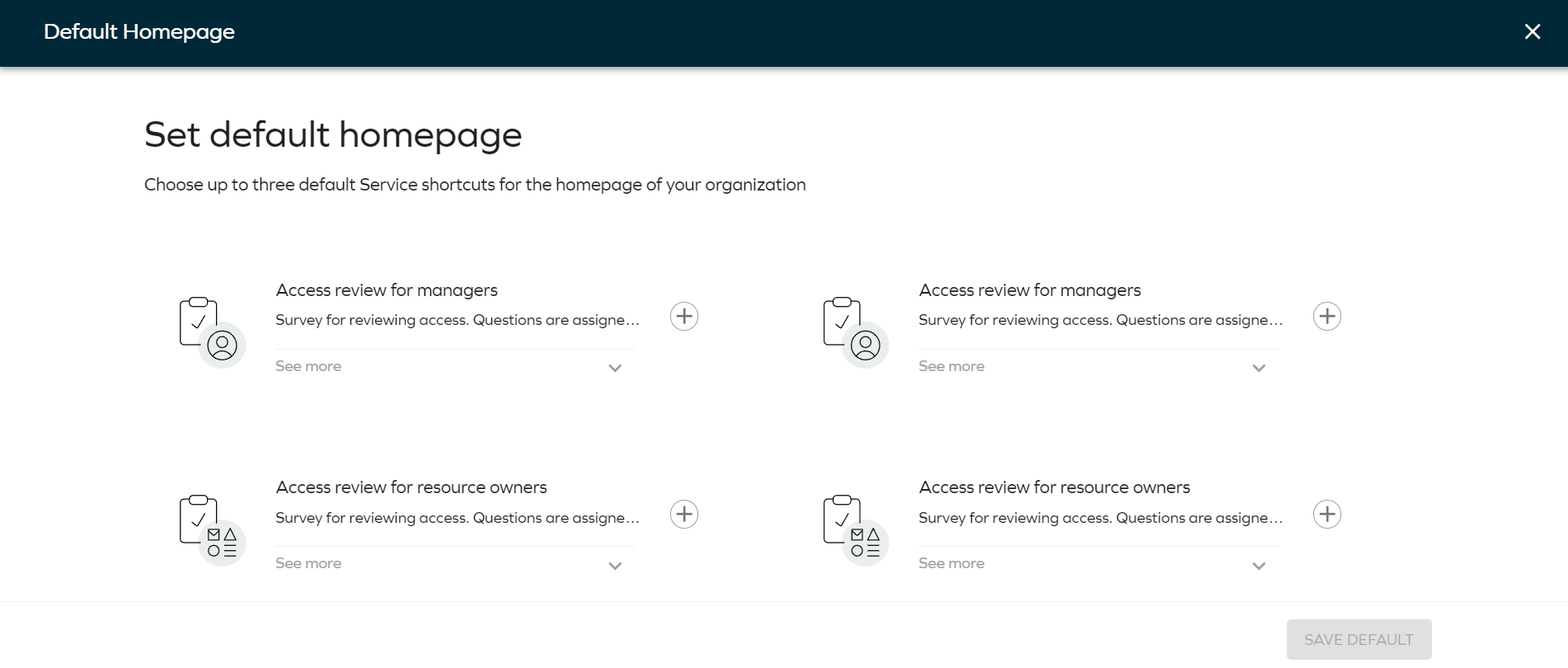
You can customize your homepage with up to three easy access widgets, each featuring the most frequently used service shortcuts. To make these adjustments, navigate to the User Interface's customer settings.
-
As an administrator, navigate to Setup > Administration > User interface > Homepage configuration to set up to 3 default service shortcuts for your organization. These defaults will apply to users who haven't customized their homepage.
-
As an end user, you can change your shortcuts by editing the home page.
-
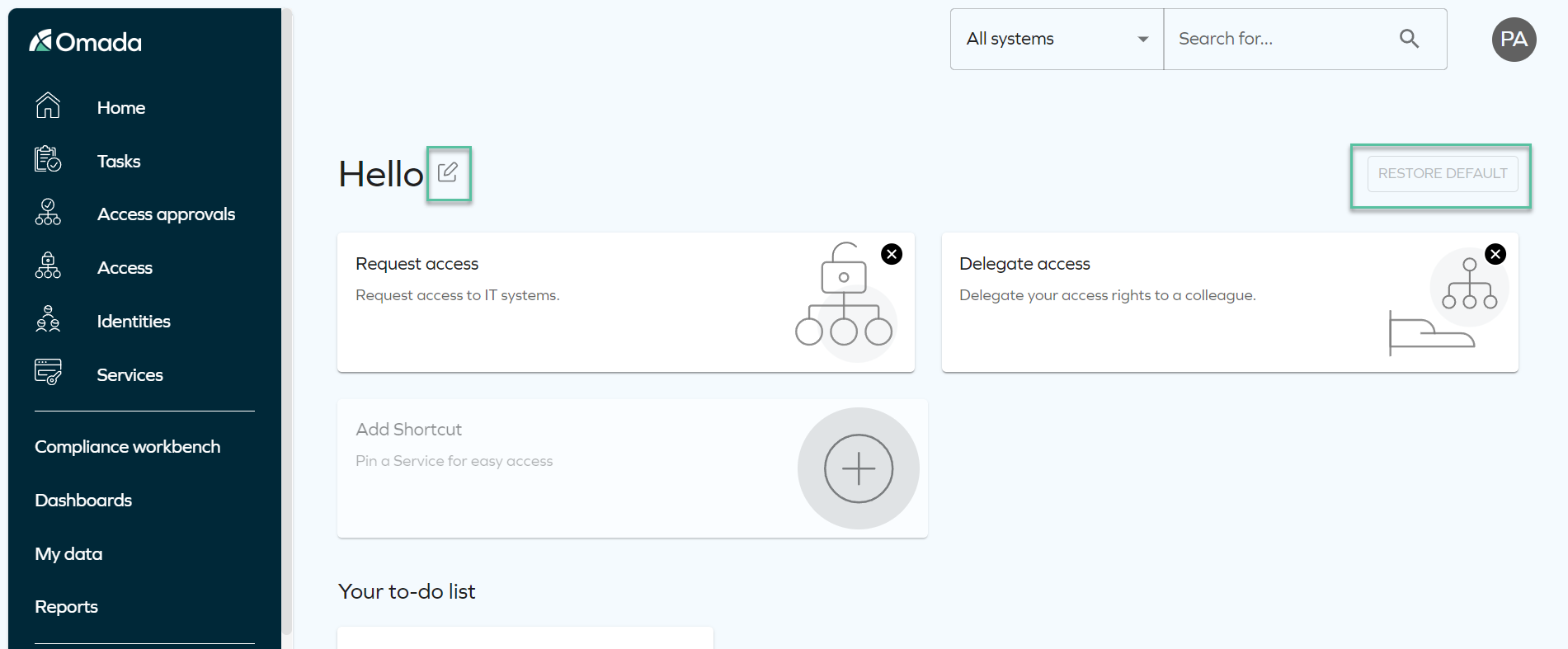
You can edit the layout of the service shortcuts by clicking Edit icon next to the welcome message. You can add, remove and change the order of the shortcuts. You can restore the layout to default by clicking the Restore Default button in the edit mode. It erases your custom settings and shortcuts to the default, set by the administrator.
-
-
-
-
Navigation menu
-
The homepage prominently features service shortcuts, allowing you to navigate to key areas of the portal with ease. For more information, refer to the Menu structure section of Menus and settings.
-