Configuration
Here, you can learn about an alternative SoD process setup and acknowledge the configurable customer settings and customizations that may be implemented by the organization.
If you are not using SoD checks in RoPE, disable the SOD Policy & Risk Check object in Enterprise Server (ES). If left enabled while unused, it triggers calls to ES during every RoPE calculation and may cause unnecessary latency and external requests.
Configuration of the object
The process may be adapted via the SoD process configuration configuration object, validated against the SoDConfigurationML schema.
You can configure the Evaluate Identity Violations process in different ways, including changing the assignees for each activity, copy and another step, configuring which columns are shown in the grid, and whether to evaluate on individual assignments or assigned role level. You can do it by editing the SoD process configuration.
Configure the assignees
It is possible to configure the assignees for each activity in the process template. An activity can be assigned to users starting from the Identity object. The default assignee is the Effective manager for the Evaluate activity and the group Security Officers for the Approve violations activity.
You can use an assignee expression that is a reference path, virtual reference property, or a user group. The reference path and a virtual reference property must begin with the Identity object.
The startObjectType can only be Identity and Constraint and it has been defined in sod xsd:
<xs:simpleType name="startObjectType">
    <xs:restriction base="xs:string">
      <xs:enumeration value="Identity" />
      <xs:enumeration value="Constraint" />
    </xs:restriction>
  </xs:simpleType>
Examples:
-
Virtual reference property:
/$EffectiveManager -
ReferencePath:
/OURREF/C_SODEVALUATOR -
Group:
Group: Security Officers
Add constraint owners as evaluators or approvers
It is possible to assign the steps of the Evaluate identity violations process to Constraint owners as either evaluators or approvers. It is possible to add one or multiple users or user groups as Constraint owners. To modify the process so that one or both steps of the process are sent to a Constraint owner, you need to modify the following in the SoD process configuration:
StartObject="Constraint"
expression="/CONSTRAINTOWNER"
In a situation where no owner is assigned to a constraint, the process will work as it did before in a situation where the assignee expression could not be resolved:
-
If the assignee of the 1st activity is set to Constraint owner, the first task/activity (Evaluate identity violations) for this specific constraint will be instead assigned to the manager of the identity whose violations are evaluated (or to a system administrator if the identity has no manager).
-
If the assignee of the 2nd activity is set to a Constraint owner, the second task/activity (Review evaluation of violations) will be instead assigned to the system administrator.
Add another step to a process
-
Go to the Process templates view and create a copy of the Evaluate Identity Violation process.
-
Open the newly created copy and right-click on the screen (while pressing the Ctrl key) and select the Form data uid.
-
Click on Designer and repeat the step 2, with all actions and steps of the process, to find and save the Form data uid of each.
-
Now, go to Setup > Administration > Configuration objects and open the SoD process configuration object.
-
Save the original XML in a file apart, for backup purposes.
-
Now, paste the Form data uids saved in the XML in all required places (activities and actions):
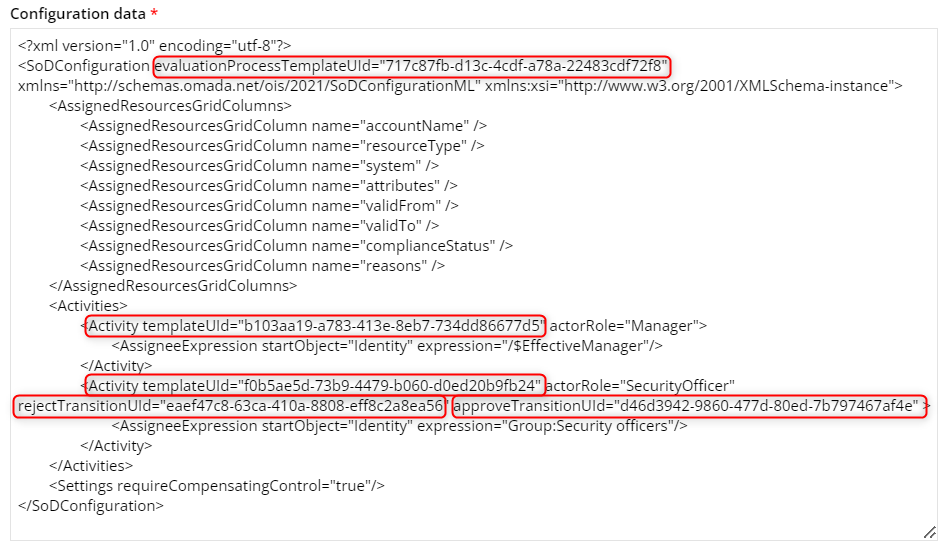
-
Now, go back to Process templates, open the copy created and click Designer.
-
Add a new Activity and insert it between the existing activities, with transitions.
-
Open the activity and collect its Form data uid.
-
Go back to Configuration objects view and, in the XML of the SoD process configuration object, insert the new activity in between existing activities, with its own Form data uid. Make sure you change the AssigneeExpression to a new group.
-
Click OK to save.
Audit Trail Report actor role
Each decision in each activity is saved in Audit Trail Reports. The value used in the audit trail report indicating the actor of a decision in the audit trail report is set by the actor role setting, for example, the actorRole="SecurityOfficer".
By default, a Manager role is set for the first activity and a Security officer role is set for the second.
If both activities are executed by the same user and the actorRole is the same for both activities, only one decision is recorded in the report. In case there are two different users assigned for the activities, only one user can make a decision of one task.
Configure the grid
The configuration contains all columns possible to show in the assigned resources grid in the evaluation process. The columns are displayed in the same order in which they are listed in the configuration file. The resource will always be present in the grid.
To remove a column, you should comment the line out instead of removing it.
Configure notification recipients
You can configure which recipients receive a mail notification about SoD assignments, and which mail template each recipient receives, by adding a MailRecipient inside the MailRecipients section of the SoD process configuration:
<MailRecipients>
  <MailRecipient templateUId="MAIL-TEMPLATE-GUID">
    <AssigneeExpression
        startObject="Identity"
        expression="/$EffectiveManager" />
  </MailRecipient>
</MailRecipients>
Replace MAIL-TEMPLATE-GUID with the ID of the mail template to send.
Multiple MailRecipient entries are allowed. For example, this adds one template for the beneficiary and another for the manager:
<MailRecipients>
  <!-- Beneficiary notification -->
  <MailRecipient templateUId="BENEFICIARY-MAIL-TEMPLATE-GUID">
    <AssigneeExpression
        startObject="Identity"
        expression="" />
  </MailRecipient>

  <!-- Manager notification -->
  <MailRecipient templateUId="MANAGER-MAIL-TEMPLATE-GUID">
    <AssigneeExpression
        startObject="Identity"
        expression="/$EffectiveManager" />
  </MailRecipient>
</MailRecipients>
An empty expression includes the beneficiary. A reference such as /$EffectiveManager resolves the manager. The recipient expression can also use:
<AssigneeExpression
    startObject="Identity"
    expression="Group:Security officers" />
or:
<AssigneeExpression
    startObject="Identity"
    expression="User:jsmith" />
Use exclude to remove users from the resolved recipients:
<AssigneeExpression
    startObject="Identity"
    expression="/$EffectiveManager"
    exclude="Group:SoD Administrators" />
Each MailRecipient is handled independently. The mail template identified by templateUId is sent only to the users resolved by that entry's AssigneeExpression. In the beneficiary-and-manager example, the beneficiary receives only the beneficiary template, and the manager receives only the manager template.
For the placeholders you can use inside the mail template to include assignment details, see Notification mail templates.
Skip compensating control
This setting allows the organization to choose whether to require a compensating control when allowing a violation for an identity. The setting is set to true by default.
<?xml version="1.0" encoding="utf-8"?>
  <SoDConfiguration evaluationProcessTemplateUId="717c87fb-d13c-4cdf-a78a-22483cdf72f8" xmlns="http://schemas.omada.net/ois/2021/SoDConfigurationML" xmlns:xsi="http://www.w3.org/2001/XMLSchema-instance">
    <AssignedResourcesGridColumns>
      <AssignedResourcesGridColumn name="accountName" />
      <AssignedResourcesGridColumn name="resourceType" />
      <AssignedResourcesGridColumn name="system" />
      <AssignedResourcesGridColumn name="attributes" />
      <AssignedResourcesGridColumn name="validFrom" />
      <AssignedResourcesGridColumn name="validTo" />
      <AssignedResourcesGridColumn name="complianceStatus" />
      <AssignedResourcesGridColumn name="reasons" />
    </AssignedResourcesGridColumns>
  <Activities>
    <Activity templateUId="b103aa19-a783-413e-8eb7-734dd86677d5" actorRole="Manager">
      <AssigneeExpression startObject="Identity" expression="/$EffectiveManager"/>
    </Activity>
    <Activity templateUId="f0b5ae5d-73b9-4479-b060-d0ed20b9fb24" actorRole="SecurityOfficer" rejectTransitionUId="eaef47c8-63ca-410a-8808-eff8c2a8ea56" approveTransitionUId="d46d3942-9860-477d-80ed-7b797467af4e" >
      <AssigneeExpression startObject="Identity" expression="Group:Security officers"/>
    </Activity>
  </Activities>
  <Settings requireCompensatingControl="true"/>
  </SoDConfiguration>
Email notifications in the SoD process
This section gives an overview of the end-to-end SoD evaluation flow and describes the point in that flow where you can configure email notifications.
SoD process flow
- Violation detection - When the Role and Policy Engine (RoPE) calculates an identity and detects that an assignment violates a constraint, RoPE automatically launches the Evaluate identity violations process for that identity.
- Evaluate identity violations - The first activity is assigned to the identity's manager by default, or to another assignee if you have configured the assignees differently. The evaluator allows, blocks, or resolves each violation, providing a compensating control and justification for any assignment that is allowed, then submits the decision for approval.
- Review evaluation of violations - The second activity is assigned to the Security officers group by default, or to another assignee if configured. The reviewer approves or rejects the evaluator's decisions.
- If rejected, the process returns to the evaluator, who must revise the decision.
- If approved, the process completes. Blocked assignments remain blocked unless Revoke blocked resource assignments was selected, in which case they are permanently removed.
- Re-evaluation - The process is relaunched, starting again from the Evaluate identity violations activity, when the evaluation's expiration date is reached, or when a violation is reset.
For a detailed description of each step, see Evaluating identity violations.
When a notification email is sent
Once the evaluator submits their decision at the end of the Evaluate identity violations activity (step 2 above), Omada Identity can send one or more configurable email notifications about the assignments that were evaluated.
- Trigger: the evaluator submits the decision for approval at the end of the Evaluate identity violations activity.
- Recipients: any user, user group, or the beneficiary, resolved from the
AssigneeExpressionof eachMailRecipiententry you configure. By default, the reviewer (the assignee of the Review evaluation of violations activity - the Security officers group, unless reassigned) receives an email. - What is sent: the mail template identified by that entry's
templateUId, populated with the blocked, allowed, and revoked assignments the notification is about.
To enable or customize this notification:
- Create or edit a mail template, and add the SoD assignment placeholders you want to include inside a matching assignment section, for example
[BLOCKED_ASSIGNMENTS_START],[BLOCKED_ASSIGNMENTS_END]. - Add a
MailRecipiententry underMailRecipientsin the SoD process configuration, with that template'stemplateUIdand anAssigneeExpressionfor who should receive it. See Configure notification recipients for the full syntax, including how to target the beneficiary, a specific group or user, or exclude specific users. - Repeat step 2 for each additional audience or template you need, for example, one template for the beneficiary and a different one for their manager.
Each MailRecipient entry is independent: its mail template is sent only to the recipients resolved by its own AssigneeExpression.
Customer settings
The following customer settings are available for the configuration of SoD features:
| Common name | System name | Description |
|---|---|---|
SoDEvaluationExpiryDays | SoDEvalExpDays | The default validity period for a violation evaluation |
SoDReEvaluationClear Reason | SoDReEvaluationClear Reason | SoD re-evaluation processes clear the reason text. This can be prevented with this setting. |
SoDReEvaluationClear CompControl | SoDReEvaluationClear CompControl | SoD re-evaluation processes clear the compensating control. This can be prevented with this setting. |
EnableRAExpireAction | EnableRAExpireAction | It is set to True by default and it makes the Expire button visible in an Evaluate violation task. |
Customizations on-prem
Organizations can customize some parts of the SoD process if this is relevant.
Extension points in OIM_SoDReview.js
You can extend the Violation evaluation form with these available extension points in the OIM_SoDReview.js class. For more information, refer to the:
- API documentation.
- Role and Policy Engine documentation for information about the RoPE extension model that includes extensions related to SoD.
| Setting | Description |
|---|---|
| omada.sodReview.GetColModel() | Modify the colModel for the grid. |
| omada.sodReview.AddResourceAssignment ToGrid() | Allows you to not show a row in the grid. |
| omada.sodReview.GetAdditionalInfo() | Add or modify the row data, for example adding data to an additional column. |
| omada.sodReview.ValidateCommit() | Custom validation of the input. |
| omada.sodReview.AddAdditionalCommit Info() | Add additional information to the Commit info popup screen. |
| omada.sodReview.ProcessUserDecisions() | Post processing of the user’s decisions. |
| omada.sodReview.AddReasonInfo() | Add additional information to the dialog box where you must specify a reason. |