Configure PingFederate with SAML on-prem

This page contains third-party references. We strive for our content to always be up-to-date, however, the content referring to external vendors may change independently of Omada. If you spot any inconsistency, please report it to our Helpdesk.
To configure PingFederate with Security Assertion Markup Language (SAML):
-
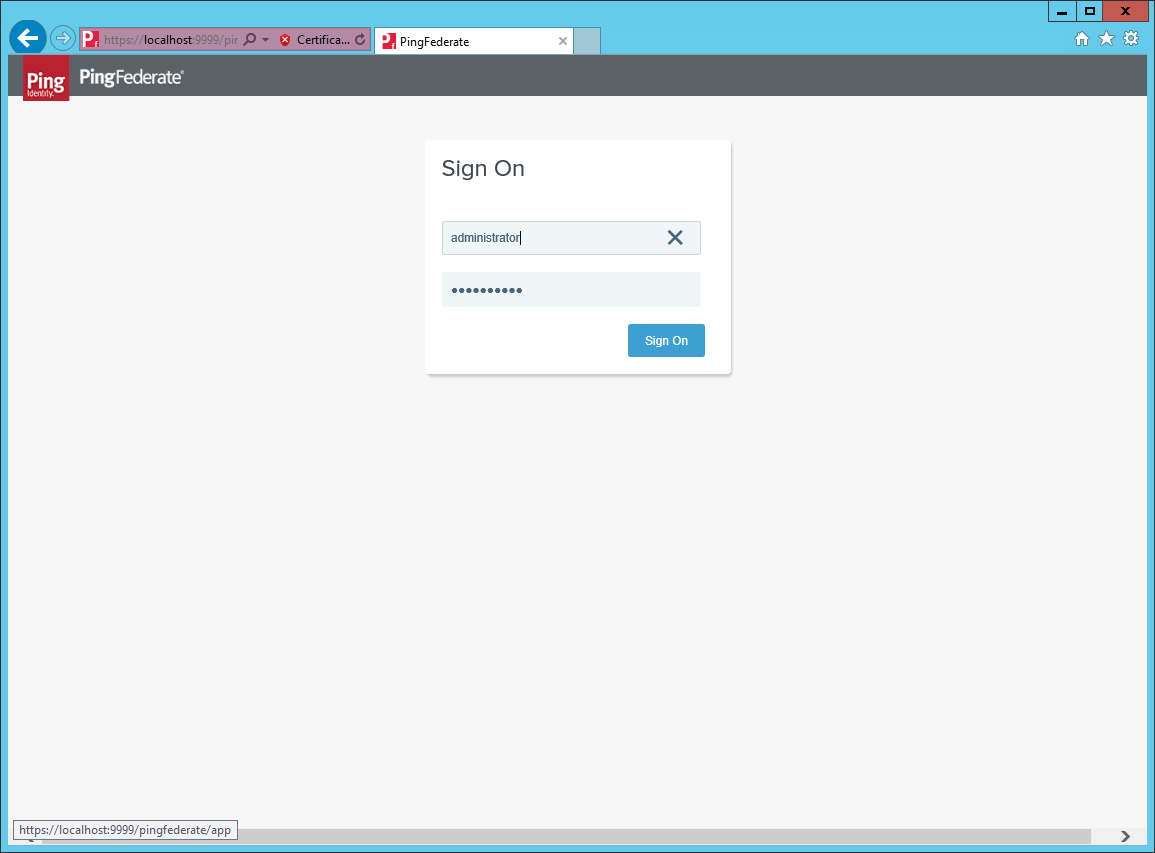
Sign in to the PingFederate administrator portal.
-
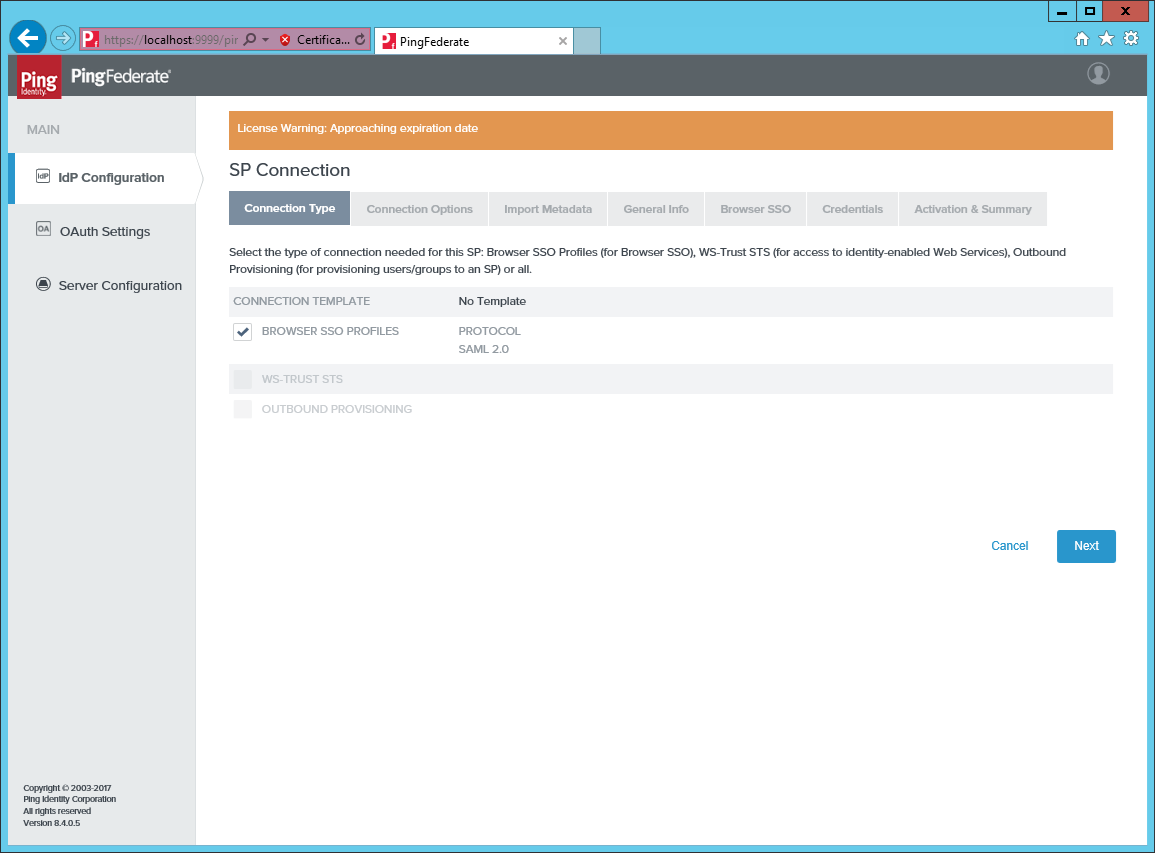
From the Identity Provider (IdP) section, create a new SP Connection.
-
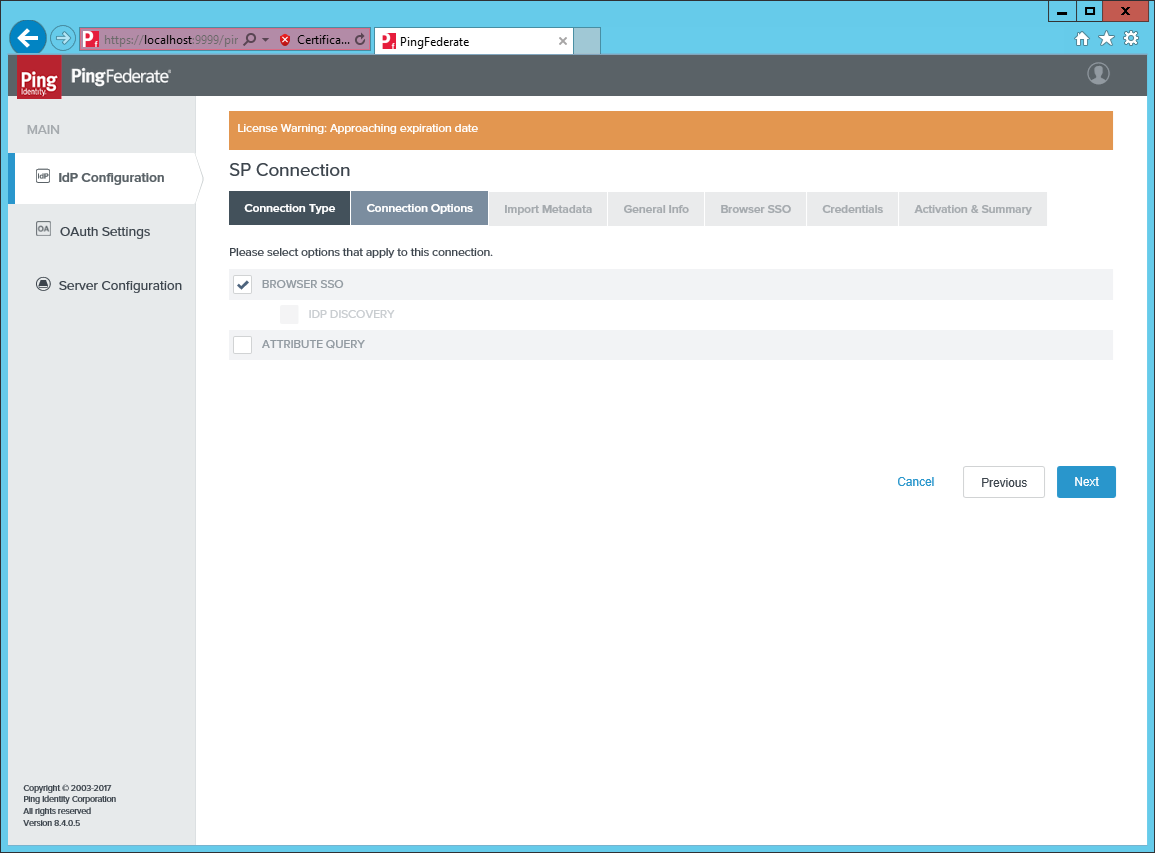
Under Connection Type and Connection Options, select BROWSER SSO.
-
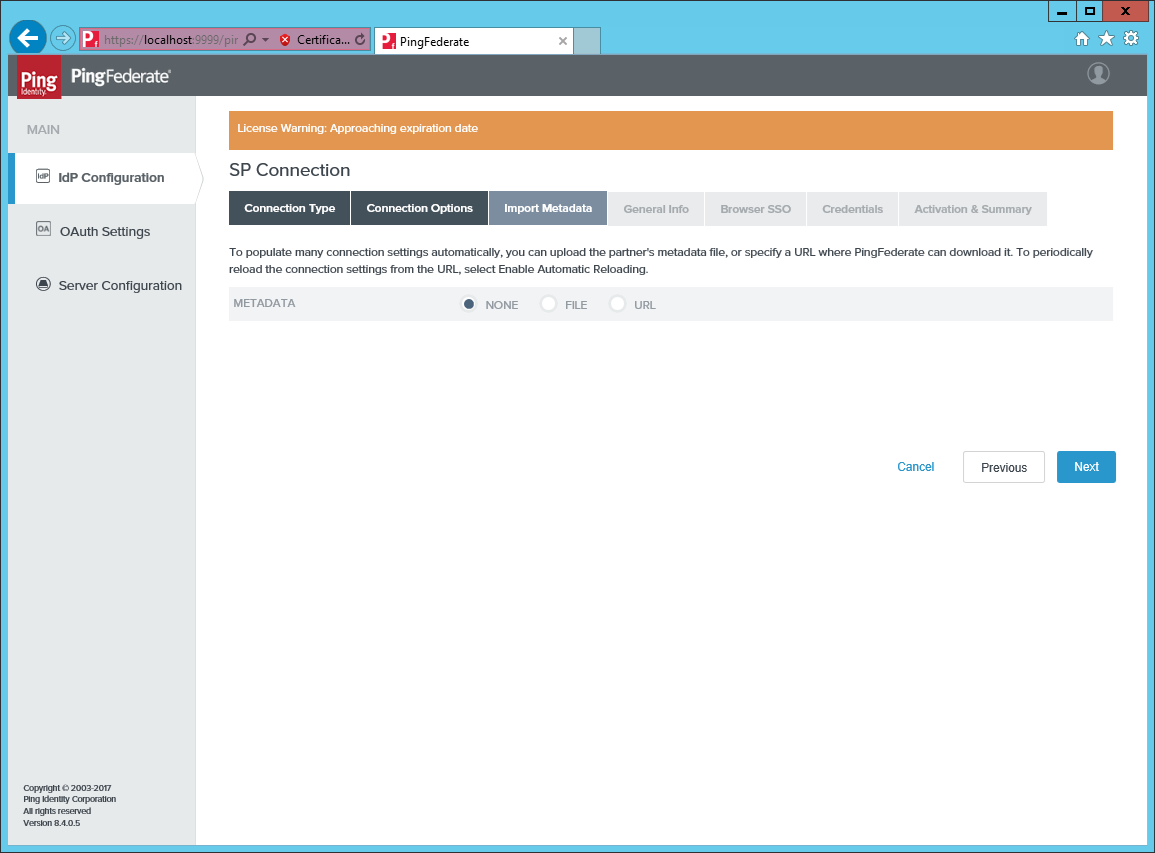
Under Import Metadata, select URL.
-
Add an identifier and a new for the connection. Provide the full external URL to the
logon.aspx pagein the Omada Identity Portal.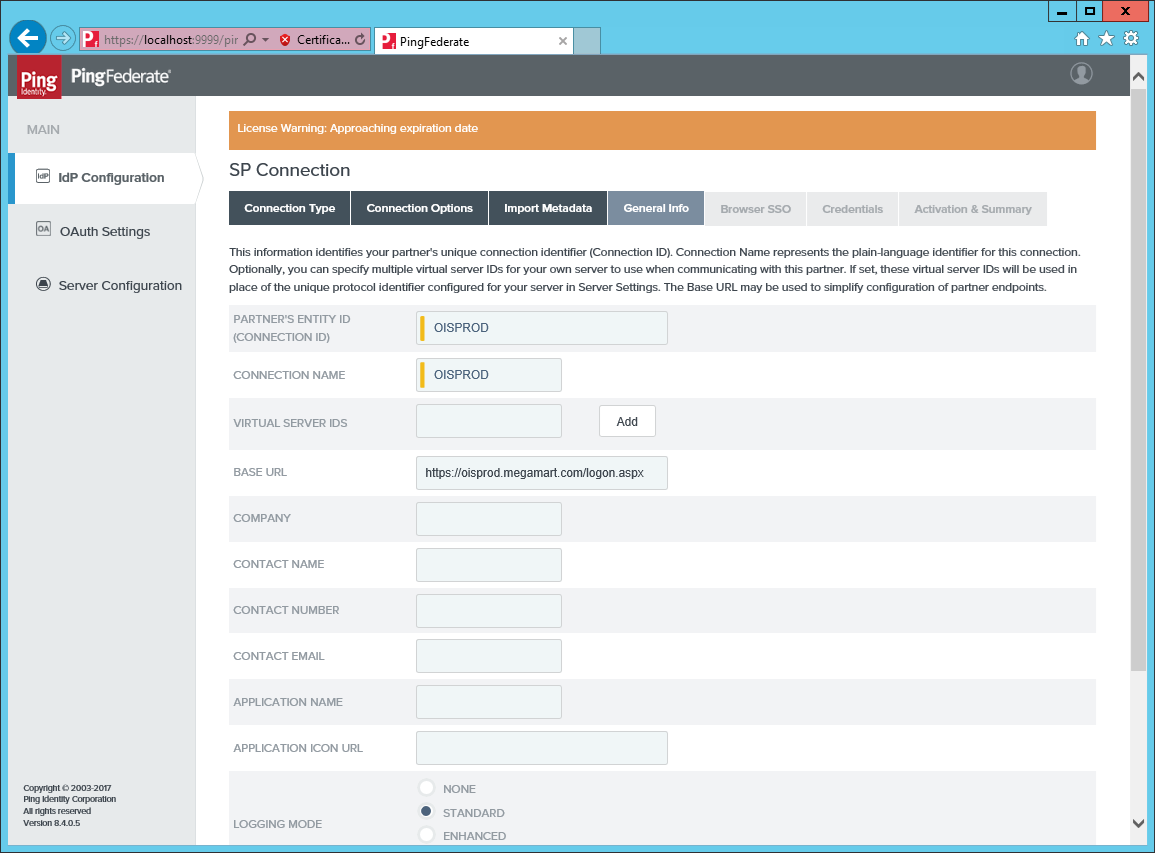
-
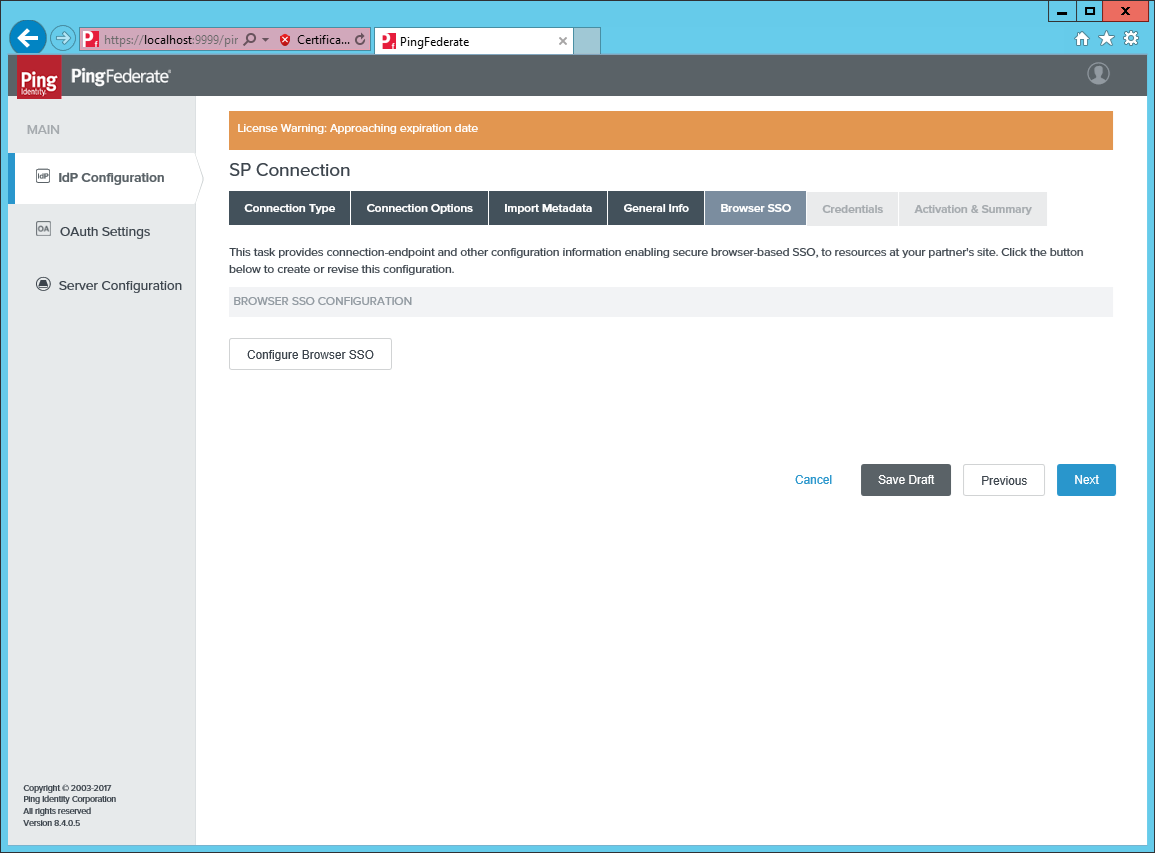
Open Browser SSO and click Configure Browser SSO.
-
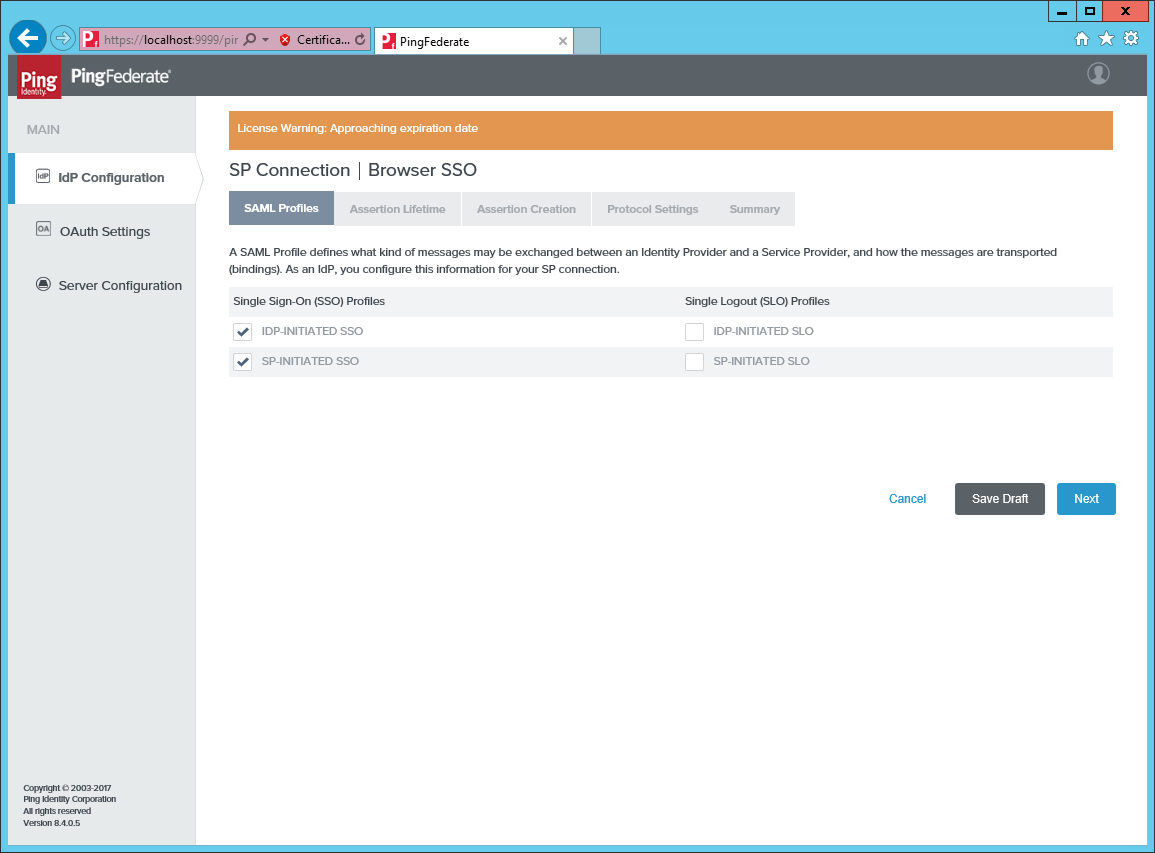
Select the checkboxes for IDP-INITIATED SSO and SO-INITIATED SSO.
-
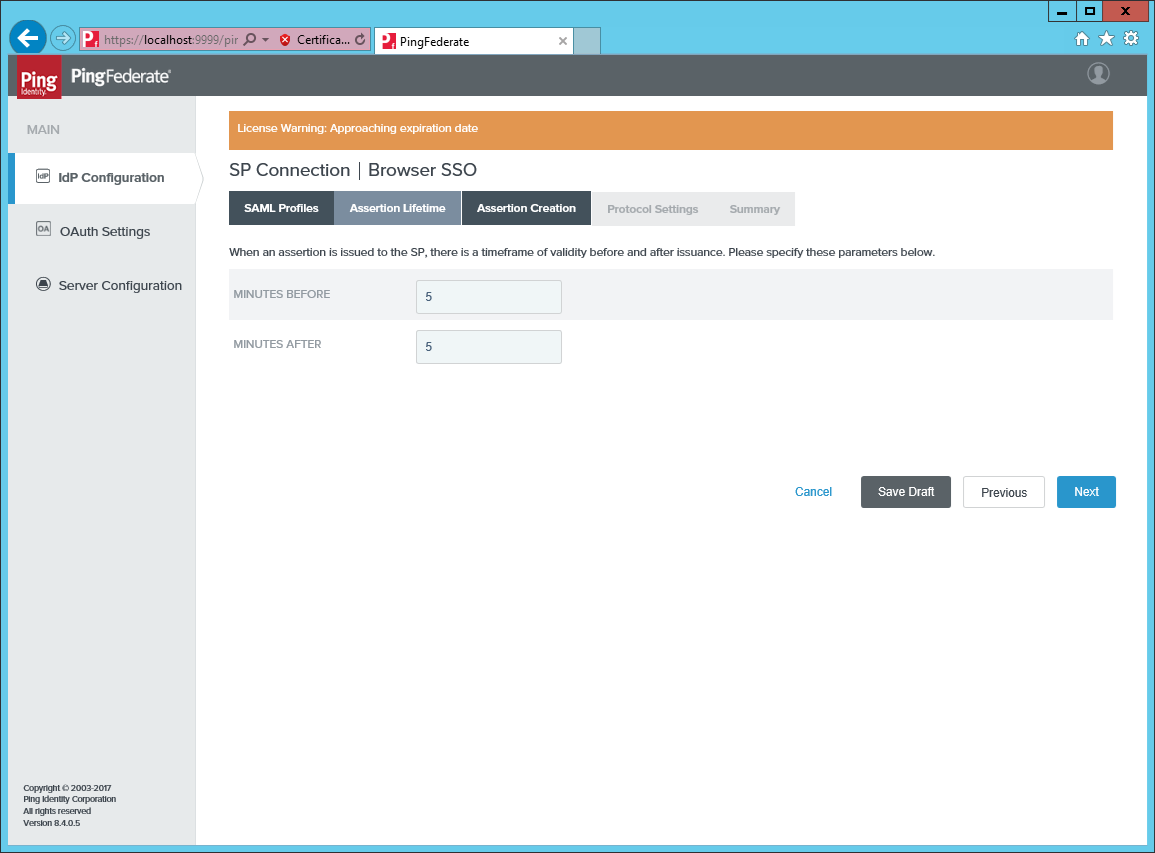
Select the default value for Minutes Before and Minutes After in Assertion Lifetime.
-
Click Configure Assertion Creation under Assertion Creation.
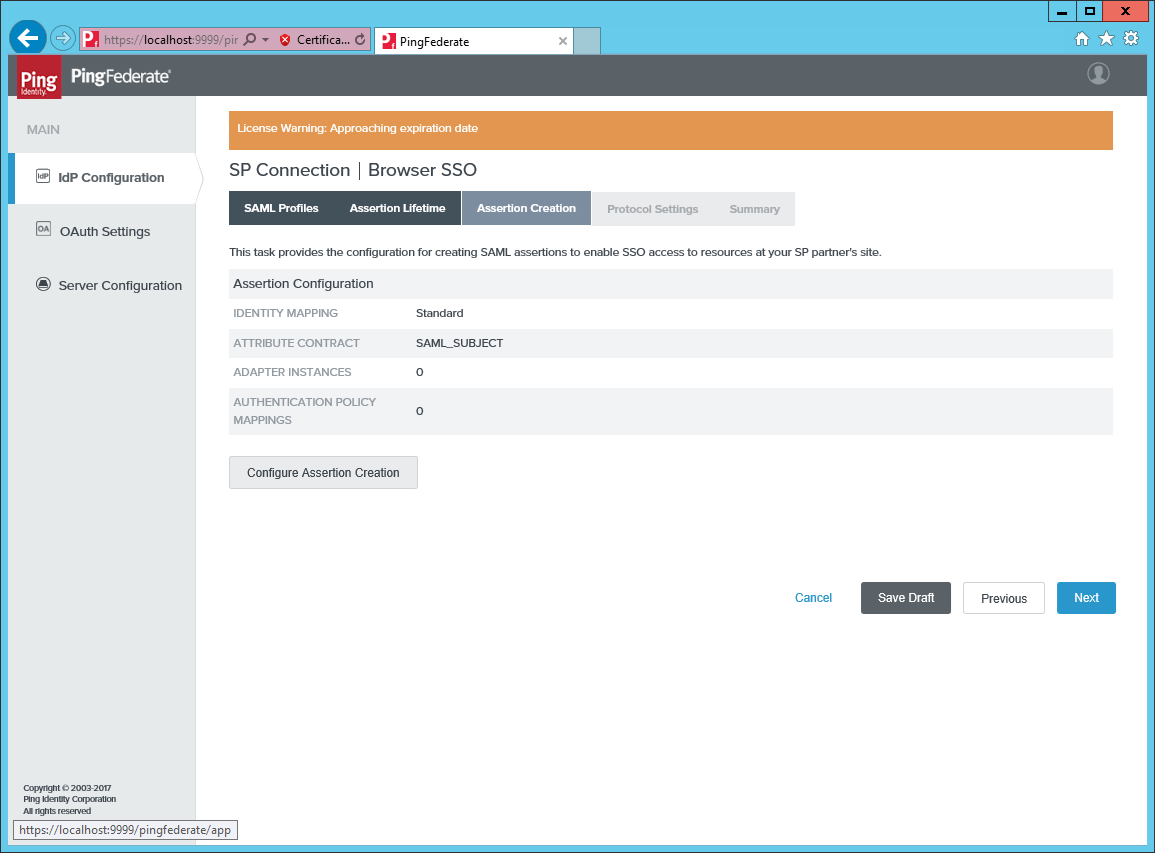
-
Select the STANDARD identity mapping.
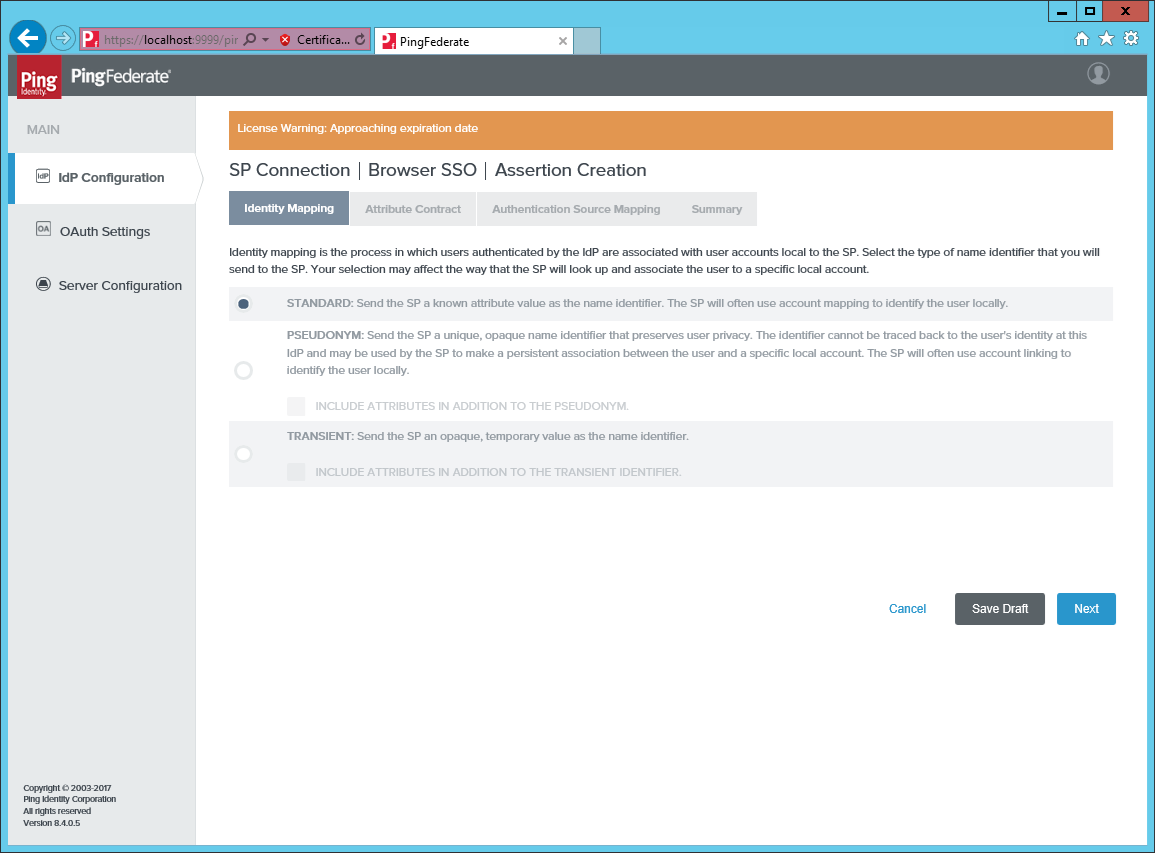
-
Select the default mapping to
urn:oasis:names:tc:SAML:1.1:nameid-format:unspecified.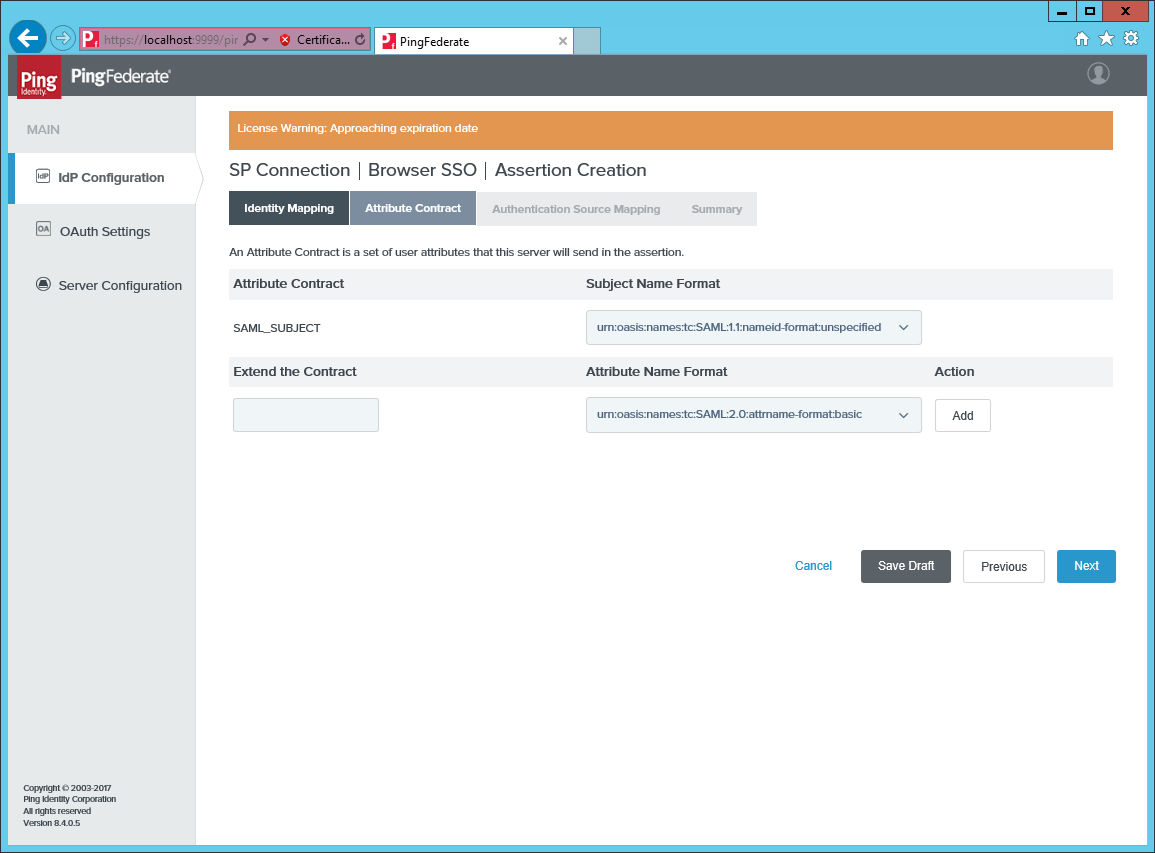
-
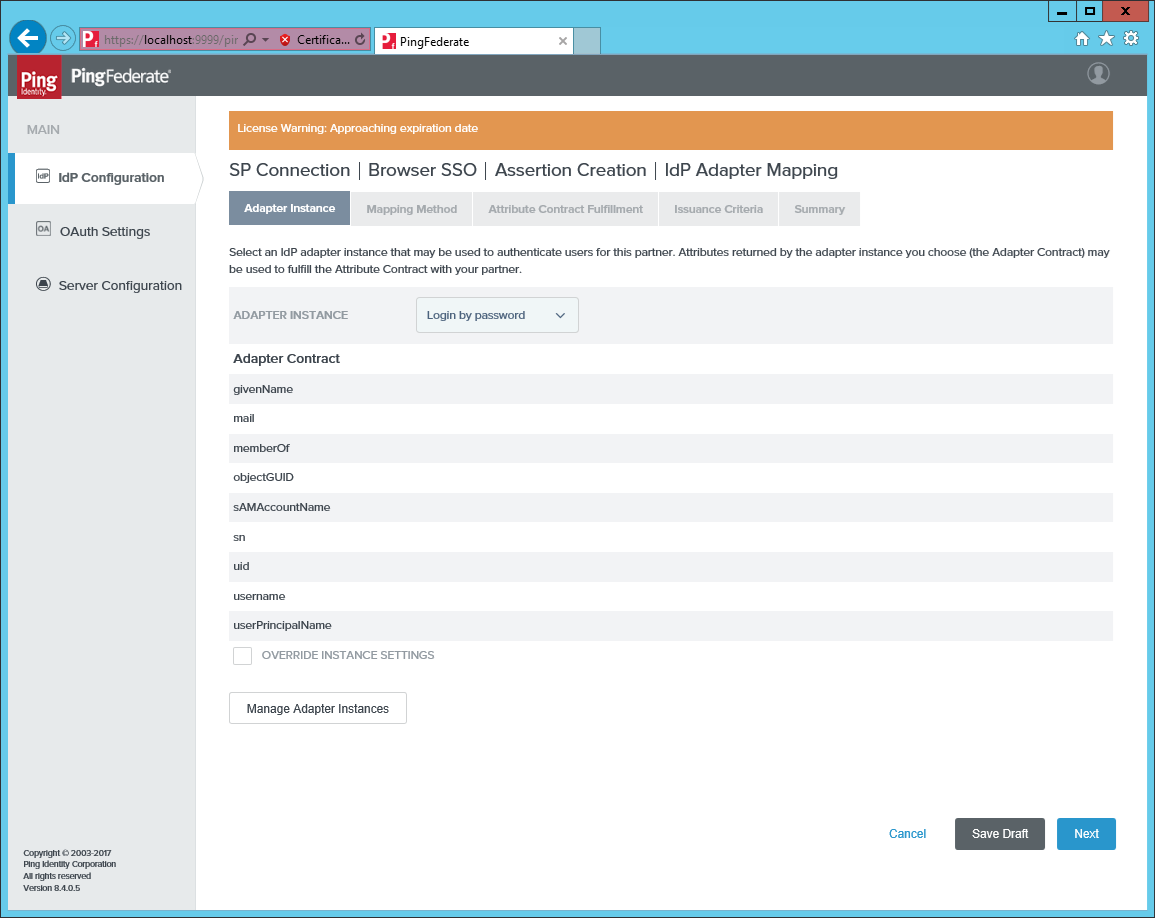
Create a new mapping to an authentication source, for example, you could map to Login by Password.
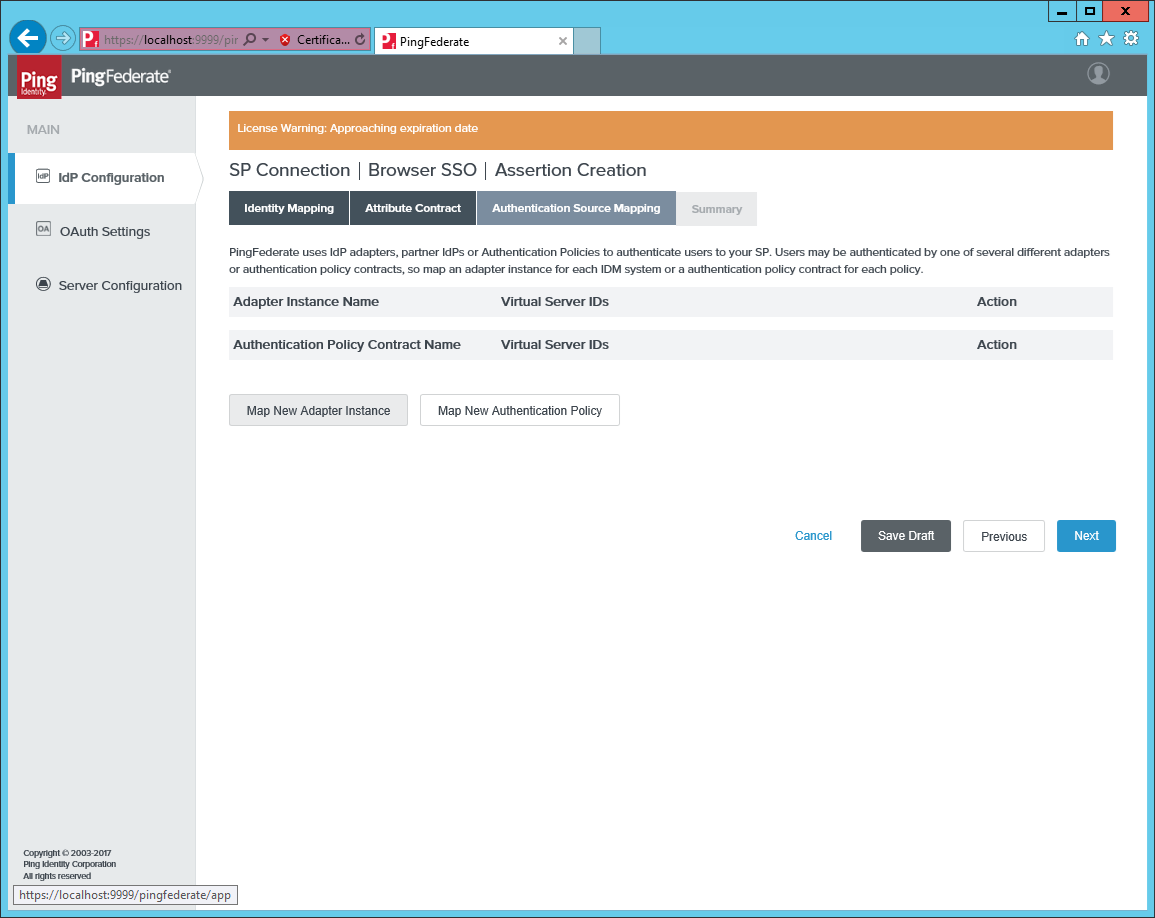
-
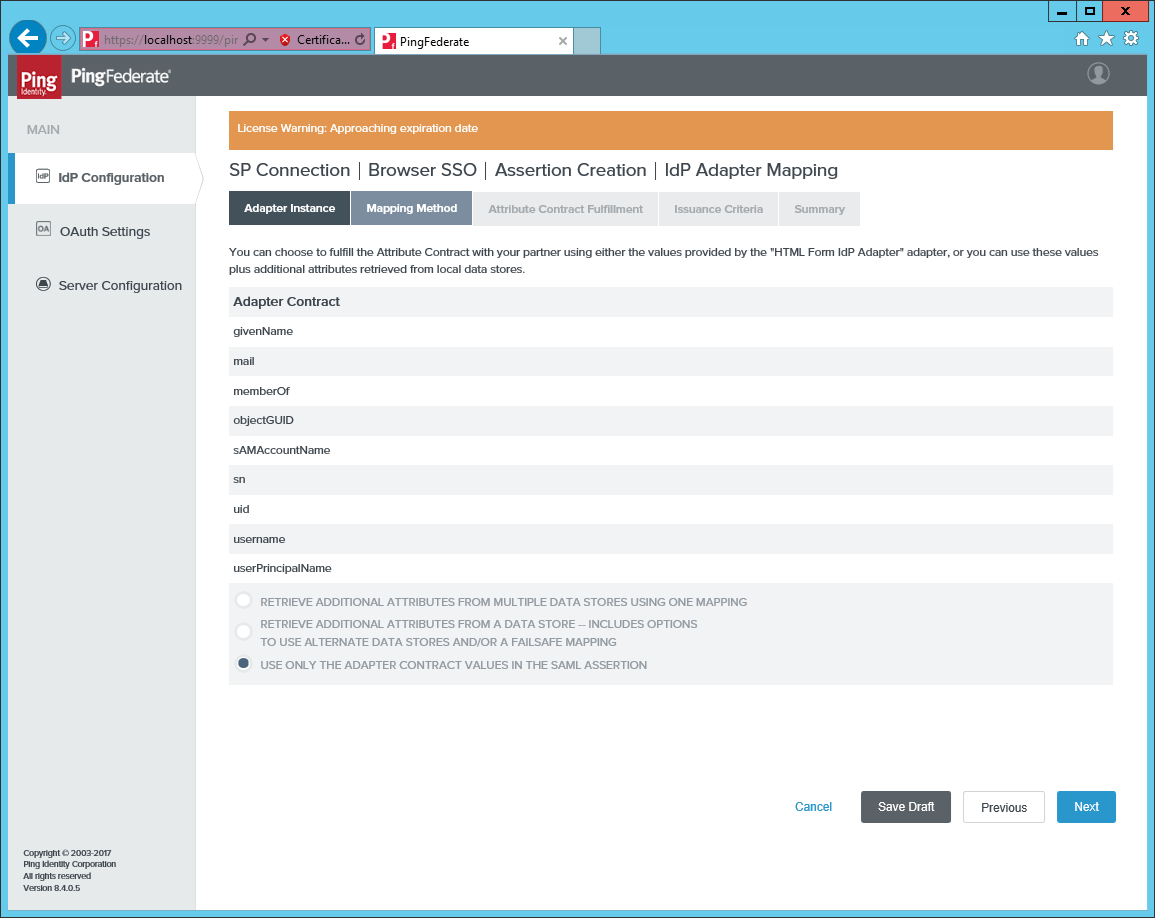
Select Use only the adapter contract values in the SAML Assertion.
-
Map
SAML_SUBJECTto, for example,samAccountNameor to another attribute that maps to the Omada Identity UserName.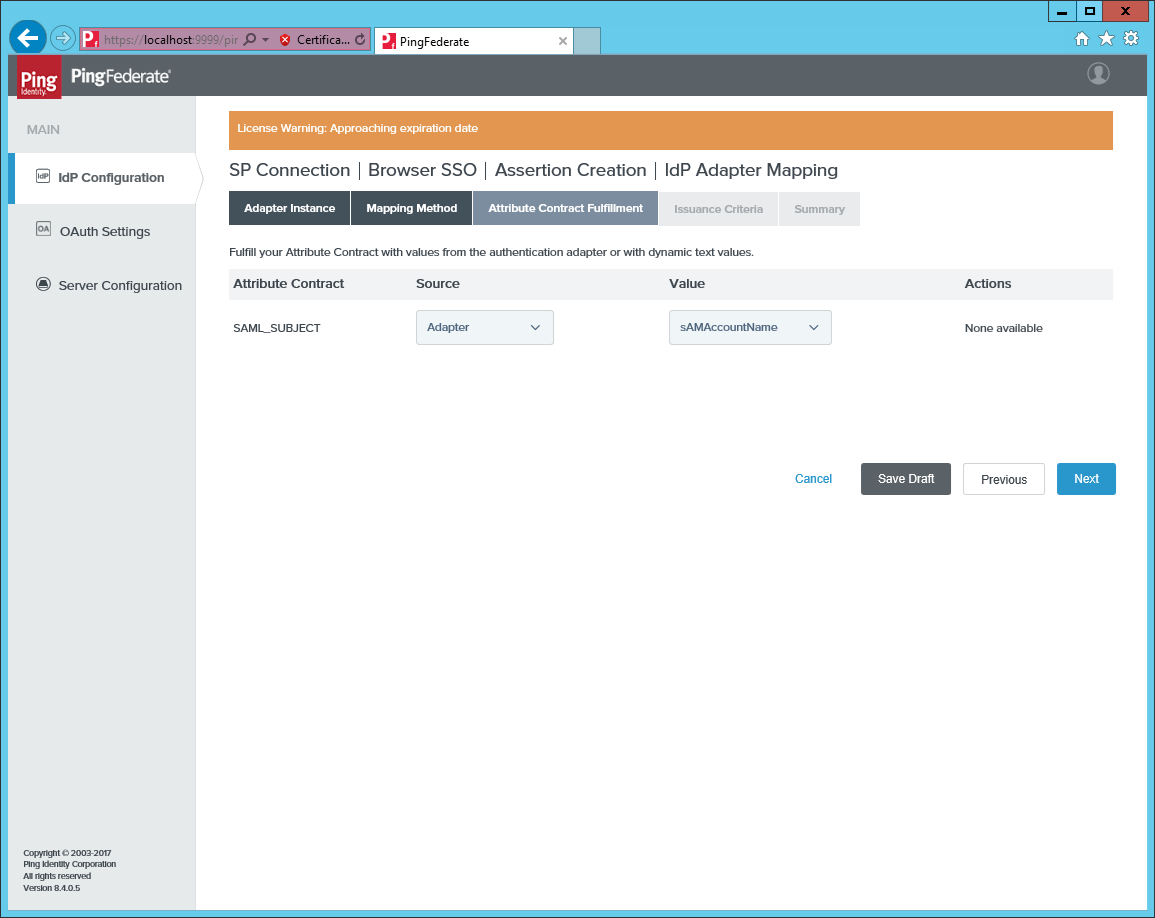
-
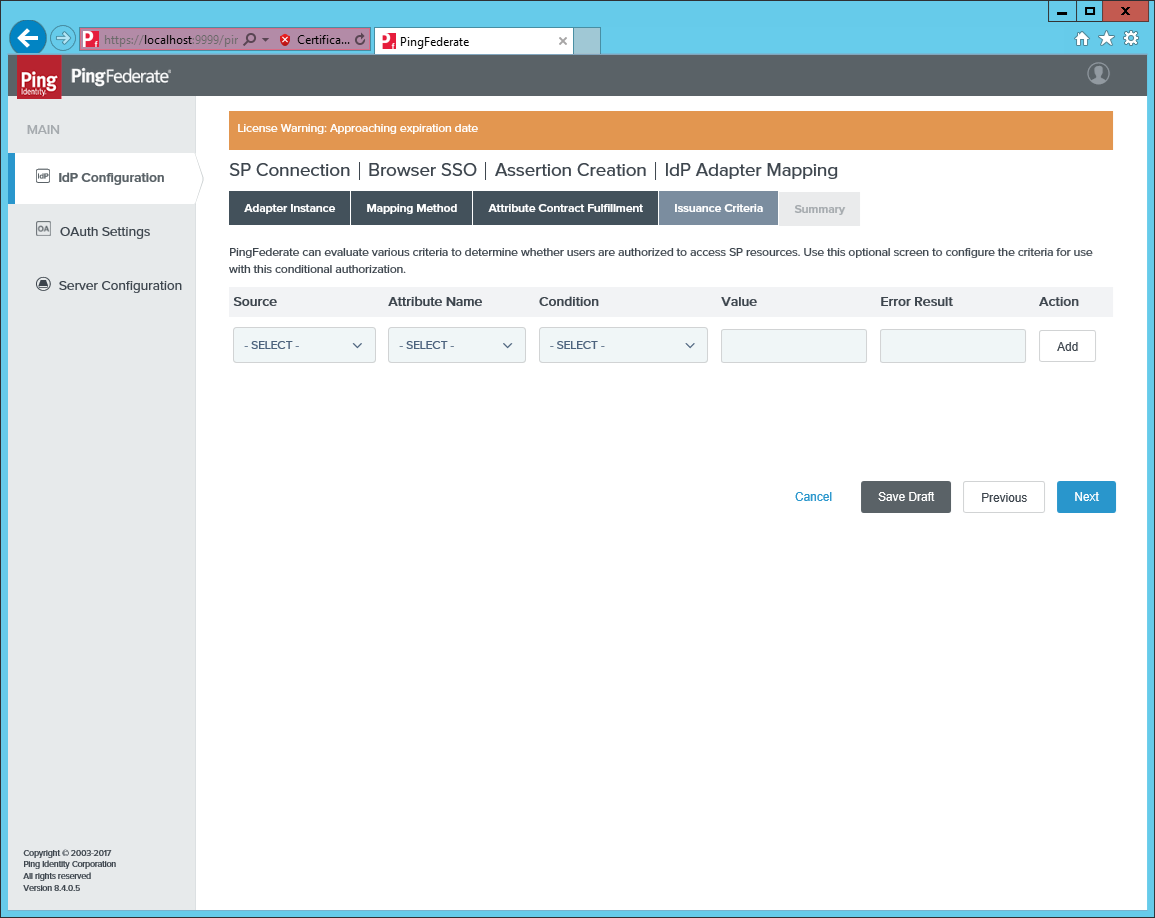
No other attributes are mapped.
-
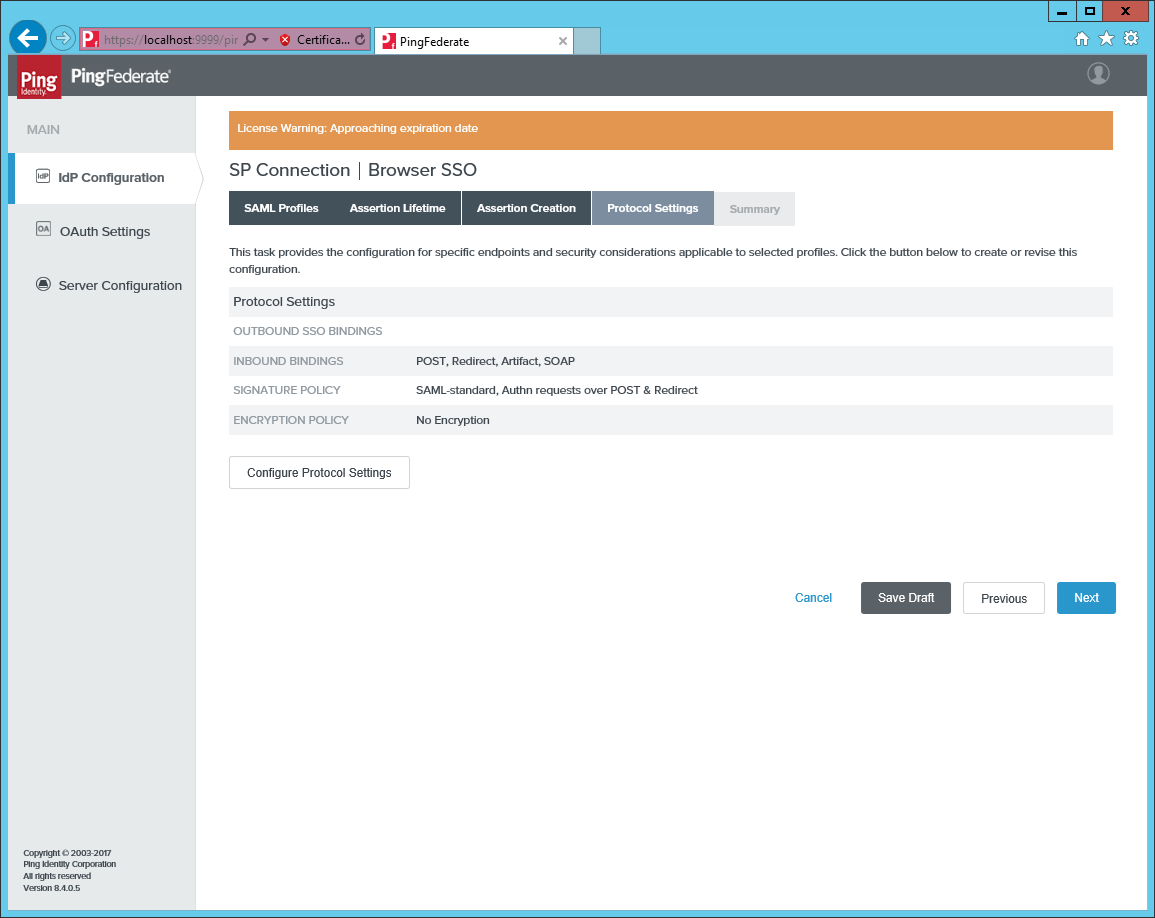
Open Protocol Settings and click Configure Protocol Settings.
-
Add an Assertion Consumer Service URL pointing to the page
logon.aspxon the Omada Identity Portal.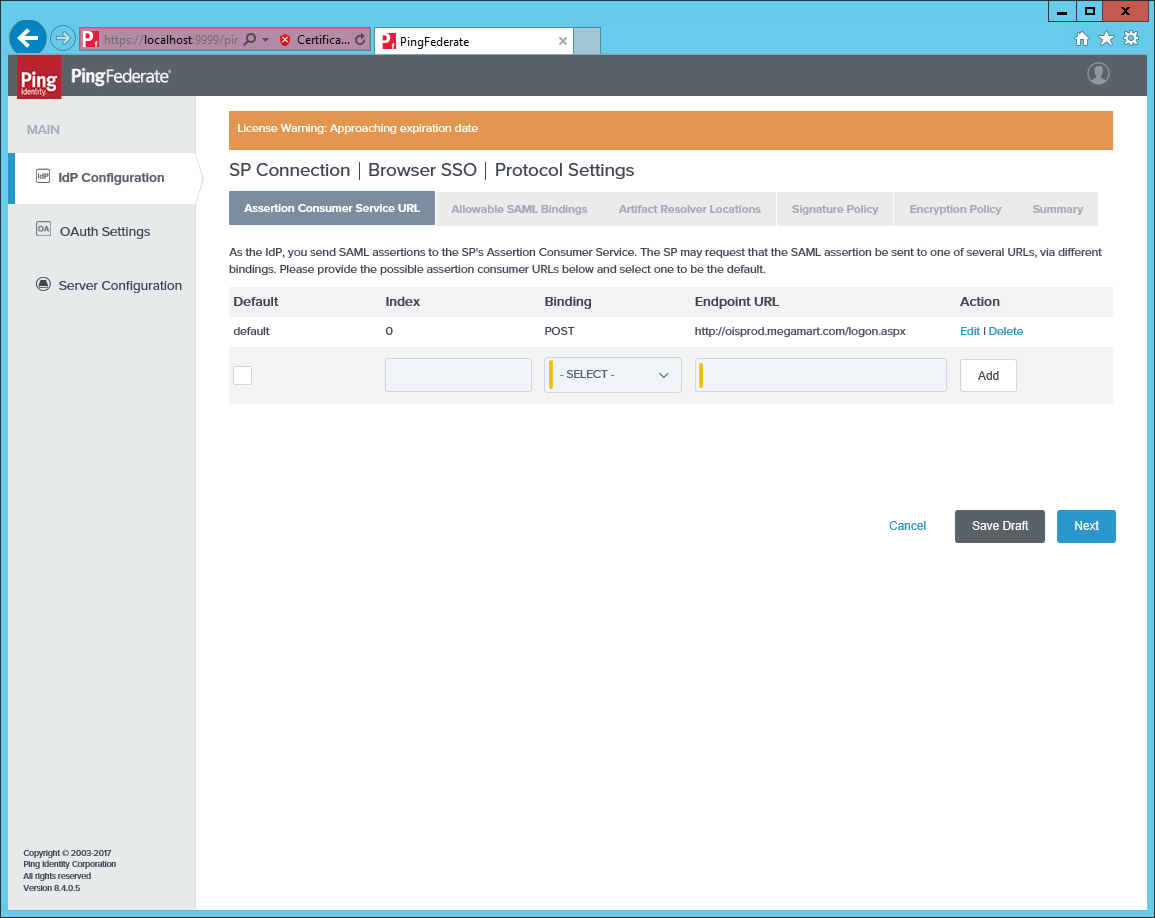
-
Allow
onlyPOSTandREDIRECTbinding.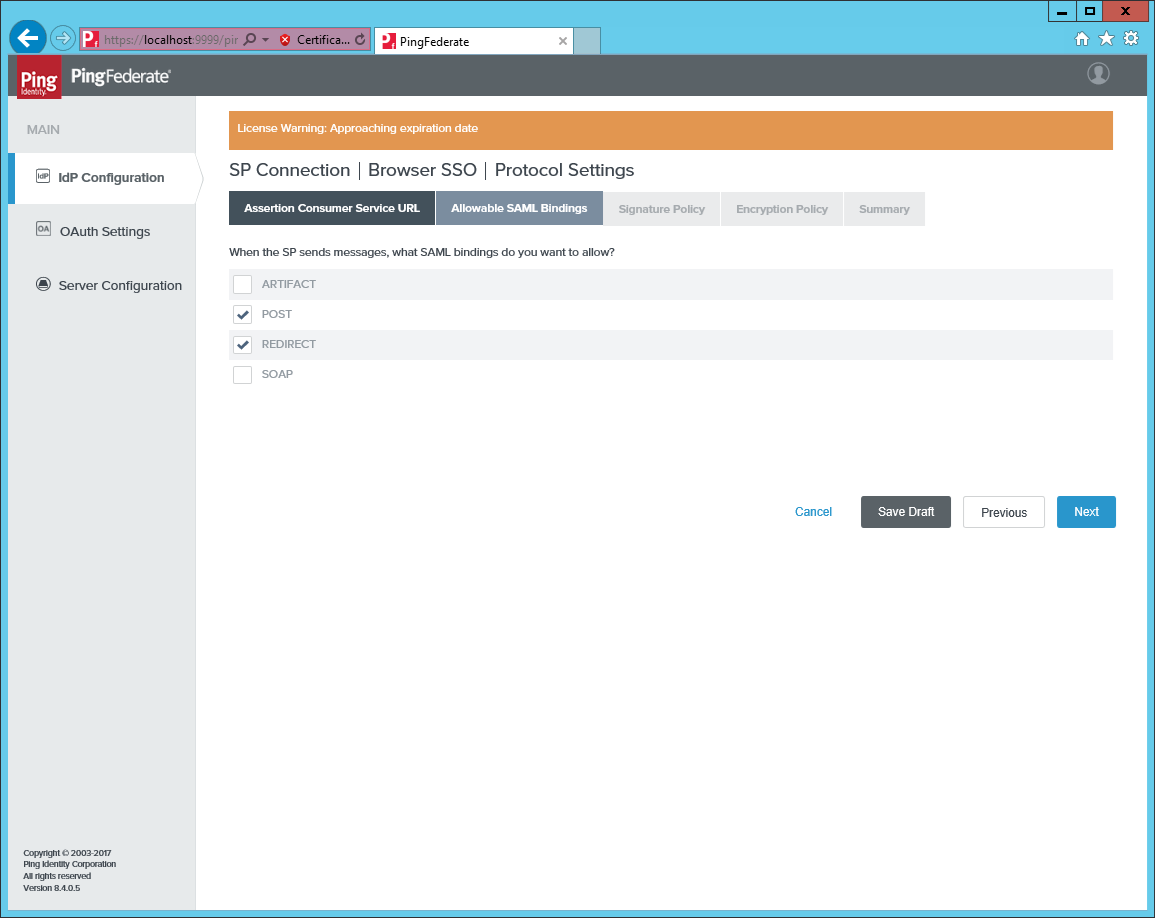
-
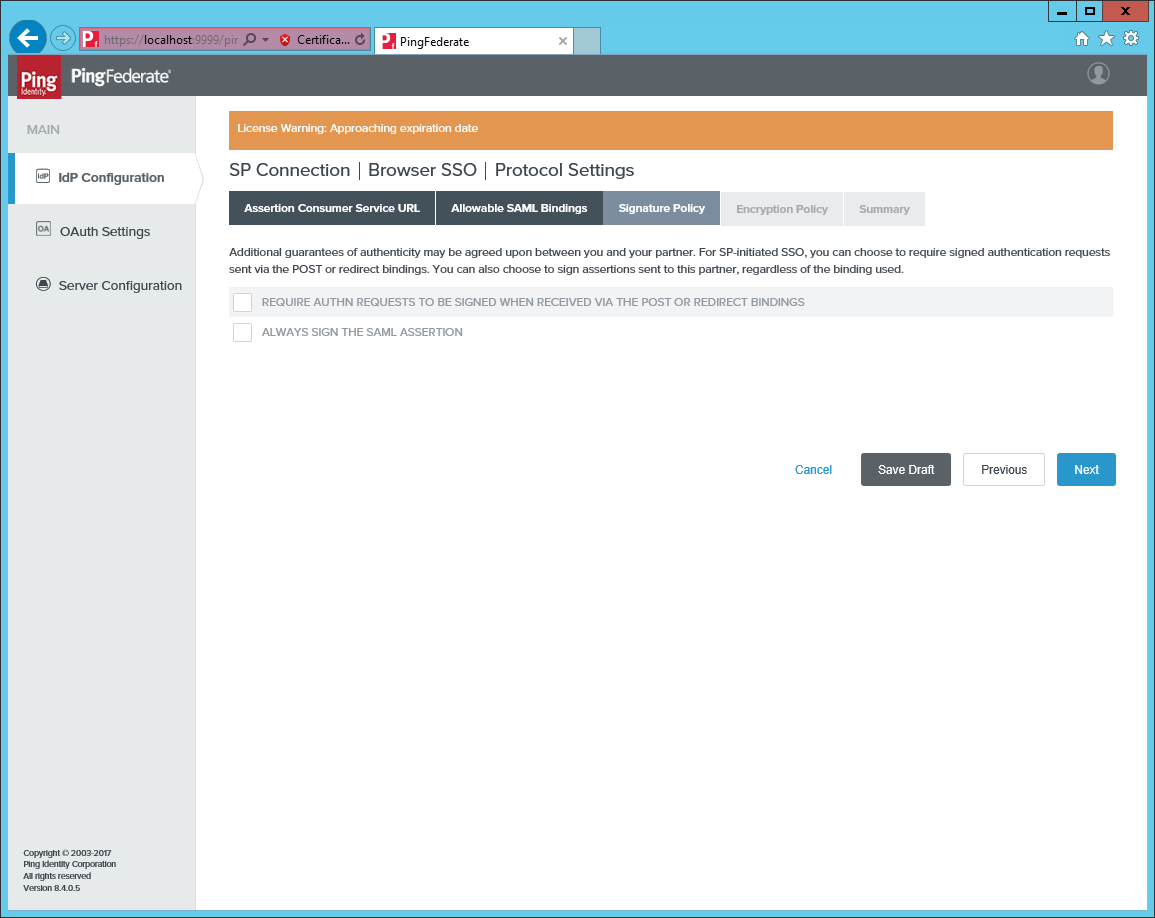
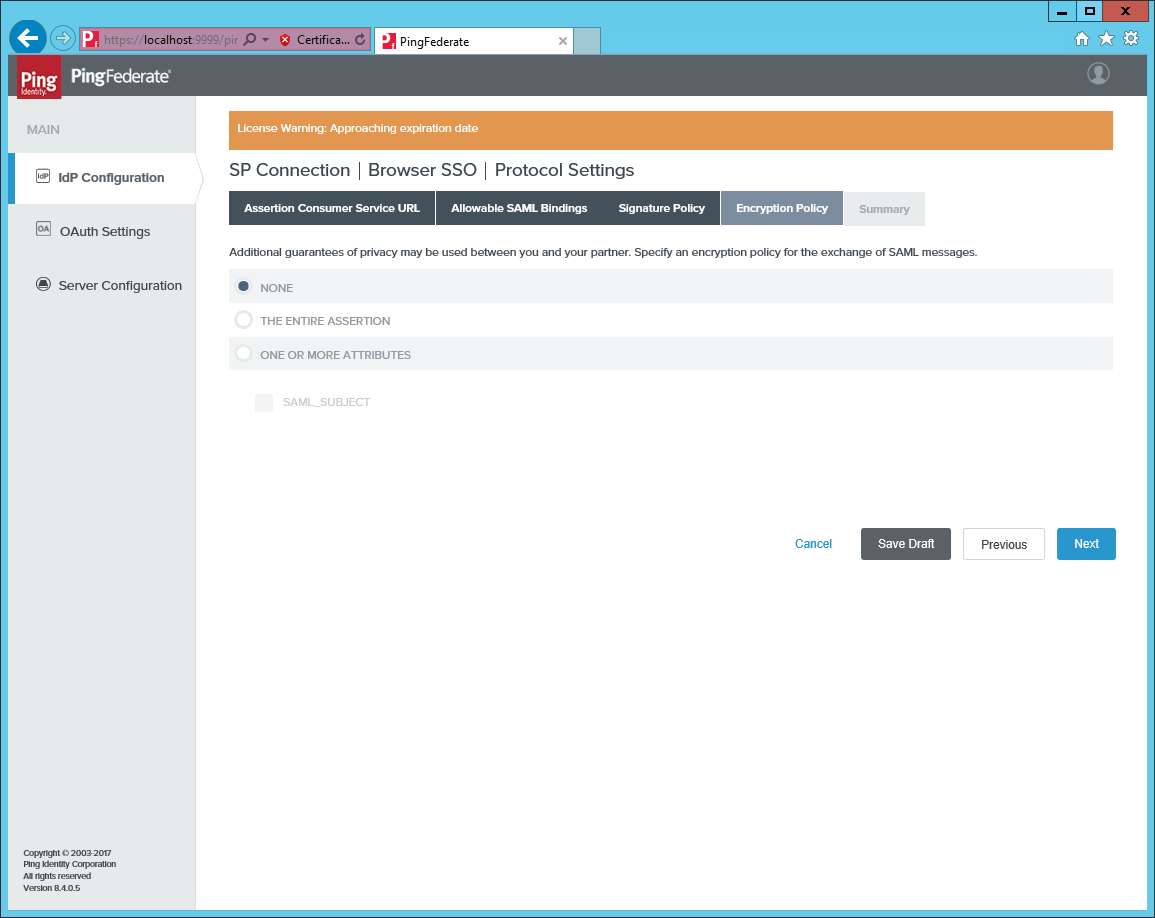
Do not require signed requests.
-
Do not require encryption of the messages.
-
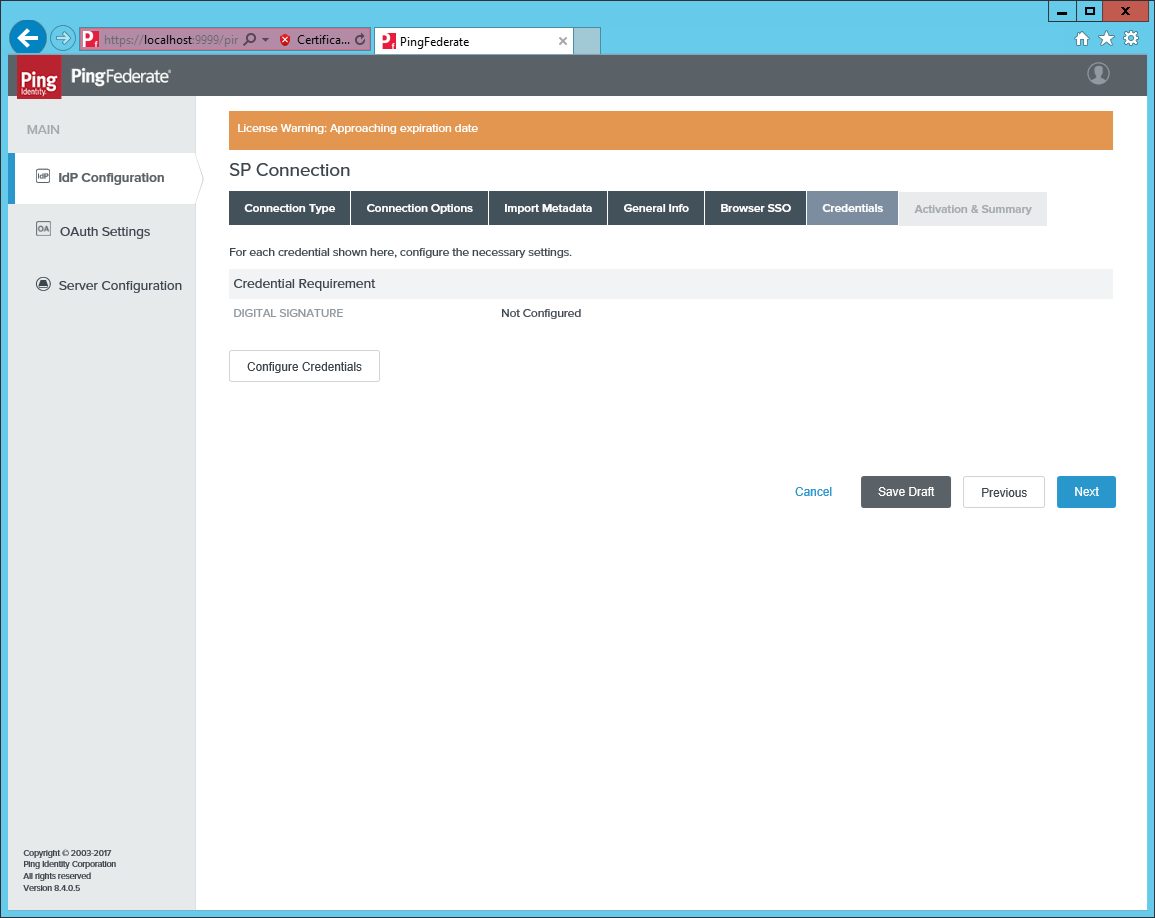
Go to Credentials and click Configure Credentials.
-
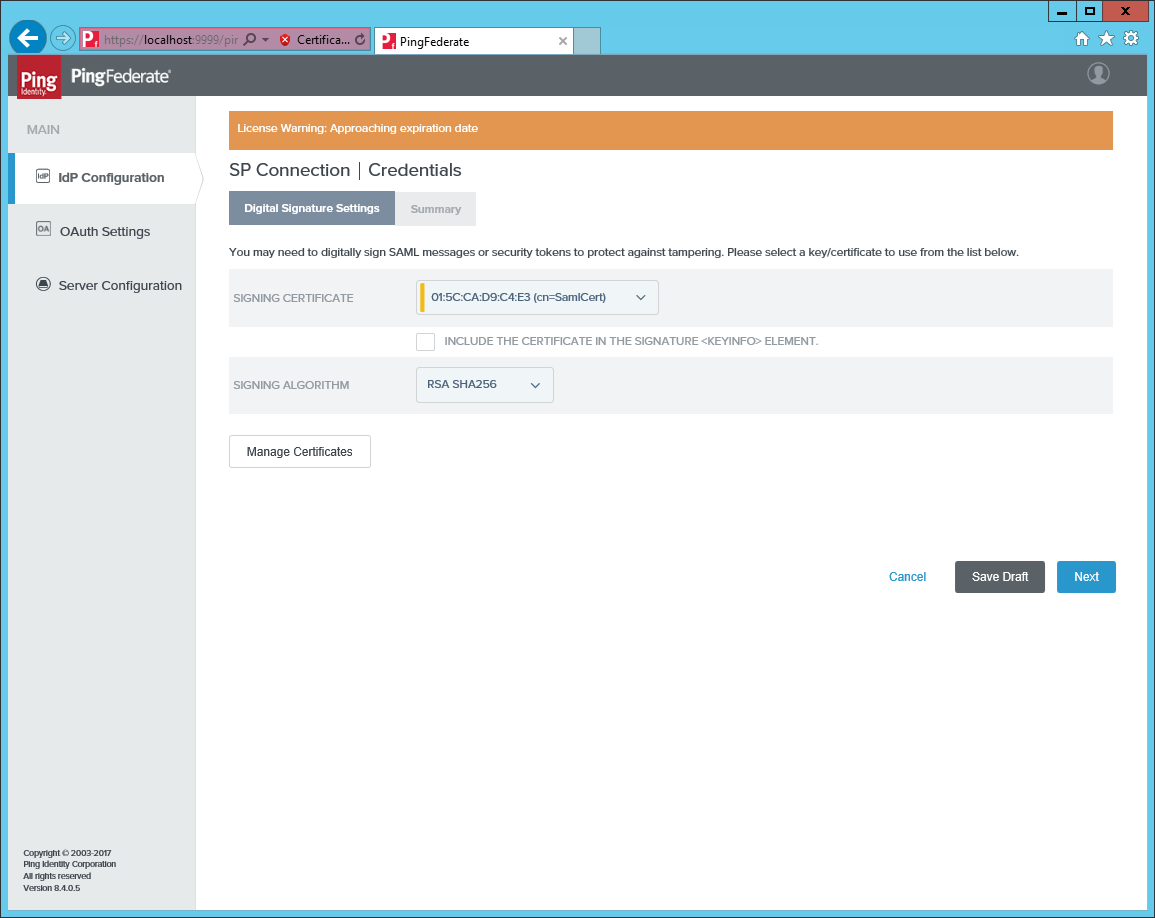
Pick a signing certificate or create a new one, not covered here.
-
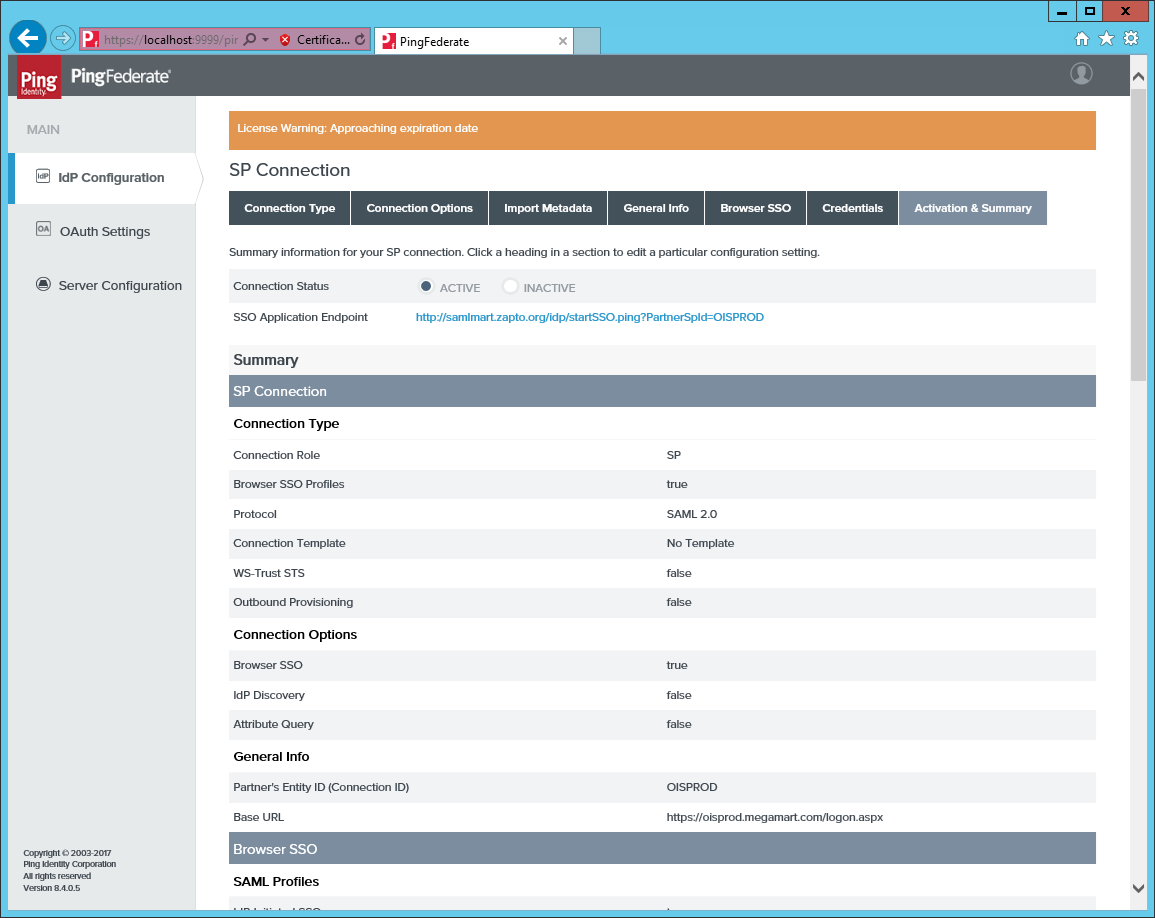
Finally, activate the connection on the Activation and Summary tab.
-
From the PingFederate SP Summary page, copy the value of the Partners Entity ID. Add this value to the column
IdpIssuerandIdpAudienceintblCustomerAuth. -
Supply the Partners Entity ID to the following metadata URL https://[HOSTNAME]/pf/federation_metadata.ping?PartnerSpId=[Partners Entity ID]. Add this URL to the
IdPEndPointintblCustomerAuth.