Creating reference property
A reference property is a property that is used for creating a reference to one or more data object, for example, a data object for a change request may include a reference property called Requestor through which a reference can be created to a data object containing users.
In the Reference Property dialog box, you define how the referenced information will be displayed to the user. Then you define your lookup view. This is done by referencing a data object type and selecting the fields to be displayed in the Lookup view.
Make sure that the data object type you want to reference is available.
In the General section of the Reference Property dialog box:
-
In the Name field, type the name of the property.
-
In the Description field, type a description of the property.
-
Select the control type from the Control type dropdown list:
-
Lookup (single value) - only one referenced object can be assigned.
-
Lookup (multiple values) - multiple referenced objects can be assigned to the property.
-
Lookup (table with multiple values) - multiple referenced objects can be assigned to the reference property.
Changing cardinality of reference properties (single-valued vs multi-valued)The Identity property
EXPLICITOWNERis designed to reference exactly one owner. Do not change the IdentityEXPLICITOWNERreference property to multi-valued. Changing it to a multi-valued reference can cause unpredictable behavior in features that assume a single owner.You cannot change a reference property from multi-valued to single-valued once it has been created. Even if you remove all values so the property no longer contains multiple references, the system still treats the property as multi-valued (for example, due to persisted metadata and/or historical data).
-
-
In the Lookup view field, select how you want the information to be displayed on the form: List or Custom.
If you select Custom lookup view, the Lookup URL field becomes available. Now you can define a custom lookup view by entering a URL or a JavaScript function that returns a URL (the JavaScript function must start with @)
- Click Apply, to make the toolbar available.
Next, you can define the type of information that will be displayed to the user when clicking the dropdown list in the look-up view on the form.
Editing lookup view for a reference property
The Edit Lookup view option on the toolbar of the Reference Property dialog box allows you to define the look-up view for your form. This is done in the Data Object View Definition dialog box.
-
Click Edit lookup view to open the Data Object List View dialog box.
-
In the Data object type filter field, add the data object type you want to reference.
-
In the Displayed fields field, click Add to select the properties you wish to be displayed in your reference list. Remove any default properties you do not want and arrange the properties in the correct order.
-
Advanced options allow you to add and/or edit the Access modifier for the lookup view and select to display the Add new data object icon in the reference property selection popup by selecting the Toolbar buttons checkbox.
-
The Lookup view created for a reference property is numbered according to the views sequence but does not appear in the views list. You must edit the Lookup view through the property.
Dynamic filtering in lookup views
Dynamic filtering is designed to improve usability of the Omada Identity user interface and should not be used as a substitute of proper access management. It is possible to dynamically filter the filter expressions for reference property lookup views to give more flexibility in limiting the results of the lookup.
You can employ this feature thanks to two elements, each of which can be used separately.
Filter expressions of data object views
For dynamic filtering, use the Value(s) of the active user checkbox in the Filter expressions dialog box. This checkbox allows you to include/exclude an active user, active user's identity, or any other object referenced by a user data object type. For example, you can exclude an active user from the list of users when selecting an owner. Owner is represented by the OWNERREF reference property based in the User data object type. To do so:
-
Go to Setup > Administration > Data Management > Properties > OWNERREF.
-
Click Edit lookup view.
-
Click Expressions.
-
Click New to open new filter expression dialog.
-
In the Left side field select
ID [Fixed field]. -
In the Inner operator field select not in.
-
In the Right side section check Value(s) of the active user.
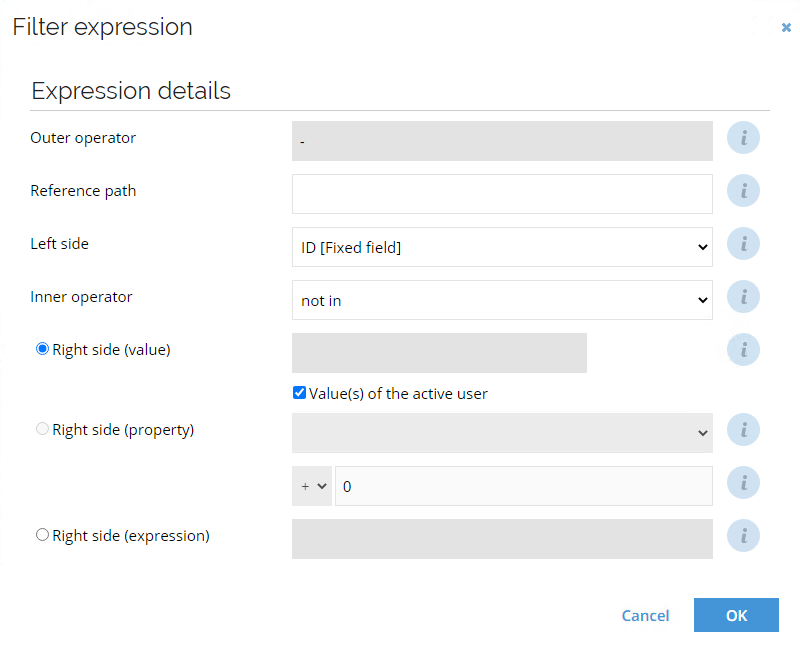
Consequently, if the signed-in users are selecting owners, their user identities will not show up on the list.
You can also limit the list of identities to active users' identities only when making new employment. Identity is represented by the IDENTITYREF property in the Employment data object type. To do so:
-
Go to Setup > Administration > Data Management > Properties > IDENTITYREF.
-
Click Edit lookup view.
-
Click Expressions.
-
Click New to open new filter expression dialog.
-
In the Left side field select
ID [Fixed field]. -
In the Inner operator field select in.
-
In the Right side section check Value(s) of the active user.
-
In the Reference path field type
IDENTITYREF. This is a backward reference path that we can use here because the User data object type has a reference to Identity through theIDENTITYREFproperty.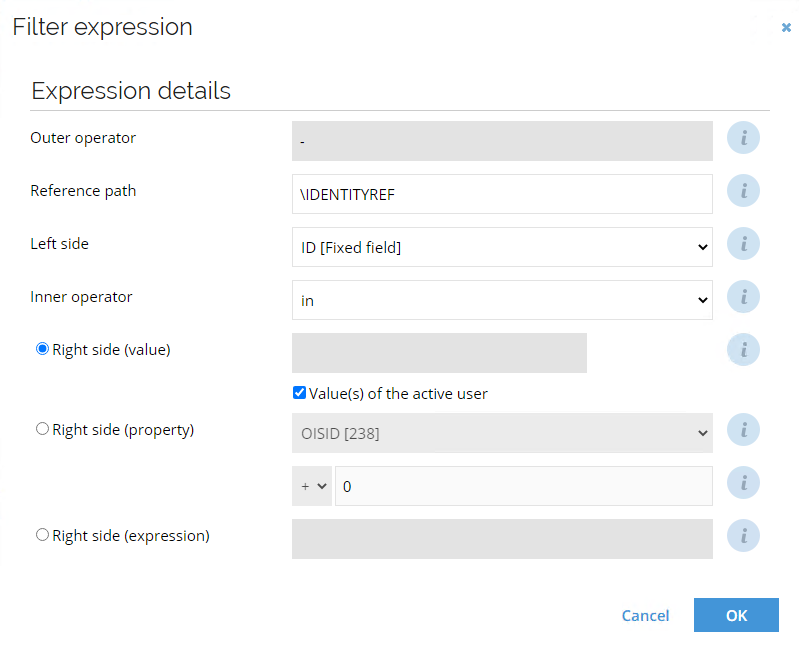
Consequently, if the signed-in users are selecting owners, their user identities will not show up on the list.
It is also possible to define a reference path expressions that resolve from the active user. This possibility allows you to create more complex expressions that cannot be defined with the use of the Value(s) of the active user checkbox. Such an expression must begin with $ActiveUser prefix and end with a reference property, for example: $ActiveUser/IDENTITYREF.
Filter expressions in Form fields
In addition to standard filter expressions, form field filter expressions can use Right side (expression) to dynamically filter lookup values based on another field on the same form.
These form-specific filter expressions are applied on top of any filter expressions already defined on the underlying reference property.
Using $FORM_
When Right side (expression) is selected, the expression must use the following syntax:
$FORM_PROPERTY_SYSTEM_NAME
The expression must:
- Start with
$FORM_ - Be followed by the system name of another property on the same form
At runtime, the expression resolves to the current value of the referenced form field. This makes it possible to create dependent lookups without custom code.
| Expression | Resolves to |
|---|---|
$FORM_OUREF | The current value of the OUREF field on the form. |
$FORM_AR_CONTEXT | The current value of the AR_CONTEXT field on the access request form. |
Example: Filter identities by the selected organizational unit
The following example limits the Identity lookup to identities that belong to the organizational unit selected on the same form.
-
Go to Setup > Administration > User interface > Forms.
-
Open the relevant form.
-
Click Design form.
-
Select the Identity field.
-
Click Expressions.
-
Click New.
-
In Left side, select
OUREF. -
In Inner operator, select in.
-
Select Right side (expression).
-
Enter:
$FORM_OUREF -
Click OK and save the form.
When a user selects an organizational unit and then opens the Identity lookup, only identities from that organizational unit are displayed.
$FORM_ by itself is not a valid expression. The property system name must always be specified after the prefix.
Keep the following behavior in mind when using $FORM_ expressions:
- If the referenced field is mandatory, it must be populated before opening the dependent lookup.
- If the referenced field is empty and not mandatory, the filter expression is ignored and the lookup opens without that filter.
- If the referenced field is changed or cleared, any field that depends on that value is automatically cleared to ensure consistency.
Working with attributes for a reference property
Attributes are used for adding details to a reference property with the Control type Lookup (multiple values). If you want to add, delete or arrange attributes for a reference property:
-
Open Property list view.
-
Select Attributes to work with attributes in the Attributes list view.
-
Add, remove, and change the order of the attributes.