Omada Identity post-installation activities
The installation of Omada Identity currently requires outdated components. This section outlines the necessary actions to address this issue.
Removing SQL Native client 2012 dependency
Required software:
-
Latest version of the Microsoft Visual C++ Redistributable
-
Latest OLEDB Drivers
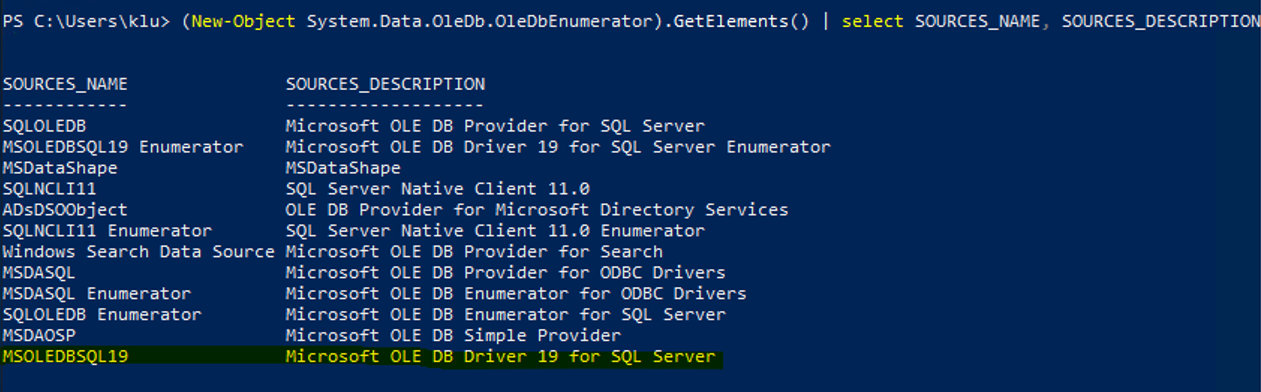
To ensure compatibility with the new SQL Connection Provider name, verify the new Providers by running the following command via PowerShell:
(New-Object System.Data.OleDb.OleDbEnumerator).GetElements() | Select SOURCES_NAME, SOURCES_DESCRIPTION
Example output (with the interesting part highlighted):
Configure the new provider
Follow these steps to configure the new provider:
-
Update the OLEDB Provider in the ODW Connections String configuration file located at C:\Program Files\Omada Identity Suite\Datawarehouse\Common\Omada ODW ConnectionString.dtsConfig:
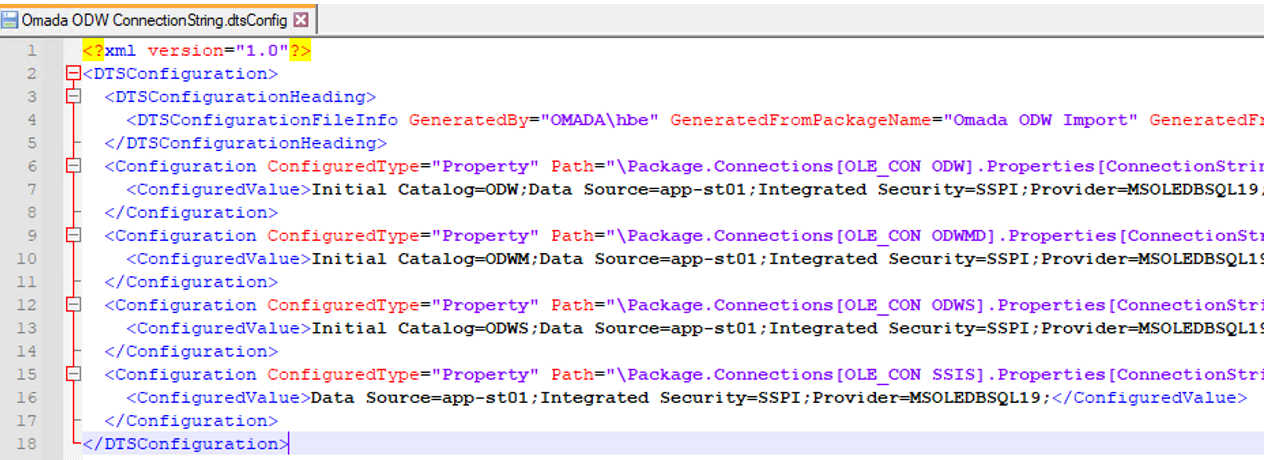
Make sure to change the provider to match the one listed in the previous step.
-
Update the Data Connections in the Omada Identity. Modify the following data connections:
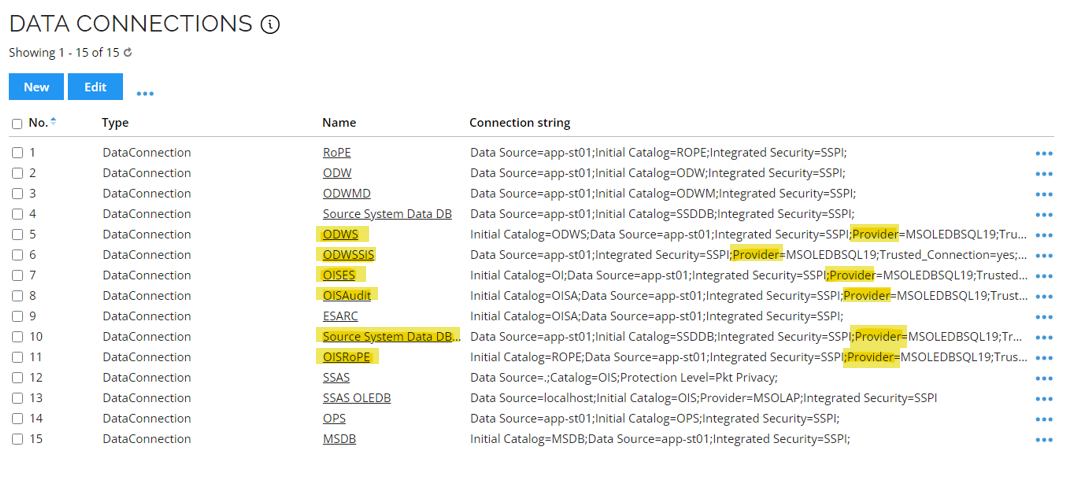
Make sure to change the provider to match the one listed in the previous step.
Microsoft Report Viewer
To use the Report Viewer 2015 instead of 2012 version, follow these steps:
Required software:
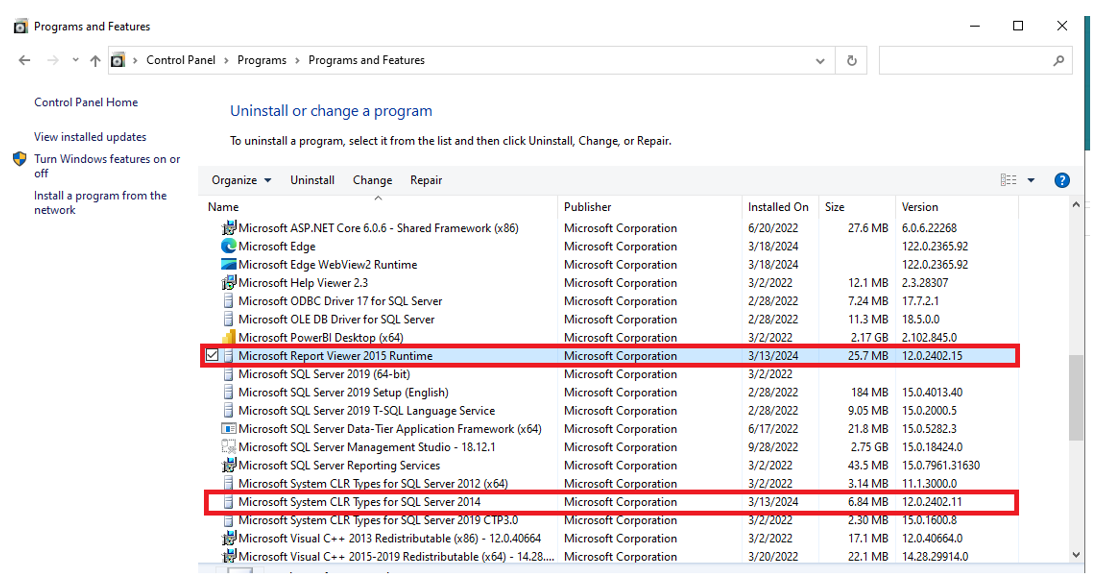
- Microsoft System CLR Types for SQL Server 2017
- Report Viewer 2015
Installation verification can be performed as follows:
Configuration files update:
Additional modifications are required in C:\Program Files\Omada Identity Suite\Enterprise Server\website\Web.config:
-
Update the reference to the correct ReportViewer Assembly. Change [Version=11.0.0.0] to [Version=12.0.0.0].
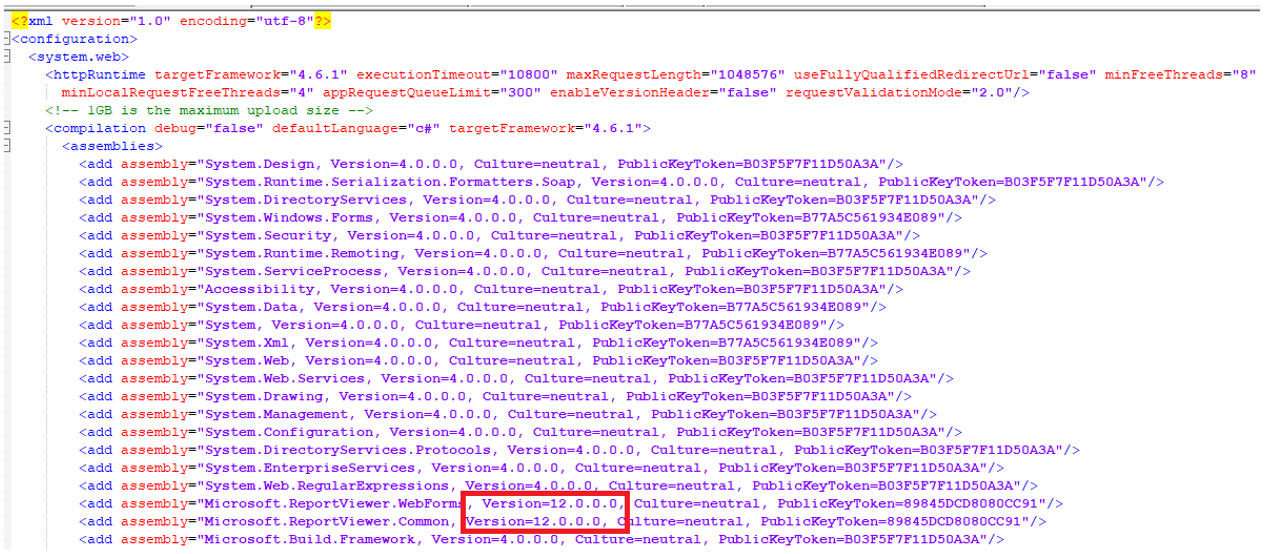
-
In the Assembly Bindings section, add the following new dependent Assembly:
<dependentAssembly><assemblyIdentity name="Microsoft.ReportViewer.WebForms" publicKeyToken="89845dcd8080cc91" culture="neutral"/><bindingRedirect oldVersion="0.0.0.0-12.0.0.0" newVersion="12.0.0.0"/></dependentAssembly>