Javi – Omada AI assistant (Slack)
Javi, the Omada AI assistant, integrates with Slack to provide a conversational interface for identity governance tasks. Through Slack, you can ask Javi to perform the following actions:
- Access approval - approve access requests directly within Slack
- Q&A - get answers to questions about Omada Identity and technical documentation
- scheduled notifications - use scheduled notifications for pending approval requests
The following sections describe how to onboard and use Javi in Slack.
Pre-installation checklist
| Requirement | Description |
|---|---|
| Workspace Owner or Workspace Admin access | Required to authorize and manage the Javi app in Slack. |
| Admin access to Omada Identity Cloud | Needed for identity mapping and system configuration. |
| Slack Workspace ID | Used to link the Slack workspace with Omada. |
| Identity mapping attribute identified | Ensures identity matching between Slack users and Omada (as configured during onboarding; for example, email address). |
| Slack app authorization (OAuth) | Required to grant Javi the necessary permissions in Slack. |
| IP address ranges whitelisted | Necessary for secure Javi backend communication. |
Onboarding overview
- Gather all required details as listed in the Prerequisites and Omada configuration section.
- Complete the configuration steps in the Omada Identity Cloud portal.
- Submit a service request in the Omada Support Service Desk, titled Enablement of Javi, including:
- Workspace ID
- System name of the identity attribute used for user matching
- Omada personnel enable Javi for your specified environment and notify you through a support ticket once the app is ready for use.
- Authorize the Javi app in Slack.
Prerequisites and Omada configuration
Establish an identity link between Omada and Slack users
To use Javi, Slack users must have a corresponding identity in Omada (a user object). Users without such an identity (for example, service or admin-only accounts) will not be able to use Javi.
Javi relies on a shared identifier to match platform users with Omada identities. The specific attribute used for this mapping depends on the collaboration platform: Slack uses a unique user attribute agreed during onboarding (for example, email address).
The selected identifier must exist as a property on the Omada identity and be consistently populated.
Example: Identify the unique user attribute
-
Log into Omada Identity Cloud as a System Administrator. Go to Setup > Identities.
-
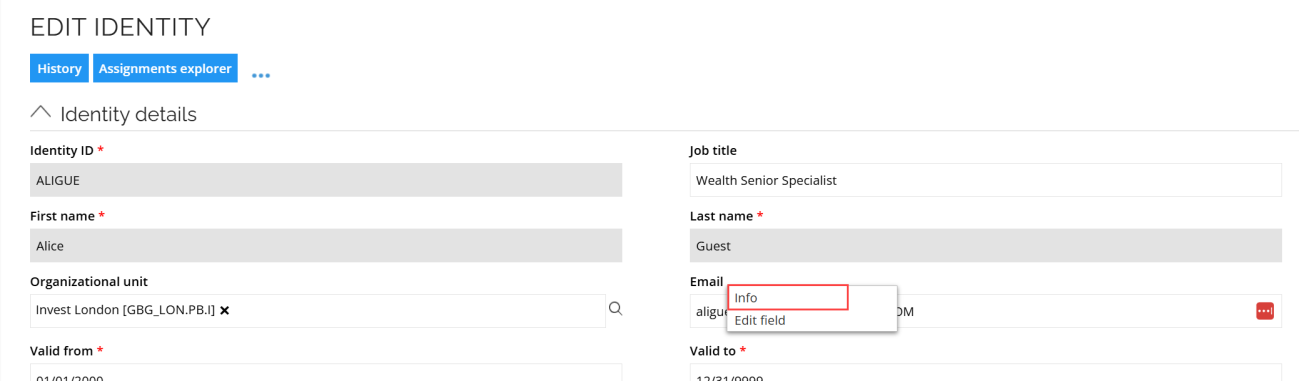
Select a user, right-click the property mapped to the unique user attribute, and select Info.
-
Note the System Name of this field.
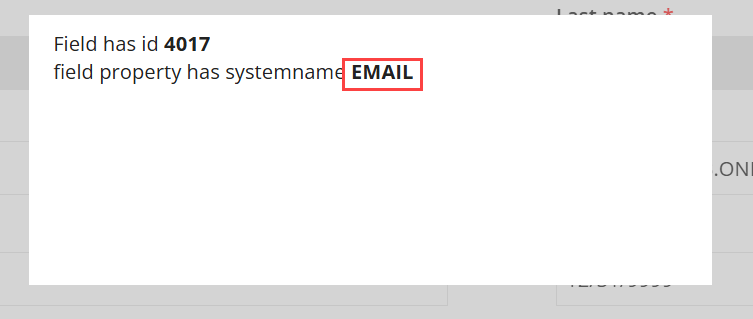
This identity mapping is currently configured manually by Omada personnel. Share the system name of the selected identifier (for example, UPN or email attribute) with your Omada contact.
Link Slack Workspace to Omada
To establish a connection between your Slack workspace and Omada, provide the Slack Workspace ID.
The Slack Workspace ID is a unique identifier assigned to each Slack workspace and is used to associate the Slack environment with Omada during Javi onboarding.
Send the Workspace ID to your Omada contact. This step is currently handled manually by Omada.
Authorizing Javi in Slack
This section describes how to authorize the Javi app in Slack as part of the onboarding process.
The following links start the Slack OAuth authorization flow and grant the permissions required by the Javi app.
To authorize Javi in Slack, use the OAuth link provided for your region:
-
EU region: Authorize Javi for Slack (EU)
-
US region: Authorize Javi for Slack (US)
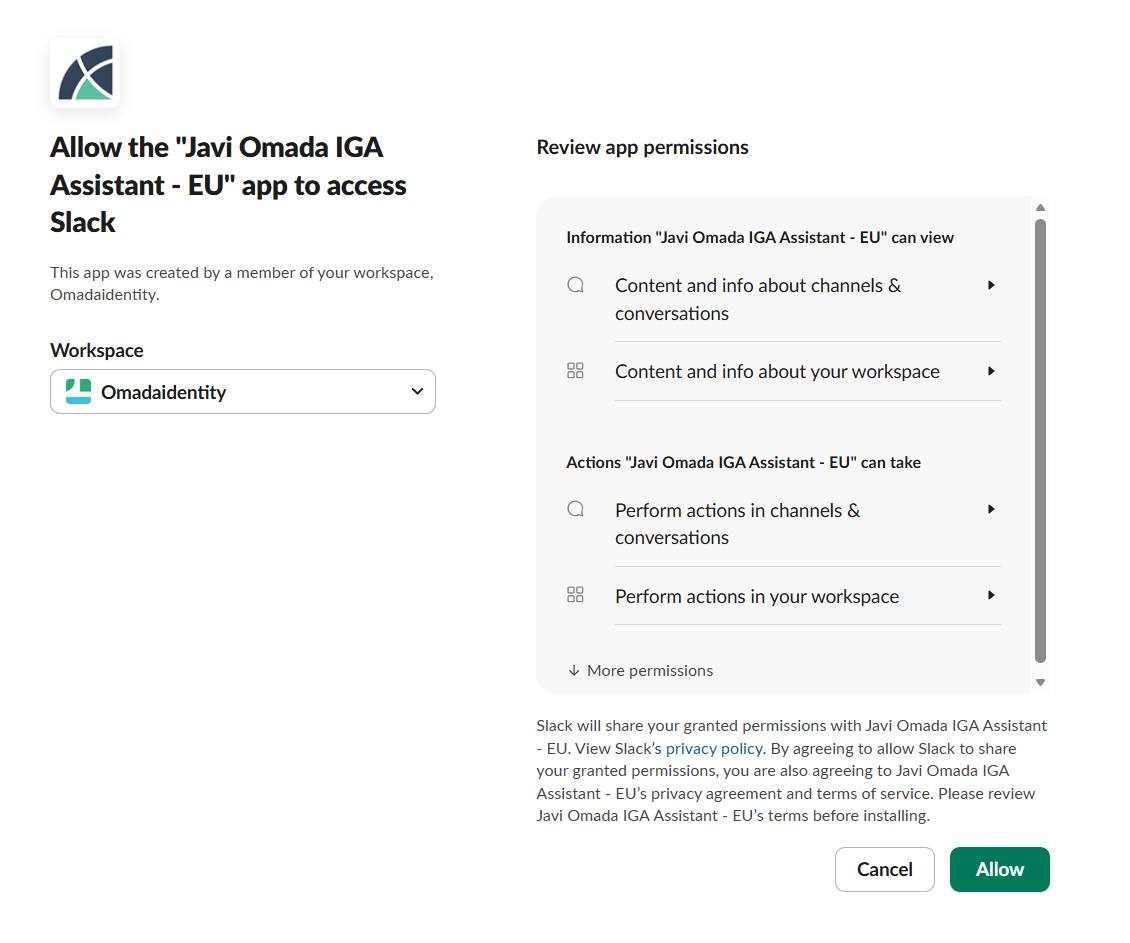
When prompted, sign in as a Slack Workspace Owner or Admin and approve the requested permissions. Once authorization is complete, notify Omada Support to finalize onboarding.