Additional security aspects
Some of the security aspects within Omada Identity are relevant for several of the solution's component. Elements such as Shared secret or password encryption key are not associated with ES or OPS only, but span across entire Omada Identity. This article is dedicated to discuss these aspects.
Password encryption key
On-premOmada Identity uses common encryption key, PswEncryptionKey, for all of its main components. This key is used to encrypt sensitive data such as passwords or connection strings.
PswEncryptionKey can be stored in several places in Omada Identity. Omada recommends to store the key in the Windows registry under the key \HKEY_LOCAL_MACHINE\SOFTWARE\Omada\Omada Identity Suite, but alternatively, it can be stored in config files for each of the components, that is Web.config file (ES), Omada.OPS.Service.exe.config file (OPS), AppSettings.config file (RoPE), and Omada.OE.Service.config file (timer service).
Immediately after the Omada Identity installation, the PswEncryptionKey has the default value DefaultEncryptionKey. This value should be changed as soon as possible after the installation, preferably before performing any actions within Omada Identity.
The PswEncryptionKey change must be performed manually in all the places where it is used.
However, PswEncryptionKey can be changed at any later stage, even if you have encrypted data with the DefaultEncryptionKey or your updated PswEncryptionKey.
Add a password encryption key for ES, ODW and RoPE
Omada recommends that you set a secret password encryption key, so that you do not use the default one. This needs to be done before you enter any credentials that are to be encrypted with this key.
To set up the new password encryption key, add a string value named PswEncryptionKey into the following path of the Windows Registry: HKEY_LOCAL_MACHINE > SOFTWARE > Omada > Omada Identity Suite.
As an alternative, the key can also be stored in the Web.config file, Omada.OPS.Service.exe.config file, AppSettings.config file, and Omada.OE.Service.config file.
The password encryption key must be set on all servers running ES, ODW and RoPE. For the corresponding configuration of OPS, see section Adding a password encryption key in the Omada Provisioning Service.
For Data Preview Service and Vault Service, the password encryption key must be set in their respective configuration files, not in Windows registry.
Add a password encryption key in the Omada Provisioning Service
Omada recommends that you set a secret password encryption key, so that you do not use the default one. This needs to be done before you enter any credentials that are to be encrypted with this key.
To do this, enter the new password in Omada.OPS.Service.exe.config.
As an alternative, the key can also be set in the registry database as described in the Add a password encryption key for ES, ODW, and RoPE section.
<appSettings>
<add key="PswEncryptionKey" value="DefaultEncryptionKey"/>
Please, bear in mind that PswEncryptionKey must be the same in all the places where it is set.
Change PswEncryptionKey after data encryption
Changing PswEncryptionKey after it has been used to encrypt data should be performed with caution as incorrect update may render data lost or Omada Identity unresponsive. In order to change the PswEncryptionKey follow the steps below:
- Ensure that all mail queues are emptied (initial password encrypted).
- Ensure that all account provisioning jobs with initial passwords in OPS are finalized.
- Ensure that the account creation has been confirmed by an ODW import, and the account creation email with the initial password has been sent out.
- Stop all Omada Identity services on all servers.
- Change PswEncryptionKey on all servers – both in Registry and config files.
- Re-encrypt previously encrypted Database Connection strings in registry and configuration files.
- Re-encrypt API keys in configuration files.
- Re-encrypt Azure Service Bus connection string.
- Re-encrypt any encrypted property values on Data Objects. For example, the INITIALPASSWORD property on Identity data objects, if used.
- Restart application pool for Omada Identity on all servers.
- For each onboarded system, visit all tasks where passwords or keys are entered, and re-enter the password.
- Re-encrypt previously encrypted Data Connection connection strings. Start the Omada Identity services again.
Shared secret authentication
On-premThe shared secret is an authentication method for the internal process communication between the Omada Identity components. It covers the following types of communication between components:
- Role & Policy Engine to Omada Provisioning Service
- Enterprise Server to Omada Provisioning Service
- Enterprise Server to Role & Policy Engine
This authentication method utilizes a shared secret concept. In Omada Identity, the shared secret is the APISharedSecret API key, shared between ES, RoPE, and OPS.
The shared secret is stored in either encrypted or unencrypted form in the configuration files for ES, RoPE, and OPS.
Omada strongly recommends using the StringEncrypter utility to encrypt the shared secret before storing it in the configuration files.
Set-up shared secret authentication in ES
In order to correctly utilize shared secret authentication, it must be properly configured for ES, RoPE, and OPS.
You can configure the authentication by adding the following line with a value of the shared secret to the Web.config.
<appsettings>

<add key="ApiSharedSecret" value=""></add>
The ApiSharedSecret key accepts values encrypted with PswEncryptionKey as well as unencrypted values. In the former case, it is strongly advised that you encrypt the ApiSharedSecret with the PswEncryptionKey using the StringEncrypter. In the latter case, in the unencrypted ApiSharedSecret key, you cannot use special characters that are illegal in XML config files (& < > " '). The value must be the same in ES, RoPE, and ODW.
For information on setting up the PswEncryptionKey, see the Add a password encryption key for ES, ODW, and RoPE section.
For more information on setting up the shared secret in RoPE, see the Set-up shared secret authentication in RoPE section.
Set-up shared secret authentication in OPS
In order to correctly utilize shared secret authentication, it must be properly configured for ES, RoPE, and OPS.
For the Role & Policy Engine, you can configure the authentication by adding the following line with a value of the shared secret to the Omada.OPS.Service.exe.config.
<appsettings>
<add key="ApiSharedSecret" value=""></add>
In addition, the behavior of the Omada.OPS.Service.WCF.Impl.AllWcfServices service in the Omada.OPS.Service.exe.config needs to be changed to support API shared secret.
In the behaviorConfiguration set one of the below service behaviors. When using the shared key, you can use either ProvisioningServiceServiceBehaviorApiSharedSecret or ProvisioningServiceServiceBehaviorApiSharedSecretHttps.
<system.serviceModel>

<services>

<service name="Omada.OPS.Service.WCF.Impl.AllWcfServices" behaviorConfiguration="ProvisioningServiceServiceBehaviorApiSharedSecret">
The ApiSharedSecret key accepts values encrypted with PswEncryptionKey as well as unencrypted values. In the former case, it is strongly advised that you encrypt the ApiSharedSecret with the PswEncryptionKey using the StringEncrypter. In the latter case, in the unencrypted ApiSharedSecret key, you cannot use special characters that are illegal in XML config files (& < > " '). The value must be the same in ES, RoPE, and ODW.
Set-up shared secret authentication in RoPE
In order to correctly utilize shared secret authentication, it must be properly configured for ES, RoPE, and OPS.
For the Role & Policy Engine, you can configure the authentication by adding the following line with a value of the shared secret to the AppSettings.config.
<appsettings>

<add key="ApiSharedSecret" value=""></add>
The ApiSharedSecret key accepts values encrypted with PswEncryptionKey as well as unencrypted values. In the former case, it is strongly advised that you encrypt the ApiSharedSecret with the PswEncryptionKey using the StringEncrypter. In the latter case, in the unencrypted ApiSharedSecret key, you cannot use special characters that are illegal in XML config files (& < > " '). The value must be the same in ES, RoPE, and ODW.
StringEncrypter
On-premOmada Identity includes an encryption tool named StringEncrypter, which is installed along with the software. You can use this tool to encrypt any string or part of the string, for example, a password used in a connection string.
To use the StringEncrypter, your environment must be configured with an encryption method. JWE (JSON Web Encryption) is the recommended encryption format; to learn more about it, see the Encryption method section below as well as the release note from the 15.0.4 on-prem release.
The deprecated AES-based encryption (AES-256) is still supported for backward compatibility in the transition period.
Command Prompt
You can encrypt a string by running the StringEncrypter in Command Prompt. Use these three parameters:
- The value of your
PswEncryptionKey. - The
StringToBeEncrypted. - The
[keyId]of the key whose value has been used for encryption. (When used in decoding, this does not need to be mentioned, as it is part of the encrypted string.)
You can select and copy the result.
To introduce a particular encrypting method, use an opening tag (JWE:) and an ending tag (=JWE). An example of a string encrypted with JWE is:
JWE:eyJhbGciOiJQQkVTMi1IUzUxMitBMjU2S1ciLCJwMnMiOiJZTTB1ZnRtNlpuT3h5QzU5IiwiZW5jIjoiQTI1NkdDTSIsImtpZCI6ImtleSIsInAyYyI6MTIwMDAwfQ.A_r7-llevnErZfK0ycV8GaW6ns0JUyz5FYlvYdYeIgHJrt8dhEkz8w.IdaWr4YxQCDoKWiD.zaGj.f0xzEvoLBzB_4_vuD7AWWA=JWE
In Command Prompt, follow this example for encoding and decoding:
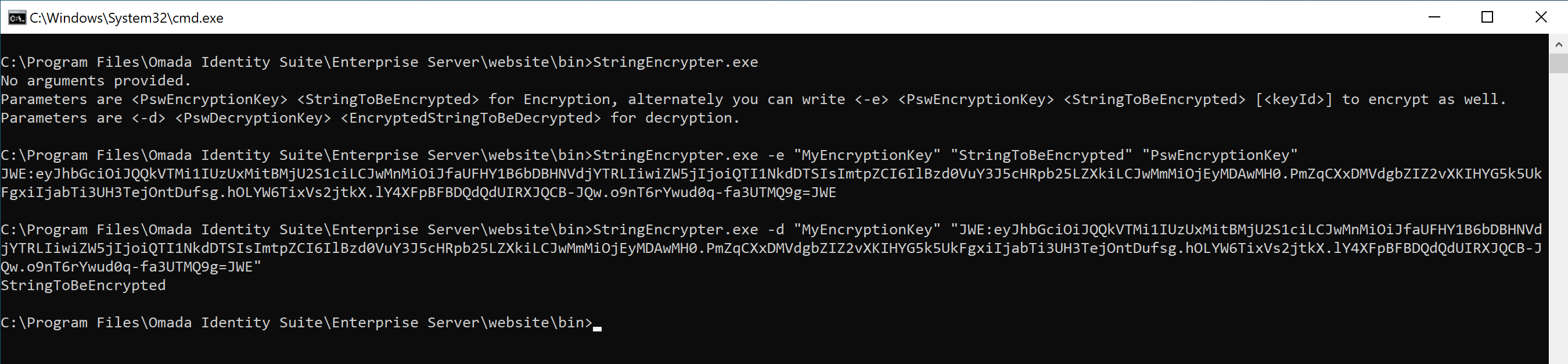
Password encryption
To make sure that the password string is read as a single string, insert quotation marks before and after the password, for example: StringEncrypter.exe -e "abc|def" "abc|def" "abc|def".
Do this regardless of whether you have used special characters (for example, &, |, !).
Encrypting part of a string
If you want to encrypt only a part of the string, use the StringEncrypter on the desired part of the string, and then paste the encrypted part manually into the target string. The encrypted part must include special tags at the start and the end of it. For example:
Server=localhost; User Id=JWE:examplestring=JWE;Password=JWE:examplestring=JWE;Database=OIS
The StringEncrypter adds these tags automatically.
Encryption method
Omada Identity uses a PBES2-based encryption method as defined by the JSON Web Encryption (JWE) standard to protect sensitive data. This approach follows industry best practices by combining a strong key derivation function with authenticated encryption.
The encryption mechanism applies the following components:
-
PBKDF2 with SHA-512 (Password-Based Key Derivation Function 2) as the key derivation function.
explanationAn algorithm strengthens passwords by repeatedly hashing them. This process makes it much harder for attackers to guess or brute-force the original password because it slows down every attempt with thousands of hash iterations.
-
AES-256-GCM (A256GCM) as the encryption mode.
explanationIt is a modern encryption standard that both protects the confidentiality of data and verifies that it has not been tampered with. It uses a 256-bit key for strong security and includes built-in integrity checks, so if the encrypted data is changed in any way, the decryption process will detect it.
-
A random salt generated for every encryption operation.
explanationEven if the same password is used multiple times, the derived encryption key will always be different.
-
A random initialization vector (IV) generated for every encryption operation.
explanationEven if the same plaintext is encrypted multiple times with the same key, the ciphertext will always differ.
-
A configurable iteration count to balance performance and security requirements.
explanationThe PBKDF2 iteration count master setting allows system administrators to specify the number of iterations for the PBKDF2 key derivation function. The default value is set to 210,000, which aligns with modern security recommendations for PBKDF2 with SHA-512. For more technical details, look up this seetting in Master settings – Security.
Performance ConsiderationsWhile higher values for the PBKDF2 iteration count can improve security by making brute-force attacks more computationally expensive, they can also impact system performance. To strike the right balance between performance and security, evaluate your security needs and system capabilities when configuring this setting.
Library support
On-premThe CommonLib Crypto library provides the method EncryptWithPassword, which applies the PBES2 encryption approach with a random salt, random IV, and configurable iteration count.
Migration from System.Data.SqlClient to Microsoft.Data.SqlClient
on-premThis section describes the transition from System.Data.SqlClient to Microsoft.Data.SqlClient, a breaking change introduced to align with Microsoft’s latest standards.
It was first announced in the 15.0.4 version (October 2025) release notes.
To ensure the security of your data and prepare for the deprecation of the System.Data.SqlClient package by Microsoft, we are transitioning to the Microsoft.Data.SqlClient library. This updated library introduces enhanced security measures to protect your connections, which means your connection strings will need to meet the new security requirements.
The Microsoft.Data.SqlClient library introduces enhanced security features, such as:
- SSL/TLS encryption enabled by default: Connections to the database are now encrypted unless explicitly disabled.
- Certificate validation: The client validates the SQL Server’s SSL certificate. If the certificate is not trusted, the connection will fail.
For more details about these changes, refer to the official Microsoft documentation:
Introduction to Microsoft.Data.SqlClient Namespace.
As part of this migration, CommonLib has also been updated. Therefore, CommonLib dlls need to be updated as they would with any other CommonLib update. Ensure that the latest version of CommonLib is deployed to avoid compatibility issues.
What you need to do
If you are not already using an SSL certificate for your SQL Server, you will need to configure one to comply with the new security requirements. This ensures that your database connections are encrypted and trusted.
To set up an SSL certificate for your SQL Server, follow the official Microsoft documentation:
Configure SSL Certificates for SQL Server
By enabling SSL/TLS encryption and ensuring the certificate is trusted, you can avoid connection issues and ensure compliance with the new security requirements.
-
Immediate Action Required
After updating to the version that includes the migration to the Microsoft.Data.SqlClient library, you must implement the required security updates. Connections to databases without SSL encryption will fail due to the enforced security requirements. -
Test Before Deployment
We strongly recommend testing the new update in a test environment before applying it to production. This will help you identify and resolve any potential issues related to the new security requirements in a controlled setting.
Troubleshooting: options to resolve certificate validation errors
If the SQL Server’s certificate is not trusted, you have two options:
- Trust the SQL Server certificate (recommended for production)
- Install the SQL Server’s SSL certificate (or its Certificate Authority) into the Trusted Root Certification Authorities store on the web server.
- This ensures secure, trusted connections and resolves the error.
- Disable certificate validation (not recommended for production, but useful for test environments)
- Add
TrustServerCertificate=Trueto every SQL connection string to avoid the security check.
Using TrustServerCertificate=True disables certificate validation, which means the client will not verify the authenticity of the SQL Server’s certificate. This is not secure and should only be used in testing environments.
Caching
Omada Identity applies data caching in selected places to improve the end-user experience. This means that you must reset the IIS when certain configuration data are modified or wait until the caching period expires and the data are automatically reloaded.
Make an IISReset after you have made changes to certain parts of the system’s configuration.
The default caching period is two (2) minutes. If you need to, you can change the customer setting Configuration Mode to True in your configuration and development environments. If you do this, you prevent the system from applying caching in the selected places.
| Type of data | Are cached for | Skips caching in configuration mode |
|---|---|---|
| Views | 2 minutes | Yes |
| Filters (for example on a view) | 2 minutes | No |
| Context types | 2 minutes | Yes |
| Configuration Objects | 2 minutes | Yes |
| Data Sources | 2 minutes | Yes |
| Data Connections | 2 minutes | Yes |
| Xml Schema | 2 minutes | Yes |
| System name of a Data Object Type | 2 minutes | No |
| System name of a Property | 2 minutes | No |
| Data sets used in dashboard charts and KPIs.Run a query specified on a data source | Period specified on the data source definition. | Yes |
| Members of a user group | 2 minutes | No |
| The identity specified on a user object | 2 minutes | No |
| Menu items | 1 minute | Yes |
Configuration Mode also has an impact in other areas. You should avoid setting Configuration Mode to True in production environments as it has an impact on system performance.