Elements created for each application
This page lists the elements involved in onboarding each application: some are created manually, while other ones are built-in system components managed automatically by Omada.
1. Application (system object marked as Is logical system)
For details on how to create an application, see Creating an application.
2. Application accounts
Managing and configuring application accounts
Omada supports two ways of managing application account resources:
-
Manual management
You create application account resources for each account type per application. See Creating an application account for details.
-
Automatic management via the built-in Application accounts application
Omada automatically manages account resources when the application is configured to trust Application accounts.
The sections below describe these components in detail.
Technical overview
Application accounts is a built-in logical application automatically available in every Omada environment. It serves as the base for all applications onboarded through the guided onboarding process.
This built-in application manages account assignments for logical applications and includes resources for each account type in the system.
An event definition ensures a new resource is automatically created whenever a new account type is added. This occurs only on creation (not modification) of account types.
Do not make changes to this application directly.
Required customer action
Customer action on the application
For applications onboarded through the guided process, the trust must be configured on the application. Set the Trust to Application accounts, as illustrated below:
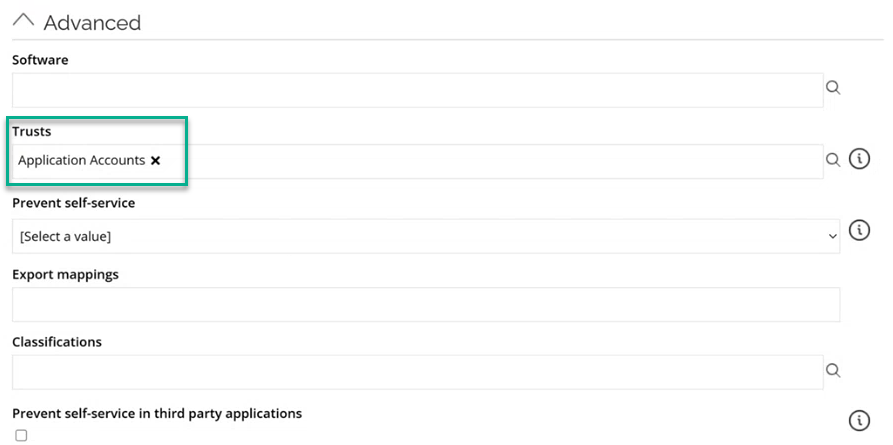
This ensures that Omada will use the trusted Application accounts application to create and manage account resources.
Auto create accounts should not be selected on the Application.
Customer action on the “Application role” resource type
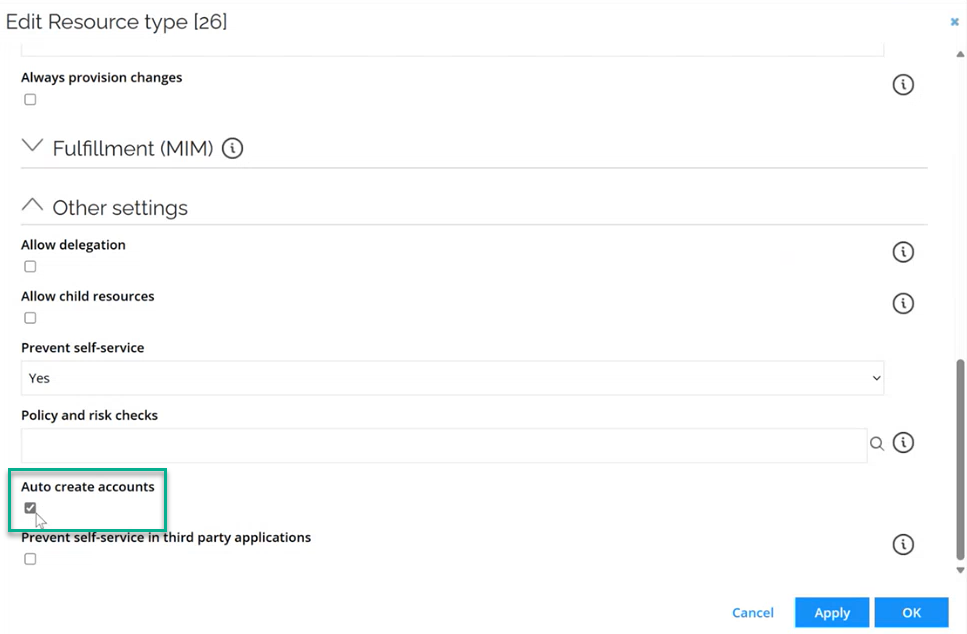
The Auto create accounts option should be enabled on the Application role resource type, not on the application itself.
If all application roles use the same resource type, this action only needs to be done once.
- Go to Setup > Resource types.
- Find and open the Application role resource type.
- Under Other settings, select Auto create accounts and click OK.
This allows new accounts to be automatically created when new application roles are defined, while keeping control centralized at the resource-type level.
Related content
-
For an explanation of how to manually create resources for each account type, see Creating an application account.
-
For consistency, the same options are described in the guided onboarding process under Elements created every time (guided process).