Configure Microsoft Entra ID with SAML

This page contains third-party references. We strive for our content to always be up-to-date, however, the content referring to external vendors may change independently of Omada. If you spot any inconsistency, please report it to our Helpdesk.
Microsoft Entra ID with SAML
To configure Microsoft Entra ID with SAML:
-
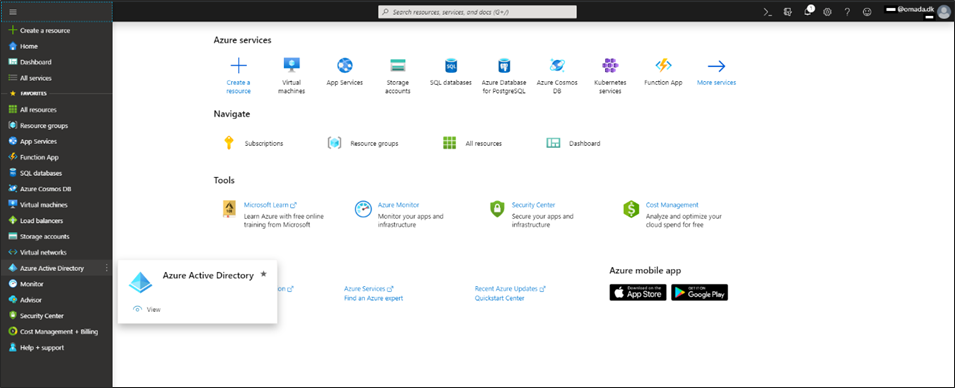
Log in to the Azure Portal and create or edit the Microsoft Entra ID configuration.
-
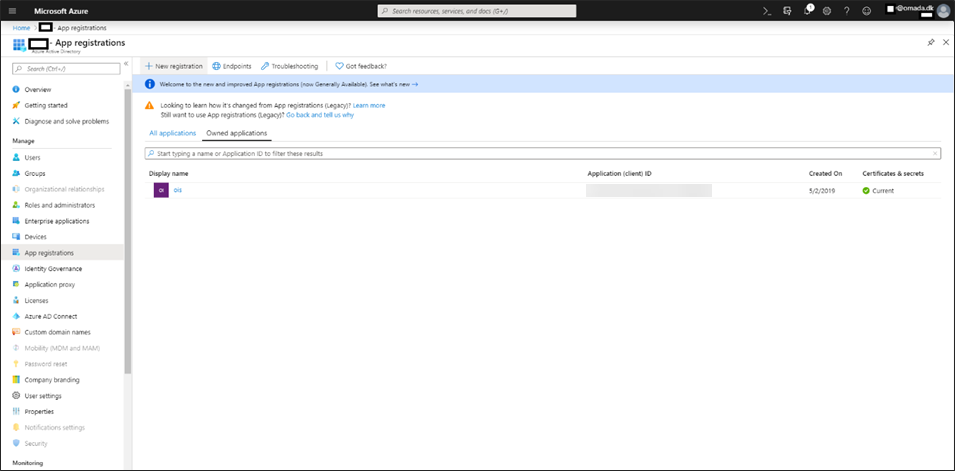
Select App registrations, then click + New registration.
-
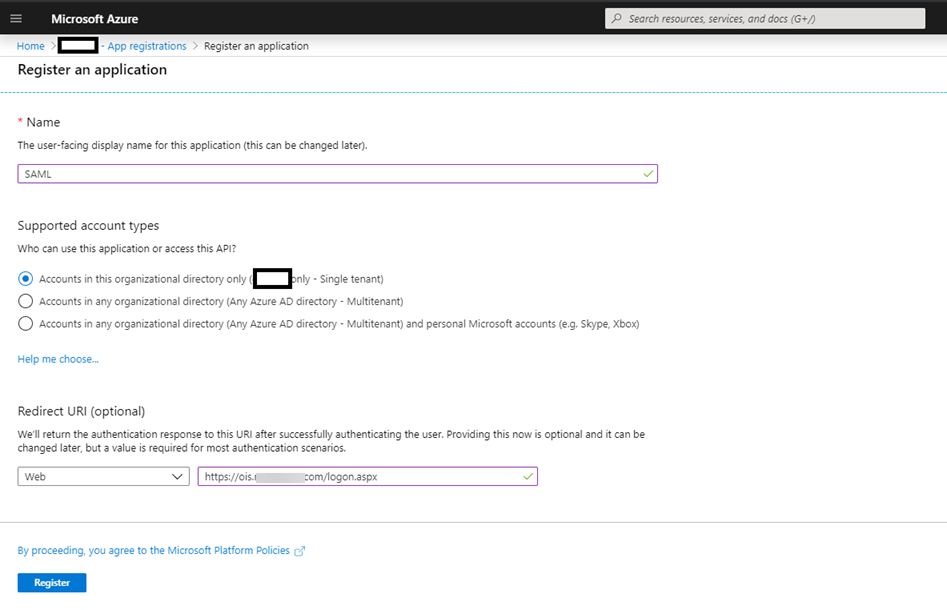
Type a name and a URL for the Omada Identity website. Select Accounts in the organizational directory only in the Supported account types, provide Redirect URI and click Register.
-
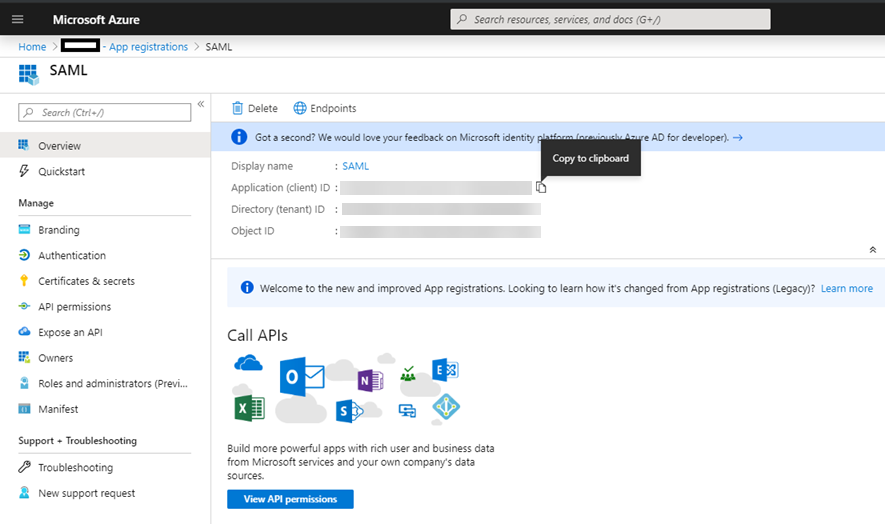
From the Overview page of the new app registration, copy the Application ID. You will need it for step 7 in the next section, Configuring SAML from Enterprise applications.
Configuring SAML from Enterprise applications
-
Log in to the Azure Portal and create or edit the Microsoft Entra ID configuration.
-
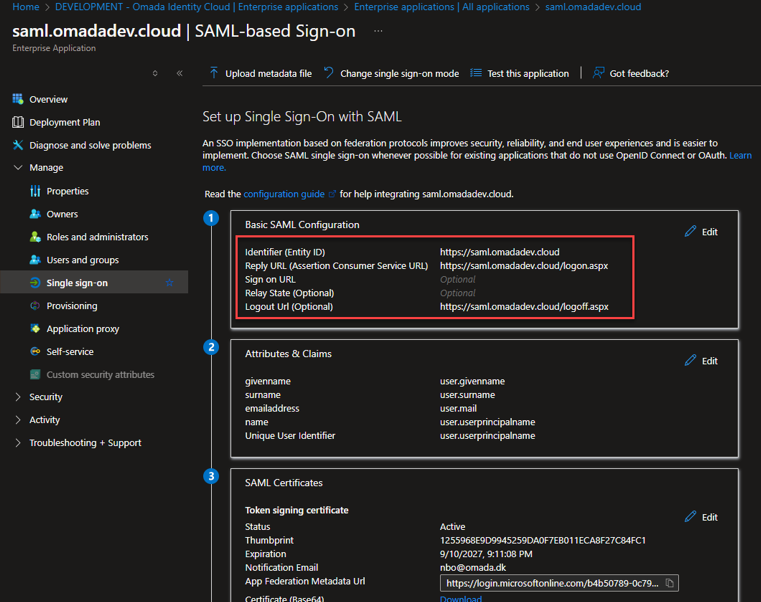
Go to Basic SAML Configuration section and click the Edit button.
-
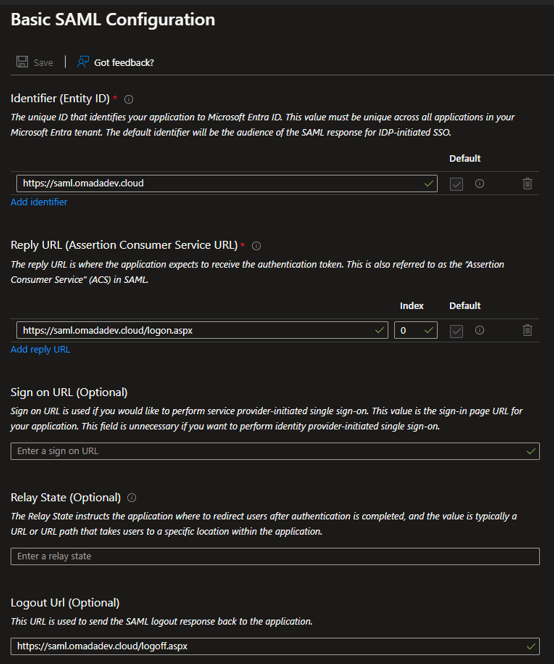
Configure SAML settings.
-
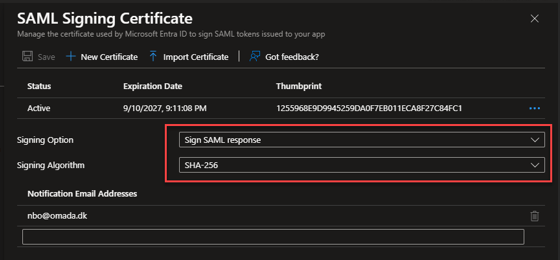
Configure the SAML Signing Certificate.
-
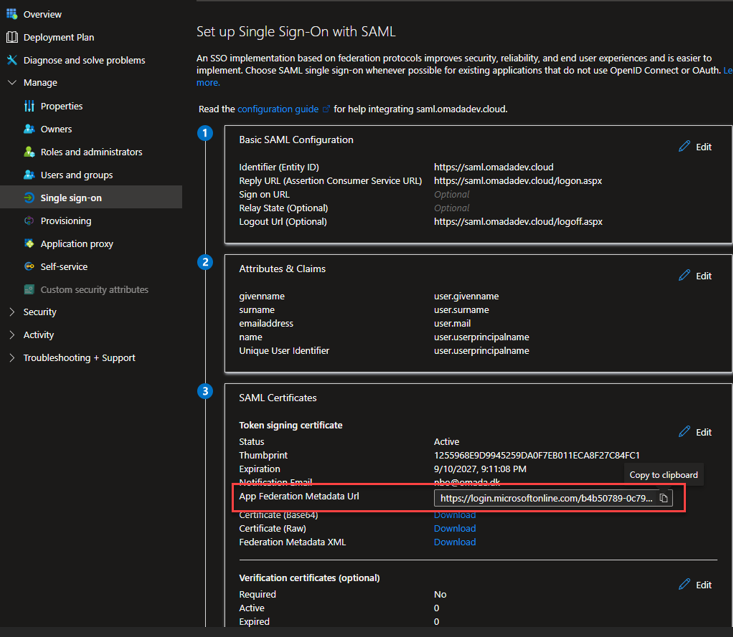
In the SAML Certificates section, copy the content of the App Federation Metadata Url. You will need it for step 7 of this section.
infocloud The following points refer to the Cloud Management Portal.
-
Go to the Cloud Management Portal > Authentication tab. Fill in the Tenant ID and Application ID.
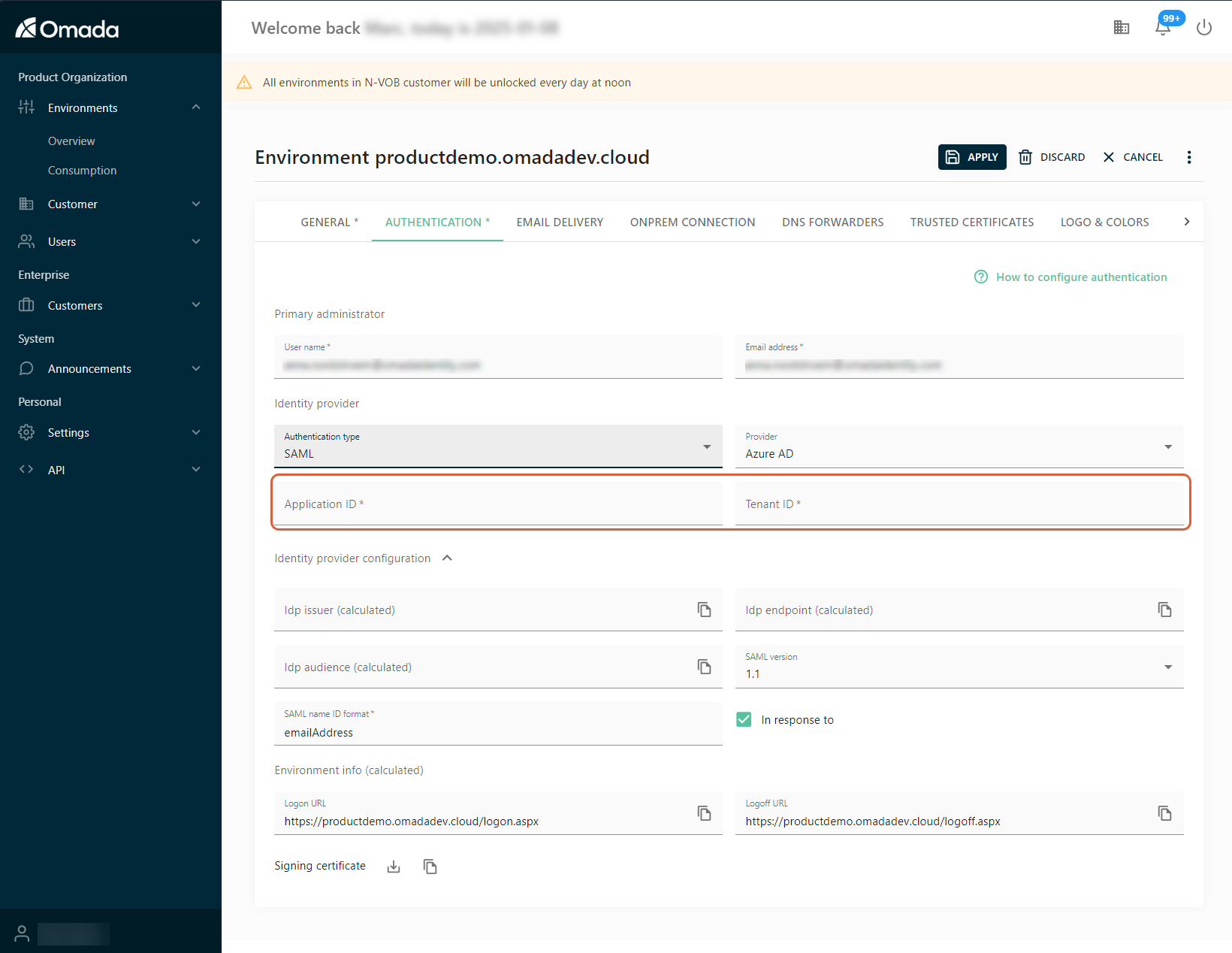
This will cause the fields with
calculatedin brackets to be populated automatically by the portal. -
Make sure that the following three values got calculated correctly. You can compare them with the ones you previously copied to your clipboard:
-
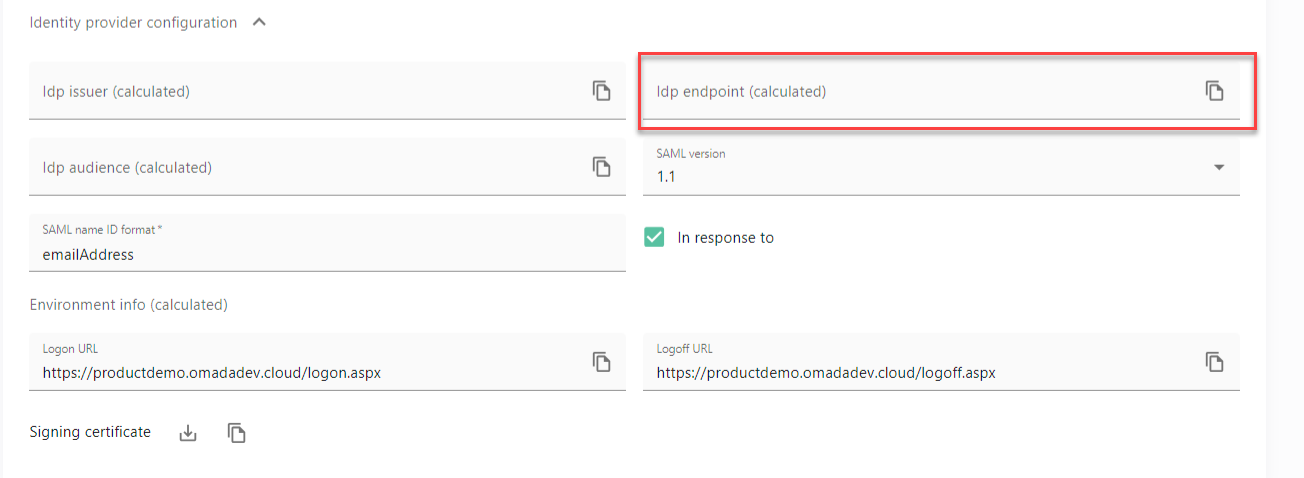
In the Idp endpoint (calculated) field, the value (URL) should be the same as the App Federation Metadata Url.
-
The IdpIssuer value should be the same as the Application ID.
-
The IdpAudience value should have the format
spn:<Application ID value>, for example:spn:a1b2c3d4-e5f6-7890-ab12-cdef34567890. This means the service principal identifier based on your Application ID.noteOn-prem In the on-prem solution, the values need to be copied and pasted manually.

-
-
Click Apply.